
How to Scan a Photo: Scanner, Phone and Best Settings

PhotoRepair
Use PhotoRepair when you want a quick common edit without setting up the workflow by hand.
View tool details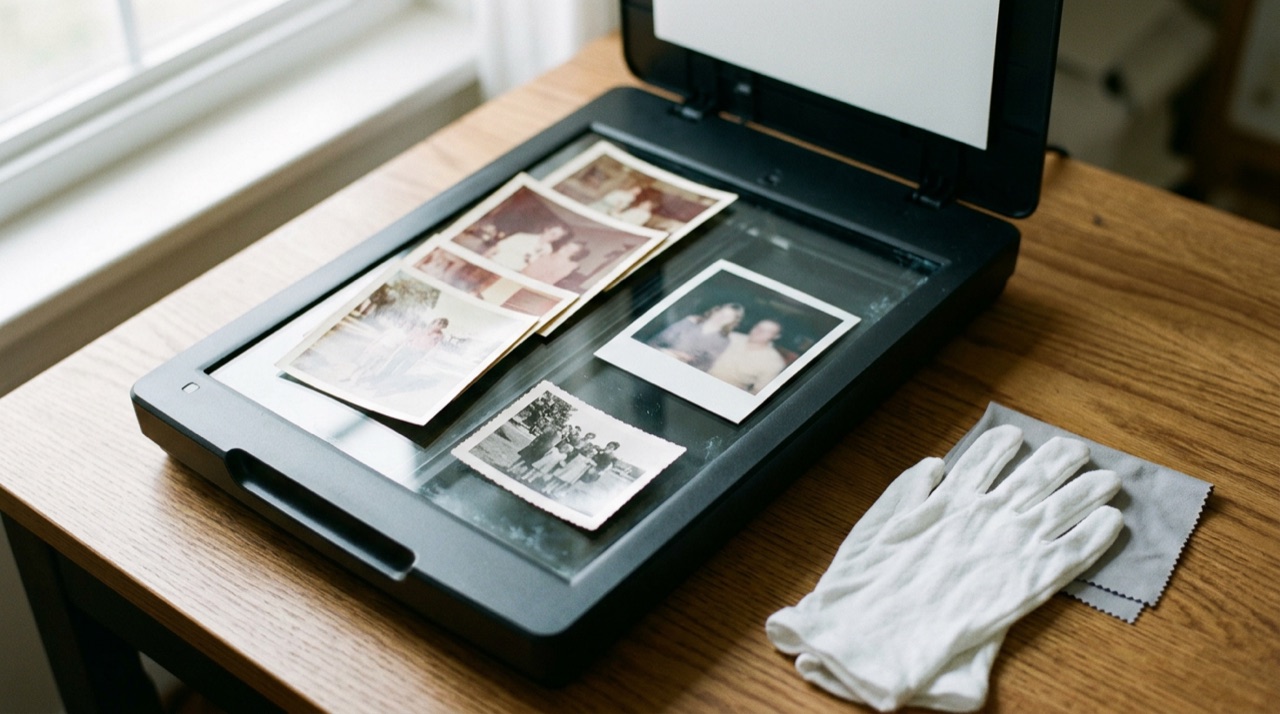
To scan a photo, wipe the scanner glass, place the print face down in a corner, and scan it at 600 dpi in 24-bit color, saving a TIFF master and a JPEG copy for sharing. On Windows, use the Scan app; on a Mac, open your scanner from Printers & Scanners or Image Capture. No scanner? A phone scanning app in soft, indirect light gets you close for everyday use.
The rest of this guide covers the details that make the difference between a scan you keep for decades and one you redo: settings, batch scanning, phone technique, file names and backups.
This guide is about photographic prints you want to preserve. If you need to turn a photo of a receipt, form or page into a clean, scan-style image, read how to turn a photo into a scanned document or go straight to Photo to Scan. If you have hundreds of prints, slides or negatives and would rather mail them off, compare photo scanning services first.
Scanned an old photo? Repair it in one click
- Scratches and damage
- Faded colors
- Keep your original sc…


Upload your scan to reduce scratches and damage and bring back faded colors. Compare it with the original scan before saving.
Before you scan: clean the glass and the prints
Dust is the most common reason a scan looks worse than the print. At 600 dpi, a speck you can barely see becomes a white dot in the middle of someone's cheek.
- Clean the glass. Use a microfiber cloth. If you need liquid, spray a little glass cleaner on the cloth, never directly on the scanner, so nothing seeps under the edge.
- Dust the prints. A soft brush or a blower for camera lenses removes loose dust. Do not wipe prints with a damp cloth or use household cleaners on them.
- Handle prints by the edges. Skin oil leaves fingerprints that show up clearly in a scan. Cotton or nitrile gloves help if you are handling a lot of photos.
- Leave stuck photos alone. Prints glued into old "magnetic" albums or stuck to each other can tear. Scan them in the album if the page fits on the glass, or ask a conservator before prying them loose.
- Sort before you start. Group prints by size and by event. Scanning similar prints together means fewer settings changes and makes naming much easier later.
How to scan a photo on Windows
Windows includes a free app called Scan that works with most flatbed scanners. Microsoft's current instructions are:
- Turn on the scanner and place the photo face down on the glass. Close the lid.
- Search for "Windows Scan" from the Start menu and open Scan. If it does not appear, install it from the Microsoft Store.
- Choose your scanner, then set Source to Flatbed.
- Choose a File type: JPEG, PNG, TIFF or Bitmap. For a master copy, choose TIFF.
- Select Show more to pick a Save file to folder. Depending on your scanner, this area may also show color mode and resolution options. Set color and 600 dpi if they are there.
- Select Preview if available, drag the crop box around the print, then select Scan.
If you do not choose a folder, Windows saves scans in Pictures > Scans. If the Scan app does not offer the resolution you need, use your scanner maker's own software, which usually has more photo settings, including dust reduction and multi-photo detection.
How to scan a photo on a Mac
On a Mac, you can scan straight from System Settings or from the Image Capture app. Apple's steps for a flatbed scan:
- Place the prints on the glass, leaving space between them if you have several.
- Open System Settings > Printers & Scanners, select your scanner and click Open Scanner. (In Image Capture, select the scanner under Devices or Shared in the sidebar instead.)
- Turn off Use Document Feeder if your scanner has one.
- Click Show Details and set:
- Kind: Color (even for black-and-white prints, see below)
- Resolution: 600 dpi for most prints
- Format: TIFF for your master, or JPEG for quick copies
- Scan To: the folder where the files should go
- Use Overview to preview, adjust the selection if needed, then click Scan.
For several prints at once, open the Size menu and choose Detect Separate Images. The Mac saves each print as its own file and straightens crooked ones. Detect Enclosing Box does the opposite: one image around everything, without straightening.
The best settings for scanning photos
Resolution matters, but only up to the point where you are recording grain instead of detail. These are sensible starting points for prints.
| What you plan to do | Resolution | Why |
|---|---|---|
| Share online, view on a phone or TV | 300 dpi | A 4x6 print becomes about 1,200 x 1,800 pixels, plenty for screens |
| Keep an archive copy, reprint at the same size or a bit larger | 600 dpi | A 4x6 becomes about 2,400 x 3,600 pixels and leaves room to crop |
| Wallet-size or contact prints, or anything you want to enlarge | 1200 dpi or higher | Small originals need more samples per inch to reach a usable pixel size |
| Slides and negatives | 2400 dpi or higher on a scanner with a film adapter | Film is tiny, and a regular flatbed without a backlight cannot scan it properly |
A simple rule: decide the largest size you might ever print, multiply by 300 and divide by the original's size. To print a 4x6 at 8x12, you need 300 x 2 = 600 dpi.
| Setting | Recommendation |
|---|---|
| Color mode | 24-bit color (48-bit if your software offers it and you plan heavy editing). Scan black-and-white prints in color too, because it captures the warm or cool tone of the paper. |
| Master file format | TIFF. It does not lose detail on each save. PNG is a reasonable alternative. |
| Sharing format | JPEG at high quality, made from the TIFF master. |
| Auto corrections | Turn off sharpening and heavy auto color for the master. You can always edit a copy later, but you cannot undo corrections baked into the scan. |
| Dust removal (ICE) | Useful on color film. It does not work on black-and-white silver film and can soften prints, so test it. |
Expect large files. A 600 dpi TIFF of a 4x6 in 24-bit color is roughly 25 MB, so a box of 500 prints can pass 10 GB.
Scanning several photos at once and splitting them
Putting four 4x6 prints on the glass at once cuts the number of scans to a quarter. To make the split easy:
- Leave about half an inch between prints and keep them away from the very edge of the glass, where some scanners cut off a few millimeters.
- Line them up roughly straight. Auto-straighten works better from a small tilt.
- Use the separate-photo option if your software has one (Detect Separate Images on a Mac, often "multi-photo" or "auto crop" in scanner maker software).
- If you only have one big scan, crop each print into its own file in any photo editor. Keep the full-bed scan until all crops are checked.
Pale prints with white borders on a white lid can confuse auto-detection. Laying a sheet of black card over the prints before closing the lid gives the software a clear edge to find.
How to scan a photo with your phone
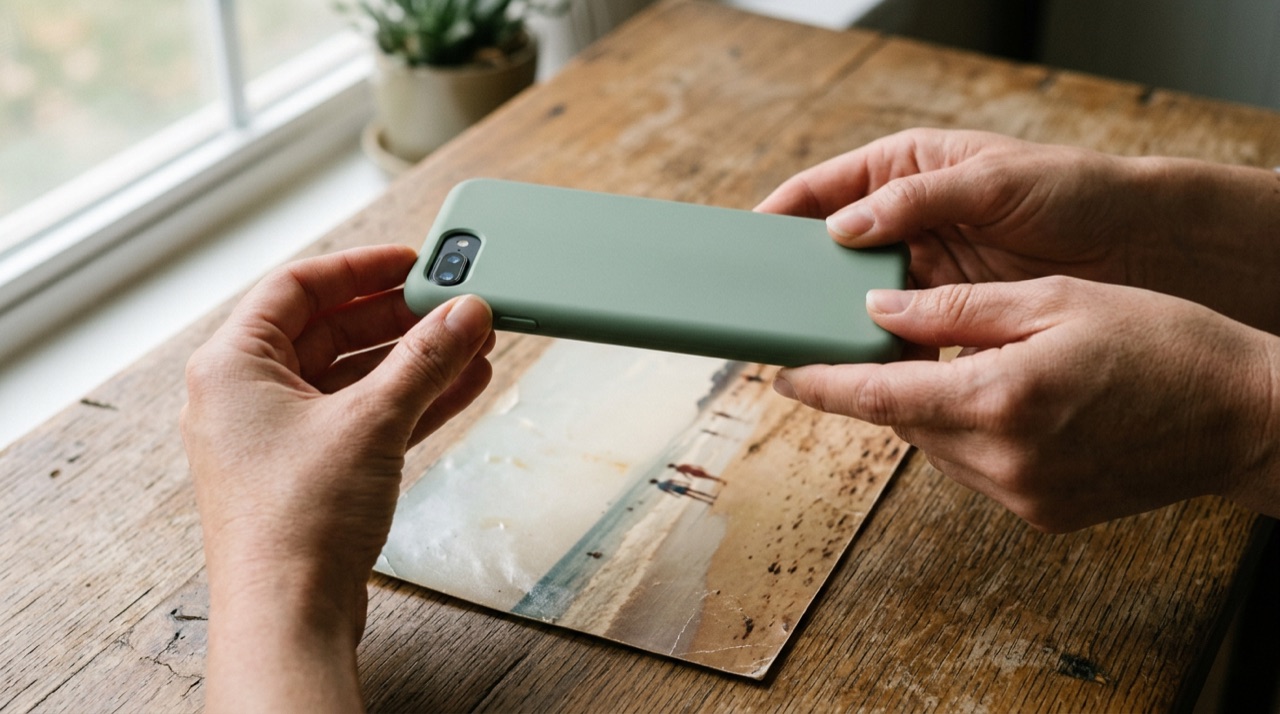
A phone is the fastest option for a shoebox of snapshots or prints still in a frame. The main enemy is glare, followed by keystone distortion when the phone is not parallel to the print.
Google PhotoScan is built for photographs rather than paper documents. It asks you to move the phone over four dots on the print, takes several shots from slightly different angles and combines them to reduce glare, then crops and straightens the result. It works well on glossy prints that are hard to light evenly. Check that it is still available for your phone before relying on it.
Apple Notes and the Files app have a built-in document scanner. It is handy for crop and perspective correction, but it is tuned for pages: the default filters push paper toward white and boost contrast, and the result is often saved as a PDF. If you use it for photos, switch the filter to the photo or color option and export the image, then compare it with the print. For most prints, the regular camera app with the tips below gives a more faithful result.
Tips that help with any app:
- Use soft, indirect light. A bright, overcast window to the side is ideal. Avoid overhead lamps and direct sun, and turn off the flash.
- Hold the phone parallel to the print. Center the print and fill most of the frame. Many camera apps show a level when you point straight down.
- Watch for glare on glossy prints. Tilt the print slightly away from the light source, or shade the print with your body.
- Take the print out of plastic sleeves and frame glass when you safely can. They add reflections and dust.
- Tap to focus on the print and hold still. Use the main camera lens, not the ultra-wide, which bends straight edges.
Name, organize and back up your scans
A folder of files called Scan_0042.tif is hard to use later. Pick a pattern and stick with it:
YYYY-MM-DD_event_people_##.tif, for example 1987-07_lake-house_grandma-joe_03.tif
If you only know the decade, start with 1970s_. Write anything you learn from the back of the print (names, places, dates) into the file name or the photo's caption field. Scan the backs of prints with handwriting too; they are part of the family record.
For backups, follow the 3-2-1 rule: three copies, on two different kinds of storage, with one copy kept somewhere else. A practical setup is your computer, an external drive, and a cloud photo library. Keep the TIFF masters on the drive and in cloud storage, and put JPEG copies in the photo library you actually browse and share from.
Fix your scans afterwards

Scanning captures the print as it is today, including fading, dust and creases. Work on a copy and keep the untouched master.
- Basic fixes first. Crop, straighten and adjust levels in any photo editor. A small boost in contrast often brings a faded print back to life.
- Dust and specks. If small white or dark dots remain after cleaning, ClearCrowds Remove Dust targets scattered specks and lint while keeping the rest of the photo unchanged.
- Scratches, damage and faded color. Photo Repair in ClearCrowds is made for restoring old photos: it can repair scratches and damaged areas and bring back faded colors in one click.
- Reflections from phone scans. If a phone scan picked up a shine from glossy paper, a sleeve or frame glass, try Remove Reflection.
- Small or soft scans. If an old scan or a wallet print is too small to reprint, upscale it with AI to get a larger, cleaner file. The added detail is an estimate, so check it at full size.
- Date stamps. Orange camera dates in the corner can be cleaned up too; see how to remove a date stamp from an old photo.
AI repair is a guess about what the photo looked like, not a record of it. Check faces, hands and text against the print before you share a restored version, and label restored copies so future family members know which file is the original.
Quick checklist
- Clean the glass and dust the prints.
- Scan at 600 dpi in color (1200+ for small prints).
- Save a TIFF master and make JPEG copies for sharing.
- Split batch scans into one file per photo.
- Name files by date and event, and scan handwritten backs.
- Back up with three copies in two places.
- Repair and enhance copies, never the master.
Bring your scanned prints back to life
- Old family prints
- Compare before saving
- Keep your original sc…
Upload a scanned print to repair scratches, creases and fading, then compare faces and fine details with the original before you share it.