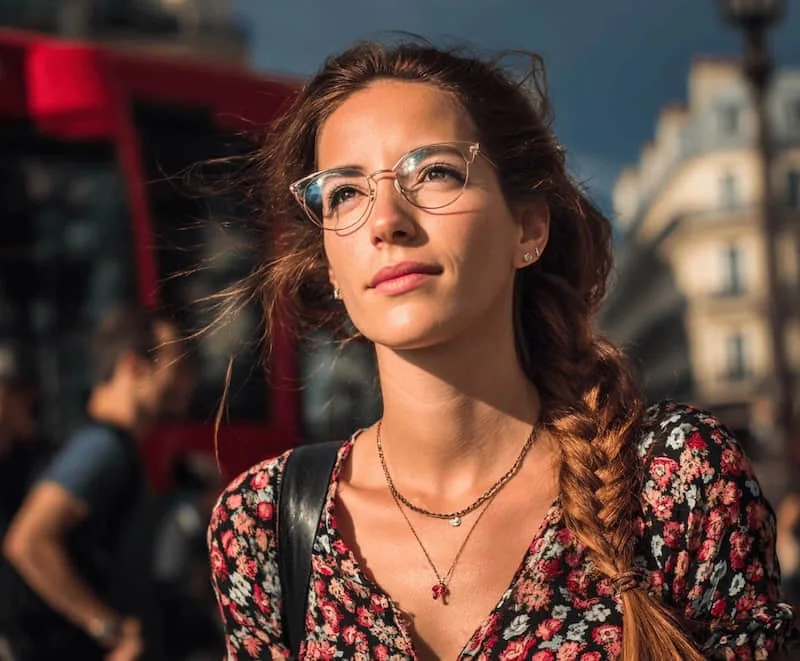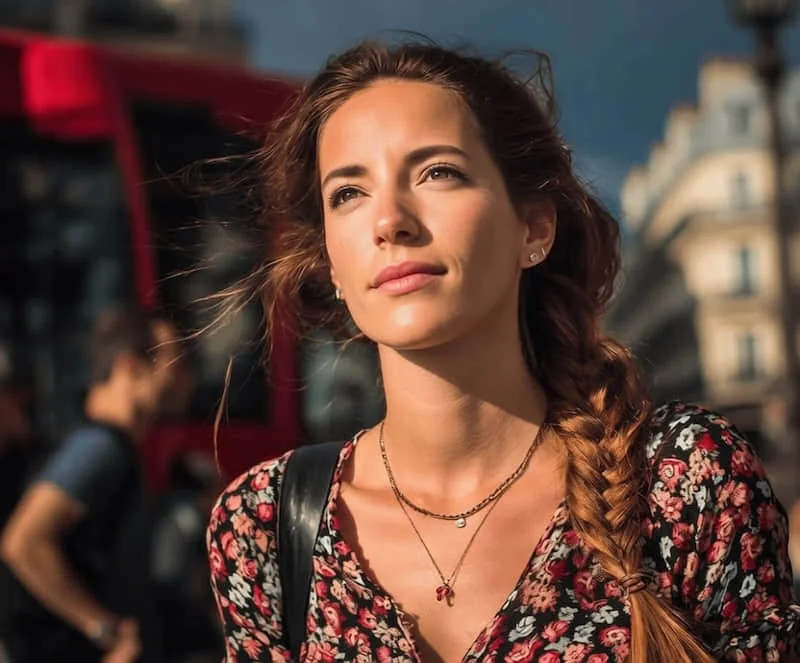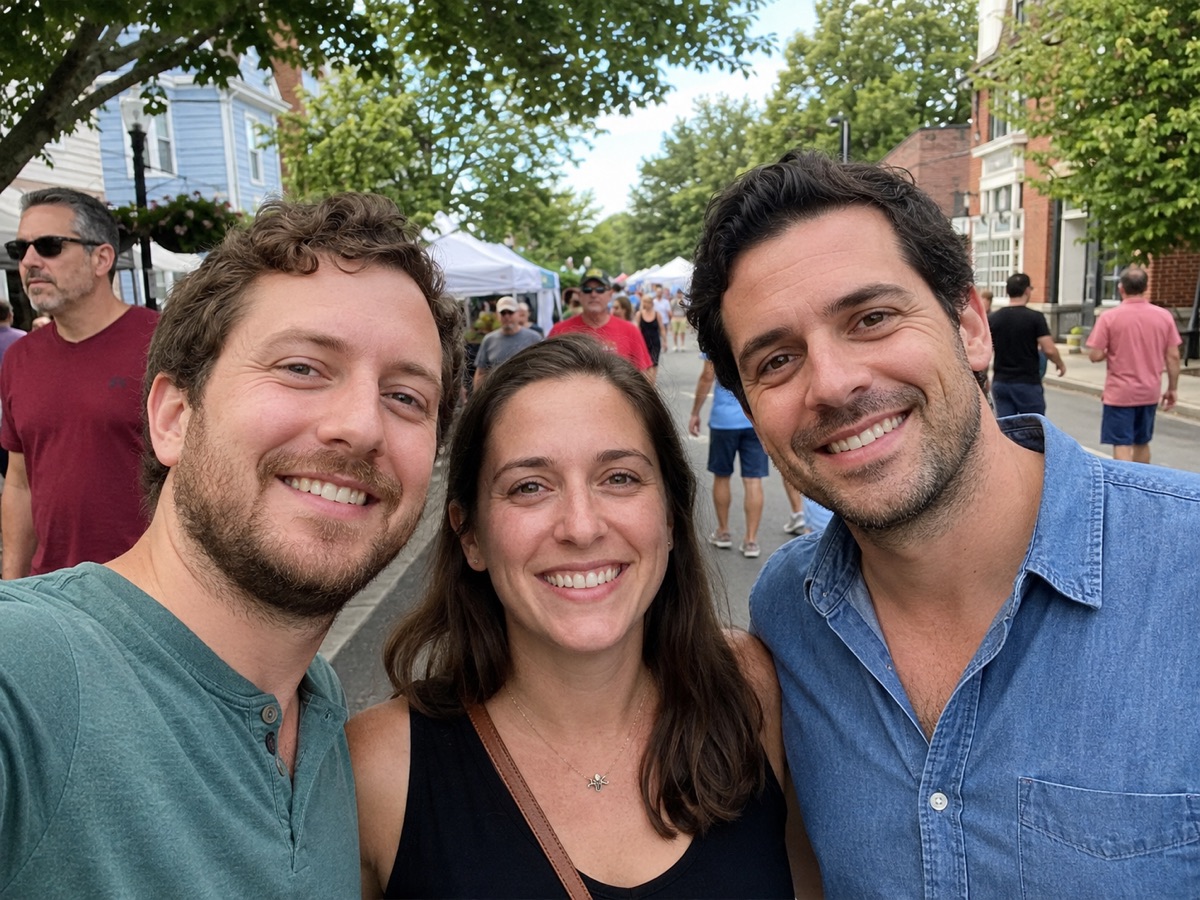
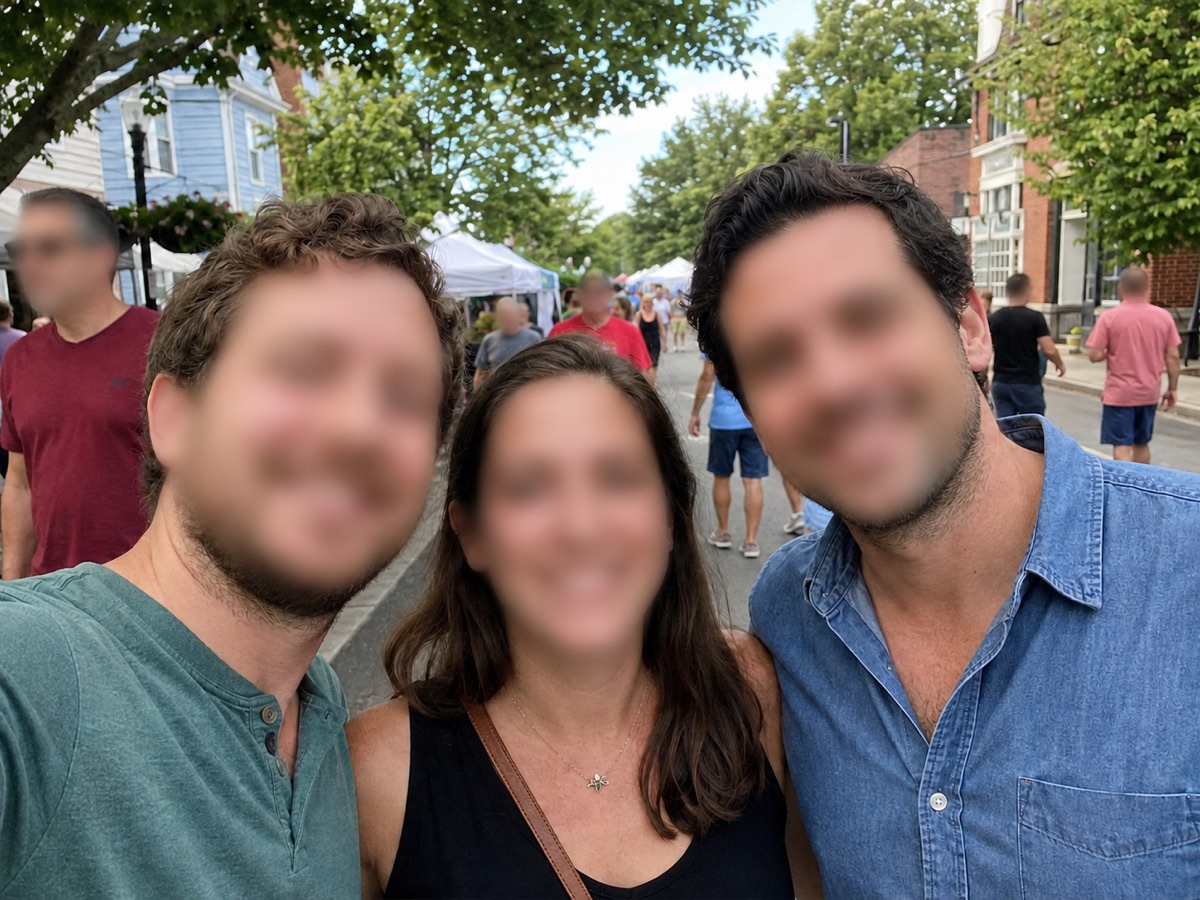
Elige el objetivo
Usa Difuminar rostros solo para identidad, o Difuminado de privacidad si la foto también contiene datos legibles.
Difuminado de privacidad
Usa ClearCrowds cuando la foto debe seguir siendo útil, pero los rostros, matrículas, pantallas, etiquetas o datos privados no deberían verse con claridad.
Compatible con JPG, PNG y WebP.
La subida abre el editor con el preset de privacidad seleccionado.
Difuminar rostros
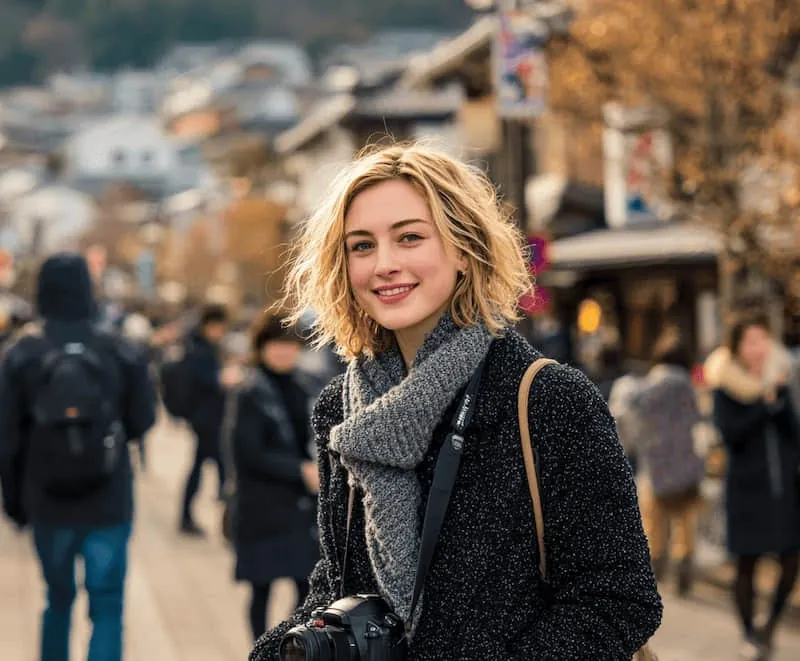
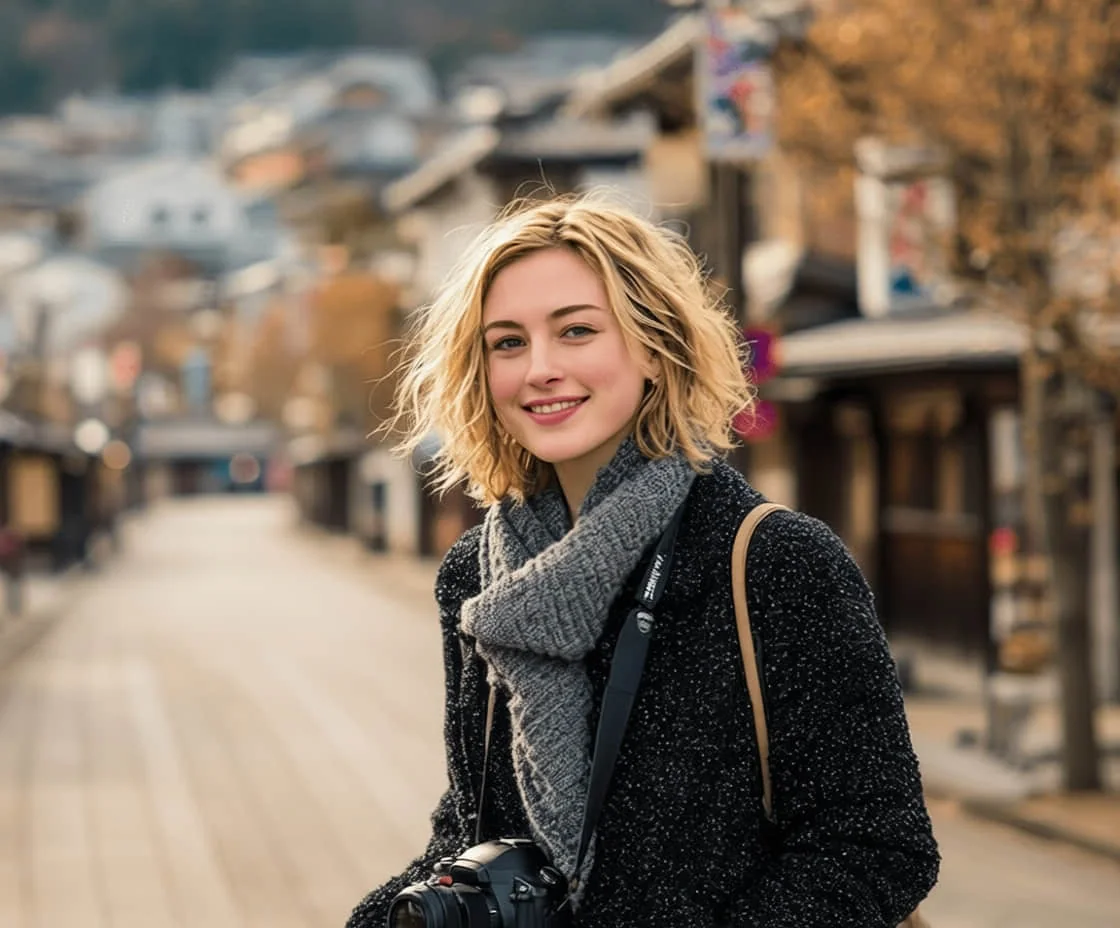
Oculta rostros visibles y conserva cuerpos, ropa, pose y fondo.
Difuminado de privacidad
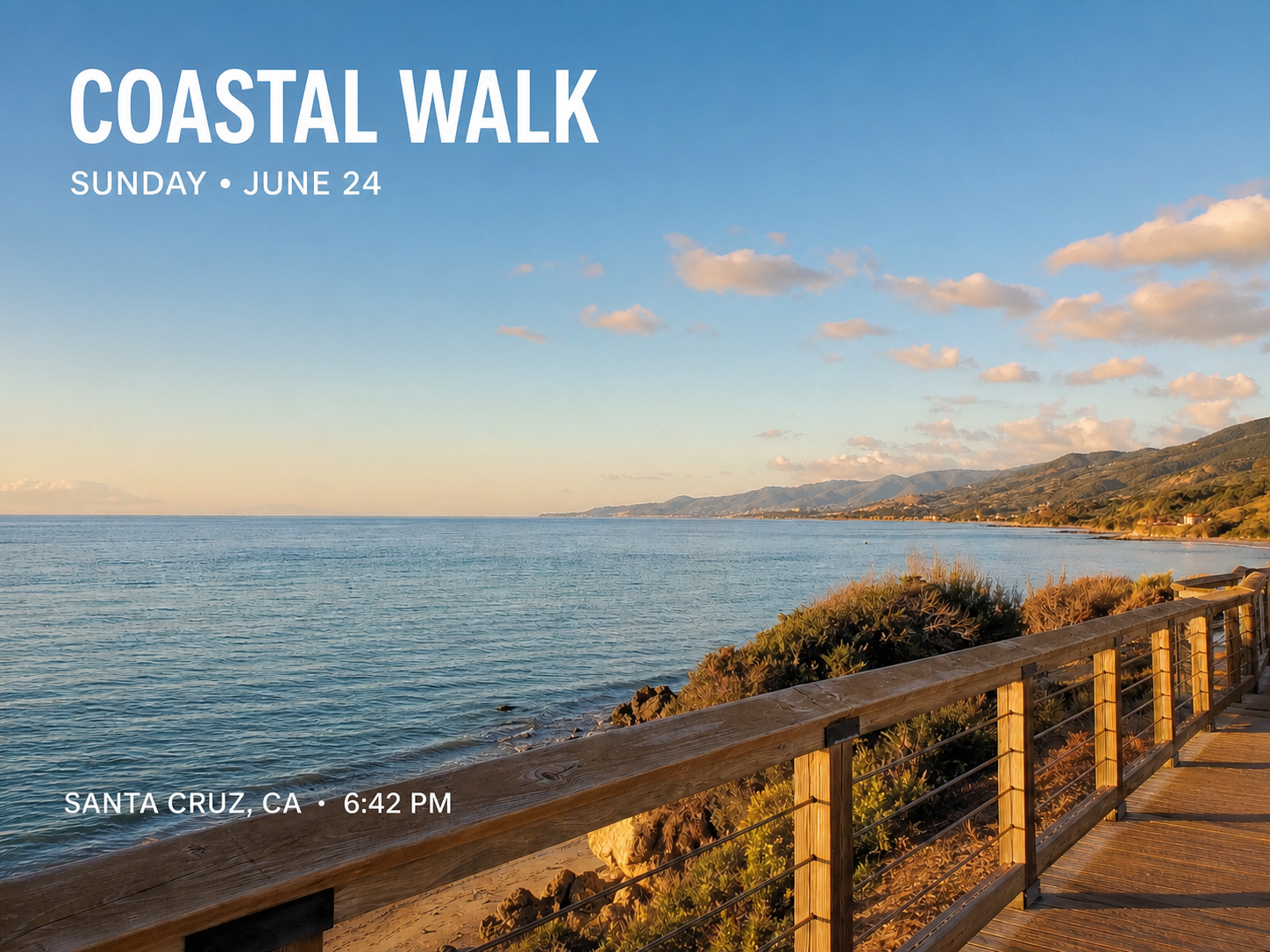
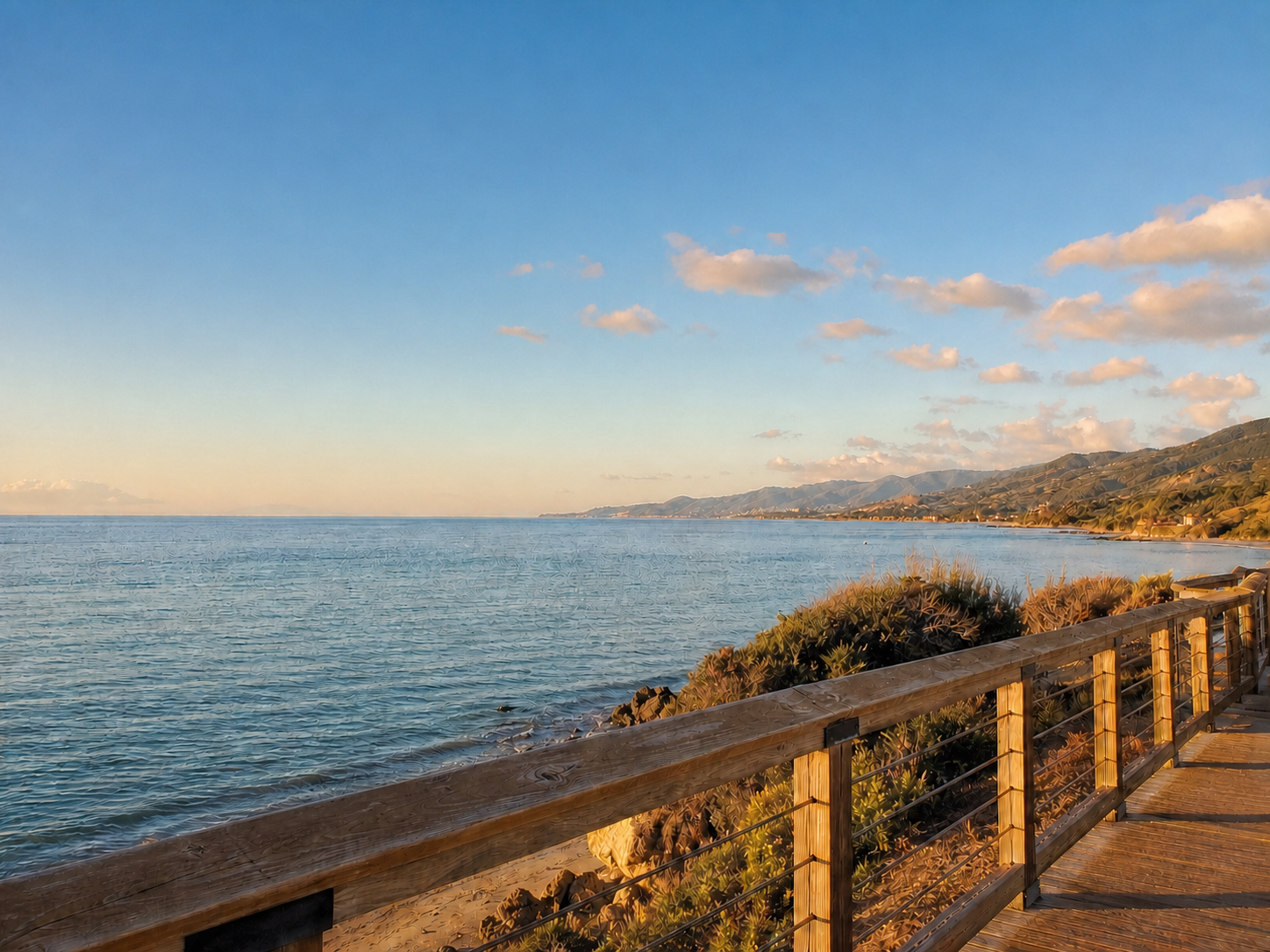
Difumina rostros, matrículas, etiquetas, insignias, pantallas y texto privado.
Usa Difuminar rostros cuando el problema es la identidad, o Difuminado de privacidad cuando la imagen también incluye detalles legibles.
Oculta rostros visibles y conserva cuerpos, ropa, pose y fondo.
Difumina rostros, matrículas, etiquetas, insignias, pantallas y texto privado.
Difumina invitados, alumnos, compañeros o rostros de fondo antes de compartir.
La página está pensada para convertir: sube una vez y aterriza en el editor con el preset correcto ya seleccionado.
Usa Difuminar rostros solo para identidad, o Difuminado de privacidad si la foto también contiene datos legibles.
El CTA sube la imagen desde esta página sin pasar primero por una galería de presets.
ClearCrowds abre el editor para generar, comparar y exportar cuando el resultado sea correcto.
El difuminado de privacidad mantiene la historia de la imagen sin exponer detalles personales.
Difumina invitados, alumnos, compañeros o rostros de fondo antes de compartir.
Oculta matrículas, direcciones, recibos, pantallas y marcas privadas.
Limpia pizarras, insignias, pantallas de portátil o visitantes antes de publicar.
Conserva el lugar y la atmósfera mientras ocultas identidades en la escena.
Qué esperar antes de usar los presets Difuminar rostros o Difuminado de privacidad.
Retoques rápidos. Resultados profesionales.
Sube una vez y entra en ClearCrowds con Difuminar rostros o Difuminado de privacidad ya seleccionado.
Compatible con JPG, PNG y WebP.