
Edit Text in Photos vs. Screenshots: Which Method Fits?
Update the words in your photo
- Words, numbers, dates
- Select your text
- Review before sharing


Illustrative photo text replacement. Results depend on the source image; this is not a Screenshot Editor demonstration.
Editing a photographed sign or label? Start with photo text editing. For flat digital graphics, use the Screenshot Editor link in this guide.
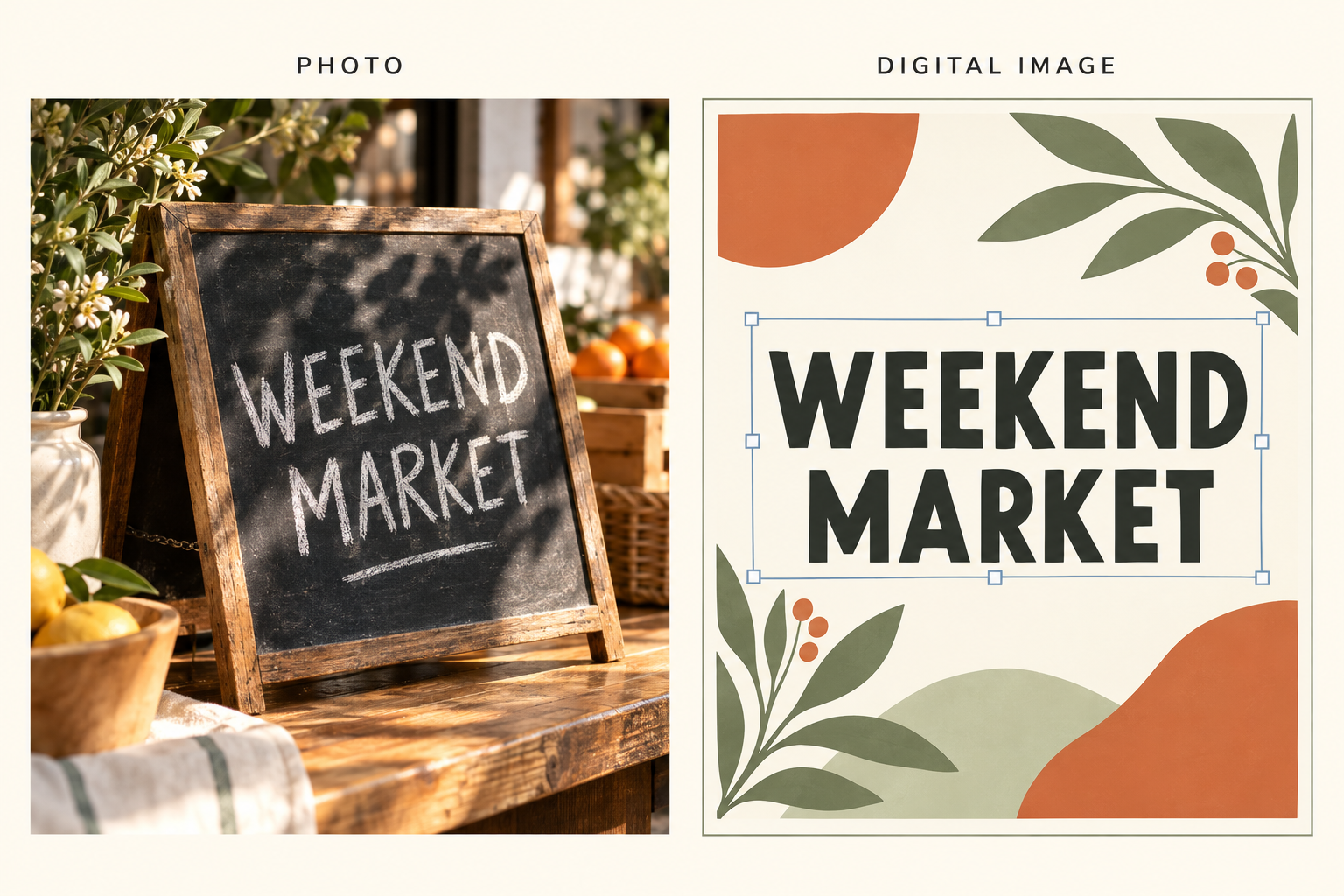
To edit text in photos and screenshots, start with how the lettering looks. Words photographed on a sign need to fit the scene's light, texture, and angle. Words in a screenshot or exported poster usually need direct control over their wording and typography. ClearCrowds offers two ways to handle those different jobs: Edit Text in Photo and Screenshot Editor.
A café sign and a social media announcement might both say “Weekend Market,” but the best way to update them is different. Here is how to choose, including when you need to change a number or date.
Key takeaways
- Choose Edit Text in Photo for lettering on photographed signs, menus, labels, and printed surfaces.
- Choose Screenshot Editor for screenshots, digital posters, slides, and exported graphics with flat lettering.
- You can change words, numbers, and dates. The appearance of the text determines which method fits.
- In Screenshot Editor, make only the selected text editable, then adjust its wording, font, weight, size, or position.
- A poster file and a photo of that poster are different cases—even if both are saved as JPGs.
How to choose between photo and screenshot text editing
Choose by the text you are changing: lettering that belongs to a photographed surface calls for photo editing; flat digital lettering calls for Screenshot Editor.
| What you want to update | Best starting point | What matters most |
|---|---|---|
| Words on a café board photographed in sunlight | Edit Text in Photo | Shadows, surface texture, and the angle of the lettering |
| A heading in a screenshot of your own presentation | Screenshot Editor | Exact wording, font size, and alignment |
| The date on an exported event poster | Screenshot Editor | Consistent typography and spacing |
| The date on a printed poster photographed on a wall | Edit Text in Photo | Paper texture, perspective, and uneven light |
| A typed caption over a photo in a social graphic | Screenshot Editor | The caption's flat style and position |
| A shop sign inside a screenshot of a photograph | Edit Text in Photo | The sign is still part of a photographed scene |
The last two examples are useful exceptions. A graphic can contain a photograph and still have a flat, typed headline. A screenshot can contain a photograph whose lettering is angled or shadowed. Look at the particular words you want to change, rather than choosing from the file extension alone.
The cover is an editorial illustration of these two image types, not a product before-and-after result.
Edit Text in Photo: for lettering that belongs to the scene
Imagine a picture of a café counter with a small wooden sign. Light falls across the lettering, the board sits at an angle, and the paint has a little texture. Simply placing fresh typed words over that sign can make the result look pasted on.
AI photo text editing is the better fit here. Its aim is to make the replacement look at home on that surface, taking account of the surrounding light, perspective, and texture. This is useful when updating a short phrase on your own shop display, a menu photo, a product mockup, or a photographed event announcement.
A practical photo-editing workflow
- Open Edit Text in Photo and upload the clearest image you have.
- Select the phrase you want to change and enter the replacement. Use the Photo option when the words belong to a photographed surface.
- Apply the edit, then inspect the letters and the surrounding area at full size.
- Check nearby words, shadows, texture, and alignment before downloading.
For example, you could change a café display from “Summer Menu” to “Autumn Menu” for an updated promotional image. A short replacement that fits roughly the same space gives you a more manageable edit than replacing a two-word sign with a paragraph.
Matching every detail is not guaranteed. Small, blurred, curved, or partly hidden letters are harder to judge and replace. Review the result closely, especially when the wording must be exact. The image text editing guide covers this workflow in more detail.
Screenshot Editor: for text you want to type and style yourself
Screenshots and digital graphics have a different priority. You may want to change one heading, try a heavier font, move a date slightly to the left, or make a number line up with the rest of a design.
Screenshot Editor gives you direct control over that text. Select the words you want to work on, make them editable, and type your replacement on the canvas. Then adjust the font, size, weight, color, and position to suit the image.
This method fits presentation screenshots, exported digital posters, social graphics, tutorial images, and other electronic designs. It is particularly useful when you have the finished image but no longer have the editable design file.
A practical screenshot-editing workflow
- Open Screenshot Editor and upload your screenshot or digital graphic.
- Select the text area you want to change. Only that selection becomes editable; you do not need to convert every word in the image.
- Type the replacement and use the text controls to match the surrounding design.
- Return to the same text to refine it, or select another area when you need another change.
- Review the layout and download when you are satisfied.
Suppose an exported workshop poster says “Flower Class” and you want “Flower Workshop.” You can replace the heading, choose a suitable font, adjust its weight, and reposition it. If the longer wording needs more room, use a line break or adjust the size and placement deliberately.
Direct control also means you may need to fine-tune the match. A similar font can have different letter widths, and the area behind the old words can need closer inspection on a busy background. Start by checking the font, then the weight, size, spacing, and alignment.
Change words, numbers, and dates
Image editing is not limited to replacing a sentence. ClearCrowds also includes number editing and date editing. The same choice of method applies: use direct text editing for a flat graphic, or photo editing when the characters need to fit a physical surface.
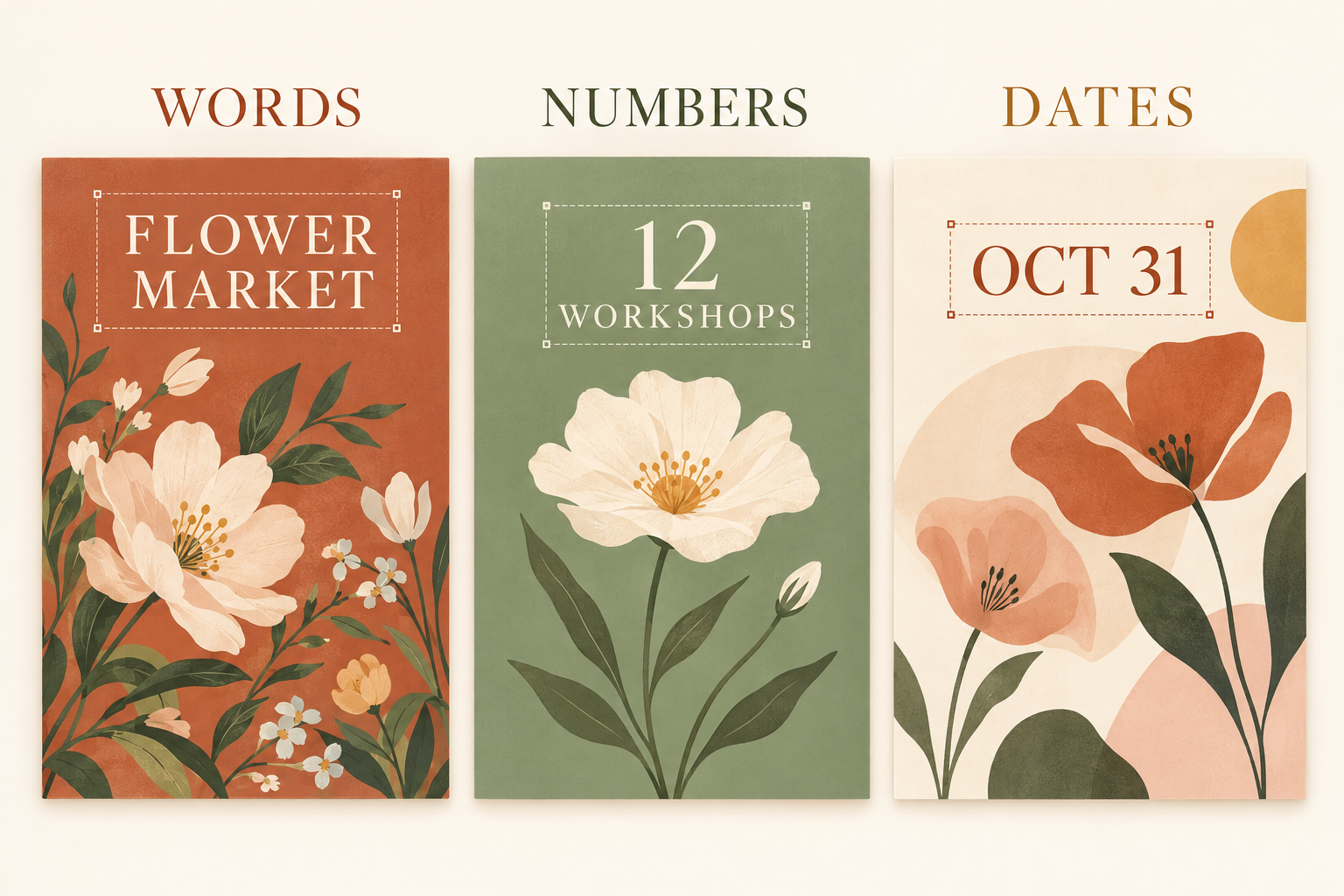
Illustrative design examples for words, numbers, and dates; not measured product results.
| Type of change | Example in your own material | What to review |
|---|---|---|
| Words | “Flower Class” → “Flower Workshop” | Font, line breaks, and available space |
| Numbers | “12 workshops” → “16 workshops” after adding sessions | Digit shape, alignment, and the surrounding label |
| Dates | “Oct 24” → “Oct 31” after rescheduling an event | Month, day, weekday, and any repeated date elsewhere |
A date correction often needs more than a new day number. If the weekday is written separately, check that it still agrees. If a poster includes the date in both the heading and footer, review both locations. You can select the areas that need updating without changing the rest of the copy.
For a numeric edit on a photographed surface, the number editing guide offers a more focused starting point. For a digital announcement, you can change words and digits together in Screenshot Editor—for example, replacing “12 workshops” with “16 workshops” as one selected text area.
Use images you own or have permission to update, and keep the new wording consistent with the actual event, product, or offer.
Where ClearCrowds fits
ClearCrowds gives you a choice based on the result you need. Edit Text in Photo suits a short replacement that should blend with a photographed scene. Screenshot Editor suits a digital design where you want to type, move, and style the text yourself.
If you still have the original editable presentation or design, updating that source is often the easiest option. When you only have the image, start with the tool that matches the target lettering:
- Edit text in a photo for a sign, menu, label, or photographed poster.
- Open Screenshot Editor for a screenshot, digital poster, or exported graphic.
Frequently Asked Questions
What is the difference between photo text editing and screenshot editing?
Photo text editing suits words on physical surfaces, where lighting, texture, and perspective matter. Screenshot Editor suits flat digital lettering that you want to retype, reposition, or restyle.
Which editor should I use for a poster?
Use Screenshot Editor for an exported digital poster. Use photo text editing for a photograph of a printed poster when the letters need to fit the paper, lighting, and viewing angle.
Does JPG or PNG determine which method I should use?
No. Either format can contain a camera photo, a screenshot, or a digital design. Choose according to the appearance of the text you are changing.
Can I change numbers and dates as well as words?
Yes. ClearCrowds includes text, number, and date editing tools. Choose the method by the appearance of the target text: flat digital lettering or lettering on a photographed surface.
Does Screenshot Editor change every text area?
No. Select the text you want to make editable. Other text areas stay in the image, and you can return to a converted text area to adjust its wording or style.
Will the replacement match the original font exactly?
An exact match is not guaranteed. In Screenshot Editor, adjust the font, weight, size, and position to suit the design. For photo edits, review the lettering and its fit with the surrounding surface.
Choose the editor for your image
For words that need to belong to a photographed scene, start with Edit Text in Photo. For words, numbers, or dates in a flat digital design, start with Screenshot Editor and adjust the selected text directly.