
How to Scan a Document from a Scanner: Windows and Mac
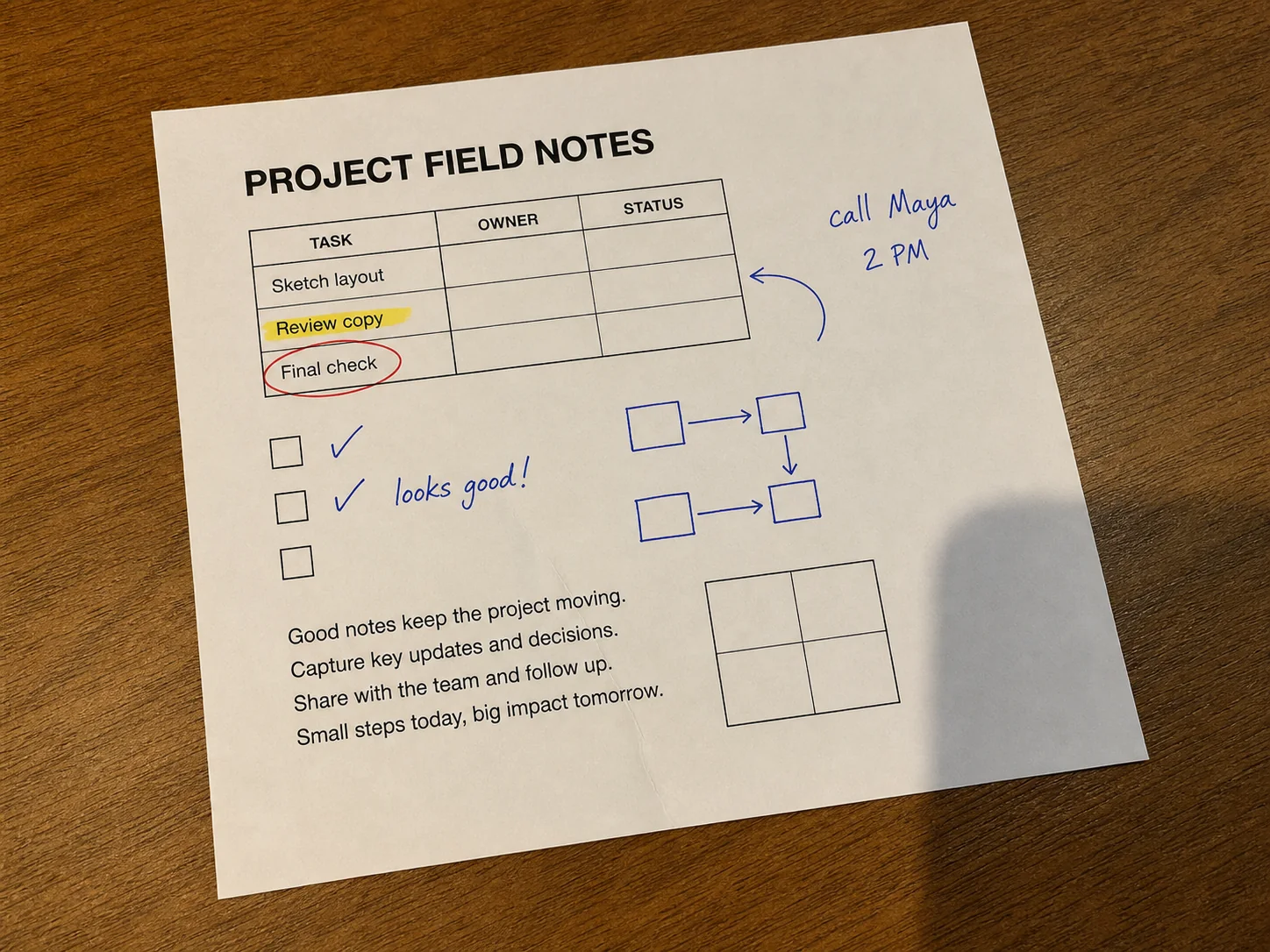
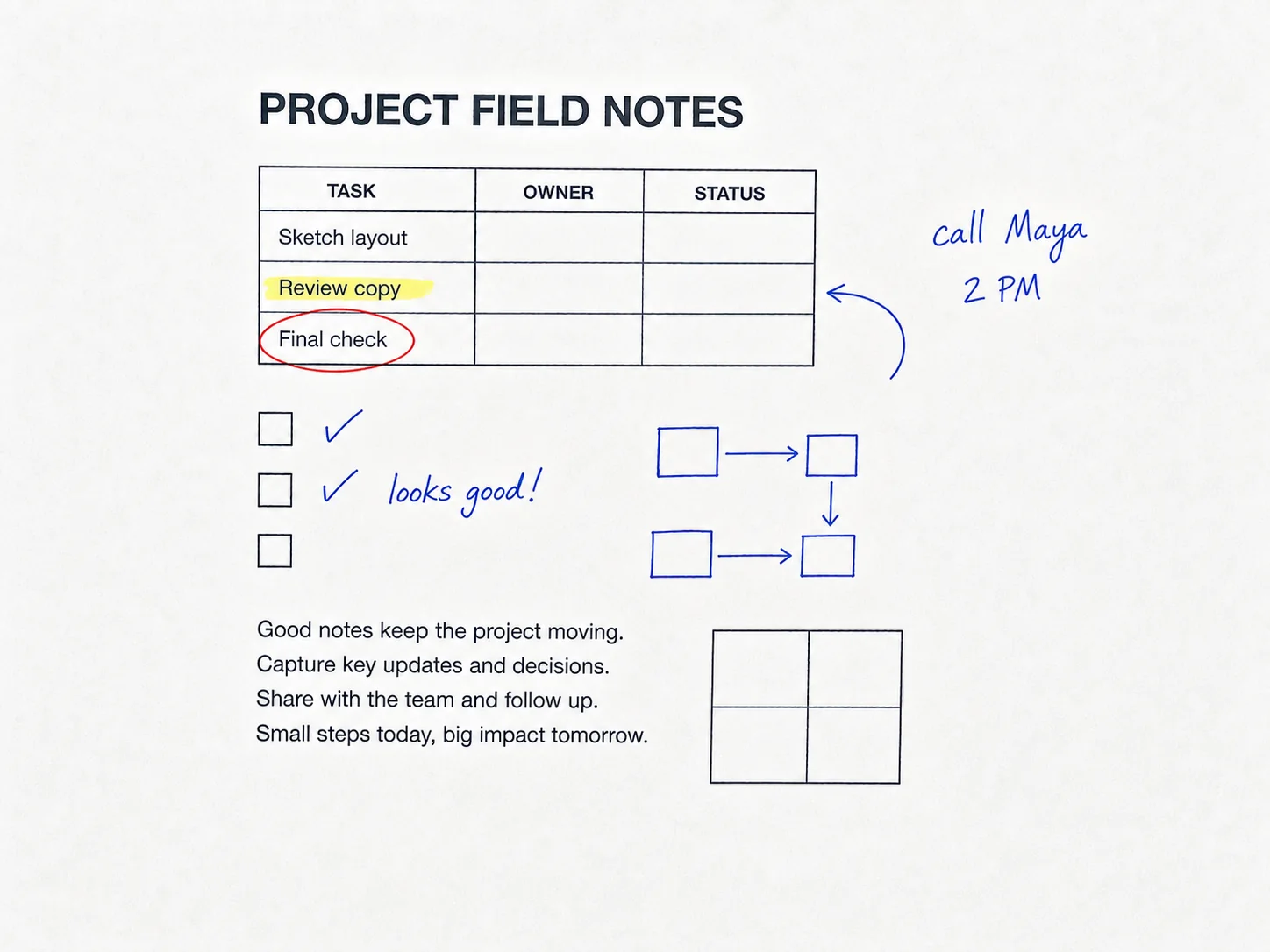
Illustrative example · results vary by photo
AI Photo EditingNo scanner nearby? Scan with a photo
Upload a phone photo of the page to crop it, correct the perspective and clean up the lighting. Check the text before downloading.
View scanning tool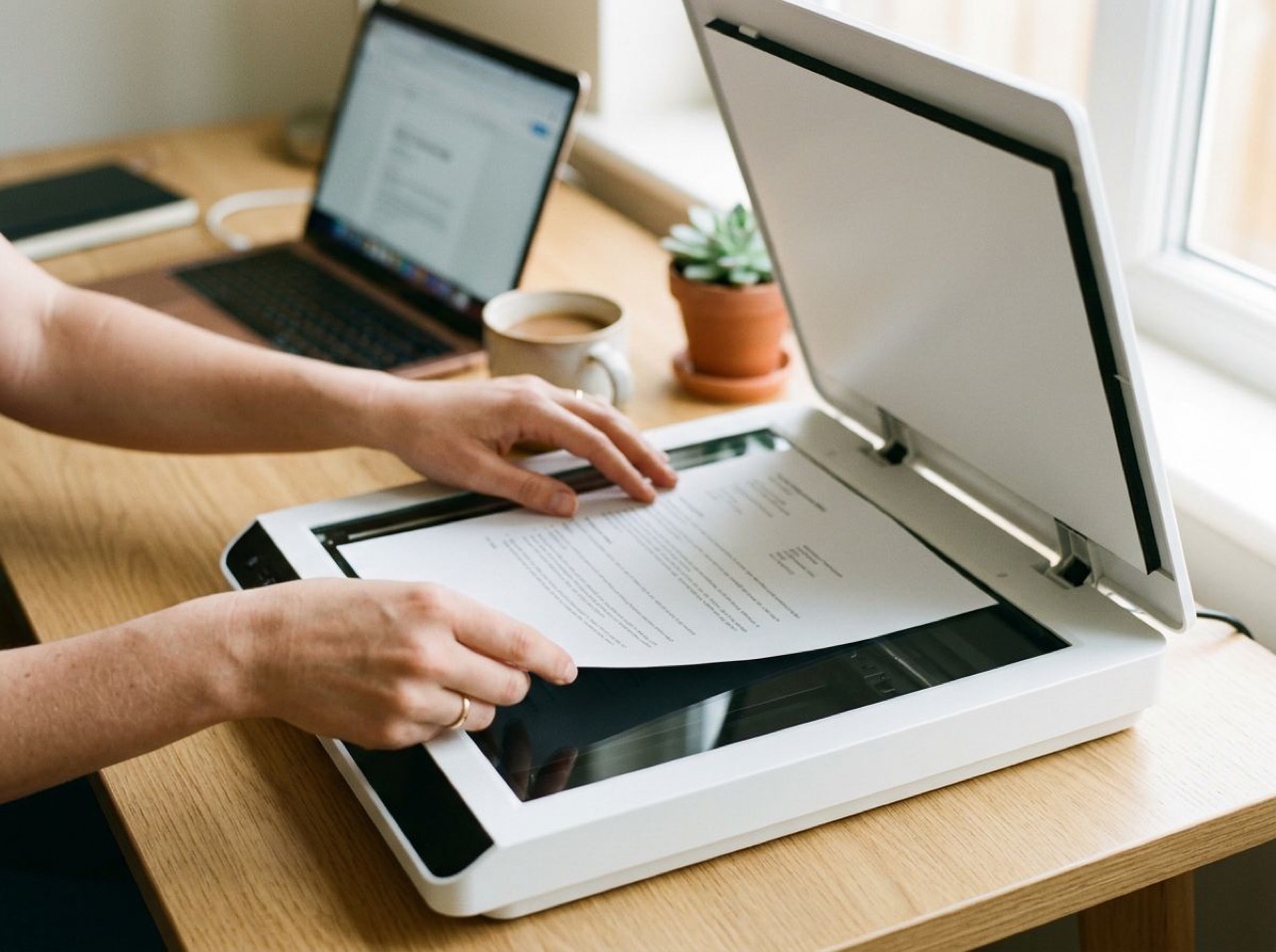
To scan a document from a scanner, connect and switch on the scanner, place the page face down on the glass (or in the feeder, oriented as the tray icon shows), then open a scanning app on your computer. On Windows, that is the Scan app; on a Mac, it is Open Scanner in System Settings or the Image Capture app. Pick the source, file type and save folder, then click Scan.
The rest of this guide covers each step in more detail, the settings worth changing, how to get several pages into one PDF, and what to do when the computer cannot see the scanner or the scan comes out blank.
No scanner nearby? Scan with a photo
- Auto crop
- Correct perspective
- Review before download
Illustrative example · results vary by photo
Upload a phone photo of the page to crop it, correct the perspective and clean up the lighting. Check text and numbers against the original before downloading.
Before you start: make sure the computer can see the scanner
Most USB scanners install themselves as soon as you plug them in and turn them on. Wireless models need to be on the same Wi-Fi network as your computer. Either way, check that the scanner is listed before you open a scanning app. Most "it won't scan" problems start here.
Windows 11: Go to Start > Settings > Bluetooth & devices > Printers & scanners. If your scanner is missing, select Add device next to Add printer or scanner, wait for the search, then choose Add device next to your scanner. The search can take a few minutes. For a network scanner that does not show up, select The printer that I want isn't listed and add it manually.
Windows 10: The path is Start > Settings > Devices > Printers & scanners, then Add a printer or scanner.
Mac: Open Apple menu > System Settings > Printers & Scanners. If the scanner is not in the list, add it with the add button. A multifunction printer usually appears once and covers both printing and scanning.
An all-in-one printer can show up as a printer only. On Windows 11, open the printer's entry in Printers & scanners and look for Scanner settings. If it is not there, the scan part of the driver may be missing. The fix for that is in the troubleshooting section below.
How to scan a document on Windows with the Scan app
Microsoft's Windows Scan app is the simplest built-in option on Windows 10 and 11. If you can't find it on your PC, install it free from the Microsoft Store.
- Turn the scanner on and load the document. On a flatbed, place it face down on the glass and close the lid. For a feeder, follow the paper icon on the tray, since orientation varies by model.
- Search for Windows Scan from the Start menu and open Scan.
- In the Scanner list, confirm the right device is selected.
- Under Source, choose Flatbed, Feeder or Auto-configured.
- Under File type, choose JPEG, PNG, TIFF or Bitmap.
- Select Show more to change Save file to. If you leave it alone, scans go to Pictures > Scans in your user folder.
- Select Scan. The file is saved automatically. Choose View to open it in Photos, or Close.
Notice what is not on that list: PDF. The Scan app saves image files. If you need a PDF, see the section on multi-page PDFs below.
Windows Fax and Scan
Windows also includes the older Windows Fax and Scan program. Search for it from the Start menu, then select New Scan. The New Scan window lets you set the source, color format, file type and resolution (DPI), and it has a Preview button. That makes it handy when you want to check the crop before saving. Its file types are image formats too (such as JPG, PNG, TIF and BMP), and scans are saved in the Scanned Documents folder inside Documents. Some editions or device drivers may not offer every option, so use whichever app shows your scanner's controls best.
How to scan a document on a Mac
From Printers & Scanners
Apple's own route needs no extra app:
- Load the pages in the document feeder or place the page on the scanner glass.
- Open Apple menu > System Settings > Printers & Scanners, select your scanner, then click Open Scanner.
- Select Use Document Feeder if you loaded the feeder. Deselect it for the flatbed.
- Use the Scan To menu to choose a folder, or an app such as Preview to open the result.
- For the flatbed, pick a page size from Size. Detect Separate Images saves each item on the glass as its own straightened file, which helps with receipts or cards.
- Click Show Details for more control: Kind (Text, Black & White or Color), Resolution, Duplex where the scanner supports it, Format, Name, and the Overview preview.
- Click Scan.
If you choose PDF under Format, macOS can combine several scanned items into one file. For some scanners it can also run OCR so the text is selectable. Which options appear depends on the scanner, so do not worry if your window looks a little different.
With Image Capture
Image Capture is in the Applications folder. Open it, select your scanner under Devices or Shared in the sidebar, and you get a scanning panel with similar options. Apple notes that a document feeder can scan a multi-page document to a single file, while a flatbed saves each item separately. Image Capture is often quicker when you scan regularly, because you don't have to go through System Settings each time.
Preview can also receive scans directly. Choose Preview in the Scan To menu, then save or export the result from Preview.
Scanning with the printer manufacturer's app
HP, Canon, Epson, Brother and other makers ship their own scanning software. You don't need it to scan a page, but it is worth installing when:
- the built-in apps don't detect the scanner at all;
- you want PDF output straight from a Windows PC;
- you want the scanner's own buttons (such as "Scan to PC") to work;
- you need features like blank page removal, automatic duplex or searchable PDF, if your model offers them.
Download the software from the manufacturer's support site, using your exact model number. Avoid third-party "driver updater" sites.
Flatbed or document feeder: which should you use?
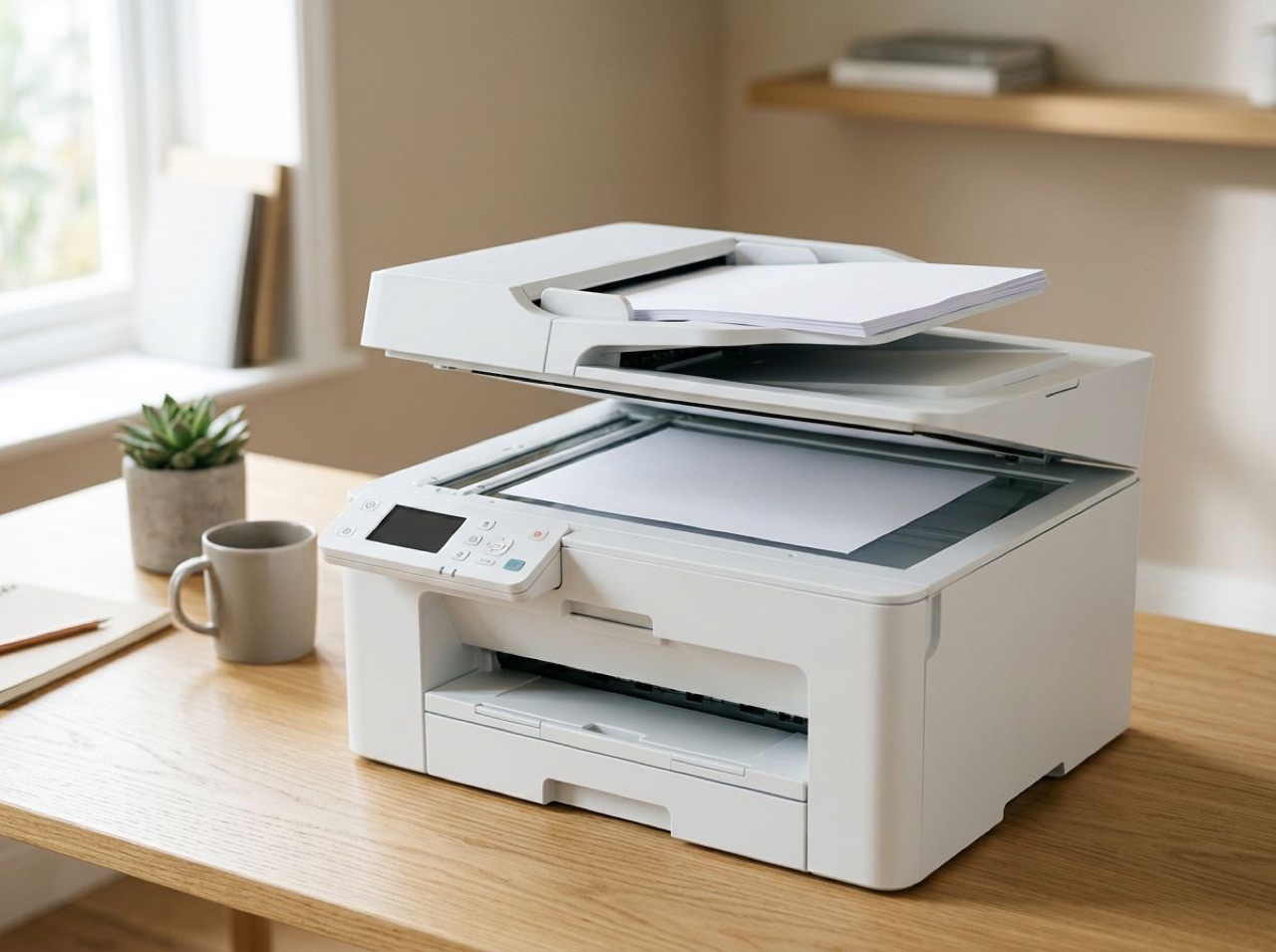
Many home scanners have both: a glass flatbed under the lid, and an automatic document feeder (ADF) on top that pulls pages through one at a time.
| Flatbed | Document feeder (ADF) | |
|---|---|---|
| Best for | Single pages, books, receipts, photos, fragile or creased paper | Stacks of loose, standard-size pages |
| Multi-page speed | One page at a time | Feeds the whole stack in one scan |
| Both sides | Flip each page yourself | Automatic if the scanner supports duplex |
| Risks | Lid not closed fully, page skewed on the glass | Jams, staples, folded corners, pages fed together |
Take staples and paper clips off before using the feeder, and fan the stack so the pages don't stick together. Torn or thin paper, sticky notes and anything bound should go on the flatbed.
Choose resolution, color mode and file format
A few settings decide whether a scan is easy to read and reasonable in size.
| Setting | Recommended for documents | When to change it |
|---|---|---|
| Resolution | 300 dpi | 200 dpi for a small file you only need to read; 600 dpi for tiny print, fine lines or pages you'll enlarge |
| Color mode | Grayscale for plain text | Color for stamps, signatures in blue ink, highlights or charts; black and white for the smallest files of clean, dark text |
| File format | PDF for documents you send | JPEG or PNG for a single page you'll edit or upload as an image; TIFF for archiving without lossy compression |
Higher resolution is not always better. A 600 dpi color scan of a plain letter is much larger than it needs to be, and some upload forms reject big files. Black and white mode can also make pale pencil, light stamps or faint signatures disappear. Scan one test page and zoom in before you run a whole stack.
How to save multi-page documents as one PDF
On a Mac, set Format to PDF and turn on the option to combine the scans into a single document, then load the feeder or scan each page on the glass. If you already have separate PDFs, you can combine them in Preview.
On Windows, it depends on your device:
- Manufacturer software: Many makers' apps can save straight to PDF, often with a "multi-page" or "add page" option. This is the most direct route when it is available.
- Print to PDF: Scan the pages as JPEG or PNG with the Scan app, select them all in File Explorer, right-click and choose Print (on Windows 11 it may be under Show more options), then pick Microsoft Print to PDF as the printer. Check the page order, the page size and the "fit picture to frame" setting so nothing is cropped.
- Browser-based assembly: Photo to Document in ClearCrowds lets you add up to 20 page images, put them in order, rotate pages and pick A4, Letter or original proportions before downloading one PDF. The PDF is put together in your browser. The result is an image-based PDF without a searchable text layer.
If the recipient needs text they can search or copy, use a scanner app with OCR, or run the page through a separate tool such as Extract Text from Image and check the result.
Troubleshooting common scanner problems
The scanner isn't detected. Check the power and the USB cable, and try a different port that connects directly to the computer instead of through a hub. For Wi-Fi models, confirm the scanner and computer are on the same network name, then add the scanner again in Printers & Scanners. Restarting both devices fixes more of these than you might expect.
It prints but won't scan. On many all-in-ones, the basic driver Windows or macOS installs automatically may cover printing only. Install the full software package for your model from the manufacturer's site. On a Mac, if there is no Open Scanner button, the scanner hasn't been set up for scanning.
The scan is blank or nearly white. The page may be facing the wrong way. On a flatbed it goes face down; in a feeder it depends on the model. Also check that the right source is selected. Scanning from Flatbed while the pages sit in the feeder, or the other way round, often produces an empty result.
The scan is cropped or skewed. Line the page up with the corner marker on the glass and close the lid fully. Choose the correct paper size instead of auto-detect, or use the preview to set the scan area by hand. On a Mac, large white areas can make Detect Separate Images split one page into several images. Choose a fixed paper size instead.
Text is fuzzy or the file is huge. Raise the resolution to 300 dpi if it was lower. If the file is too large, switch from color to grayscale before you lower the resolution. Clean the glass, since dust and smudges show up as specks and lines.
Pages jam or feed two at a time. Remove staples, flatten folded corners, fan the stack and load fewer pages at once.
No scanner nearby? Use your phone camera
If you need a document today and there is no scanner around, a careful photo can still work. Lay the page flat on a contrasting surface, shoot from directly above in even light, and keep all four corners in the frame. Then open Photo to Scan to crop the page, correct the perspective and choose Color, Grayscale or Black & White. You can download the result as an image or a single-page PDF. Our guide on how to turn a photo into a scanned document walks through it in detail.
Phone shadows are the usual problem with document photos. If one falls across the text, see how to remove a phone shadow from a document photo. AI cleanup can change letters or numbers, so compare the result with the original before you send it.
Check the scan before you send it
- Every page is there, in the right order, and the right way up.
- The edges, page numbers and last lines aren't cut off.
- Signatures, stamps and handwritten notes are visible.
- Small print is readable when you zoom in on the saved file, not only in the preview.
- The file type and size meet the recipient's upload rules.
Frequently asked questions
How do I scan a document from my scanner to my computer?
Connect and switch on the scanner, make sure it appears in your system's Printers & Scanners settings, then open a scanning app. On Windows, use the Scan app; on a Mac, click Open Scanner in Printers & Scanners or use Image Capture. Choose the flatbed or feeder, set the file type and save location, and click Scan.
Can the Windows Scan app save a PDF?
Microsoft lists JPEG, PNG, TIFF and Bitmap as the Scan app's file types, so plan on an image file. For a PDF, use your scanner maker's software if it offers PDF output, or print the scanned images to Microsoft Print to PDF.
What resolution should I use to scan a document?
300 dpi suits most text documents and forms. Use 200 dpi when file size matters more than fine detail, and 600 dpi for small print, fine drawings or pages you may need to enlarge later.
Why does my computer not find my scanner?
Check power and cables, put a wireless scanner on the same network as the computer, and add it manually in Printers & Scanners. If a multifunction printer appears only as a printer, install the full driver or app from the manufacturer's website.
What can I do if I don't have a scanner?
Photograph the page flat and in even light, then use Photo to Scan in ClearCrowds to crop it, correct the perspective and clean up the lighting. Compare the result with the original, because AI cleanup can change small details.
Scanner not working? Use a phone photo instead
- One page at a time
- Check text and marks
- Keep your original
Illustrative example · results vary by photo
Photograph the page flat in even light, then let ClearCrowds crop, straighten and clean it up. Compare the result with the original before you send it.