
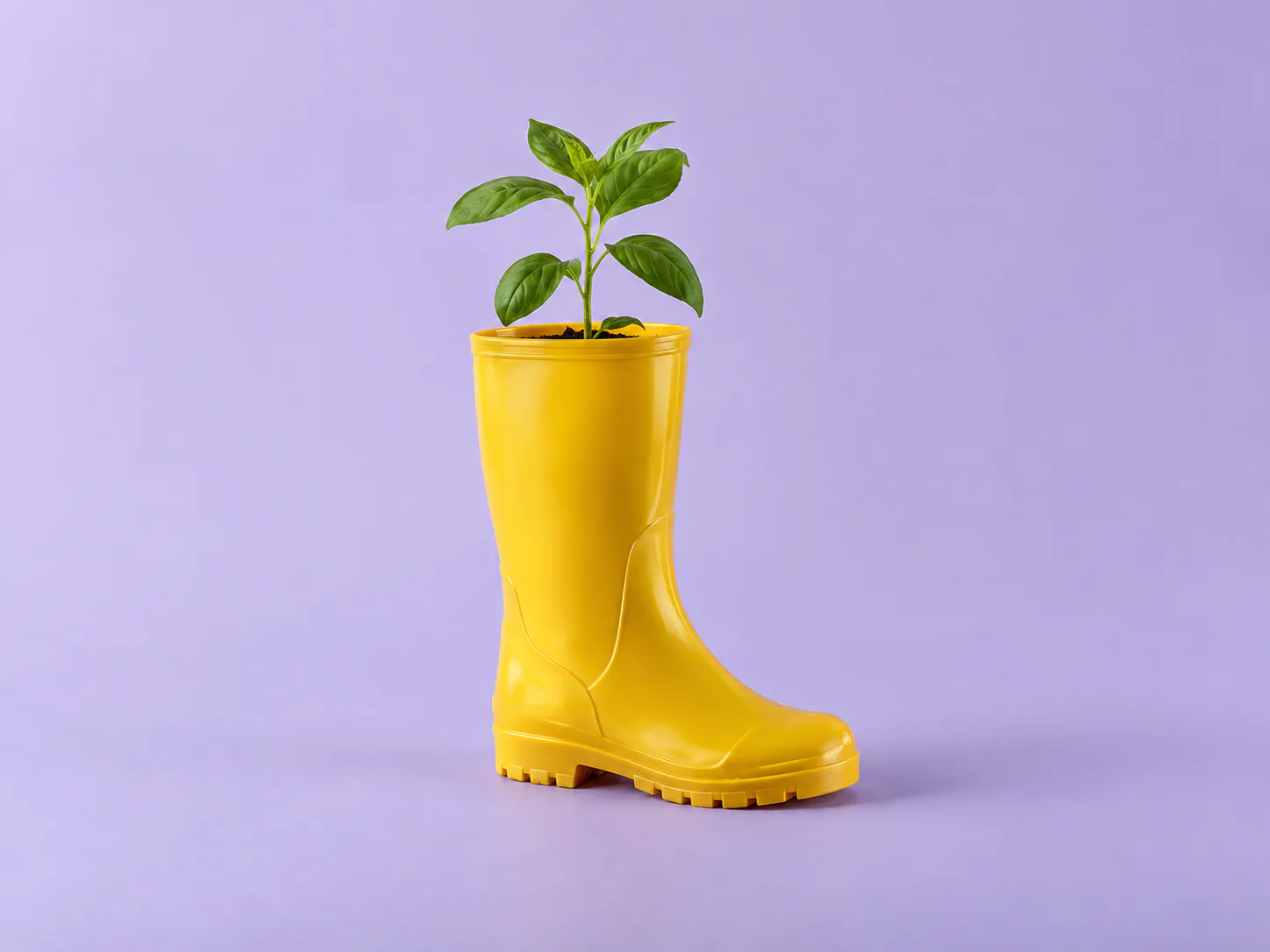


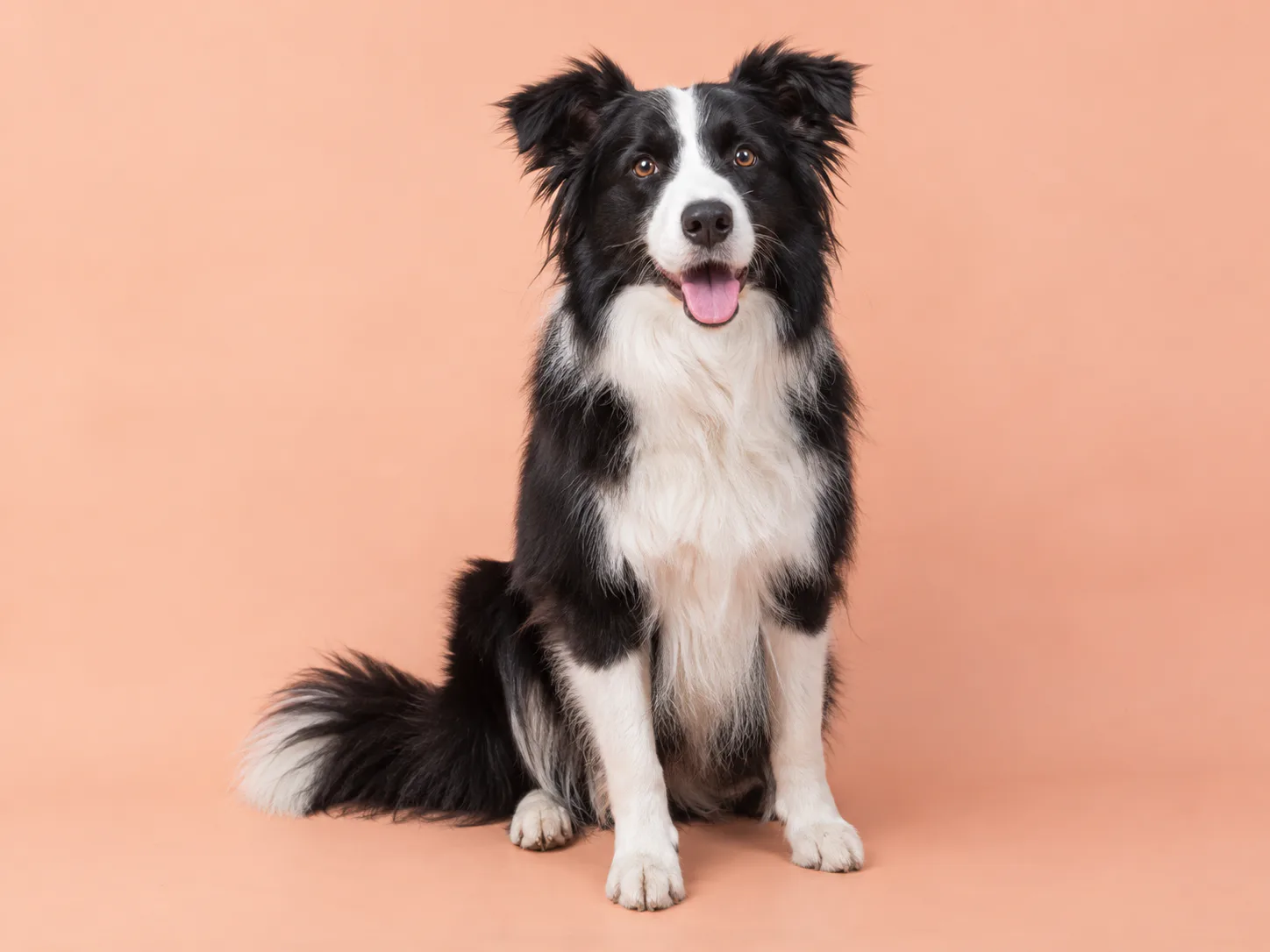
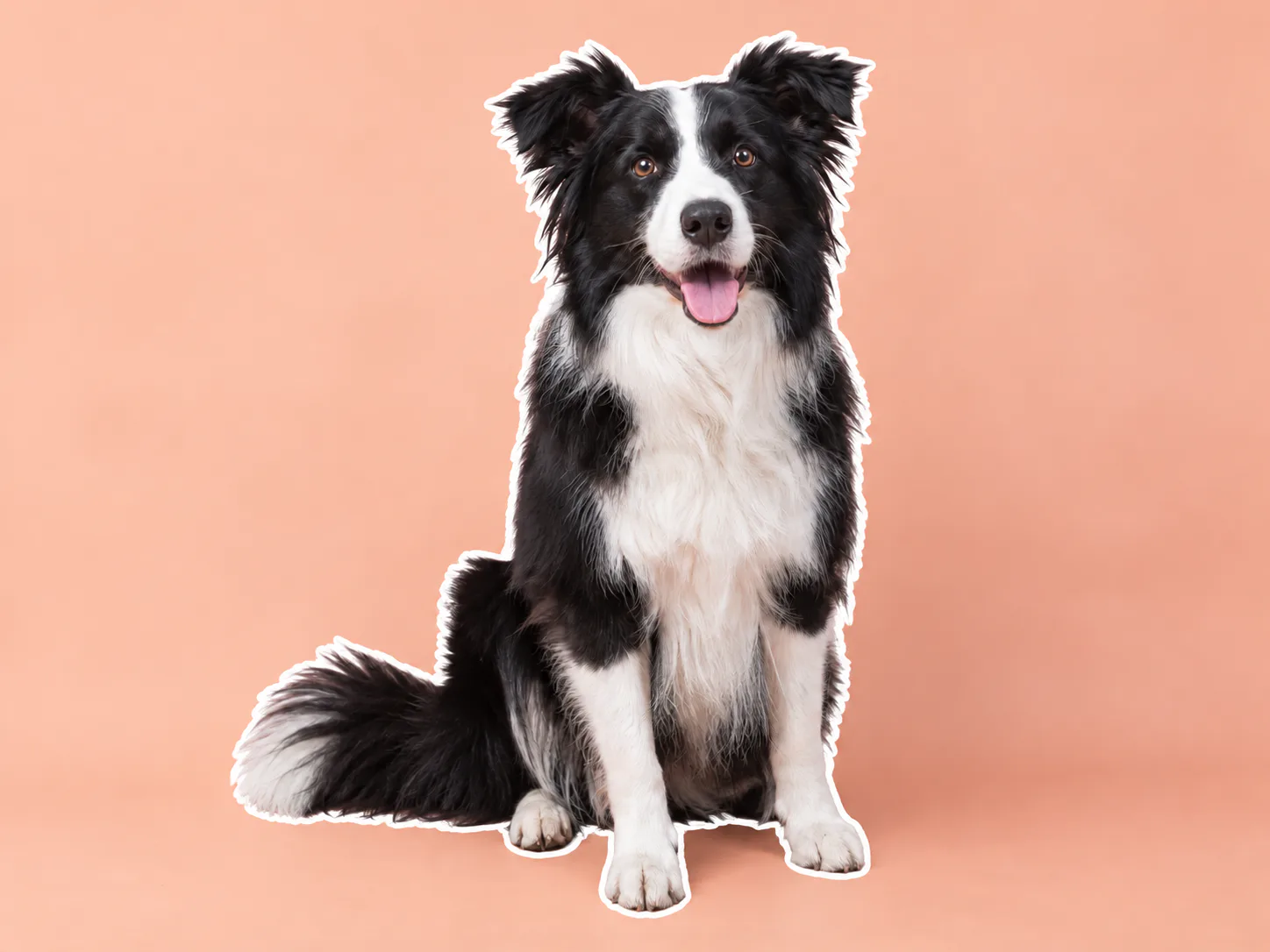
Turn a photo into a silhouetteFill an isolated person, pet, or object with one solid color.
Add an outline around your subject
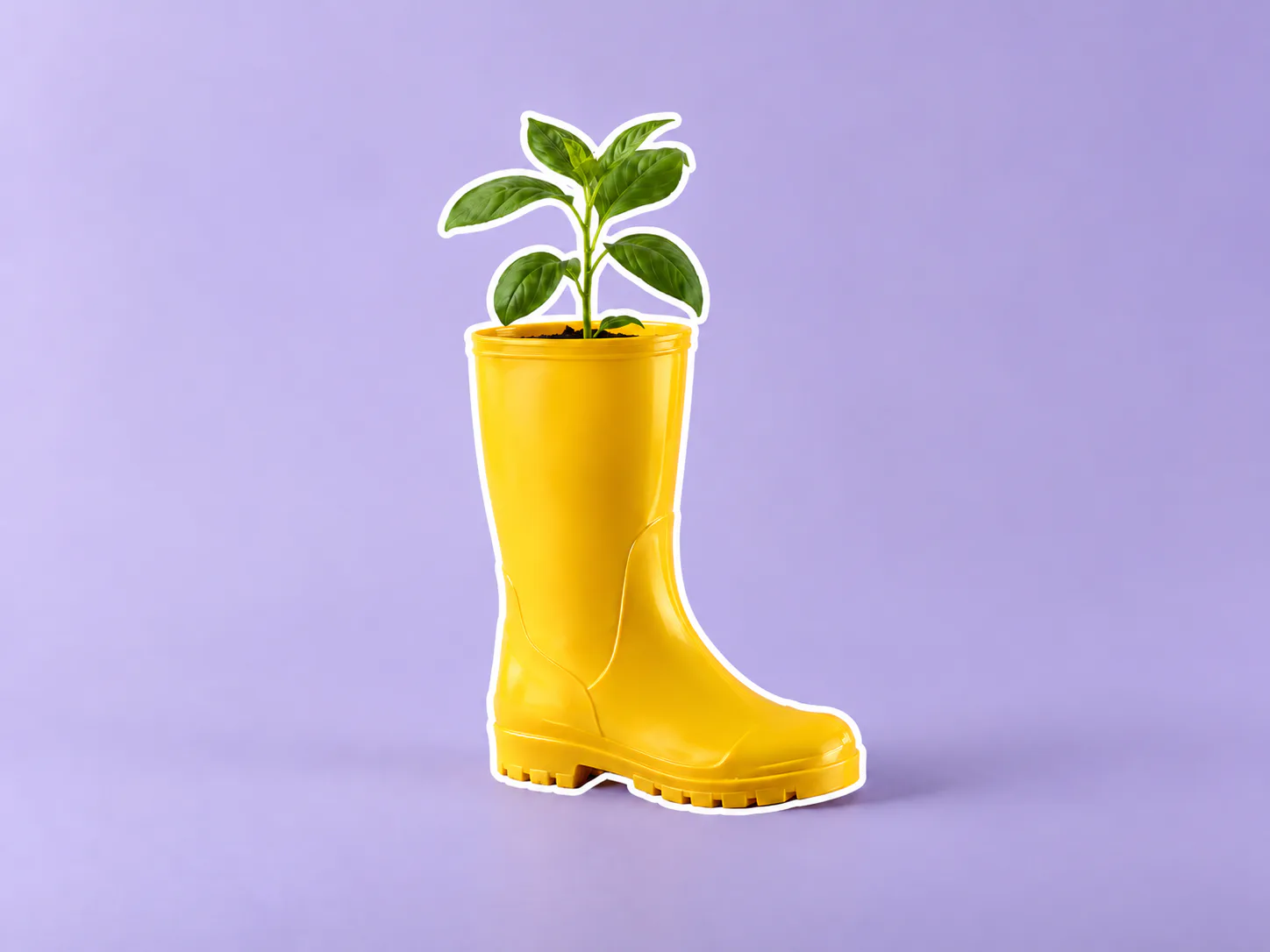
Give a person, pet or product a colored outer stroke. Choose the outline color and thickness while keeping the original photo background.
Choose a photo
Set outline color and thickness in the editor, then generate the result.
OriginalResult
Separate the subject with a clean contour
An outer outline follows the main subject’s silhouette. Use one clearly separated subject with enough room around its edges for the stroke.
- Color
- Choose a swatch or enter a custom HEX color.
- Thickness
- Choose thin, medium or bold to suit the subject.
- Background
- Keep the existing scene behind the outlined subject.
Creator portraits
- Requested change
- Trace the portrait’s outer silhouette with a white stroke.
- Keep unchanged
- Keep the face, clothing and studio background.
OriginalResult
Product highlights
- Requested change
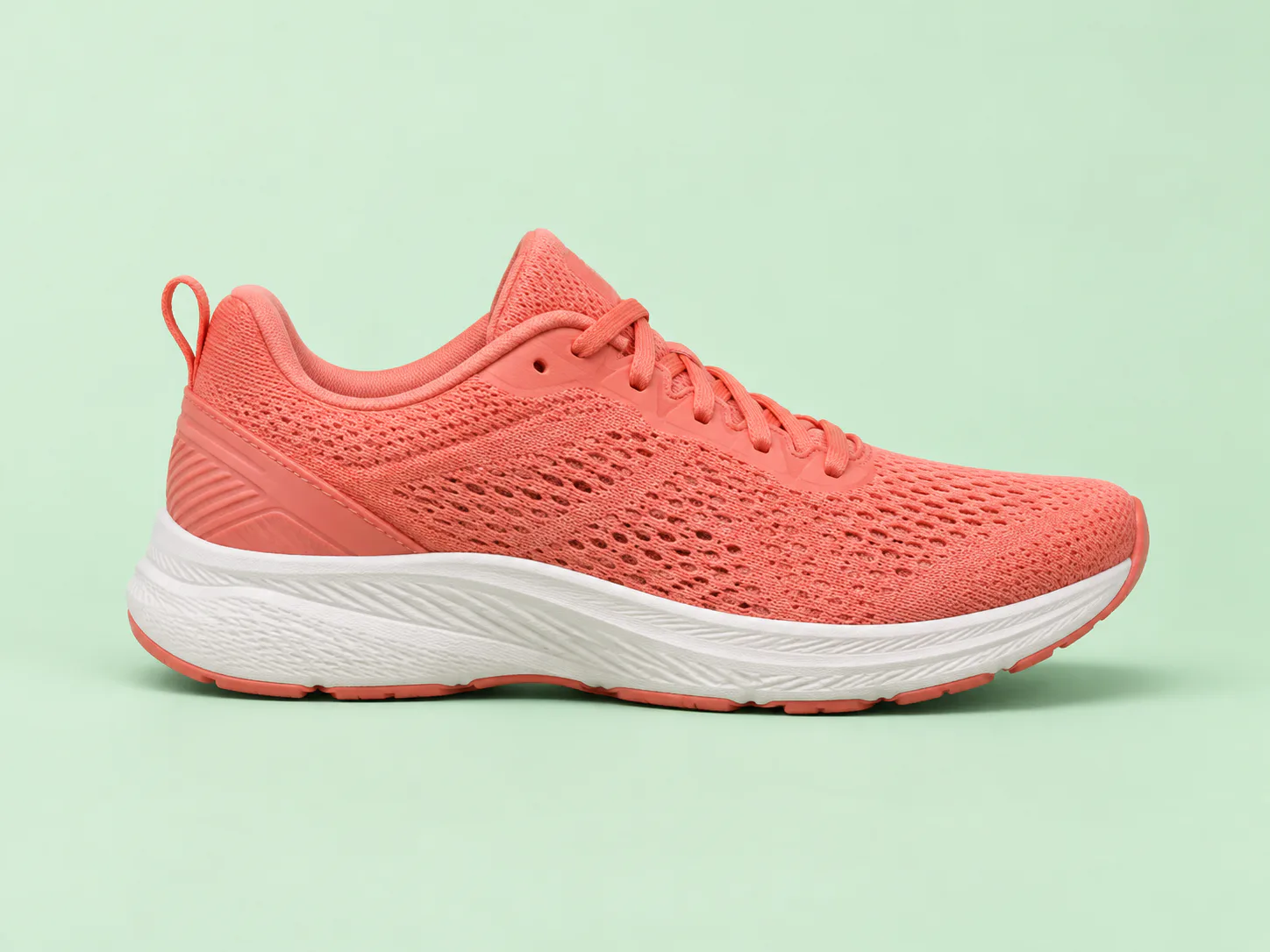
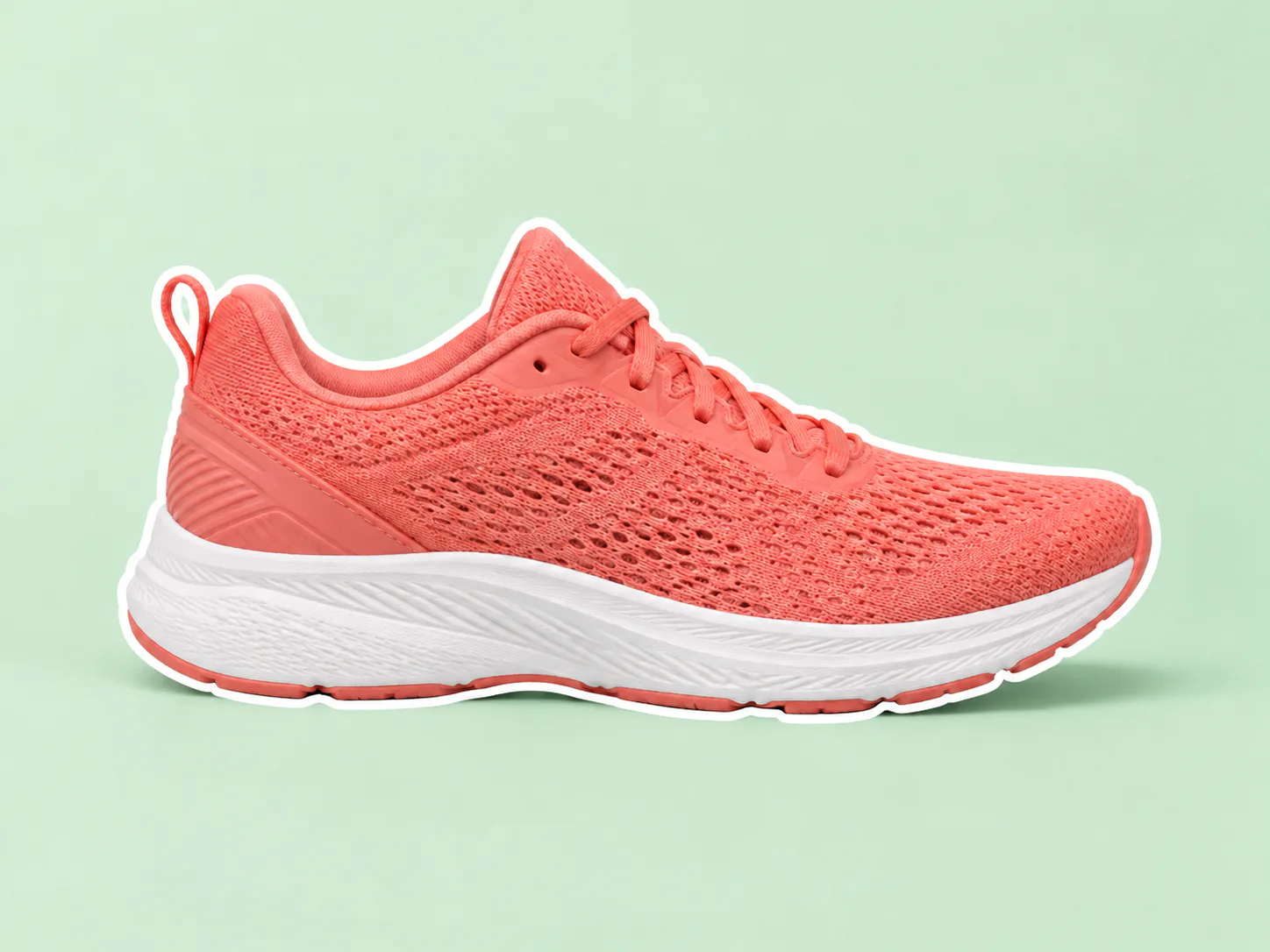
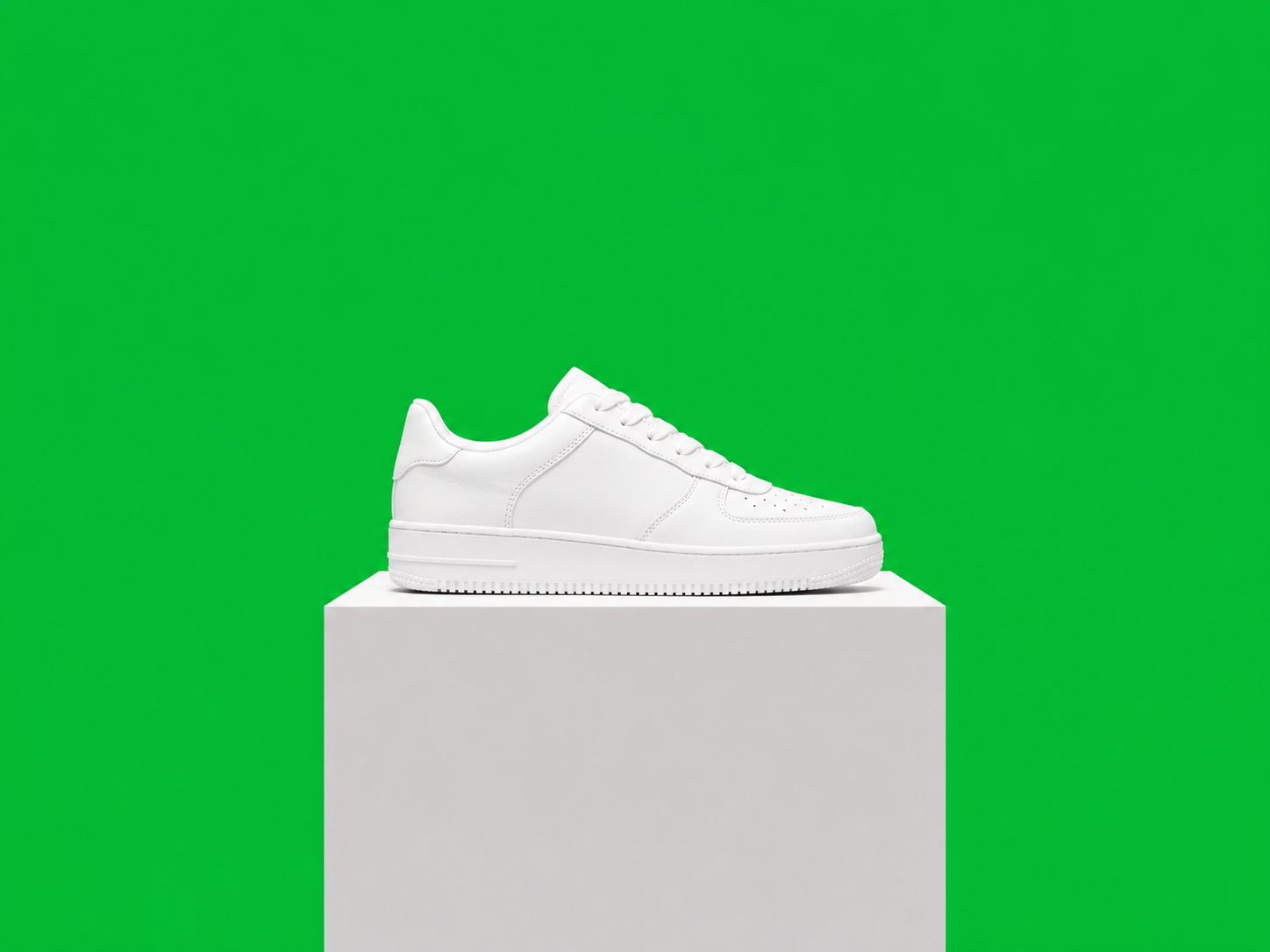
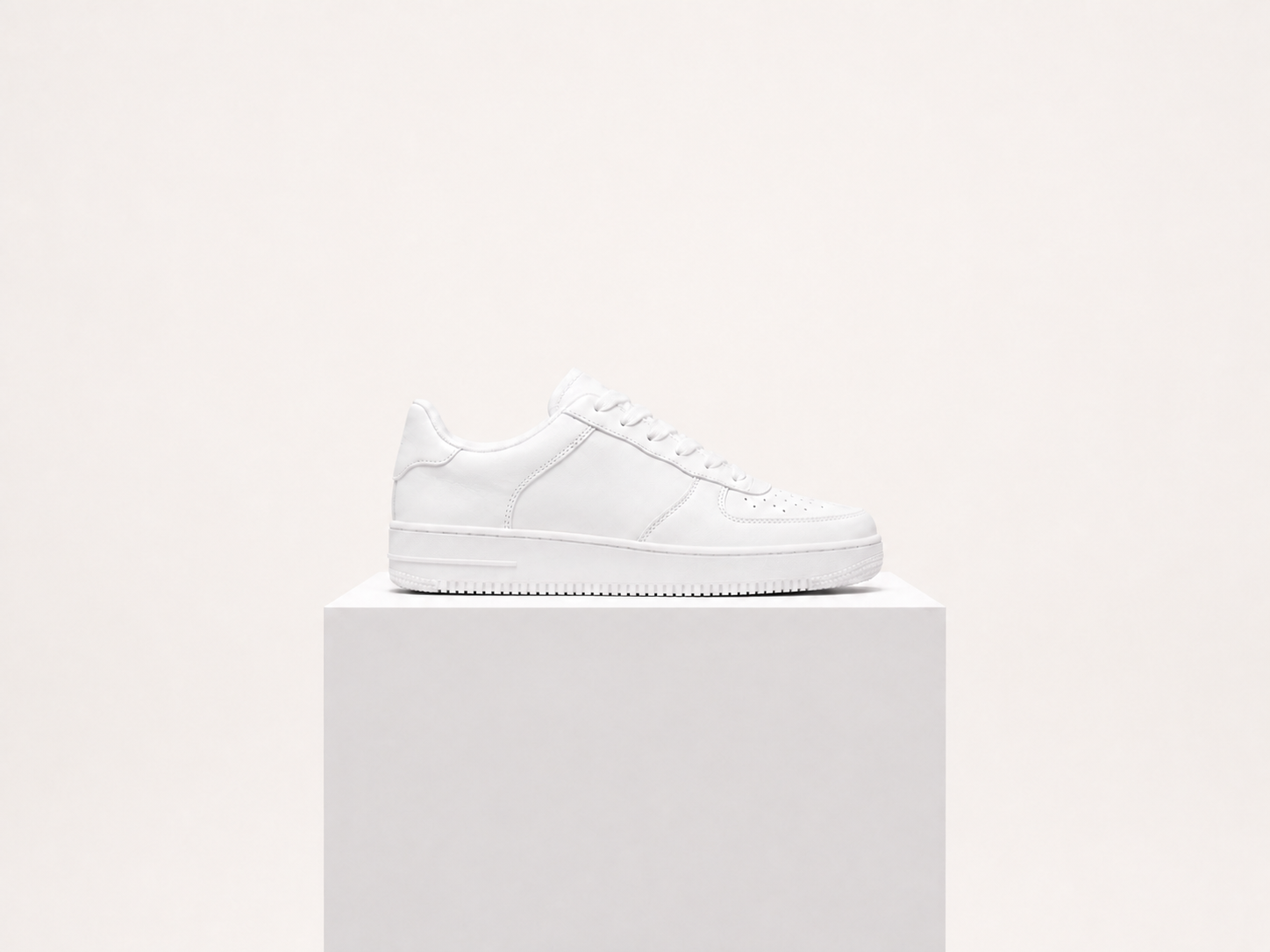
- Outline a sneaker to emphasize its shape.
- Keep unchanged
- Keep the product colors, texture and contact shadow.
OriginalResult
Pet-photo accents
- Requested change
- Add a visible outline around a seated dog.
- Keep unchanged
- Retain the fur pattern, paws and original background.
OriginalResult
How to use this tool
- 1
Choose a photo
Choose a clear source photo to open it in the main editor.
- 2
Add an outline around your subject
Set outline color and thickness in the editor, then generate the result.
- 3
Compare and confirm
Inspect the result against the original. Confirm the version you want to keep, then continue editing or download.
Before you save
Fine hair, transparent objects and overlapping subjects can produce imperfect edges. This effect keeps the background and does not create a transparent sticker or vector cut path.
Questions and answers
Does this turn the photo into line art?
No. The subject remains a full-color photograph. Only an outer stroke is added around its silhouette.
Can I remove the background too?
This effect preserves it. For a cutout, use the separate background-removal tool and review that result independently.
More ways to perfect your photo
Quick edits. Professional results.
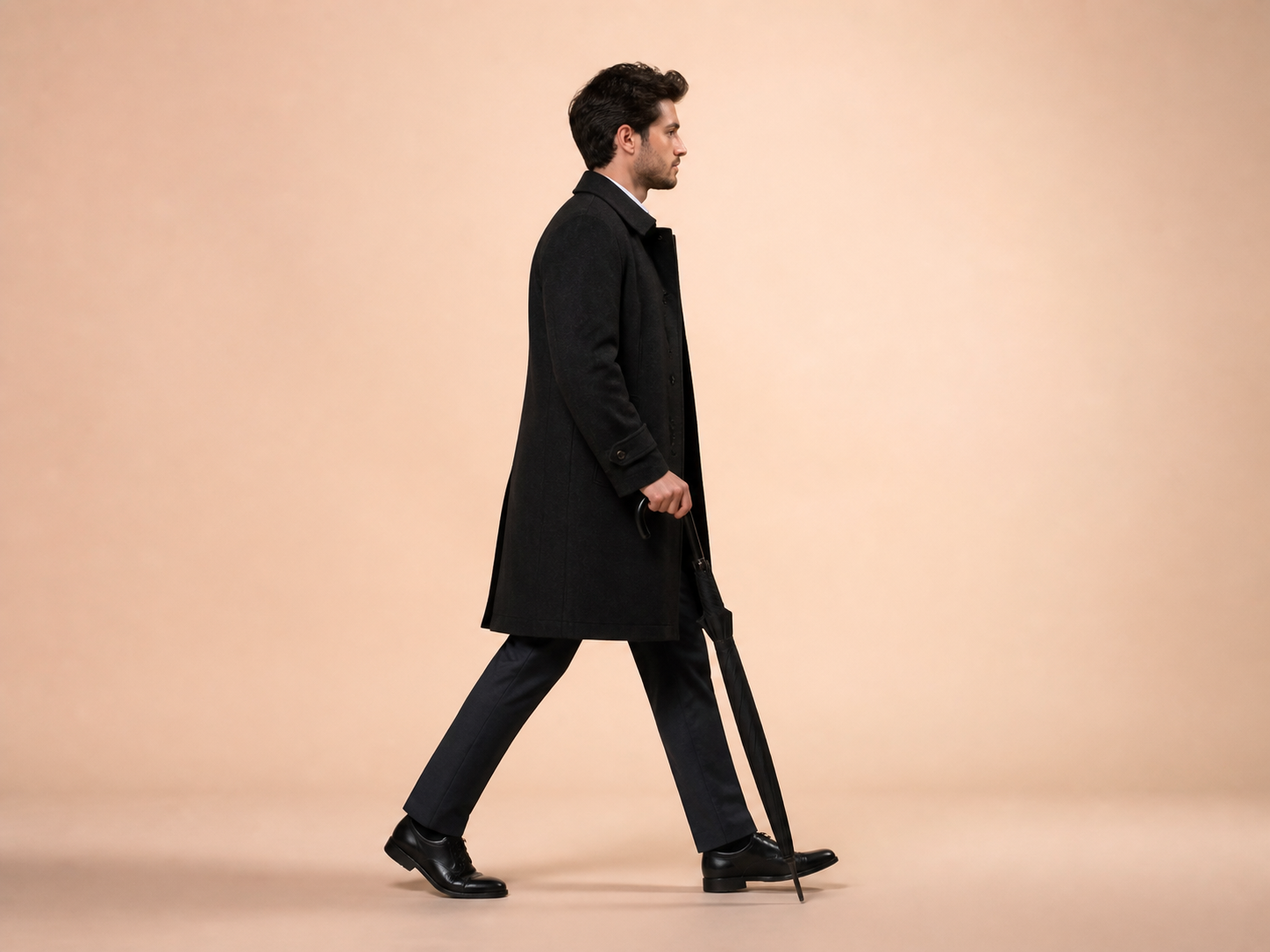
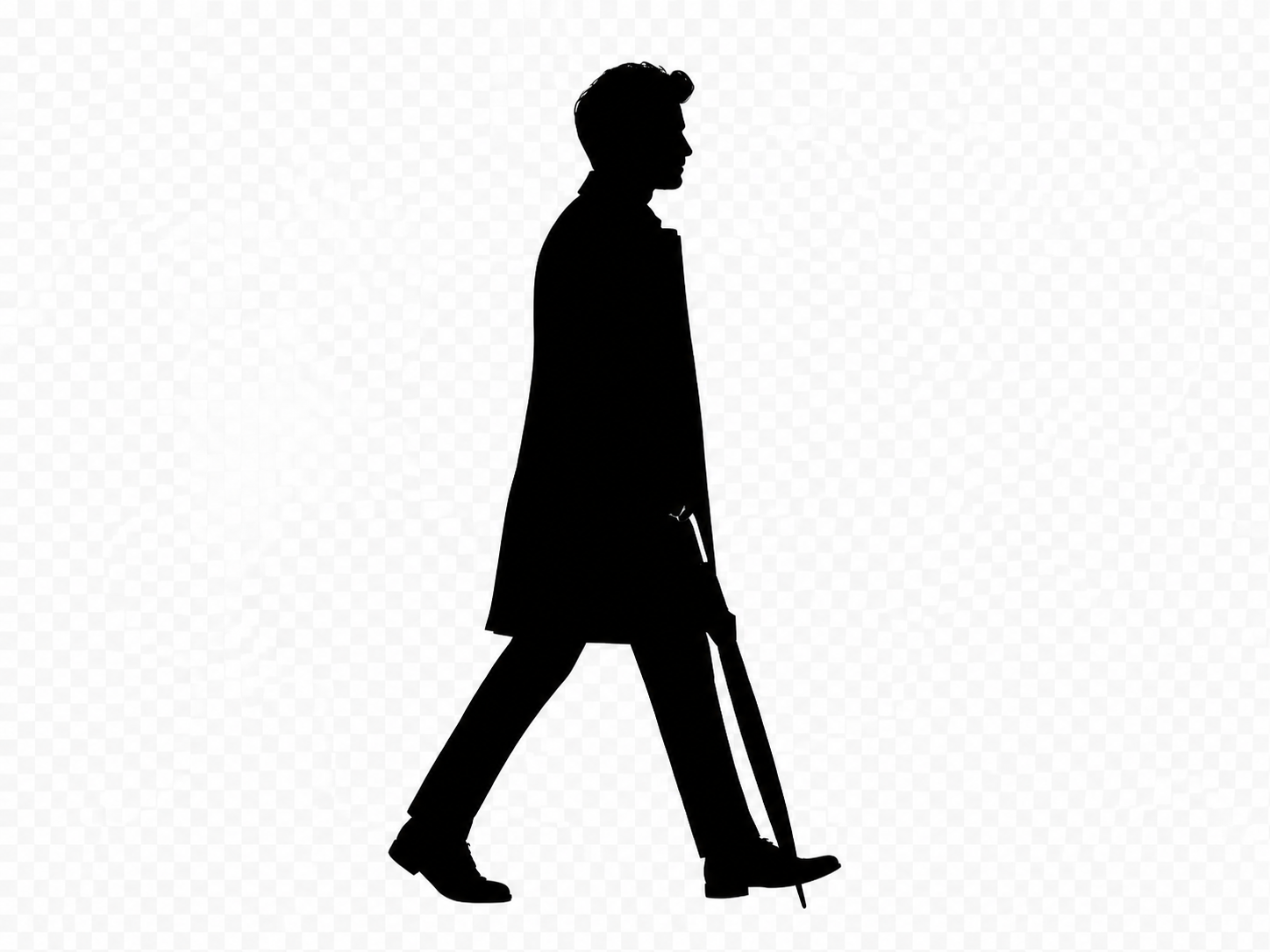


Try it on your photo
Explore all photo toolsChoose a photo
Set outline color and thickness in the editor, then generate the result.