
How to Add Emojis to Photos Online
Add emojis to your photo
Pick a photo, choose an emoji, then move it into place. Adding and editing are free. Watermark-free downloads require payment.
Add emojisAdd emojis to your photo

Pick a photo, choose an emoji, then move it into place. Adding and editing are free. Watermark-free downloads require payment.
To add emojis to a photo, open the picture in an editor, choose an emoji, and drag it into position. Resize or rotate it to suit the picture, then review the download options. In ClearCrowds, adding emojis is free and uses no AI credits. Watermark-free downloads require payment.
You might want a heart beside a friend, a birthday balloon above a cake, or a laughing face on a reaction photo. The useful part is keeping each emoji movable until the picture looks right.
Add emojis in four steps
1. Open your photo
Choose Add emojis on this page to enter the main editor. Select a picture from your device. You choose the file in the editor, so there is no website upload step to wait through first. Keep the original file if you will want an untouched copy later.
2. Choose an emoji
The emoji panel opens after the photo is ready. Browse the categories or search for a smile, heart, balloon, or another expression. Click or tap one emoji to add one copy. You do not need a prompt or a Generate button.
Want a second copy? Tap the same emoji again. It becomes its own layer, so moving one does not move the others.
3. Move, resize, and rotate
Drag the emoji to the part of the picture you want to decorate. Use the corner handle to resize it and the rotation control to change its angle. Close the picker if it covers the part of the photo you are editing.
Keep the emoji large enough to read on a phone screen. Leave a little space around faces and important details. A heart beside someone often works better than one that covers their expression.
Use Undo if you add something accidentally. The layers menu lets you select an earlier emoji when several overlap. Delete a layer to remove that emoji; the photo beneath it stays intact.
4. Review and download
Check the whole picture before downloading, especially the edges of your emojis. The downloaded image combines the photo and visible layers into one picture.
Adding and arranging emojis is free. Watermark-free downloading is paid. The download dialog shows the available options, so review them before choosing an export.
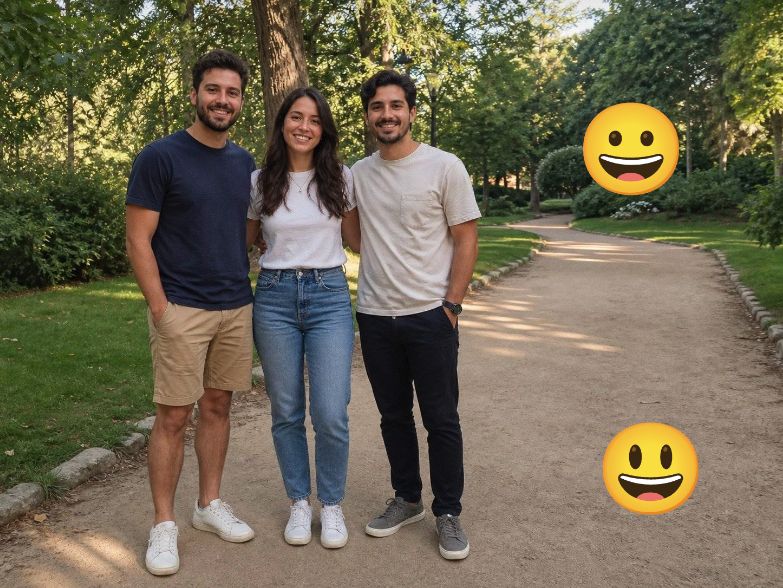
Example: add a smile to a group photo
Each smile is an editable overlay. The people and background are not regenerated. You can move the smile, change its size, or remove it while continuing to edit the same photo.
Three simple ways to use emojis on pictures
- Celebrate a moment: place a small balloon or party emoji in an open area beside a cake, gift, or group.
- Make a reaction picture: pair a clear expression with a laughing, surprised, or thinking face. Start with one emoji so the message stays readable.
- Decorate a shared memory: add a heart or sun near the edge of a holiday photo, keeping the main subject clear.
Emoji stickers or typed emoji text?
An emoji sticker is convenient when you want to place and resize each symbol separately. Typed emoji characters work well inside a caption, but their appearance can depend on the font and device used to render them.
This editor uses a consistent set of Google Noto emoji artwork. Your selected emoji is a picture layer, so editing does not depend on an AI model interpreting the symbol.
For a caption alongside your emoji, see how to put text on a picture. If you need to change words already inside the image, use the screenshot editing guide.
Before you close the editor
Wait until the save indicator finishes. A local photo draft is stored in the browser you used; clearing browser storage can remove it. If saving or loading a sticker fails, keep the page open and retry before leaving. Download the finished picture when you are ready to share it.