



Product listings
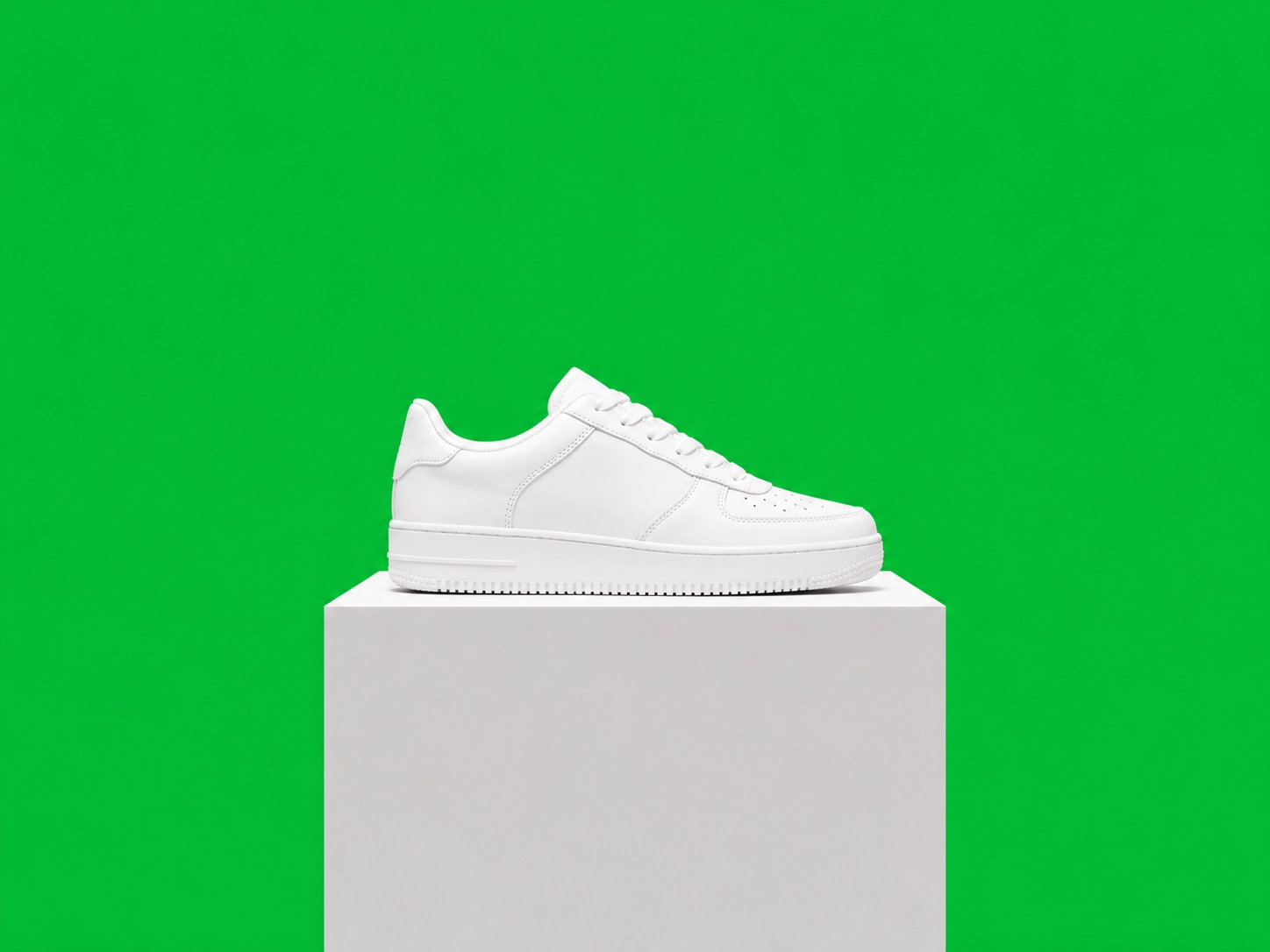
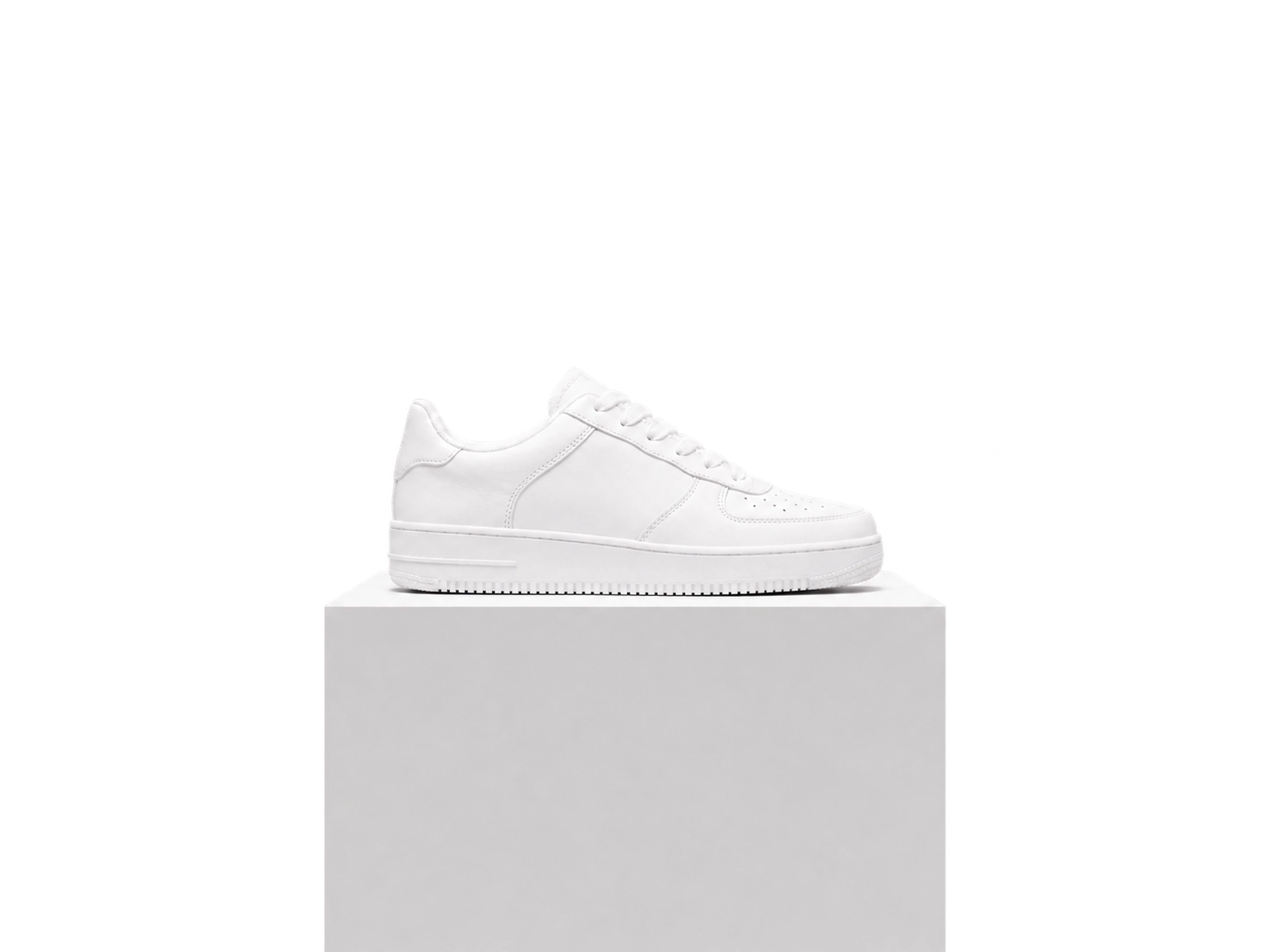
Isolate a product for a catalog, listing or campaign.
Keep your subject. Clear the background. Upload a photo, review your cutout, and save a transparent PNG.
JPG, PNG, or WebP. The background-removal tool opens automatically.
Separate your subject from a busy setting, ready for a product listing, portrait layout or new design.
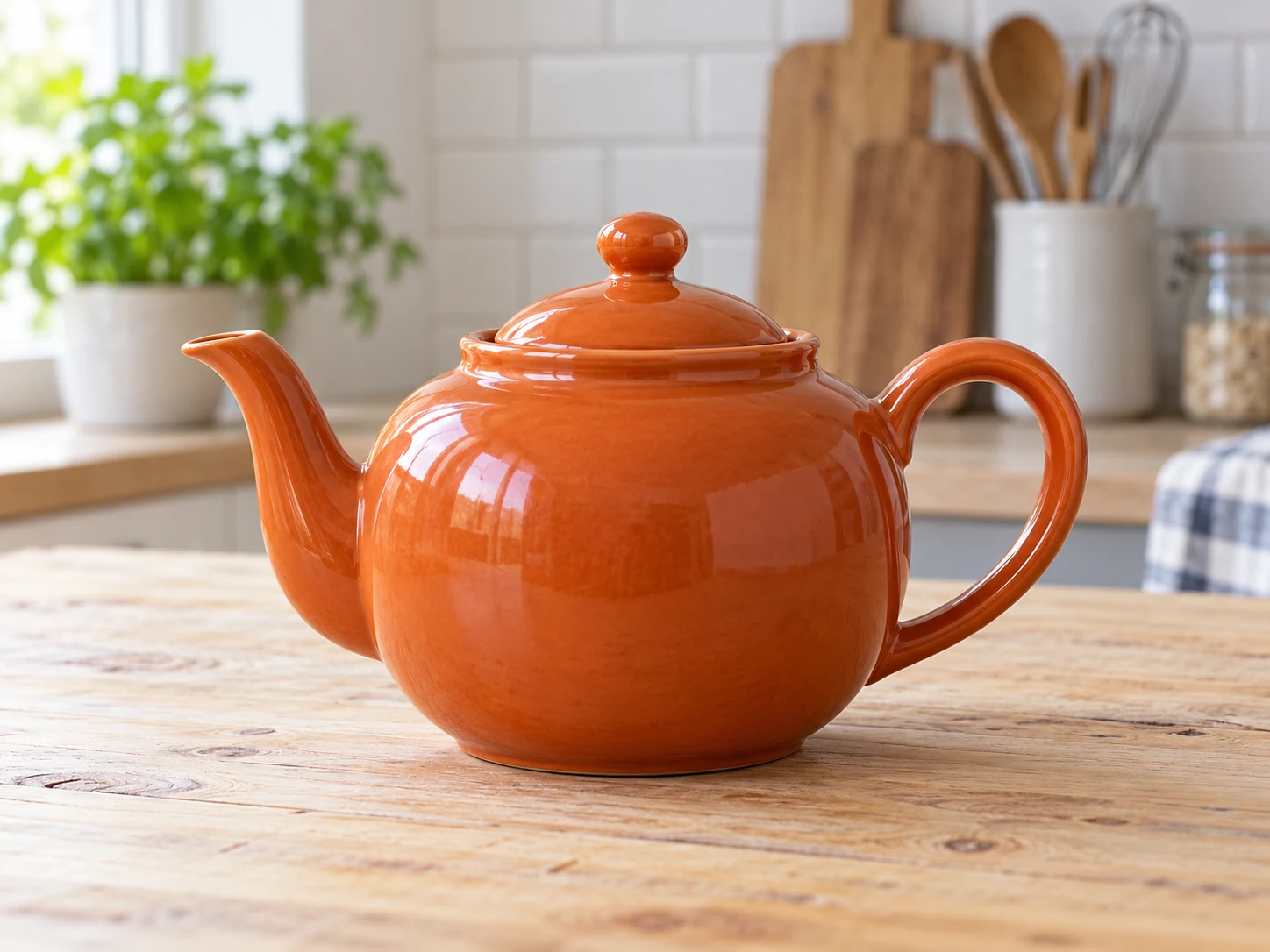
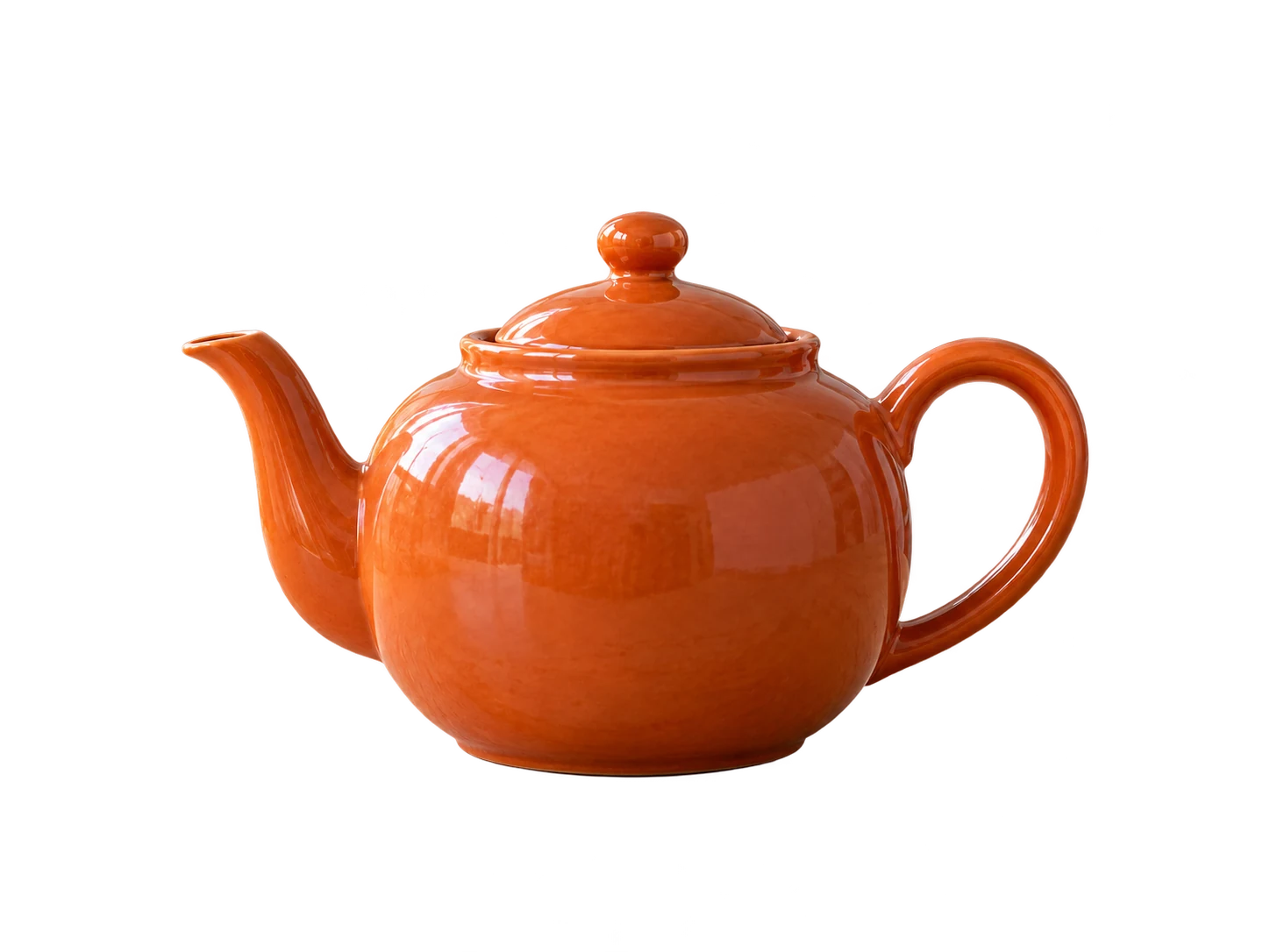
Illustrative examples: check what disappears and what stays.
Orange teapot on a kitchen table before background removal
Curly-haired woman outdoors before background removal.
Ginger cat on a patterned sofa before background removal
Use one clear photo with a visible subject and enough contrast around its edges.
Choose a product, portrait or object photo with the full subject in frame.
ClearCrowds separates the subject from the surrounding scene and prepares the cutout in the editor.
Check the edges and confirm your result. Choose PNG to preserve transparency; JPG cannot keep a transparent background.
One photo, ready for a different layout.
Isolate a product for a catalog, listing or campaign.
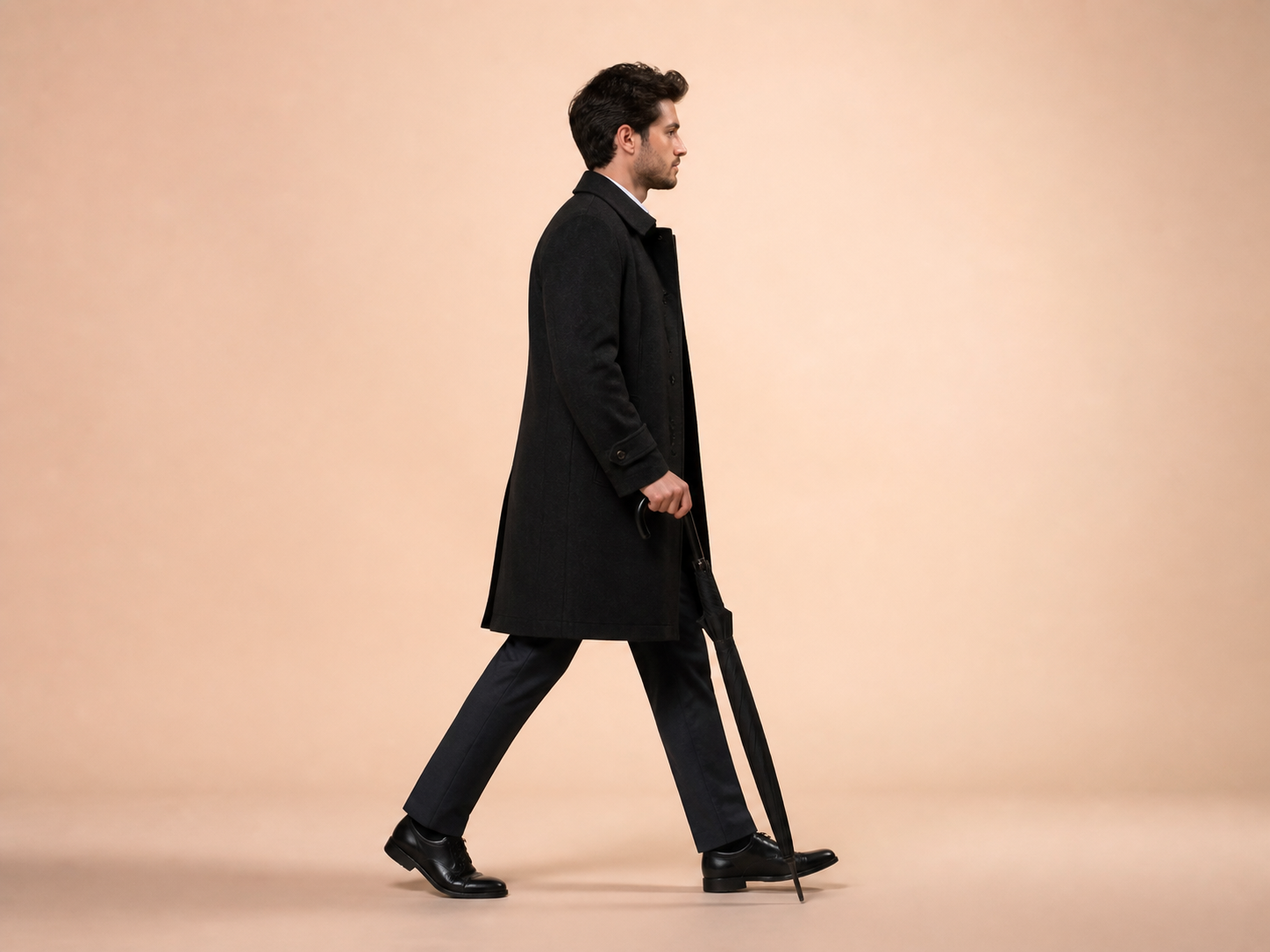
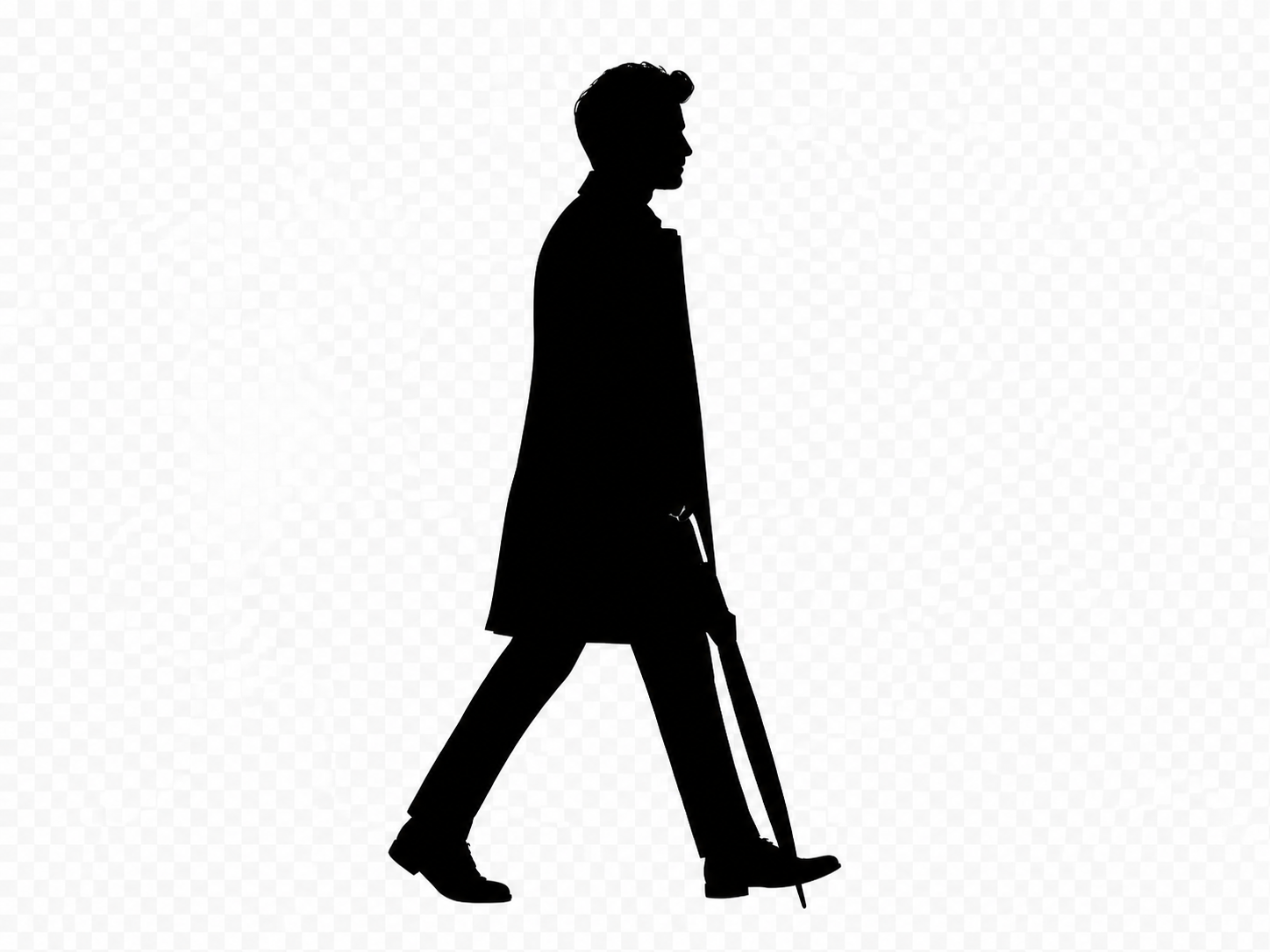
Place a person in an invitation, profile card or social graphic.
Remove the sofa and living room around the cat.
Automatic cutouts cannot recover hidden parts or guarantee every strand of hair.
Source photos, transparent downloads and checking your result.
Quick edits. Professional results.
Upload a photo to open the background-removal workflow with the correct tool selected.
JPG, PNG, or WebP. The background-removal tool opens automatically.