Perspective and verticals
Straighten leaning walls and wide-angle distortion while keeping room proportions credible.
AI real estate photo editing
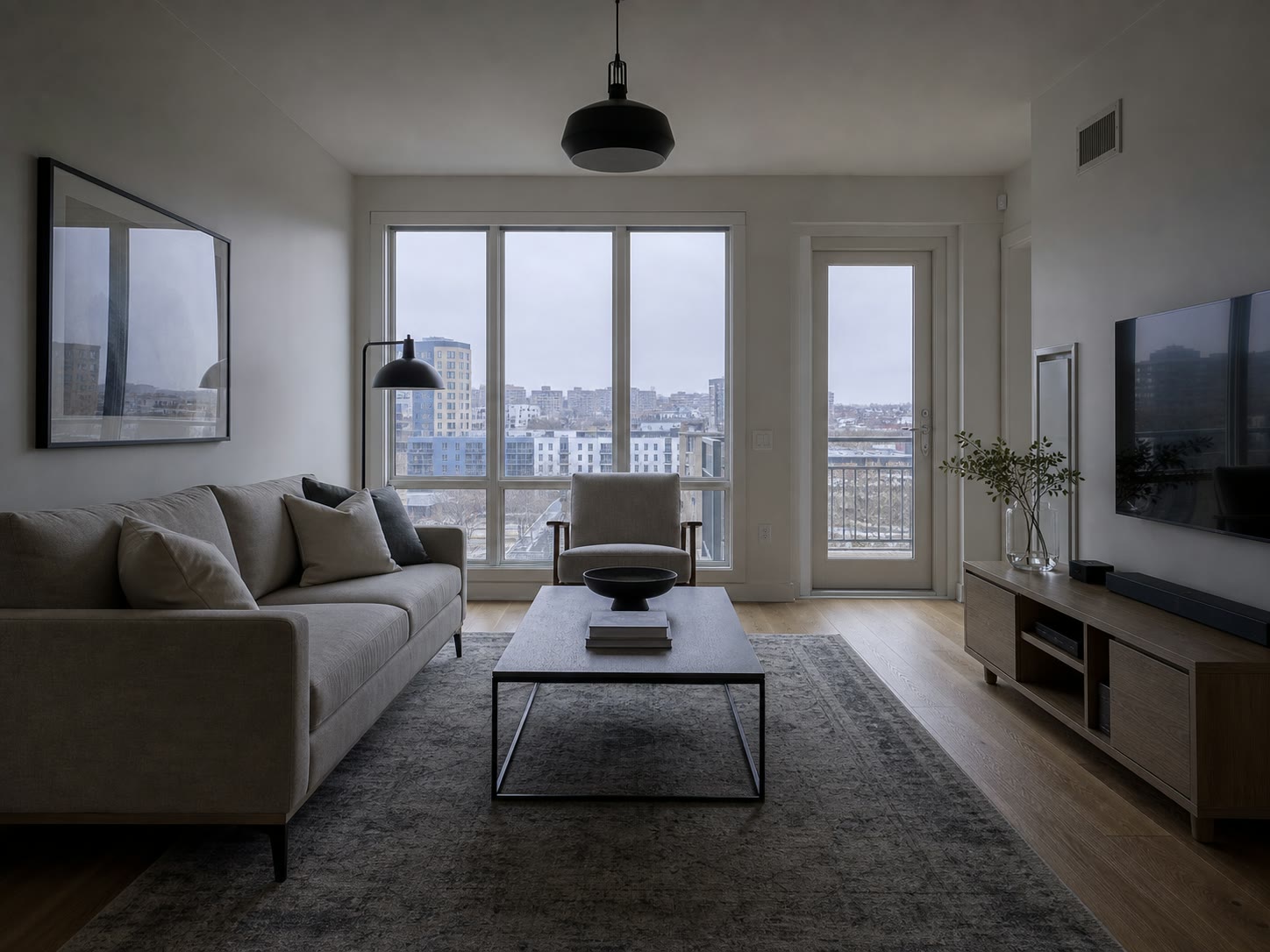
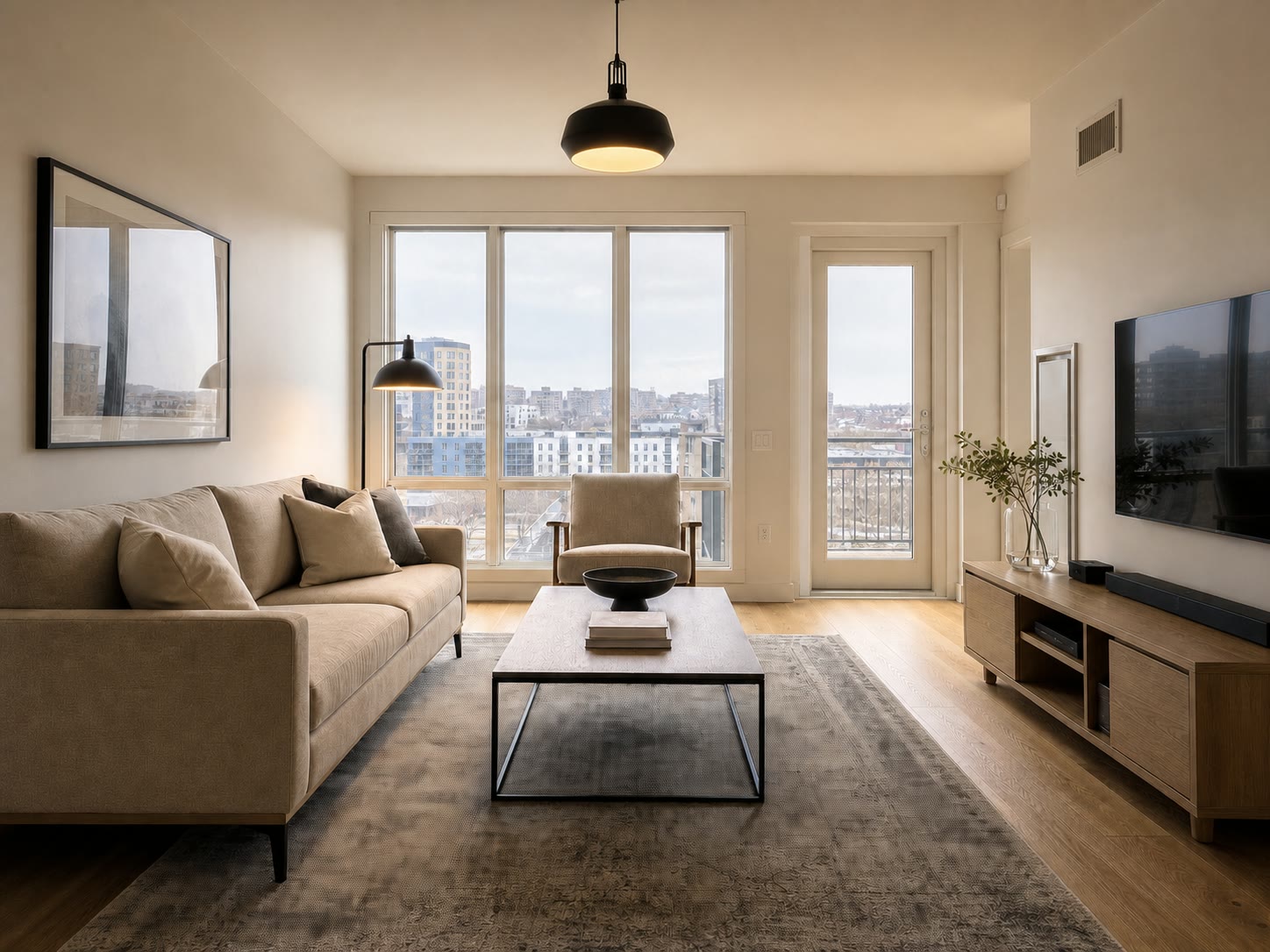
Brighten rooms, remove clutter, and stage empty spaces.
5.012 ratings on the US App StoreChoose an edit, then upload a JPG, PNG, or WebP.
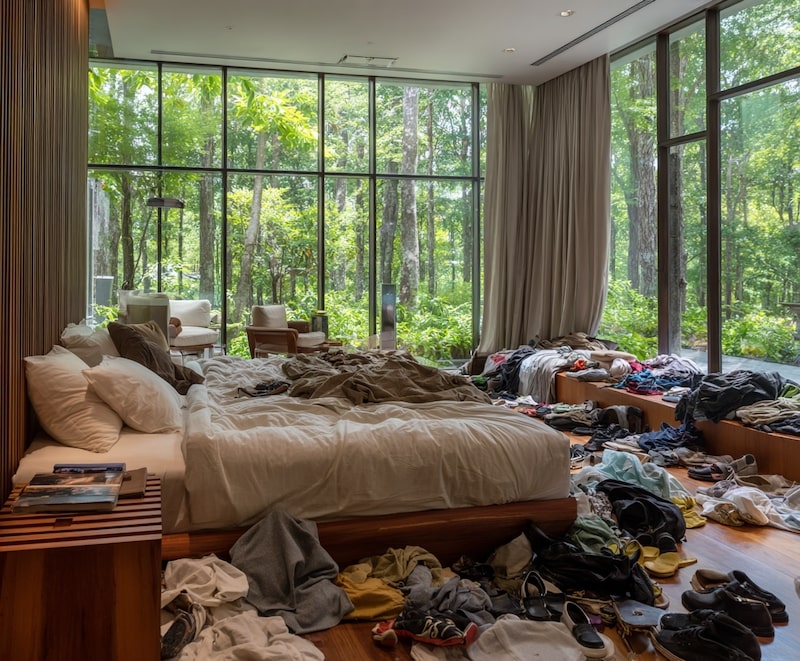
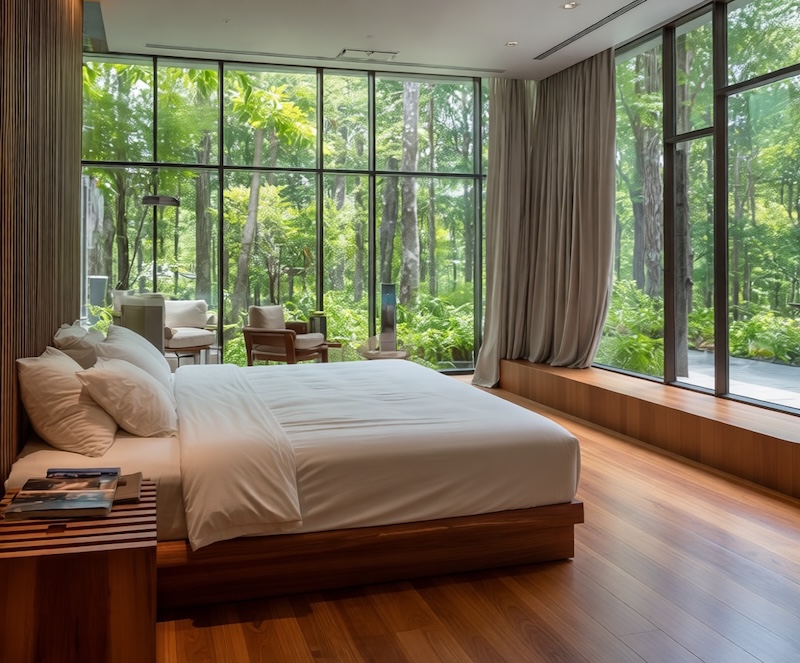
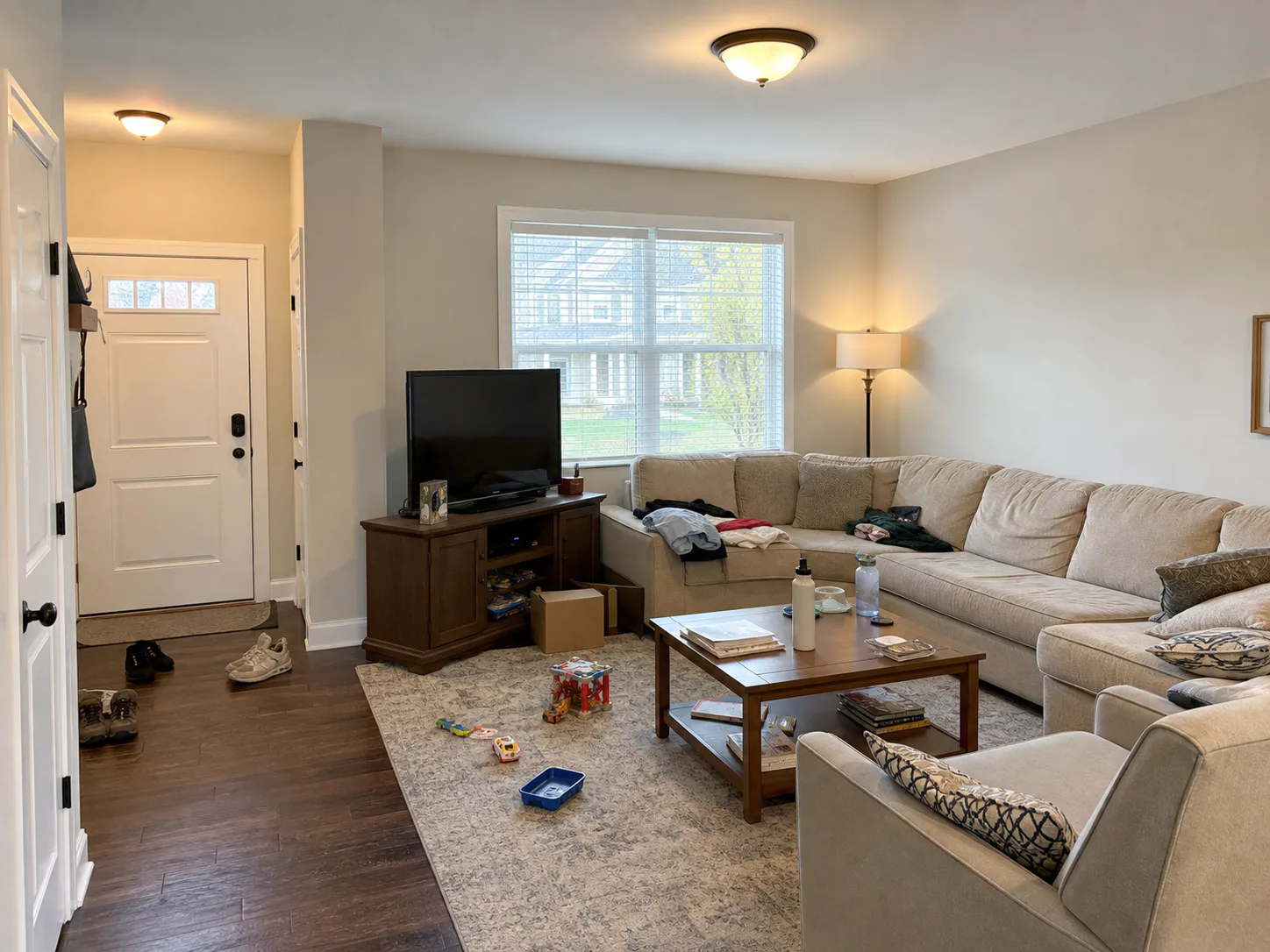
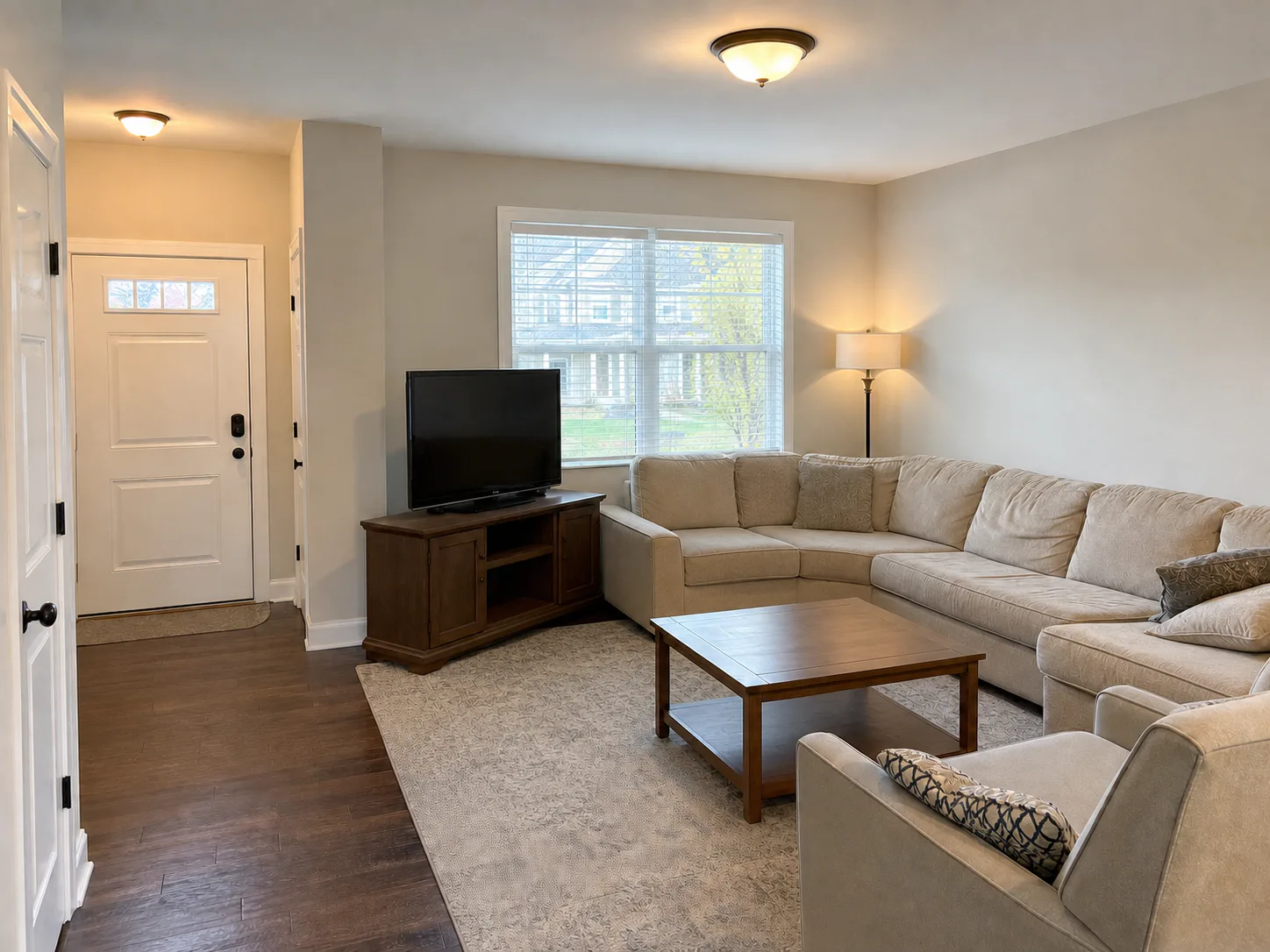
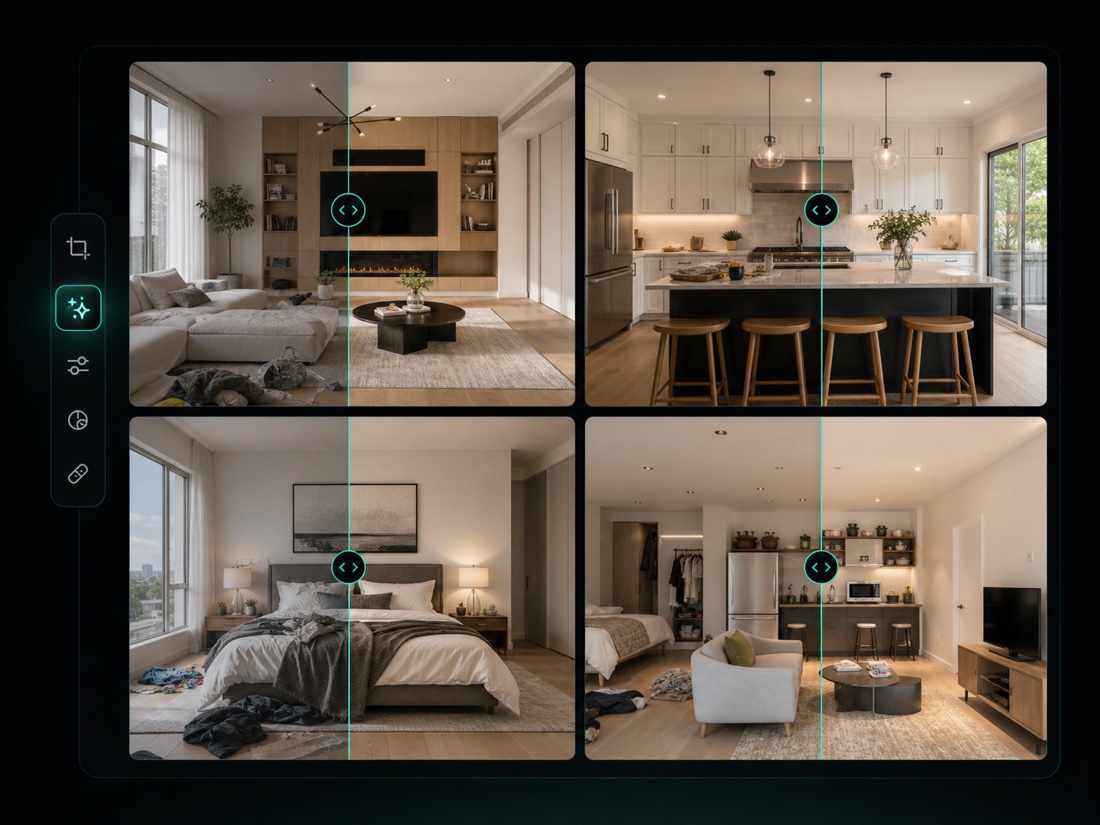
Declutter an occupied room
Remove loose mess while preserving the furniture, room geometry, and natural daylight.
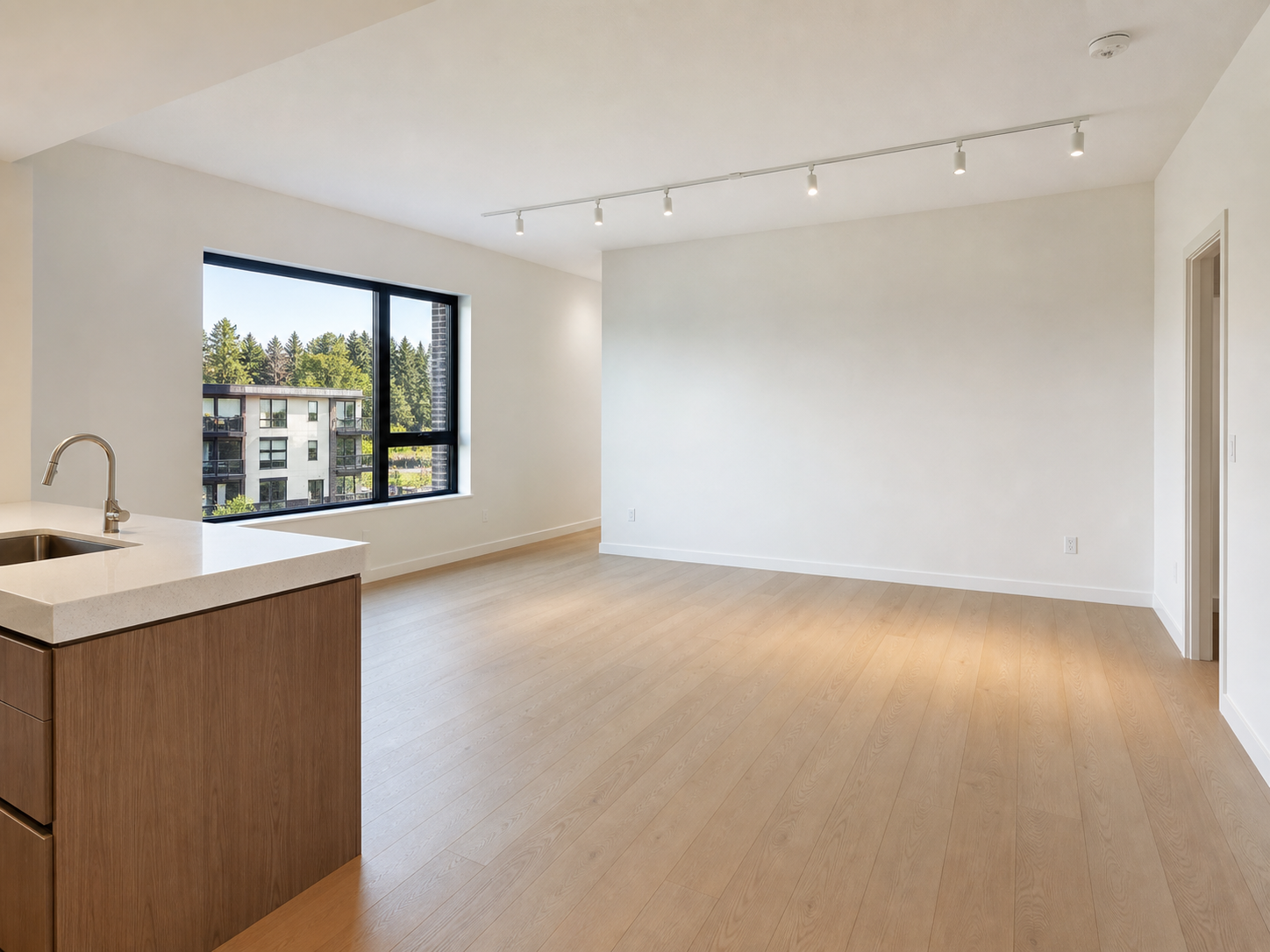
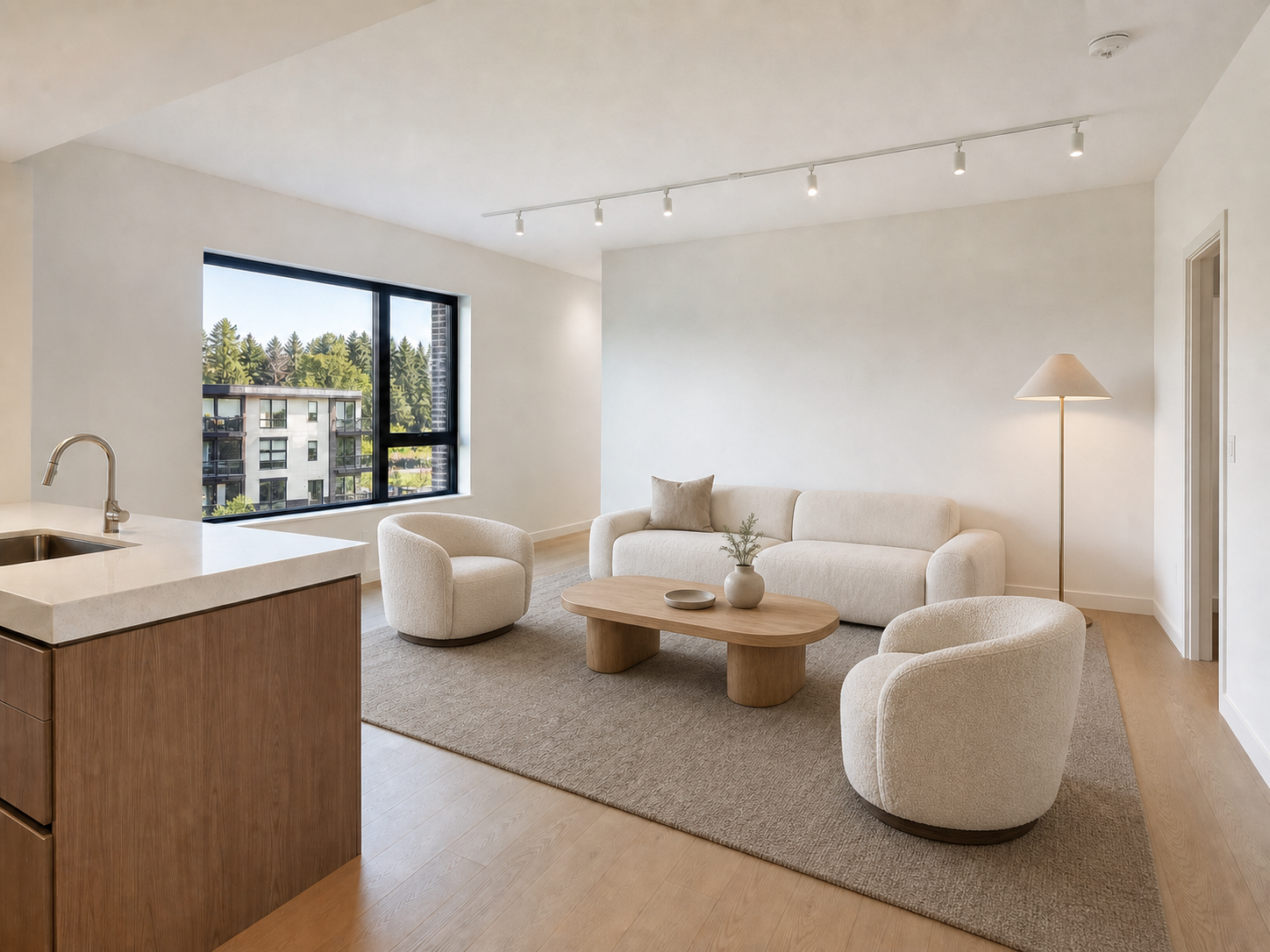
Add restrained furniture at a believable scale without altering the floor plan.
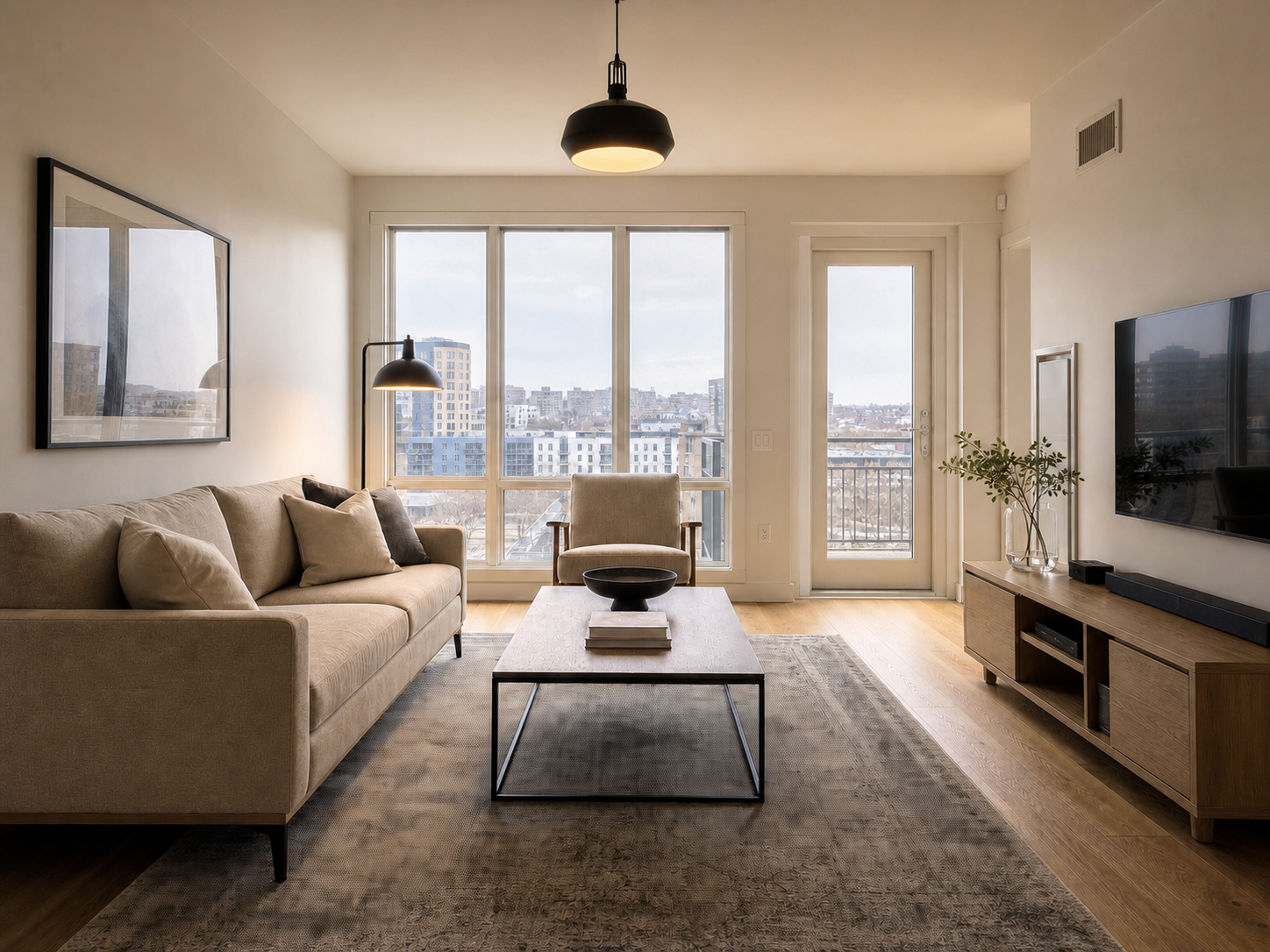
Give an existing room a warmer, brighter finish while keeping surfaces and layout intact.
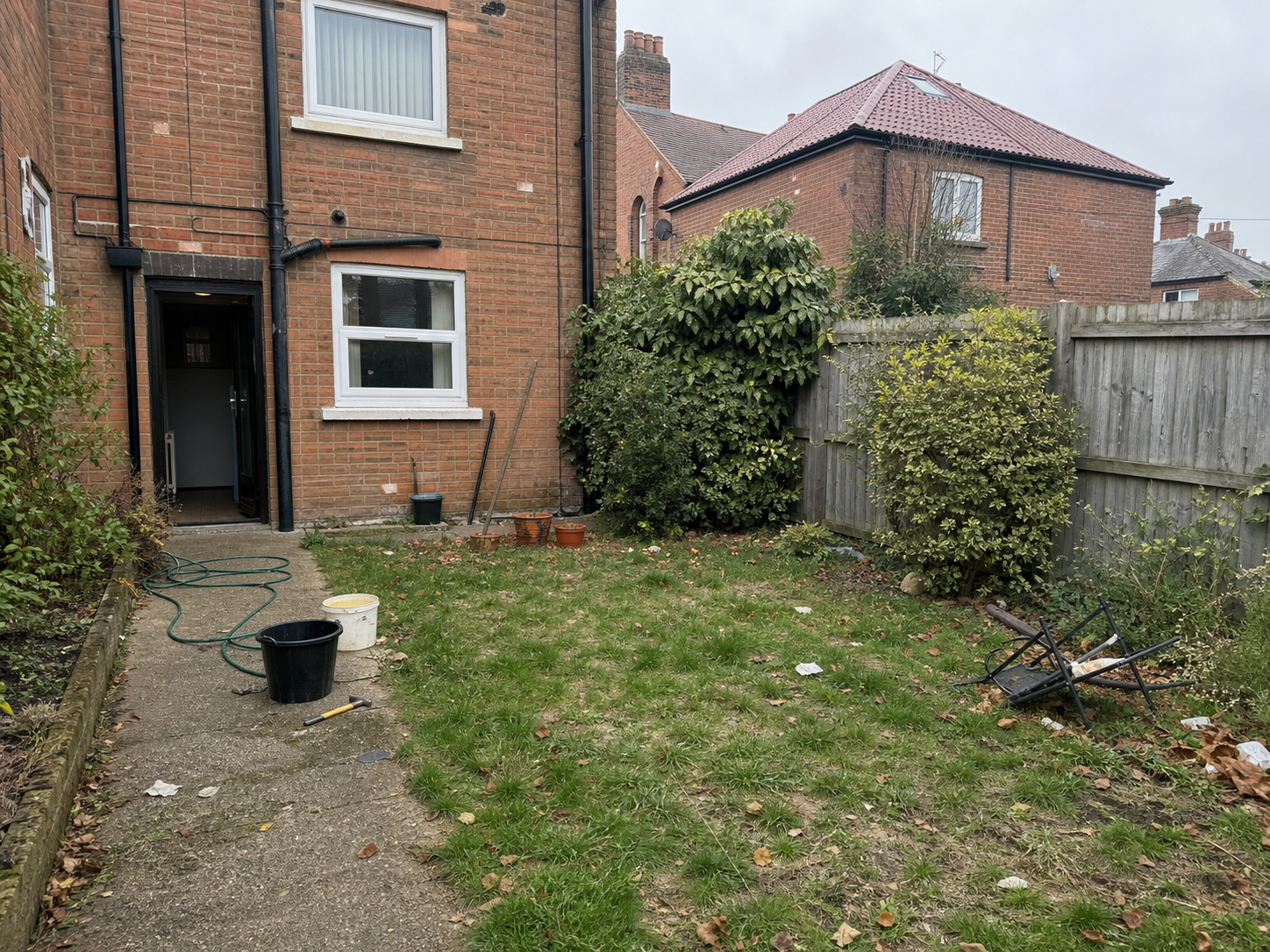
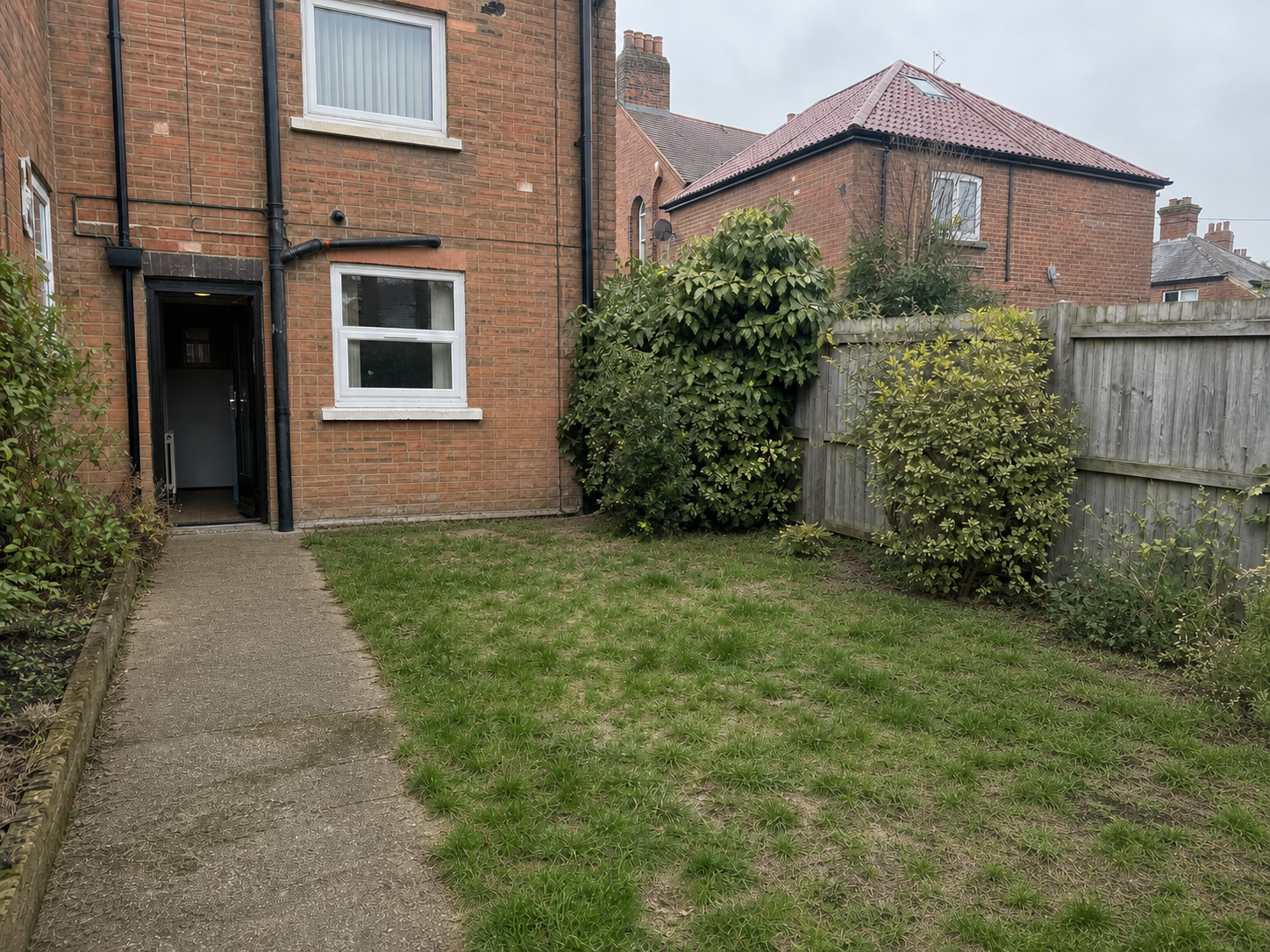
Remove loose yard clutter while preserving the real lawn, paths, plants, and boundaries.
Choose an edit for your property photo
Start with a darker room, a cluttered space, or an empty property. Choose the change you need below, then review the result in the editor.
01 · Core correction
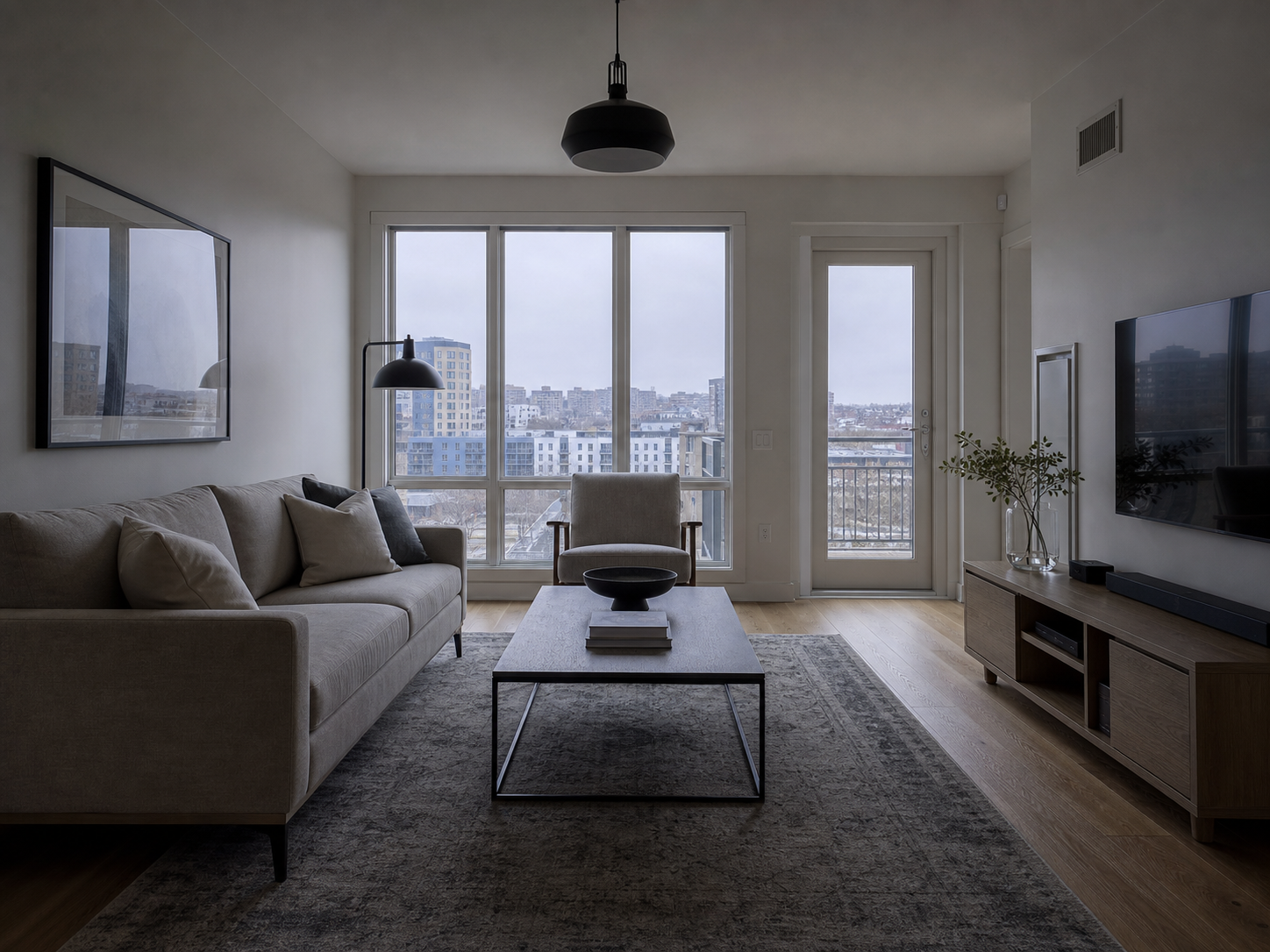
Correct light, color balance, contrast, and clarity without redesigning the property.
Open featureStraighten leaning walls and wide-angle distortion while keeping room proportions credible.
Reduce haze, water spots, streaks, glare, and distracting reflections without replacing the real view.
02 · Cleanup and removals
Clear boxes, toys, laundry, countertop mess, toiletries, and cables while keeping useful furniture.
Open featureRemove furniture, bins, signs, vehicles, pool cleaners, or one unwanted object and rebuild the covered area.
Blur sensitive details or remove photographer, tripod, flash, and mirror distractions from listing shots.
03 · Exterior marketing
Turn a daytime exterior into a believable blue-hour image with restrained window and fixture lighting.
Replace dull weather while respecting rooflines, tree edges, reflections, and the scene's light direction.
Repair brown or patchy lawn color without moving paths, beds, fences, or property boundaries.
04 · Room presentation
Black out glare or replace distracting screen content with a quiet image matched to the room lighting.
Add a restrained flame only to an existing fireplace, with light that matches the photographed room.
Add room-appropriate furniture, rugs, curtains, plants, or light decor while respecting scale and circulation.
Multi-image editing
Upload up to nine listing photos together. Keep the brief consistent, apply different jobs to different rooms, and review interiors and exteriors in one workspace.
More ways to edit property photos
Clear a countertop, remove personal items, or furnish an empty room. Choose a task below, or describe another change in the editor.
How to edit real estate photos
Upload the listing set, pick the right job for each photo, and review property facts before anything goes live.
Add one hero image or a group of interiors and exteriors.
Choose an edit or describe the change you want.
Check architecture, fixtures, materials, boundaries, and room layout before publishing.
Quick edits. Professional results.
Upload the property set, then choose the exact job each image needs.
Choose an edit, then upload a JPG, PNG, or WebP.