
PhoText Alternative: ClearCrowds vs. PhoText for Editing Image Text
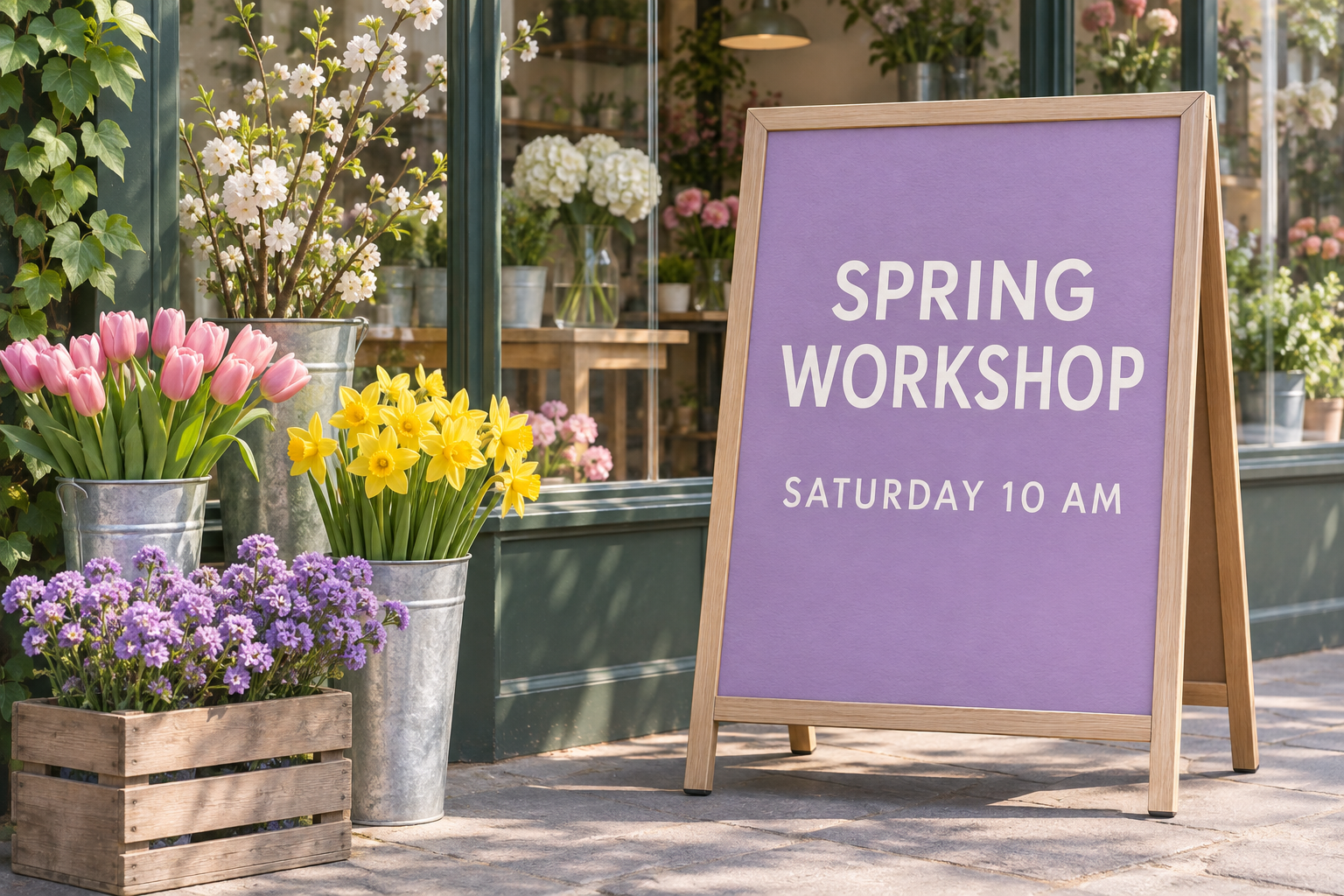
ClearCrowds is a PhoText alternative for changing words in screenshots, exported graphics and photos. Start with ClearCrowds’ Image Text Editor when you want to retype and style a line in a screenshot. Use Edit Text in Image when the words sit on a photographed surface, such as paper or a sign. PhoText also documents both click-to-edit and conversational editing, alongside tools for identifying fonts, translating image text and working with scanned PDFs.
Key takeaways
- For a screenshot or a flat design, start with the editor that gives you the typography controls you need after selecting a line.
- For a photo of printed lettering, judge the replacement alongside the surrounding angle, shadows and texture.
- For a new caption, add a movable text box. For an unwanted caption, use text removal.
- This comparison uses documented workflows. The photos illustrate what to inspect when reviewing an edit.
PhoText vs. ClearCrowds at a glance
| What you want to do | PhoText | ClearCrowds |
|---|---|---|
| Fix a word in a screenshot or exported poster | The click-to-edit workflow selects a line in the flat image. | Image Text Editor converts the selected area into editable text and offers font, weight, size and position controls. |
| Change lettering photographed on a sign or menu | PhoText documents a conversational edit where you describe the change. | Edit Text in Image lets you select the existing words and type the replacement for that area. |
| Add a caption to a photo | PhoText documents an add-text tool for captions and labels. | Canvas puts a movable text box over the picture with font, size and color controls. |
| Remove an old caption | PhoText documents dedicated text removal. | Remove Text offers an eraser for a single line or broader cleanup. |
| Identify a font or edit a scanned PDF | PhoText documents a separate Font Finder and PDF Text Editor. | Use the comparison here for image workflows. The ClearCrowds text tools discussed here edit photos and screenshots. |
Sources for PhoText’s workflow are its official tutorials. The ClearCrowds options are described on its image text editor, photo text editor, caption editor and text removal pages. The PhoText name in this comparison refers to the product at photext.ai.
What counts as editing text in an image?
Image text replacement changes lettering that is already part of the pixels in a JPG, PNG or other flattened image. A text overlay adds a new box over the picture. Choose the method based on whether the original letters should still be visible.
This matters for typography as much as content. On a flat poster, an edit may need a heavier font or a small position adjustment. On a photographed printout, the new letters should also follow the perspective and sit naturally on the paper.
Try the comparison with a workshop flyer
Use a flyer that you made and are allowed to edit. Suppose you need to change “SATURDAY 10 AM” to “SUNDAY 10 AM.”
- Make a copy of the source. Use the same file and wording in each workflow when comparing results.
- If the flyer is a flat export, select just the time line. Set the new wording and adjust the size or position if it sits too close to the headline.
- If the flyer is a photo, select the line on the photographed paper and apply the replacement. Use the surrounding letters as a reference for angle and texture.
- Compare the original and result at full size. Check the spelling, the letter edges, the paper behind the old text, and the lines you did not select.
- Preview at the size you plan to share. A small edge defect may matter in a large print, while a misplaced line is evident even in a thumbnail.
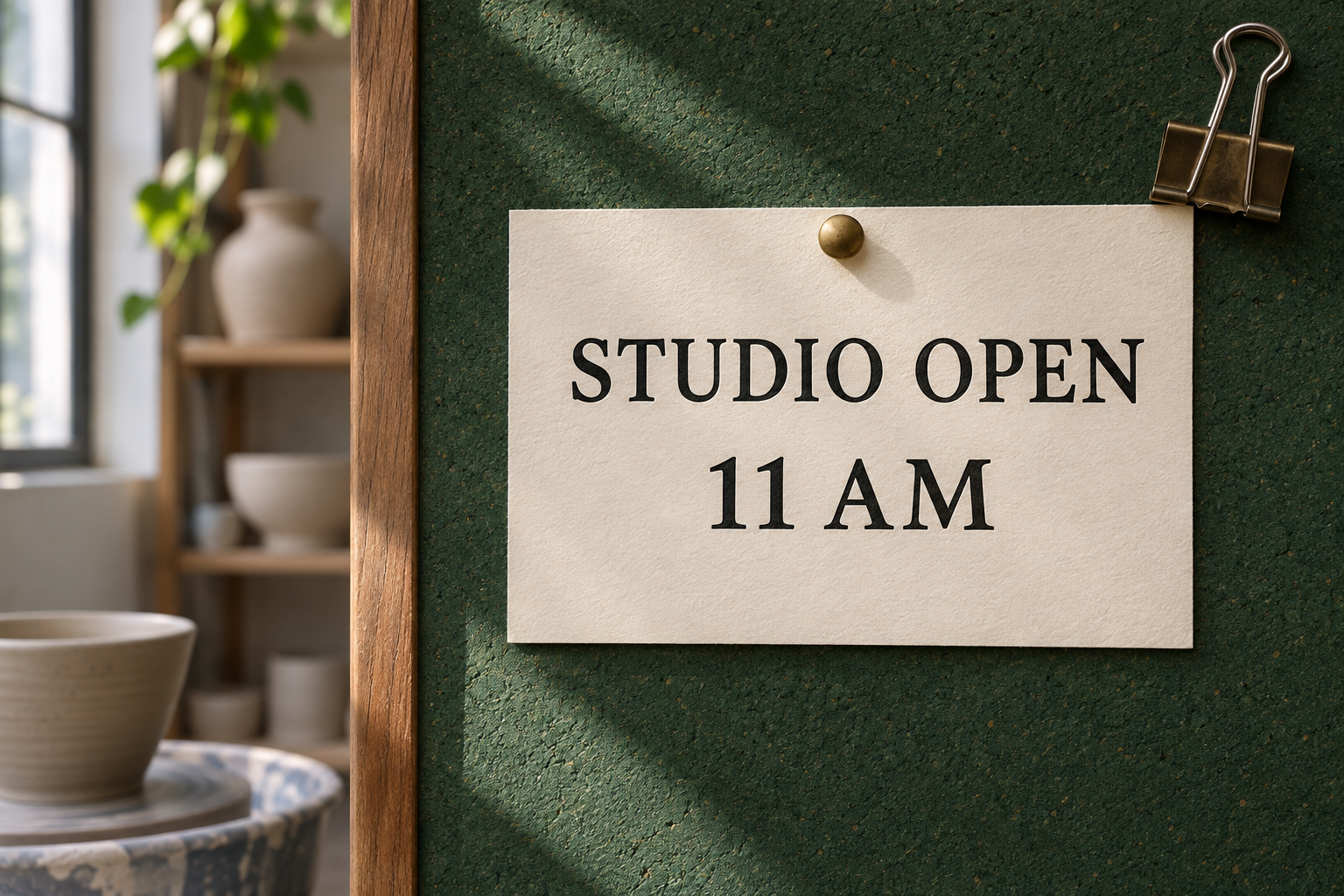
The grain in the card is a useful reference. After a time change, compare the repaired area with the unedited paper immediately to either side.
Where ClearCrowds fits
For screenshots and flat designs, open Image Text Editor, select a detected line and adjust the wording and style. For words photographed on objects, open Edit Text in Image and review the replacement against the surface around it. The guide to photo text vs. screenshot text shows how to decide between the two.
When the goal is a new headline or label, add text to a photo with a movable text box. Use images you own or have permission to edit.
Frequently Asked Questions
Does a PhoText alternative work with screenshots?
Yes. ClearCrowds Image Text Editor opens screenshots and flat graphics, detects visible text and lets you select an area to edit. For photographed lettering, start with Edit Text in Image.
Will the new text match the original font exactly?
Font matching is approximate. Check the weight and spacing in a screenshot. In a photo, look at the perspective, edges and texture around the replacement too.
Can I add a caption with ClearCrowds?
Yes. Open the photo in Canvas, add a text box, type the caption and drag it into place. You can adjust its font, size and color before downloading the image.
Summary
Choose a workflow based on the source image and the finished result you need. For a flat image, look for controls over the selected line. For a photographed surface, check how the replacement sits in the scene. When adding a caption, use a movable text box.