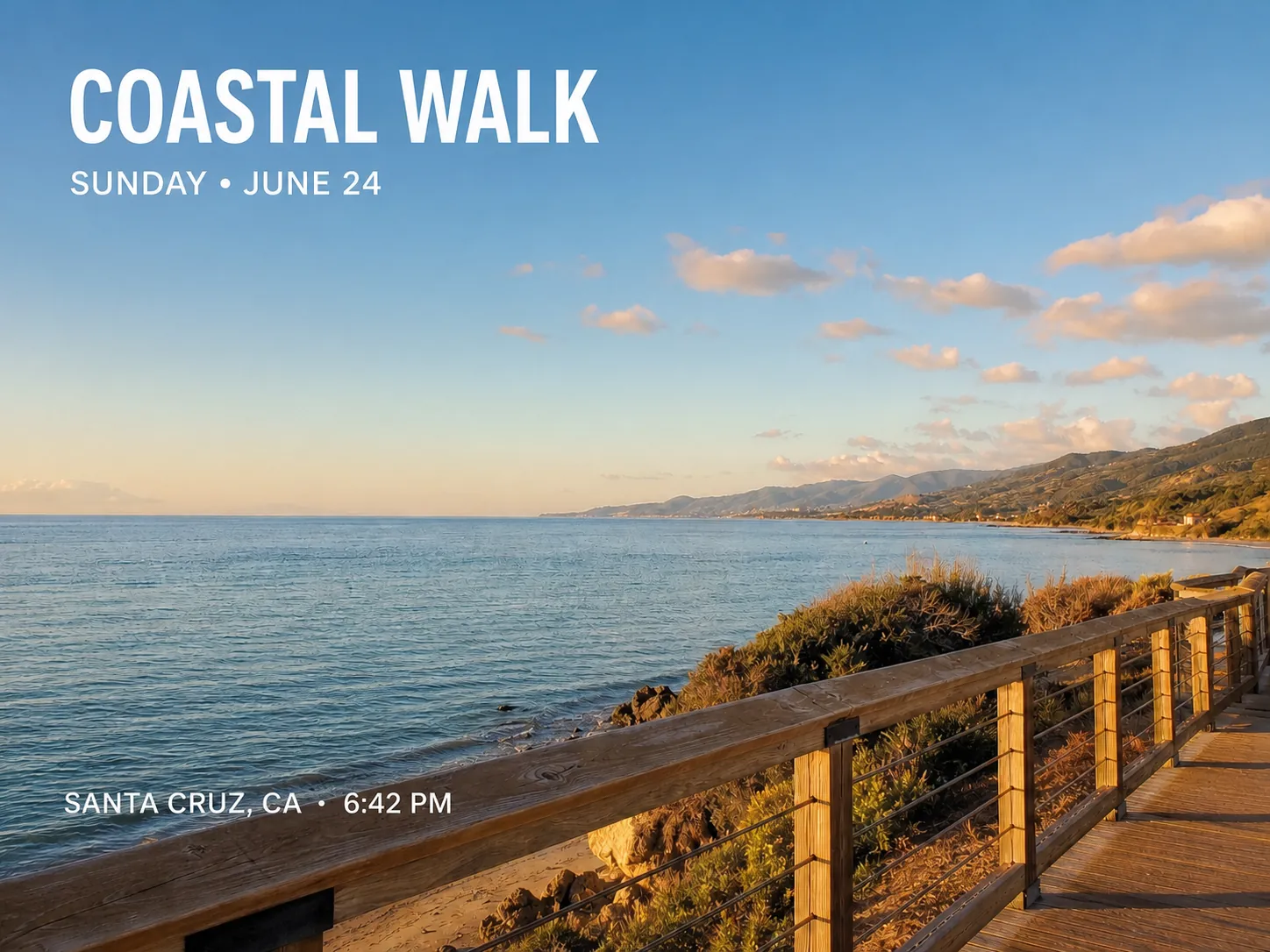






Add text to a photo

Put a caption, headline or label on your picture. Type your words, choose a font and color, then drag the text where it reads best.

  • Type your exact wording
  • Adjust font and color
  • Move text on the canvas

Upload your photo

JPG · PNG · WebP

Add text to my photo
Read the step-by-step guide

Style each line on its own

Use a separate text box for the headline and the details so each line can have its own size and position.

Type your exact wording
Enter names, captions and dates directly in a text box.
Adjust font and color
Choose a legible style and check it against the area behind it.
Move text on the canvas
Drag the box into open space to keep the subject visible.

See where the words fit

Compare each original with a version that places the message in the open part of the photo.

Caption a travel photo

Place the caption in the open sky so it stays clear of the mountains.

Text added
Add LAKE WALK above the water.
Photo details
Keep the shore, mountains and reflections visible.
Lakeside trail and mountains at sunrise
The same landscape with LAKE WALK in the open sky
OriginalWith text

Label a product photo

Use the open space beside the product for a short name that stays readable in a thumbnail.

Text added
Add STONEWARE MUG beside the cup.
Photo details
Keep the ceramic texture and the silhouette in view.
Cream ceramic mug on a brown backdrop
The same mug photo with STONEWARE MUG to its left
OriginalWith text

Announce a workshop

Put the workshop name and time on separate lines so readers can scan the information.

Text added
Add CLAY WORKSHOP and SATURDAY 10 AM on the wall.
Photo details
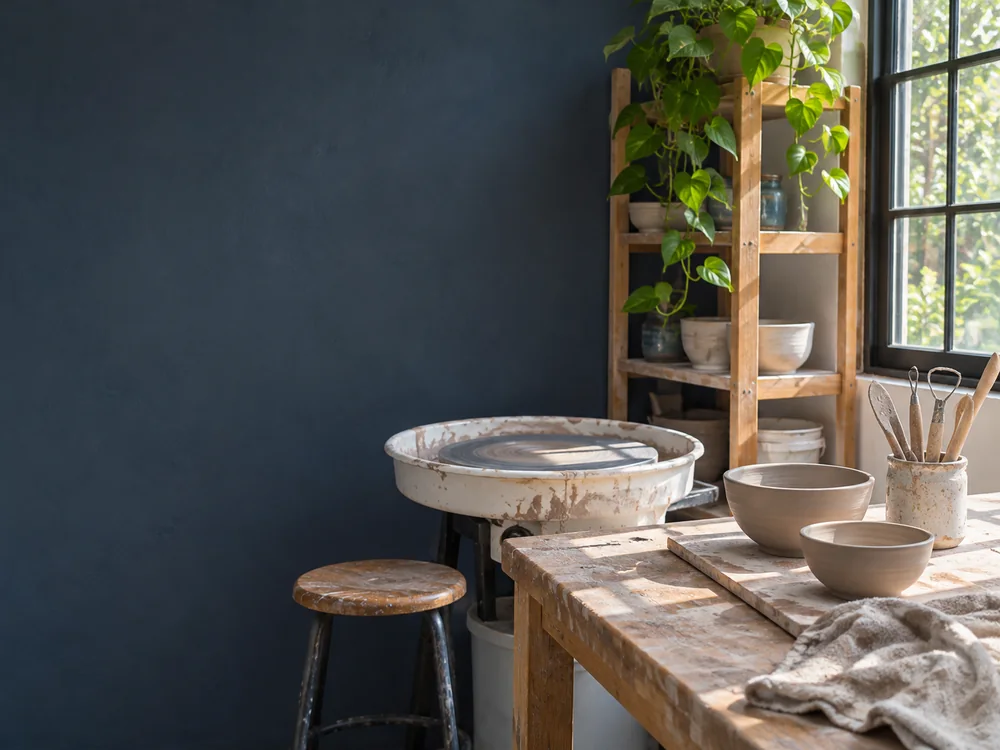
Keep the potter’s wheel and bowls visible.
Ceramics studio with empty wall beside a potter’s wheel
The same ceramics studio with a workshop title and time
OriginalWith text

How to add text to a photo online

Open your image in the canvas editor and build the caption one text box at a time.

  1. 1

    Upload your picture

    Choose the photo you want to caption.

  2. 2

    Add and style the text

    Choose the text tool, type your words and set the font, size and color. Drag the text box into place.

  3. 3

    Check and download

    Preview the whole image, save your changes and download the finished picture.

Keep the text readable at its final size

A caption that reads well in the editor can disappear in a small preview.

Leave room around the edges

A little margin helps keep words visible when a feed or preview crops the photo.

Choose an even background

Move the text to a quiet area of the photo if busy textures make the letters hard to read.

Work with the words already on the photo

Use a text replacement tool when the existing letters need to be changed. Choose text removal to clear a caption or date stamp.

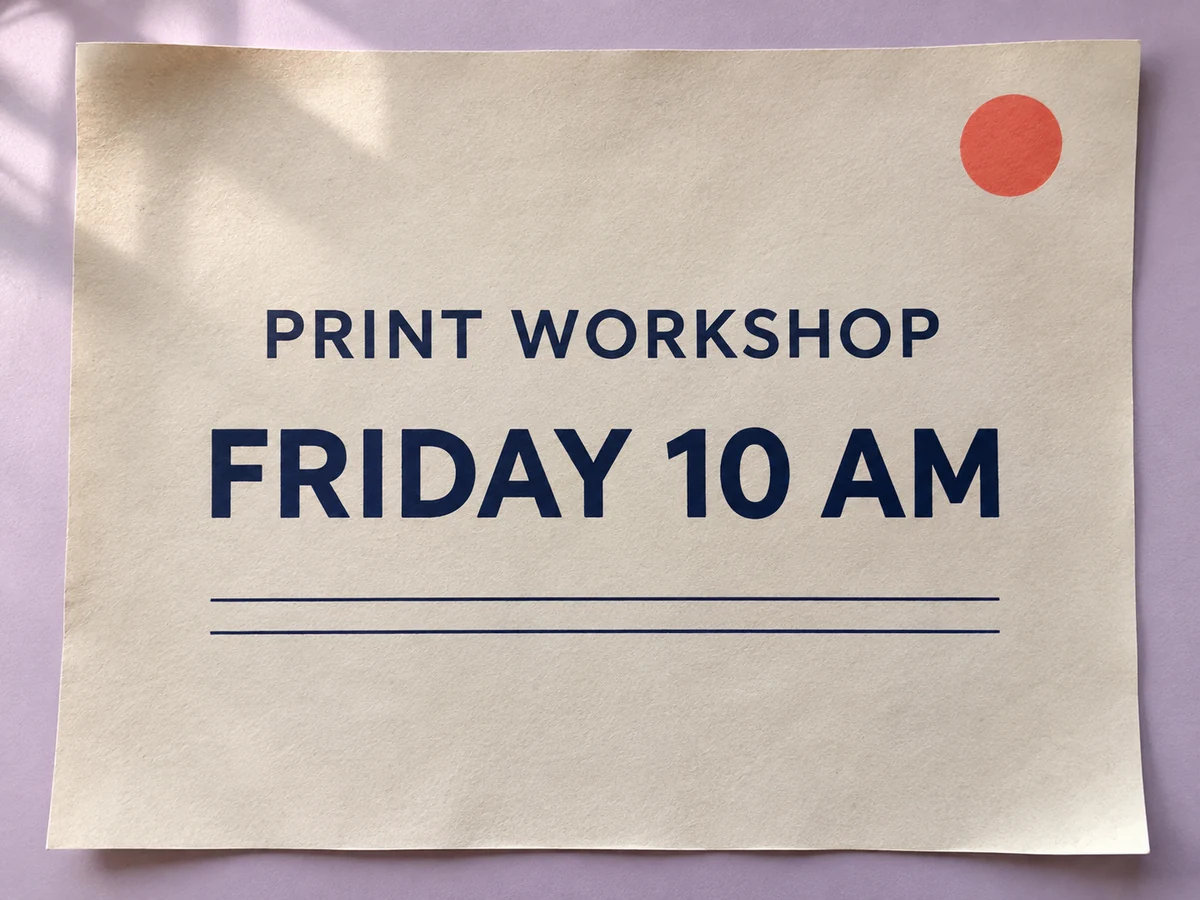
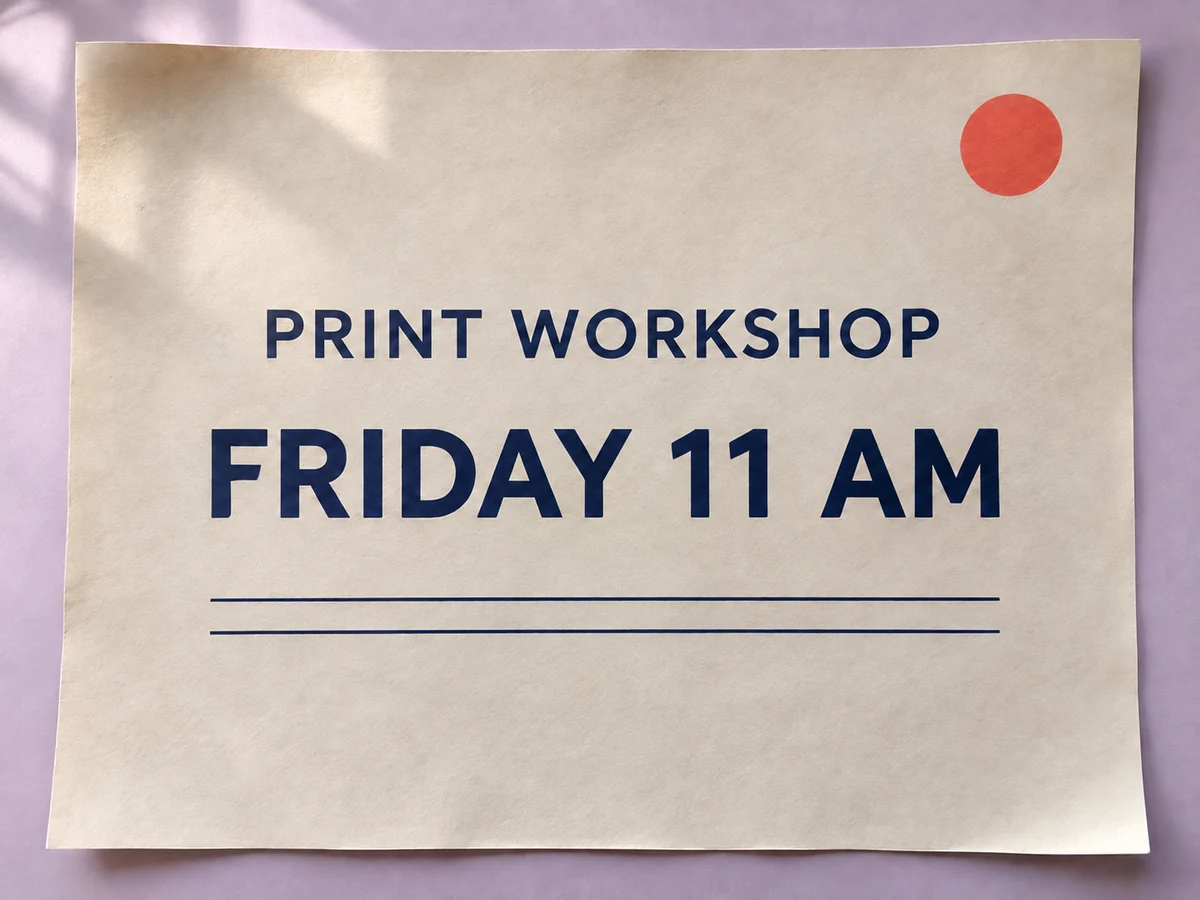
  • Replace a line on a printed sign with Edit Text in Image.
  • Brush over an unwanted caption with Remove Text.

Questions about adding text to a photo

Text placement, styling and saving your picture.

Can I add more than one line?
Yes. Make a separate text box for each line when you want to move or style it independently.
Can I add text on my phone?
Yes. Upload your photo from a mobile browser, then use the canvas text tool to type, style and position your words.
Will the text be visible in the downloaded picture?
Yes. The downloaded image includes the photo and the visible text together. Keep your original photo for other edits.

Add your words to a photo

Upload a picture and place your first line of text.

Upload your photo

JPG · PNG · WebP

Add text to my photo