Direct answer
What is Edit Date?
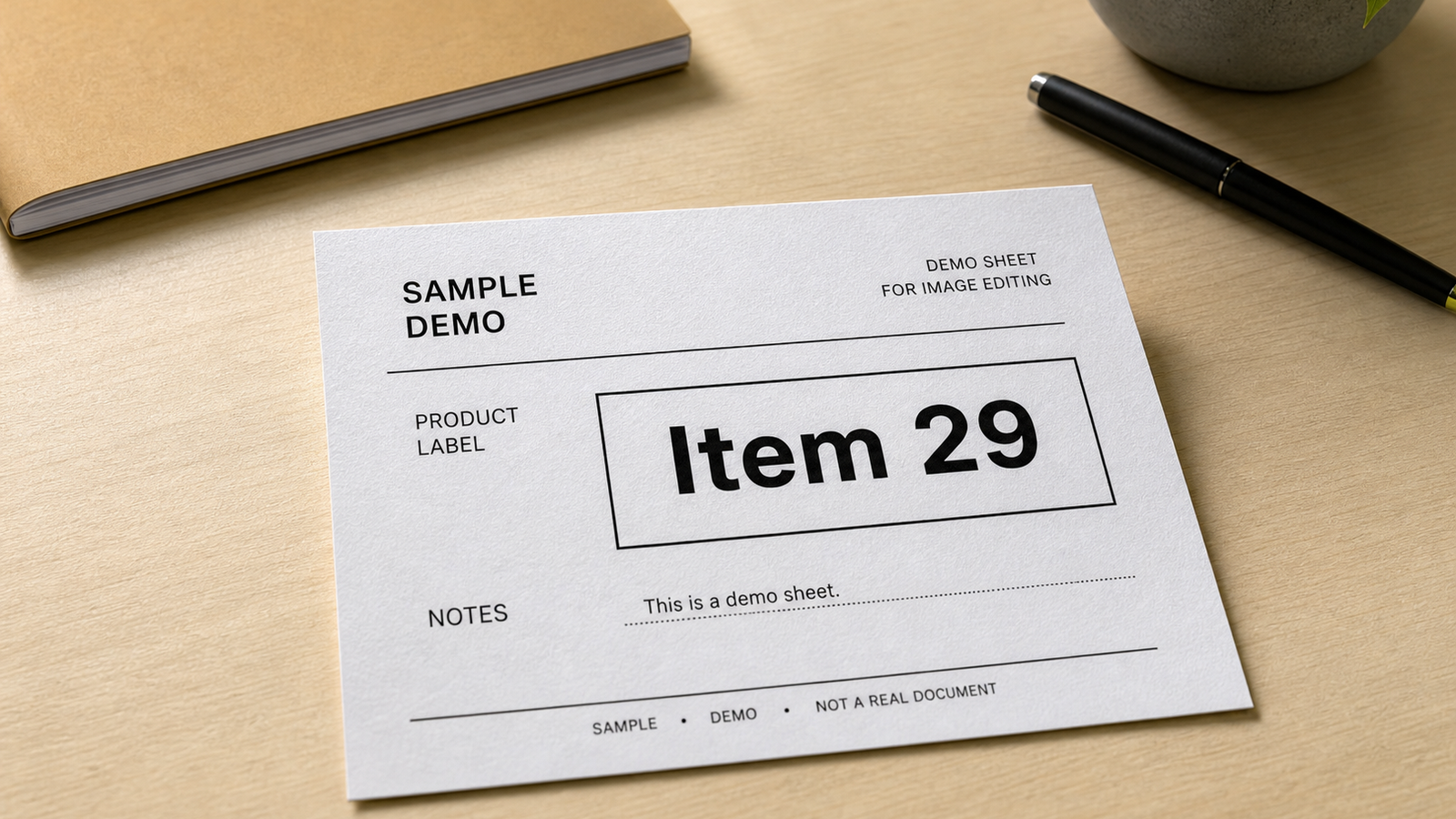
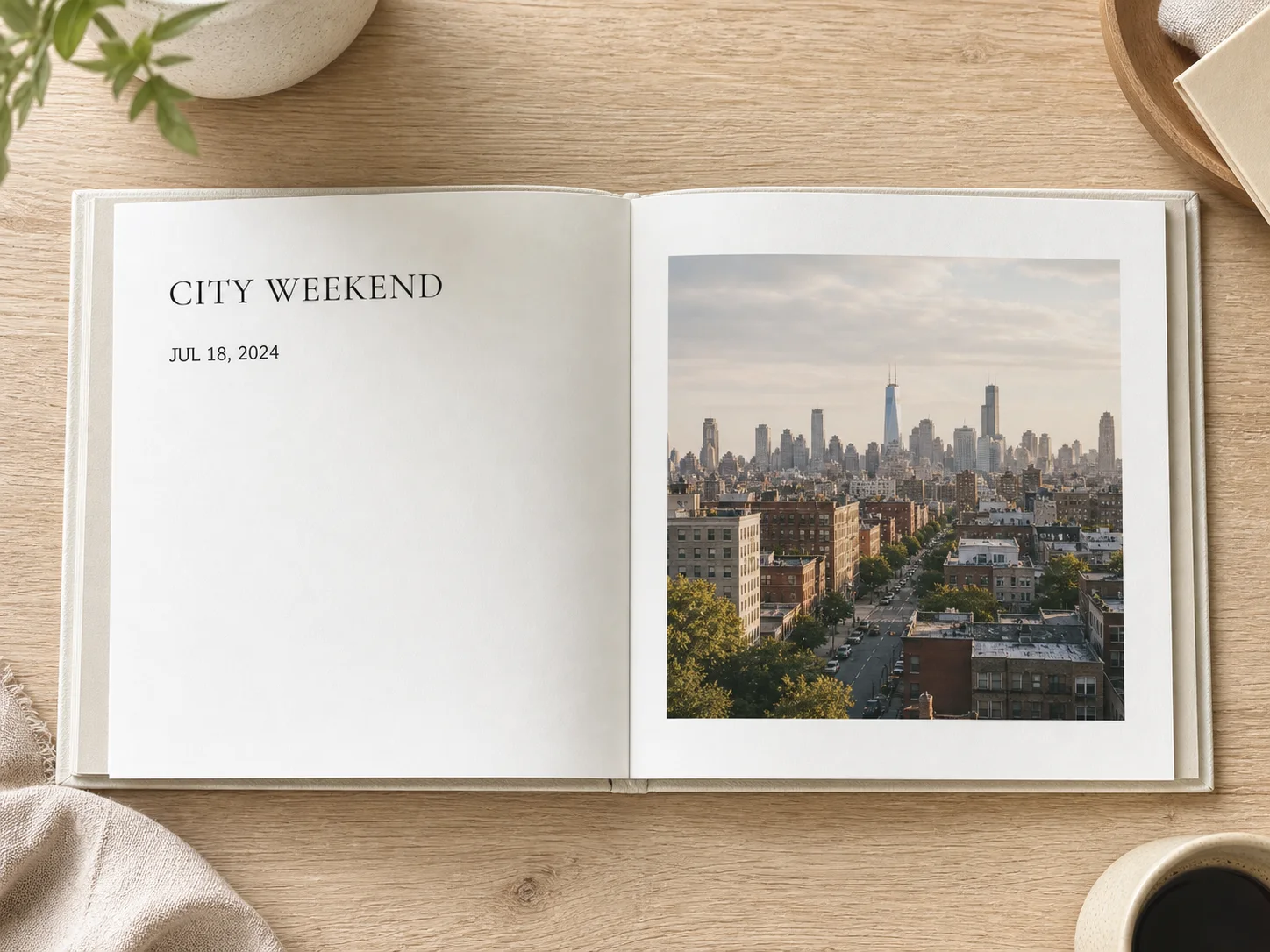
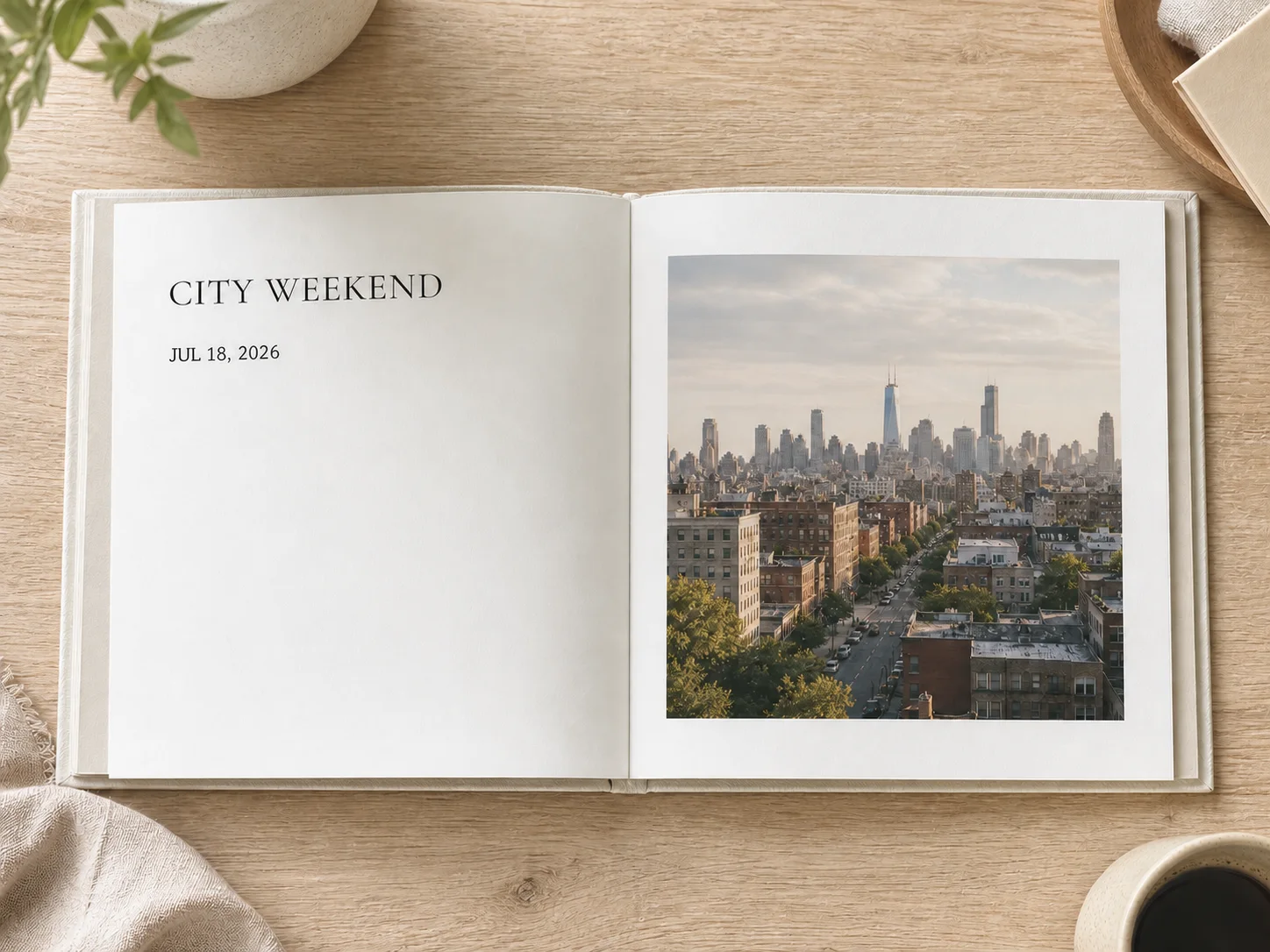
Edit Date replaces one visible date in a photo while keeping the surrounding type style, surface, lighting, shadows, and perspective consistent.
Edit Text
Use Edit Date for ordinary, non-sensitive photos when a printed or displayed date is outdated and the rest of the image should stay unchanged.
This preset is already selected.
Edit Date
Direct answer
Edit Date replaces one visible date in a photo while keeping the surrounding type style, surface, lighting, shadows, and perspective consistent.
Workflow
Pick a photo where the target area is visible and nearby edges, scale, lighting, and perspective provide enough context for a natural edit.
Edit Date changes or adds the requested element while asking ClearCrowds to preserve the subject, layout, crop, and unrelated details.
Check scale, alignment, perspective, contact shadows, reflections, and edge blending. The new element should belong in the original scene.
Use cases
Try it
ClearCrowds passes the preset into the editor so the workflow is ready when your photo opens.
This preset is already selected.
Frequently asked questions
No. It edits a date that is visibly printed inside the image. It does not change EXIF capture time, file creation time, or location metadata.
That is the goal. The workflow identifies the selected date and edits the smallest practical region, but you should still compare every nearby character before exporting.
No. Use Edit Date only on non-sensitive images you own or are authorized to edit, never on legal, financial, medical, identity, educational, or evidence-like records.