
How Do I Remove a Snapchat Caption From a Saved Photo Without Smearing the Background?
Remove Text
Erase readable text and number strokes only while keeping the original page, UI, objects, and layout unchanged.
View tool details
Direct answer
If the Snap is still editable inside Snapchat Memories, try Snapchat's own edit option first. Snapchat Support says you can open Memories, press and hold a saved Snap, and choose an edit option before sharing it again. That is the cleanest route when the caption is still an editable layer.
If the photo has already been saved to your camera roll, exported, screenshotted, or reposted with the caption flattened into the pixels, the caption is no longer a separate Snapchat text layer. At that point, AI can remove the visible letters, but it is not revealing the exact original image underneath. It is rebuilding a believable patch from the surrounding sky, wall, clothing, skin, table, screen, or background.
For a saved photo with a normal caption across a simple background, start with ClearCrowds Remove Text. Keep the selection tight around the letters, run one conservative pass, then zoom in before saving. If the caption hides a face, message, username, address, receipt, license plate, or other private detail, blur or crop is usually safer.
Remove a saved Snapchat caption carefully
- Tight text selection
- Background repair
- Privacy-aware
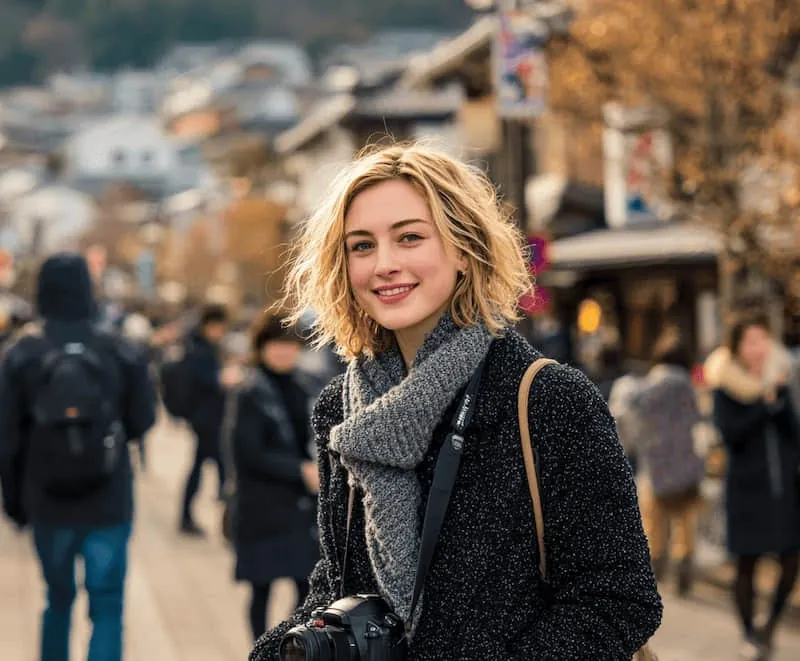
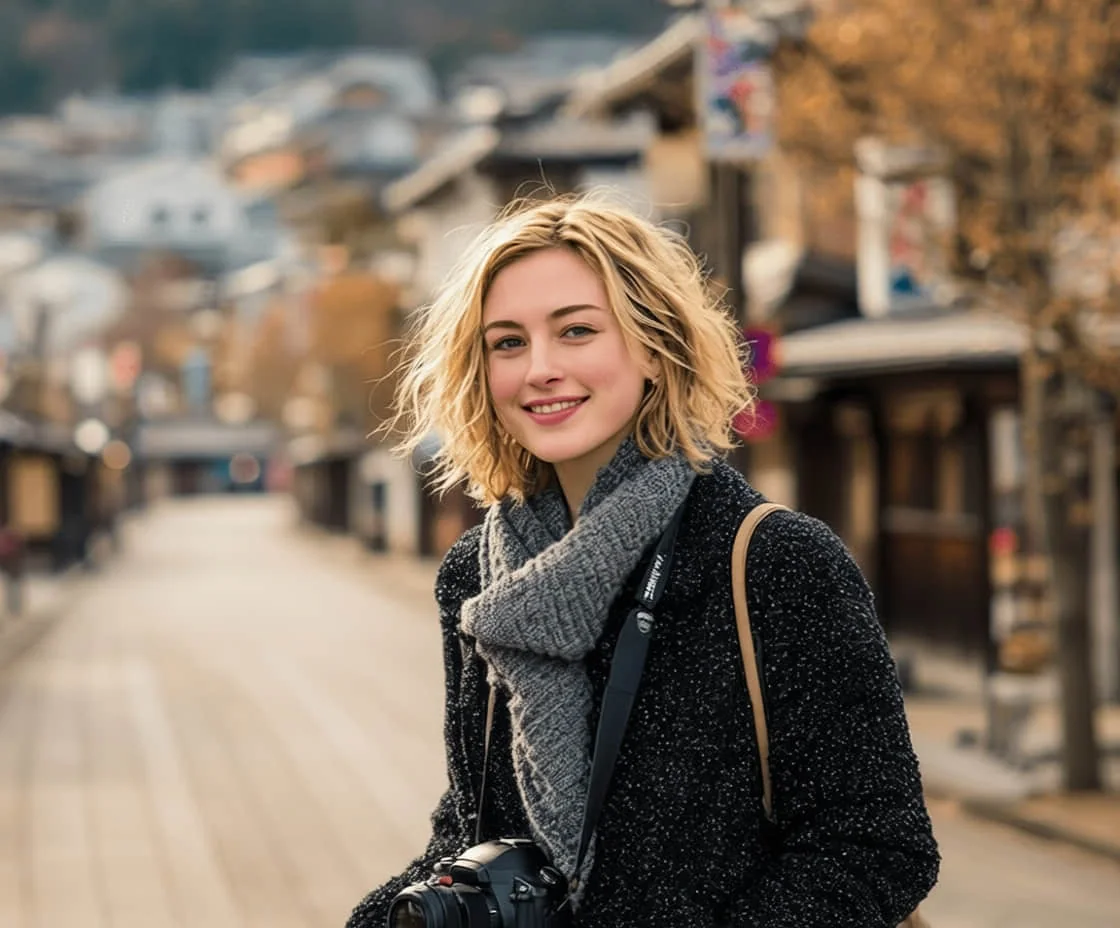
Upload the saved photo, select only the caption letters, and review the repaired background before exporting.
Key takeaways
- Try Snapchat Memories editing first when the Snap is still editable.
- A saved camera-roll image usually has the caption flattened into the photo.
- AI text removal rebuilds a plausible patch; it does not recover the exact hidden pixels.
- Simple backgrounds are much easier than faces, hair, labels, UI, documents, and patterned surfaces.
- Use Remove Text for captions and words; use Privacy Blur when the caption hides sensitive information.
Table of contents
- What kind of Snapchat caption are you dealing with?
- When Snapchat caption removal works best
- Step-by-step workflow
- Why the background gets smeared
- Common saved-Snap scenarios
- When not to remove the caption
- Prompt examples
- Review checklist
- Sources
- FAQ
What kind of Snapchat caption are you dealing with?
The first question is not "Which AI tool should I use?" It is: is the text still editable?
Snapchat can edit saved Snaps in Memories. If the Snap is still in Memories and the original edit layer is available, go there first. Open Memories from the Camera screen, press and hold the Snap, and choose the edit option. If Snapchat lets you select or remove the text, that is better than any repair tool because you are removing the actual text layer.
But a lot of people are dealing with a different file:
- a Snap saved to the phone gallery
- an image downloaded from a Story
- a screenshot of a Snap
- a photo someone sent back to you
- an old memory exported from another device
- a reposted image where the caption is part of the bitmap
In those cases, the caption is just visible pixels. The editor has to erase the letters and fill the space.
A Snapchat caption remover is really a text cleanup workflow: select the visible caption, remove the letter strokes, and rebuild the nearby background so the saved photo still looks natural.
That is why a good result depends on the background, not just the app name.
When Snapchat caption removal works best
Caption cleanup usually works well when the text sits on a simple, predictable area.
Good cases:
| Caption position | Why it can work | What to check |
|---|---|---|
| Sky, wall, road, table, floor, or water | Nearby texture is simple enough to rebuild | Color banding, soft rectangles, repeated texture |
| Clothing with a plain color | Fabric gives the model a local pattern | Wrinkles, seams, logos, shadows |
| Edge of a casual photo | The repaired area is not the main subject | Border artifacts and crop balance |
| Empty area in a social image | The hidden detail is not important | Whether the patch still matches lighting |
Hard cases:
| Caption position | Why it is risky | Better option |
|---|---|---|
| Across a face | The repair can change identity or expression | Use the original, crop, or leave it |
| Over hair, hands, eyes, or mouth | Fine detail is hard to rebuild honestly | Manual edit or no edit |
| Over a message, username, address, or receipt | The caption may hide private context | Privacy Blur or crop |
| Over a product label or price | The edit can mislead buyers | Keep the original or disclose the edit |
| Over a screenshot UI | Buttons and text may be invented | Blur, crop, or rebuild manually |
If the caption covers something important, the problem is not technical. The repaired patch might look clean but still be wrong.
Step-by-step workflow
Use the narrowest possible edit.
- Save a copy of the original photo.
- If the Snap still exists in Memories, try Snapchat's edit option first.
- If you only have a flattened image, open the best-quality version you have.
- Choose Remove Text, not a broad beautify or object prompt.
- Select only the caption letters and a tiny edge around them.
- Avoid selecting the whole sky, face, product, or screenshot panel.
- Run one cleanup pass.
- Zoom in and inspect the repaired area at full size.
- If one small artifact remains, do one tiny follow-up pass on that artifact only.
- Stop if the result starts smoothing the background or changing the subject.
The annoying part is that a larger selection can look easier, but it usually gives the AI too much freedom. A tight selection tells the tool to solve one small problem: remove the caption strokes.

Why the background gets smeared
A smear or blur patch is usually a workflow issue, not proof that the photo is impossible.
Common causes:
- The selection included too much background around the text.
- The caption had a glow, shadow, outline, or color stroke that was not fully selected.
- The photo was saved through a compressed app share flow.
- The text covered a detailed area such as hair, grass, brick, fabric, or a face.
- The editor was asked to "make it perfect" instead of only removing the letters.
- Multiple repair passes were stacked over the same spot.
A better shortcut is to select the caption in parts. For example, remove a top line first, then a small leftover shadow, then stop. Do not keep regenerating the same area until the texture turns into a smooth patch.
Common saved-Snap scenarios
Caption across a sunset or sky
This is usually the easiest case. The sky has gradients, but it does not have many hard details. Select the letters and their shadow, then check for banding. If the edit creates a rectangle, undo and use a smaller selection.
Caption across a selfie
Be careful. If the caption crosses cheeks, eyes, mouth, or hair, the editor may invent face detail. That can change identity even if the result looks polished. If the photo matters, try to find the original Snap or crop the caption area instead.
If the caption sits only on empty wall behind the person, text cleanup is safer. Select only the words and avoid touching the outline of the head or shoulders.
Caption on a screenshot
Screenshots are not normal photos. A caption may cover a username, message, location, price, private number, or button. If the goal is privacy, use Privacy Blur. If the screenshot is a public tutorial and the caption is decorative, use text removal but check that no UI labels were invented.
Caption plus emoji or sticker
Use different tools for different overlay types. Use Remove Text for readable words. Use Remove stickers and emojis when the overlay is a graphic sticker, emoji, reaction bubble, or stamp.
If an emoji covers a person's face, read Can You Remove an Emoji Covering Someone's Face Without Changing the Person? before trying to reconstruct anything.
When not to remove the caption
Do not remove a Snapchat caption when it changes the meaning of the photo or hides context that a viewer should know.
Avoid removal when the caption covers:
- private messages, usernames, account names, addresses, or phone numbers
- school, medical, legal, financial, or identity information
- a face hidden for privacy or consent
- a product defect, price, serial number, warning label, or receipt
- a screenshot where the text explains what happened
- someone else's photo where you do not have permission to edit
In those cases, use blur, crop, or the original file. Clean is not always better if it makes the image less honest.
Prompt examples
Here are prompts I would actually use. Keep them boring. The point is to stop the editor from improving the whole photo when all you want is one caption gone.
For text on sky, wall, road, or another simple background:
Remove only the selected Snapchat caption text. Rebuild the surrounding background naturally and keep the original lighting, texture, color, and camera perspective unchanged.
For text close to a person, add the "do not change" part. This is especially important if the caption touches hair or skin.
Remove the selected caption without changing the face, hair, skin texture, clothing, pose, body shape, or background outside the selected letters.
For a screenshot, be stricter. The tool should not rewrite the interface.
Remove only the decorative caption. Keep all UI layout, readable text outside the selection, icons, buttons, colors, and spacing unchanged. Do not invent new text.
The prompt I would avoid is:
Make this look clean and professional.
That sounds harmless, but it is too open. It gives the model permission to smooth the face, brighten the scene, replace small details, or "improve" things you did not ask it to touch.
Review checklist
Do not review the edited image zoomed out. Most bad caption removals look fine in a small preview. Open it full size and check the old text area first.
Ask these questions:
- Is there a soft rectangle where the caption used to be?
- Did the repair wipe out real texture, hair, face detail, or product detail?
- Did the color or lighting shift around the removed words?
- Are straight lines still straight?
- Did the tool invent fake UI text, fake labels, or weird half-letters?
- Was the caption hiding private information or useful context?
- Would the edited photo mislead someone who never saw the original?
If the answer is even slightly uncomfortable, keep the original or crop around the caption. A visible caption is annoying. A fake-looking repair is worse.
How this fits with ClearCrowds
ClearCrowds is useful when the request is narrow: remove visible text from a saved photo and leave everything else alone.
Use:
- Remove Text for Snapchat captions, dates, usernames, labels, and small words.
- Remove Garbage for non-text overlays, stickers, stamps, and small graphic clutter.
- Privacy Blur when the safer goal is hiding information.
- Blur Faces when a person should stay anonymous.
Run one focused edit at a time. Remove the caption first. Then decide whether the image also needs sticker cleanup, object removal, shadow cleanup, or cropping. Bundling all of that into one prompt is how small fixes turn into strange edits.
Sources
- Snapchat Support: How do I edit a Snap in Memories?
- Adobe Help: Remove objects and distractions in Photoshop
- ClearCrowds guide: Remove stickers and emojis from photos
FAQ
Can I remove a Snapchat caption after saving the photo?
Sometimes. If the Snap is still editable in Snapchat Memories, try Snapchat's own edit option first. If the caption has already been saved into the image or screenshot, treat it like normal text removal and inspect the repaired background closely.
Does AI recover the original photo under the Snapchat caption?
No. It does not reveal the exact pixels under the caption. It removes the visible letter shapes and builds a plausible patch from nearby texture, color, lighting, and edges.
Why does the removed caption area look blurry?
Usually the selection was too large, the caption shadow was missed, or the background had too much detail. Start from the cleanest original image and select only the letters plus a narrow edge.
Can I remove Snapchat text from a screenshot?
You can remove decorative text from screenshots you own, but be careful. If the caption hides usernames, messages, payments, locations, or private information, blur or crop is safer than reconstruction.
Is Remove Text better than object removal for Snapchat captions?
For readable words, yes. Remove Text is designed for letters, captions, dates, and small text strokes. Object removal is better for stickers, emoji, stamps, or graphic overlays that are not readable text.
Should I edit someone else's Snap?
Only with permission. Do not remove captions, stickers, or overlays that were added for privacy, safety, consent, or context. A clean edit should not make the image less honest.
Summary
Start with the original Snap if you still have it. If all you have is the saved photo, keep the edit small: select the caption, remove the letters, check the repair at full size, and stop if the tool starts changing the subject or hiding context.