
Best AI Photo Editor: How to Choose the Right Tool for Your Photo
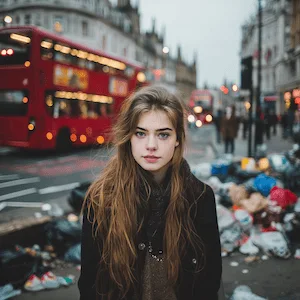
Test ClearCrowds on one real cleanup photo
Upload a photo from this guide and start with a cleanup tool for clutter, cables, props, or small distractions.
View tool details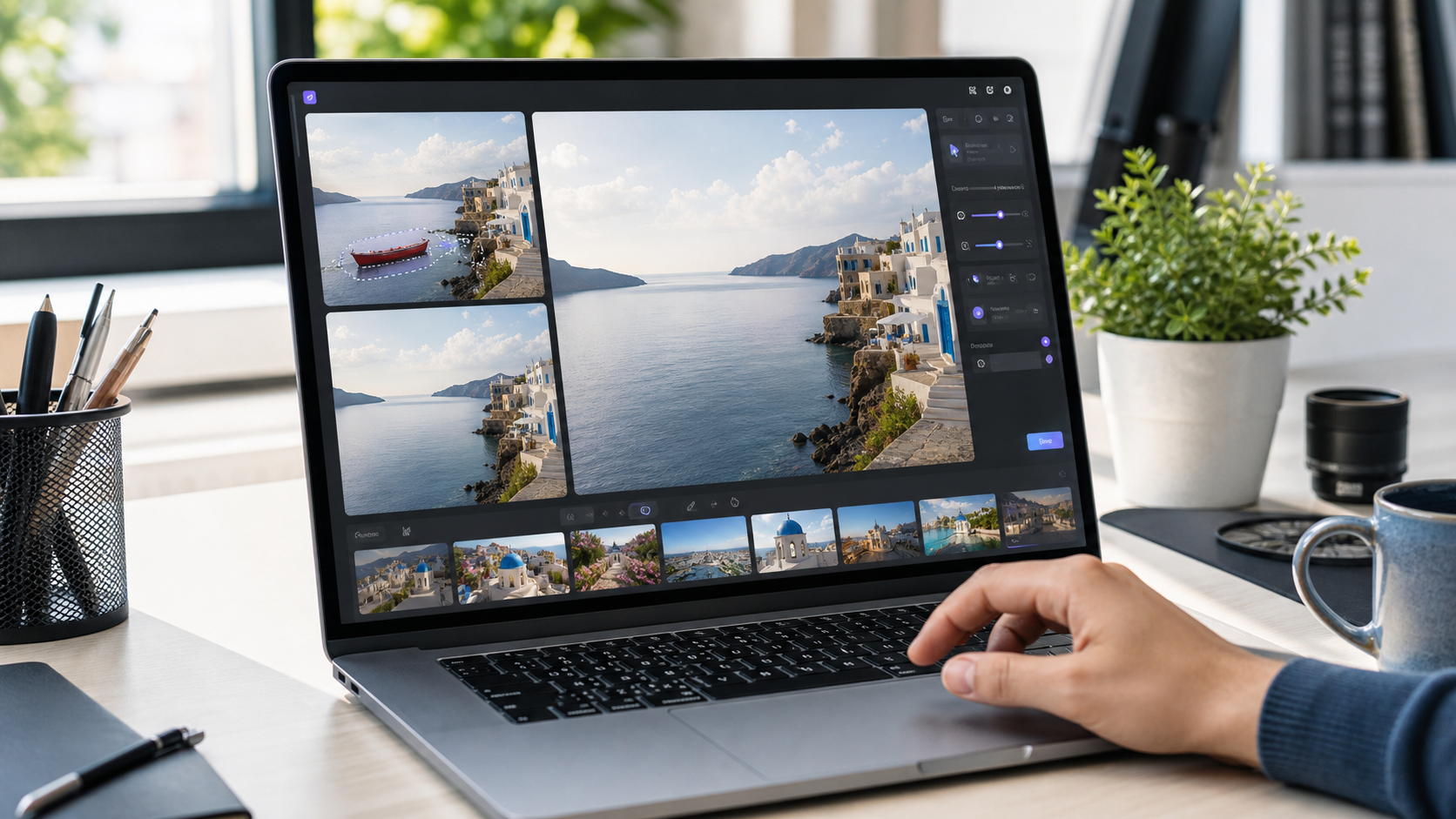
The best AI photo editor is the one that matches the job in front of you. For fast cleanup, choose a tool with strong object removal and natural background reconstruction. For design layouts, choose an editor with templates and layers. For precise production work, choose a desktop editor with selections, masks, and manual controls. For everyday phone photos, choose a mobile editor that gets you from camera roll to finished image quickly.

This guide is not a generic ranking where every app is called "powerful." It is a decision guide. If you have one messy photo and need a clean result, the right choice is different from someone building a brand campaign or retouching a portrait set.
Key takeaways
- The best AI photo editor depends on the edit type: cleanup, prompt generation, design composition, mobile correction, or professional retouching.
- For travel, marketplace, ecommerce, and real estate cleanup, object removal quality matters more than the longest feature list.
- Prompt-based editors are useful when you can describe the result, but selection control still matters for believable edits.
- Compare tools with one real test photo before paying: edges, shadows, repeated textures, and export quality reveal most weaknesses.
- ClearCrowds fits best when your priority is cleaning distractions from owned or permissioned photos without learning a full design suite.
What "best AI photo editor" should mean
The best AI photo editor is the tool that turns a specific photo problem into a believable finished image with the least extra work, while still giving you enough control to fix mistakes.
"AI photo editor" now covers several different products. Adobe Photoshop's Generative Fill is built around selections, prompts, and editable layers. Canva's AI Photo Editor focuses on easy design workflows with tools like Magic Edit and Magic Eraser. Google Photos puts AI corrections into a phone-first photo library. Pixelcut's cleanup tool is more narrowly focused on removing objects, people, or text from images. Those are not the same job, even if they all use AI.
The annoying part is that search results often flatten these tools into one bucket. A beginner then opens a complex desktop app for a two-second cleanup, or uses a template app for a detail-sensitive product photo. That is where the wrong editor starts to feel broken.
A practical comparison table
| Need | Best editor type | What to test first | Watch out for |
|---|---|---|---|
| Remove clutter, people, wires, or small objects | Cleanup-first AI editor | Background rebuild around the removed area | Smudged texture, duplicated patterns, warped edges |
| Add or replace something with a prompt | Prompt-based generative editor | Whether the new object matches lighting and perspective | Overwriting nearby details or changing the whole photo |
| Build a social post, thumbnail, ad, or presentation graphic | Design-suite AI editor | Templates, layers, resize/export options | Great layout tools but weaker pixel-level cleanup |
| Fix a phone photo quickly | Mobile AI photo editor | One-tap suggestions, crop, unblur, object eraser | Feature availability can vary by device, region, or app version |
| Retouch work that needs precision | Professional desktop editor | Selections, masks, layers, version control | More learning time and more manual decisions |
How to choose the best AI photo editor for one real photo
Do not start with the app store rating. Start with the image.
- Pick the actual photo you need to fix.
- Write the job in one sentence: "remove the cable from this desk photo" or "clean this room for a rental listing."
- Decide whether the edit is cleanup, generation, design, mobile correction, or pro retouching.
- Run one small test area, not the whole image.
- Zoom to 100 percent and check the rebuilt area.
- Export the image and inspect the crop where you will actually post or list it.
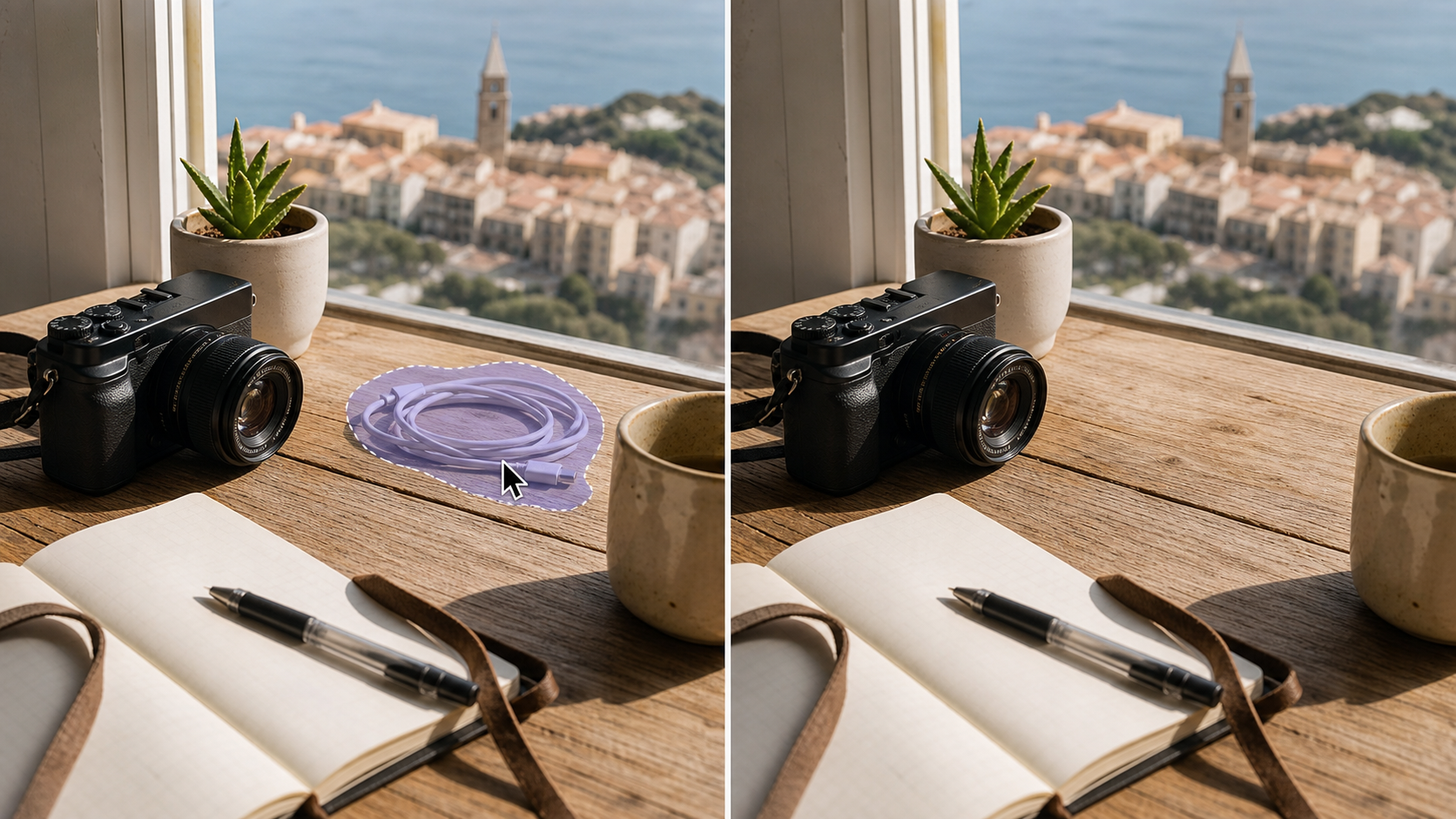
A good AI photo editor does not just erase pixels. It keeps the scene believable. If a removed cable leaves a melted tabletop, the tool failed even if the object is technically gone.
The cleanup test most people skip
Use this quick test before you commit to any editor:
| Check | Passes when | Fails when |
|---|---|---|
| Edge quality | The object boundary disappears cleanly | You see halos, jagged outlines, or blur |
| Texture continuity | Wood grain, fabric, grass, or wall patterns continue naturally | The area looks cloned, smeared, or repeated |
| Shadow logic | Nearby shadows still make sense | The result has a bright patch where a shadow should remain |
| Subject safety | The main person, product, or room structure stays intact | The tool changes the subject while fixing the background |
| Export usefulness | The final crop looks clean at the size you need | It only looks fine when zoomed out |
This is why a cleanup-first tool can beat a broader "all-in-one" editor for object removal. The narrow job matters.
Best AI photo editor by use case
For removing distractions from everyday photos
Choose an editor that is built around removal presets, selection control, and background reconstruction. This is the right path for travel photos, cafe shots, personal social posts, product images, and simple listing cleanup.
Read next: remove objects from photos online or remove people from a photo online.
For editing with plain-language prompts
Choose a prompt-based editor when you need to add an element, change a surface, extend a scene, or describe a non-standard edit. The prompt helps, but the selection still matters. "Replace the cloudy sky with a warm sunset" works better when the editor knows exactly which sky area to change.
Read next: AI image editor with prompt.
For designs, thumbnails, and marketing graphics
Choose a design-suite editor when the finished asset is more than a photo. If you need type, layout, brand colors, multiple formats, or social scheduling, layout tools may matter more than the cleanup model.
Canva is strong in this category because its AI photo tools sit inside a broader design workflow. That is useful when the photo is one piece of a larger design.
For professional retouching and layered control
Choose a desktop editor when you need selection tools, layers, masks, and manual recovery. Photoshop remains the better fit for professionals who want to combine AI-generated edits with traditional retouching control.
The tradeoff is time. If you only need to remove a tourist from one vacation photo, a full desktop workflow may be more tool than you need.
For phone-first photo fixes
Choose a mobile editor when the photo starts and ends on your phone. Google Photos and similar mobile-first tools are convenient for quick corrections, object erasing, unblur, and portrait adjustments. Check the exact availability on your device before assuming every AI feature is there.
Where ClearCrowds fits
ClearCrowds is a cleanup-first AI photo editor. It is built for people who have a photo and a concrete goal: remove a crowd, clean a room, erase a distracting object, remove text from an owned image, or refine the result with a short prompt.
It is not trying to replace a full design suite. That is the point. If your problem is "this photo would be good if that one thing were gone," a focused workflow is usually faster than opening a large editor and hunting through menus.
A practical ClearCrowds path:
- Start with the closest preset, such as remove garbage or clutter, remove wires, or remove crowds.
- Upload the original image, not a compressed screenshot.
- Remove one distracting cluster first.
- Check the rebuilt background at full size.
- Use a prompt only when the preset needs extra instruction.
For listing work, stay conservative and read real estate photo cleanup before editing anything that affects a buyer or renter's decision.
Current tool landscape checked for this guide
The AI editor market changes quickly, so this guide uses current official pages as a sanity check rather than treating any feature list as permanent. Adobe documents Photoshop Generative Fill as a selection-and-prompt workflow for adding, removing, or modifying image content. Canva describes its AI Photo Editor as a template-friendly workflow with Magic Edit, Magic Eraser, Background Remover, and related tools. Google Photos documents AI editing features such as Magic Eraser and Unblur. Pixelcut positions its cleanup tool around removing objects, text, or people from images.
Sources checked:
- Adobe Photoshop Generative Fill
- Canva AI Photo Editor
- Google Photos AI editing
- Pixelcut Cleanup Pictures
Frequently Asked Questions
What is the best AI photo editor for beginners?
The best beginner AI photo editor is one that starts from the task, not the tool panel. If you mostly remove objects, choose a cleanup-first editor. If you make social posts, choose a design editor. If you want detailed retouching, expect a learning curve and use a professional editor.
What is the best AI photo editor for removing objects?
For object removal, look for selection control, natural background reconstruction, and easy retry. Test the editor on one real photo with a tricky edge, such as a cable crossing a table or a sign against a wall. If the rebuilt area looks natural at 100 percent zoom, the tool is worth continuing.
Are free AI photo editors good enough?
Sometimes. Free editors are often good enough for casual social photos, quick crops, and simple cleanup. They may limit resolution, downloads, daily usage, or premium tools. Before paying, test the exact output you need: export size, watermark policy, and whether the final image still looks clean after download.
Is an AI photo editor better than Photoshop?
Not always. A focused AI photo editor can be faster for one-click cleanup or prompt-based edits. Photoshop is better when you need layers, masks, manual corrections, and professional control. The better choice depends on whether you need speed or precision.
Can AI photo editors be used for product or real estate photos?
Yes, but keep the edits honest. Removing temporary clutter, dust, cables, or distractions can make a photo clearer. Hiding damage, changing property condition, or altering a product defect can mislead viewers. For commercial photos, use AI cleanup to clarify the image, not to change what the buyer should know.
Summary
The best AI photo editor is not the app with the loudest feature list. It is the one that solves your photo's actual problem with a result you can trust. For cleanup-heavy work, test object removal first. For layouts, test templates and exports. For professional retouching, test layers and masks. For phone photos, test feature availability on your device.
If today's problem is a distracting object, messy background, crowd, cable, or cluttered room, start with a cleanup preset and judge the result at full size before doing anything more complicated.