

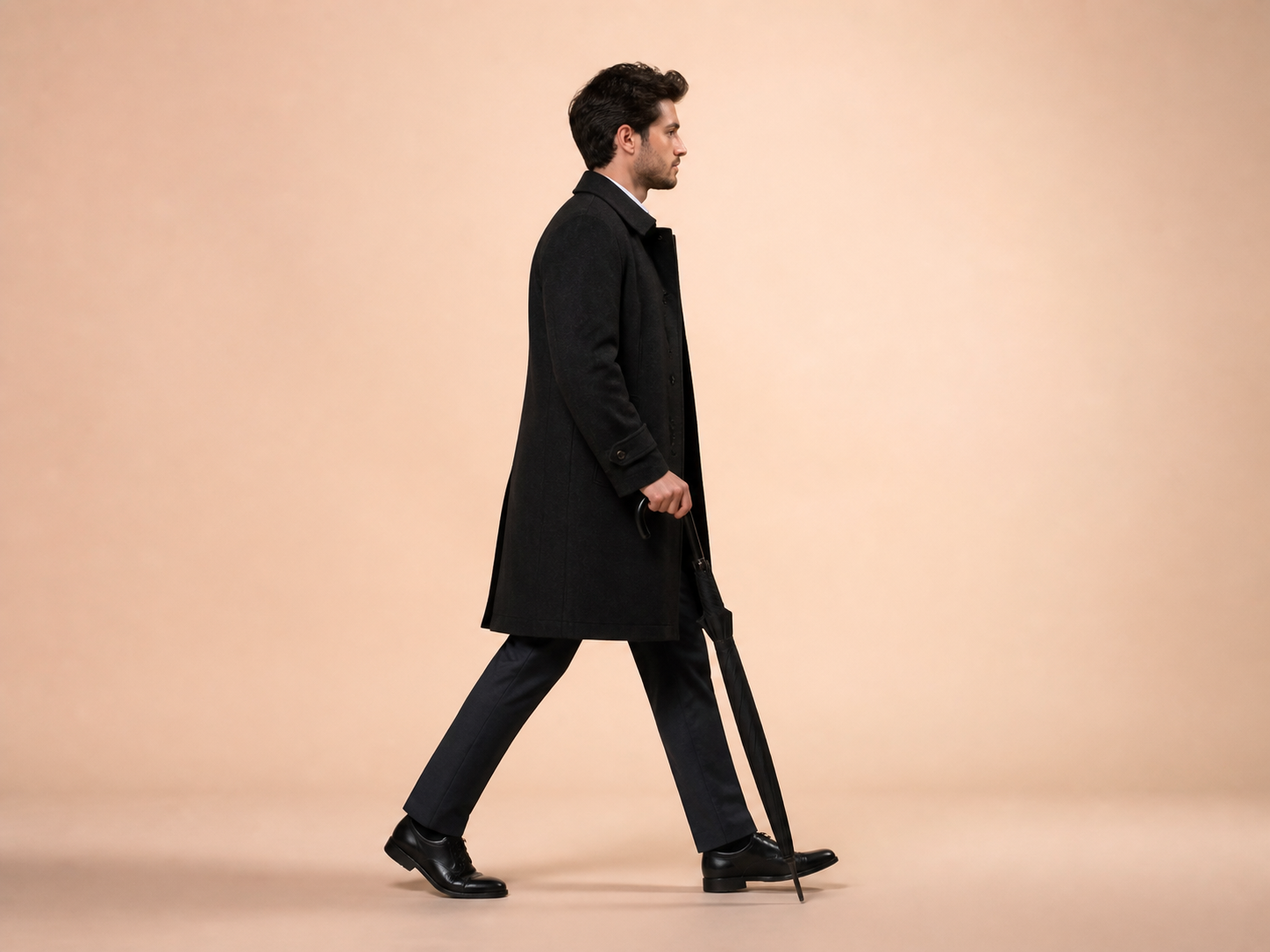
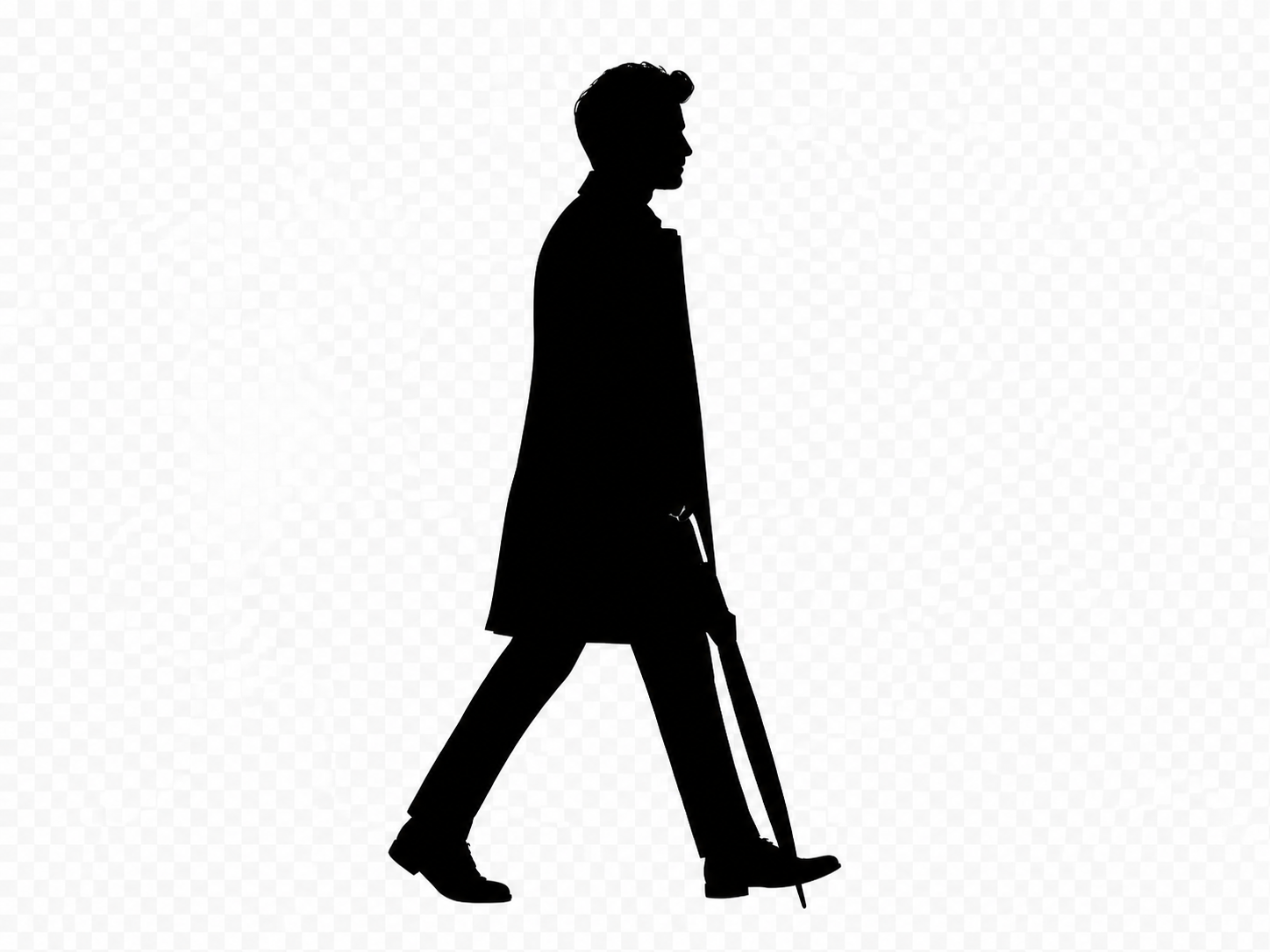
Turn a photo into a silhouetteFill an isolated person, pet, or object with one solid color.
Stencil maker: keep the details that matter
Turn a portrait, pet or flower photo into a black-and-white stencil design. Keep recognizable features, choose your level of detail, and download a design to review before printing or cutting.
Choose a photo
Upload a photo, then choose detail and background in the editor.
OriginalResult
Start with an example
Try this photo: PortraitShape the result around your project
Two choices in the editor help you simplify your photo. These examples use balanced detail and a white background.
- Level of detail
- Choose Bold for larger shapes, Balanced for recognizable detail, or Detailed for more internal structure.
- Background
- Use a clean white background to isolate your subject, or keep the scene as simplified black-and-white shapes.
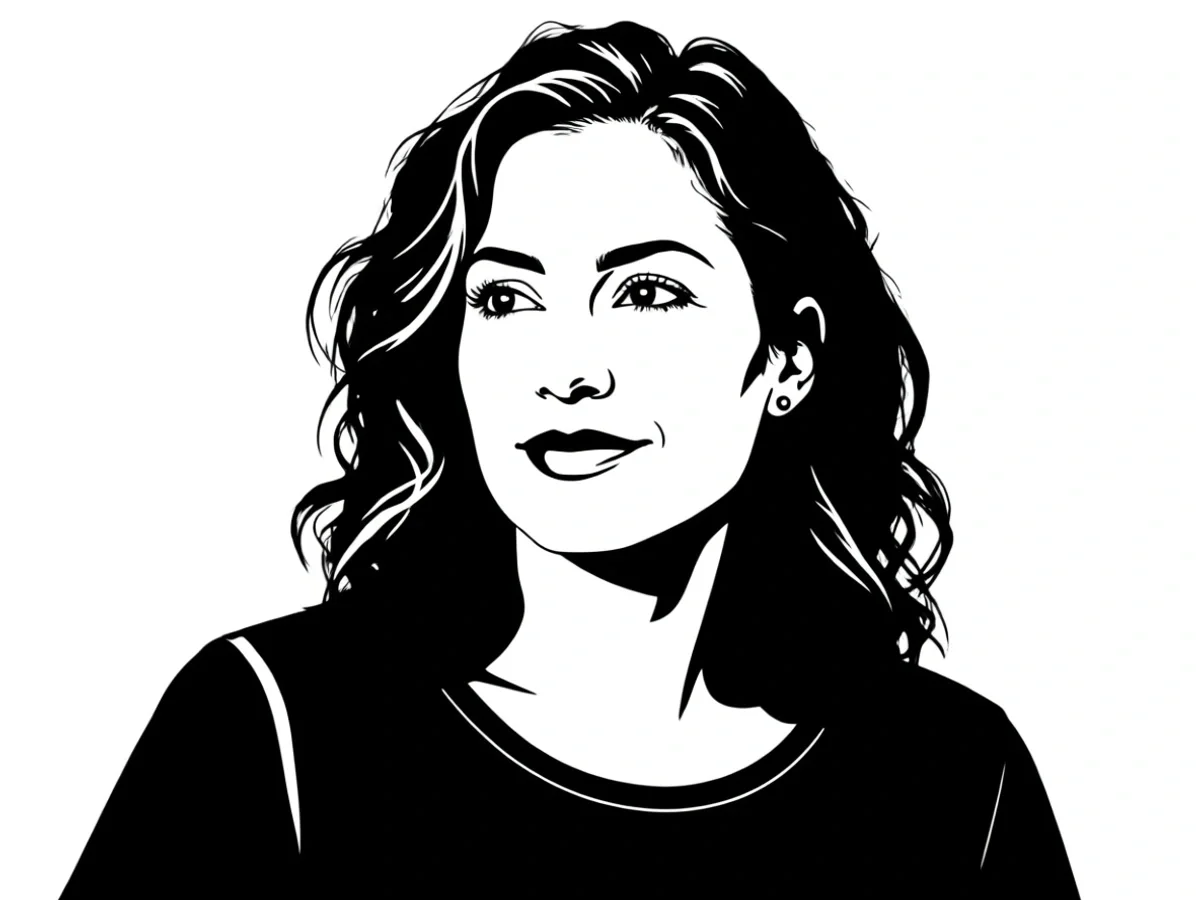
A portrait stencil with a recognizable expression
Keep the eyes, nose and expression readable. Black shapes and white openings describe the face, instead of filling the whole person black.
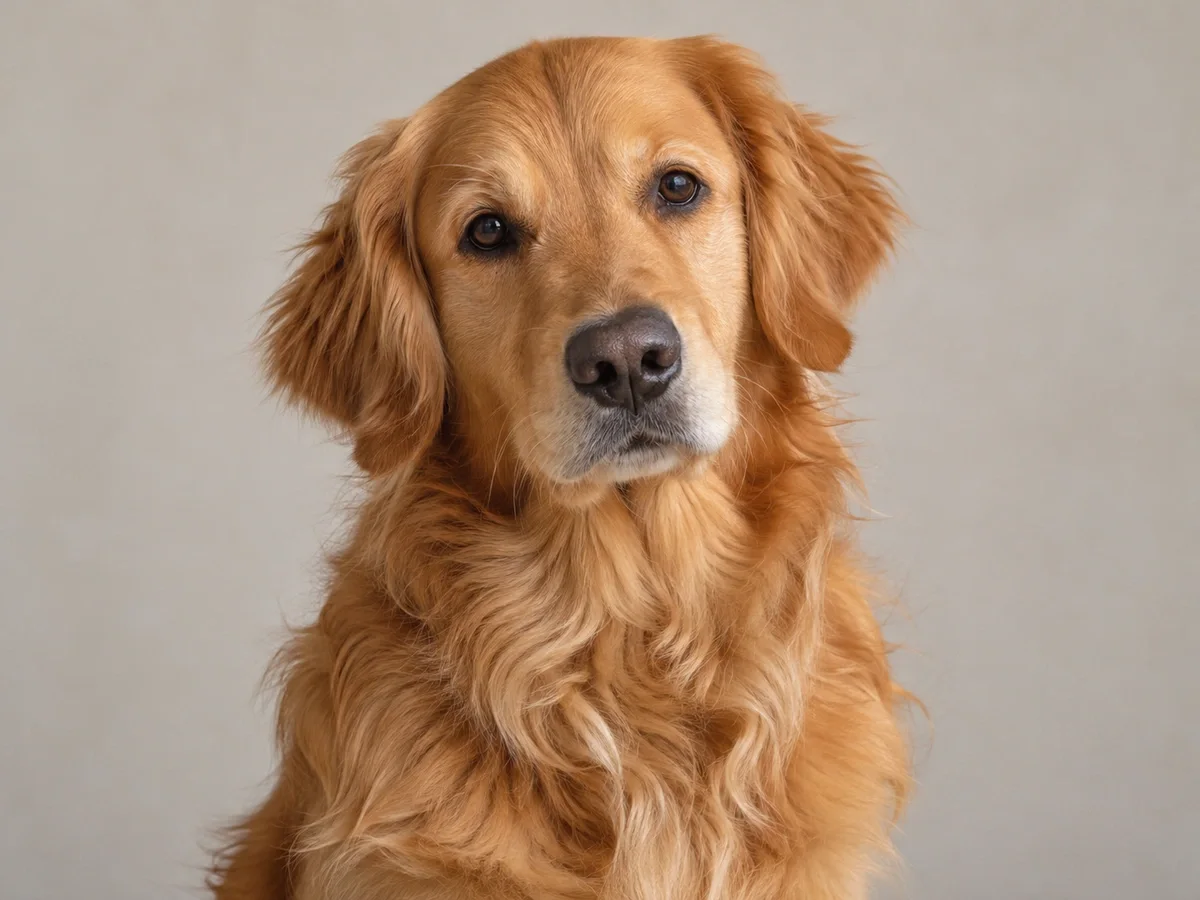
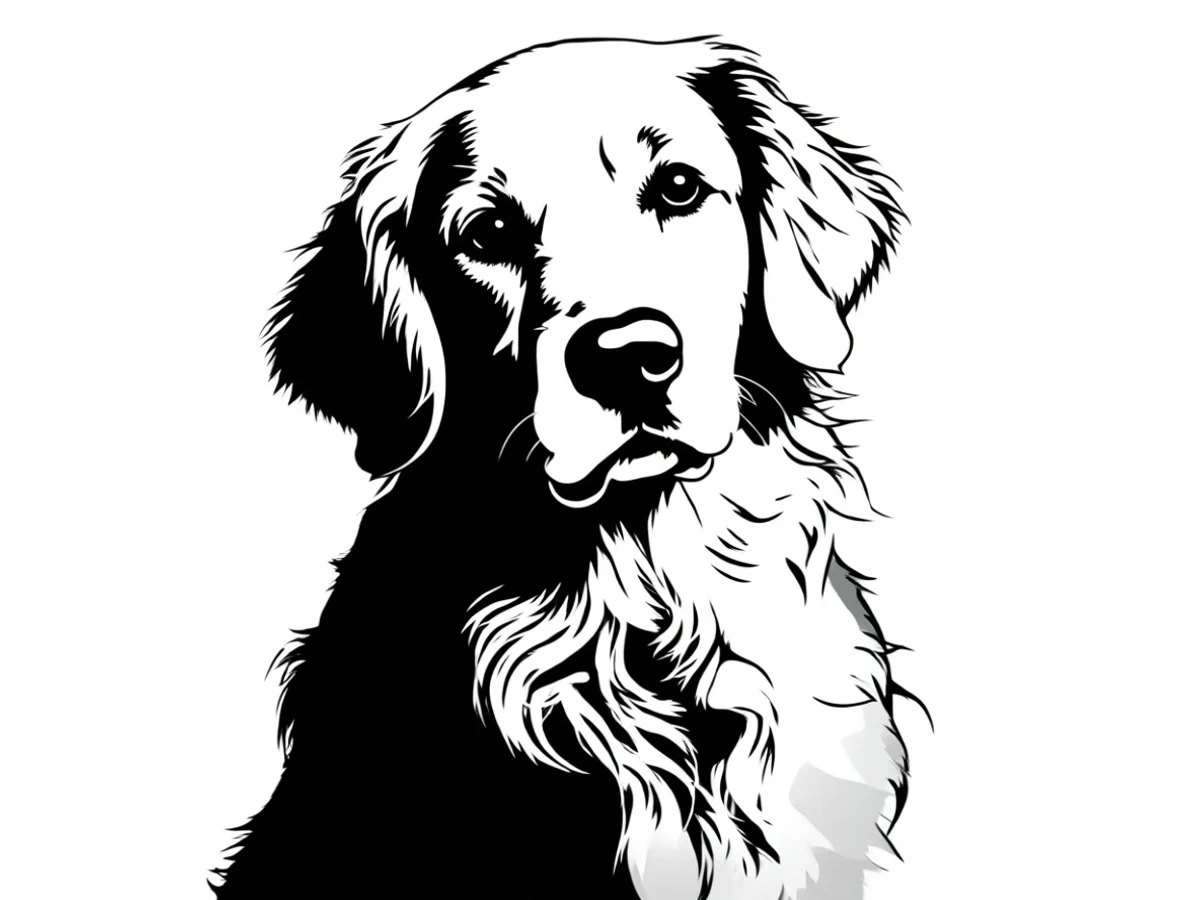
Try this photoA pet stencil with character in every shape
Keep the eyes, nose, ears and distinctive fur pattern. Simplify texture into clear shapes for a recognizable pet portrait.
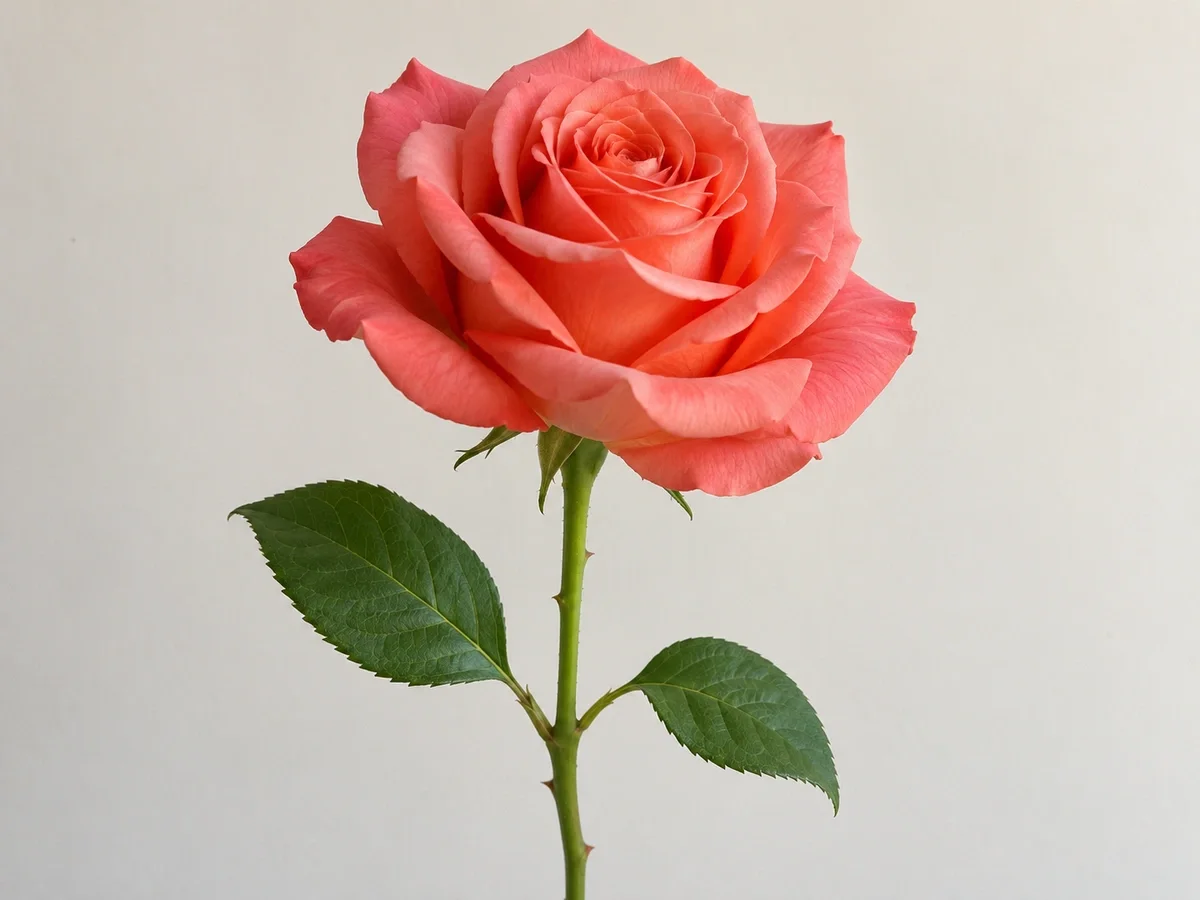
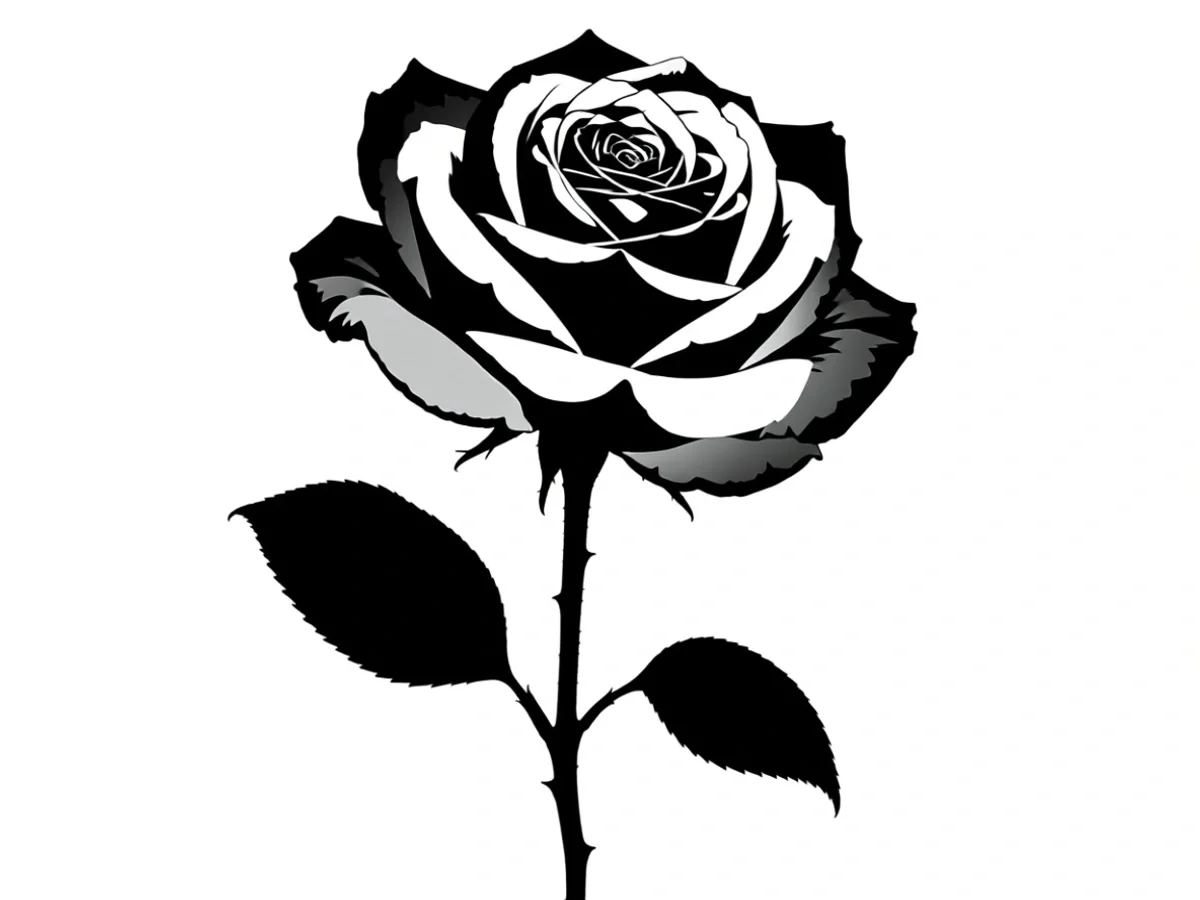
Try this photoA flower stencil with open, defined petals
Keep the folds between petals, the stem and the leaf structure. Open white spaces give the flower definition within the black shapes.
Try this photoHow to make a stencil design from a photo
- 1
Choose a readable subject
Use one subject with clear edges. Crop away distractions; leave enough room around the shape so the template is easy to handle.
- 2
Choose detail and background
Open the photo in the editor, choose your settings, and generate. Compare the result with your original before downloading.
- 3
Check, download and print
Inspect the contour and small spaces. Download the image, set its size in your print application and test on ordinary paper before using your final material.
A good image is the start. Plan the cut next.
A printable stencil needs more than black and white. Decide which areas become openings and which parts must stay attached to the surrounding sheet.
- Keep inner shapes attached
- The center of a ring falls out if you cut all the way around it. Add connecting bridges by hand or in a suitable design tool. ClearCrowds does not add them automatically.
- Test at the size you will use
- A thin line that looks clear on screen may disappear in a small print. Check fragile stems, narrow gaps and printer margins on a paper test.
- Match the file to the craft
- The editor produces a raster image. Use your cutter software for vector tracing and cut-path preparation; SVG, DXF and layered cutting files are not generated here.
Questions and answers
How is a stencil design different from a silhouette?
A silhouette fills the subject’s outer shape. This stencil maker uses black areas and internal white spaces to describe faces, fur and petals. AI may simplify details or leave some gray areas; inspect the result before printing or cutting.
Can I use this as a tattoo stencil maker?
You can create a black-and-white design reference to discuss with your tattoo artist. The artist still needs to adapt the line weight, size and transfer settings; the image is not a validated transfer-ready tattoo stencil.
Can I cut the downloaded image with a Cricut or laser cutter?
Prepare it in the machine’s design software first. Trace the raster image, repair detached islands, set dimensions and inspect the paths. This page does not export machine instructions or guarantee a cut-ready result.
How do I print a photo-to-stencil result?
Download the reviewed image and open it in your normal print application. Set the intended dimensions, check the preview and margins, and print a test. Paper size and tiling are handled by that application.
More ways to perfect your photo
Quick edits. Professional results.
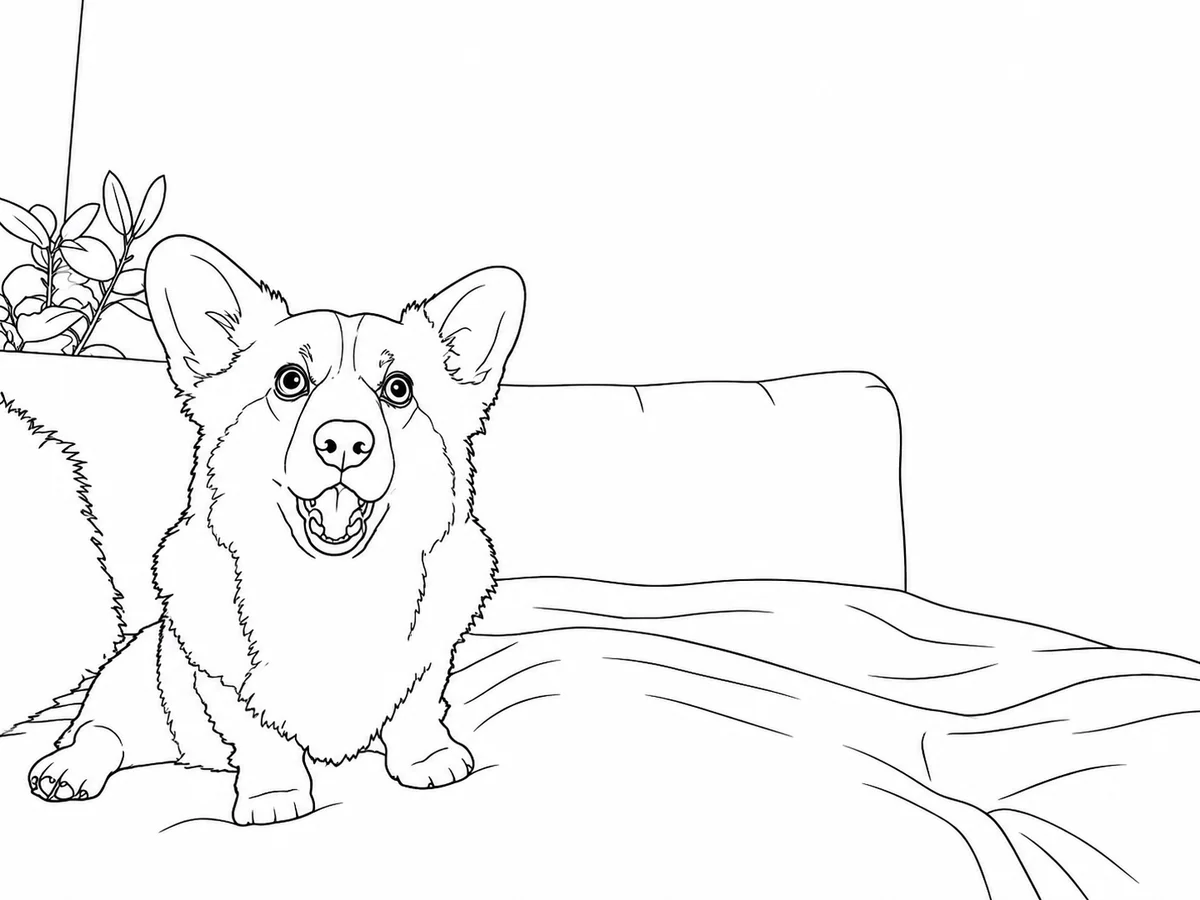
Turn a photo into a coloring pageMake a printable coloring page from a pet, flower or familiar scene. Convert your photo into black outlines on white, then review the shapes before printing.

Add a grid to an image for drawing practiceTurn a photo into a drawing reference with a visible grid. Choose rows, columns and line color, then compare proportions one cell at a time.


Your next pattern starts with a photo.
Choose a photo
Upload a photo, then choose detail and background in the editor.