
Make an Image Transparent
Make your image background transparent and download a PNG you can place over any color. Upload a product photo, portrait, or logo, then check fine edges before saving the cutout.
Upload an image
Choose one JPG, PNG, or WebP image.
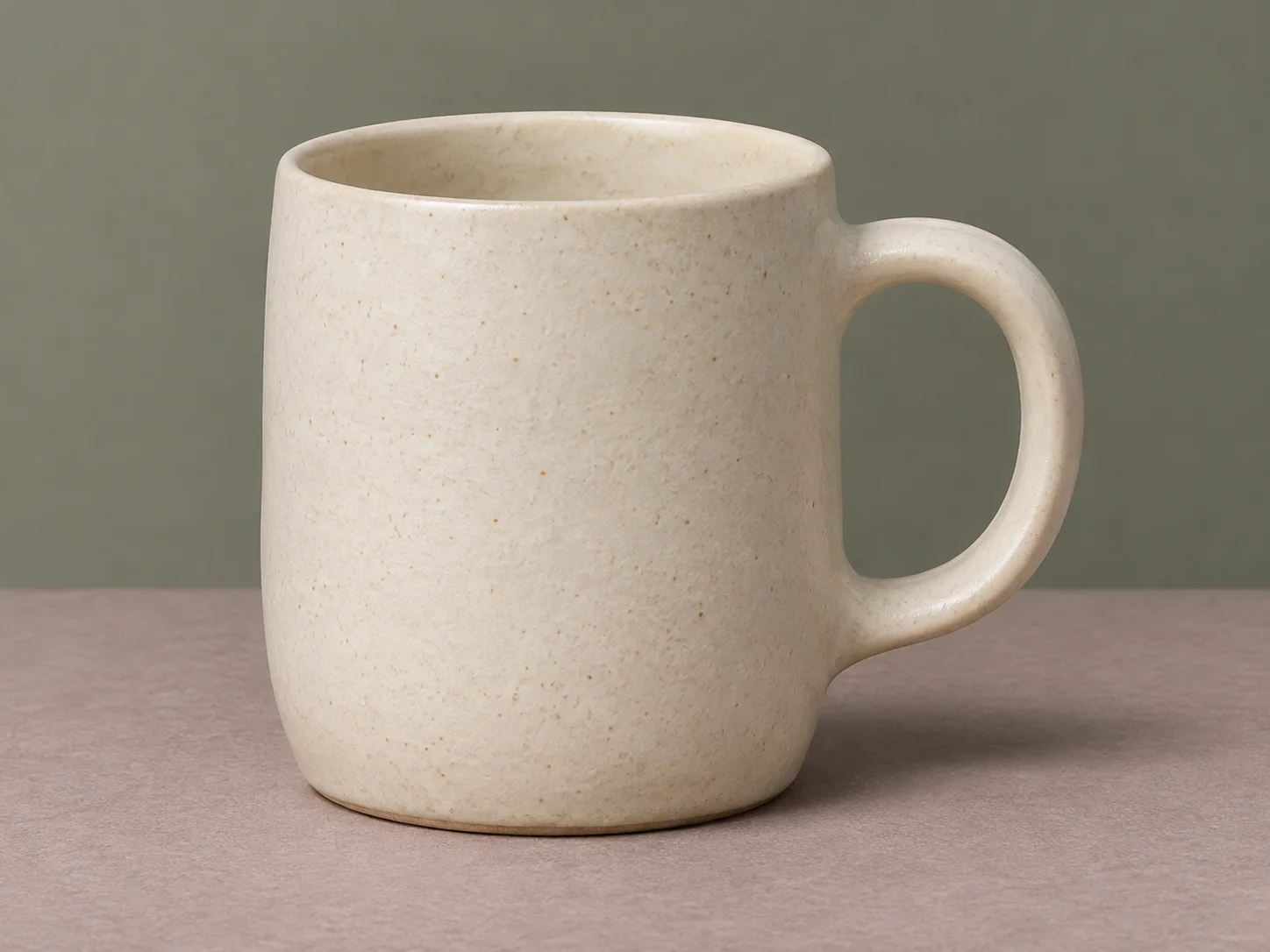
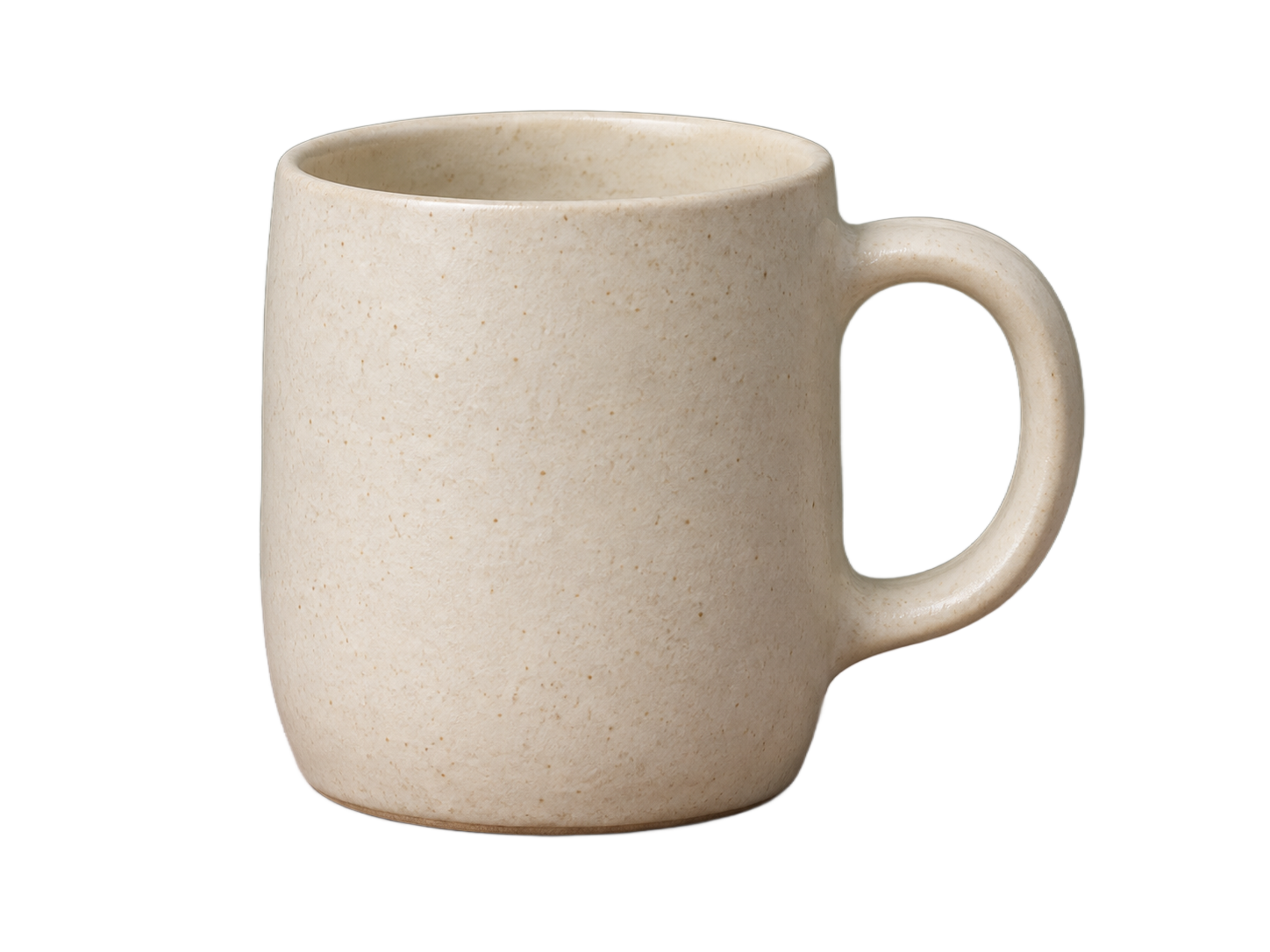
Drag the divider and look through the mug handle to see what becomes transparent.
Check the same PNG on three backgrounds
Switch the background and look at the mug’s outline and the opening in the handle. The new color shows through the transparent areas. The PNG stays the same.
Download the sample PNG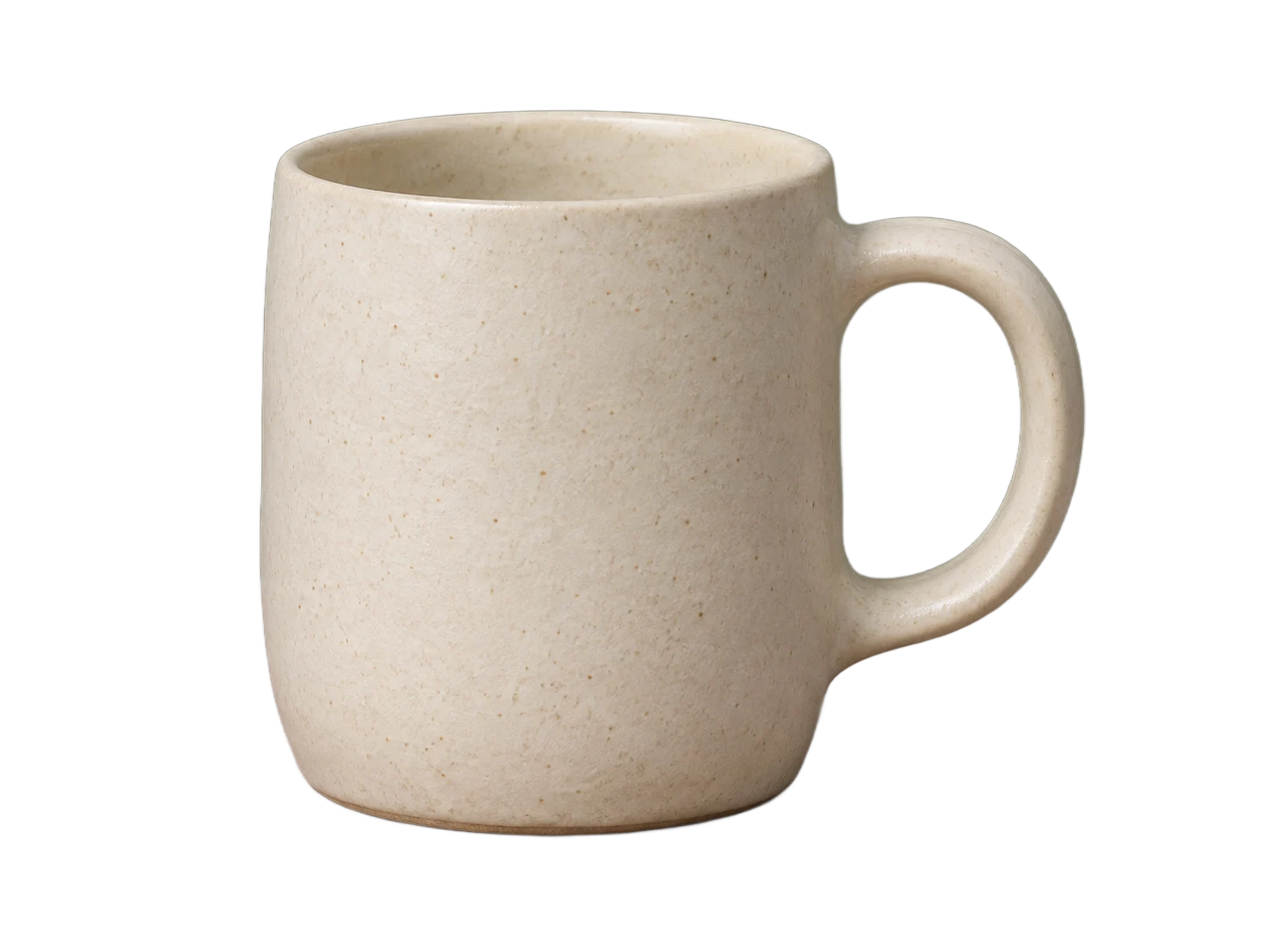
Prepare a product image for your store
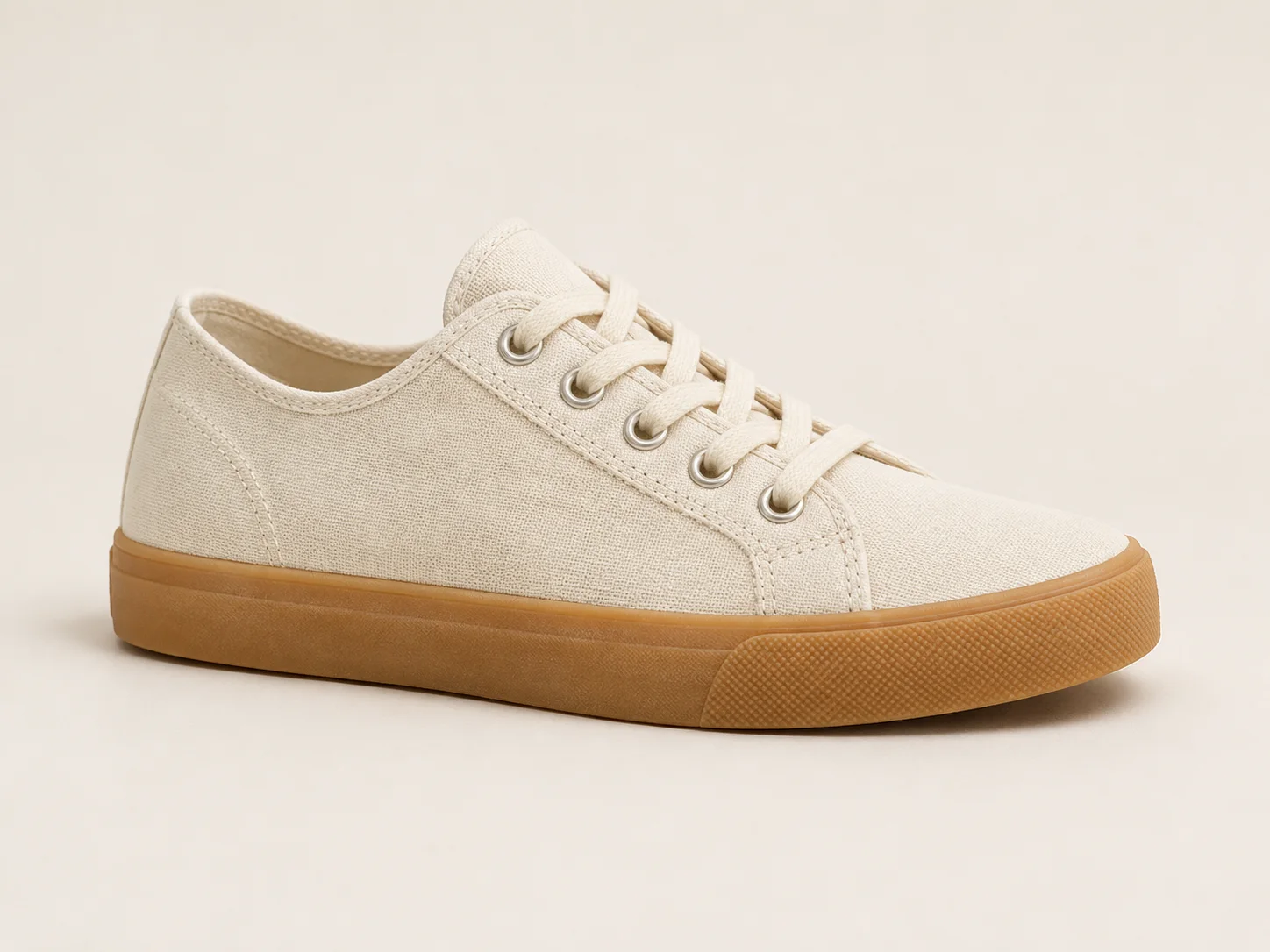
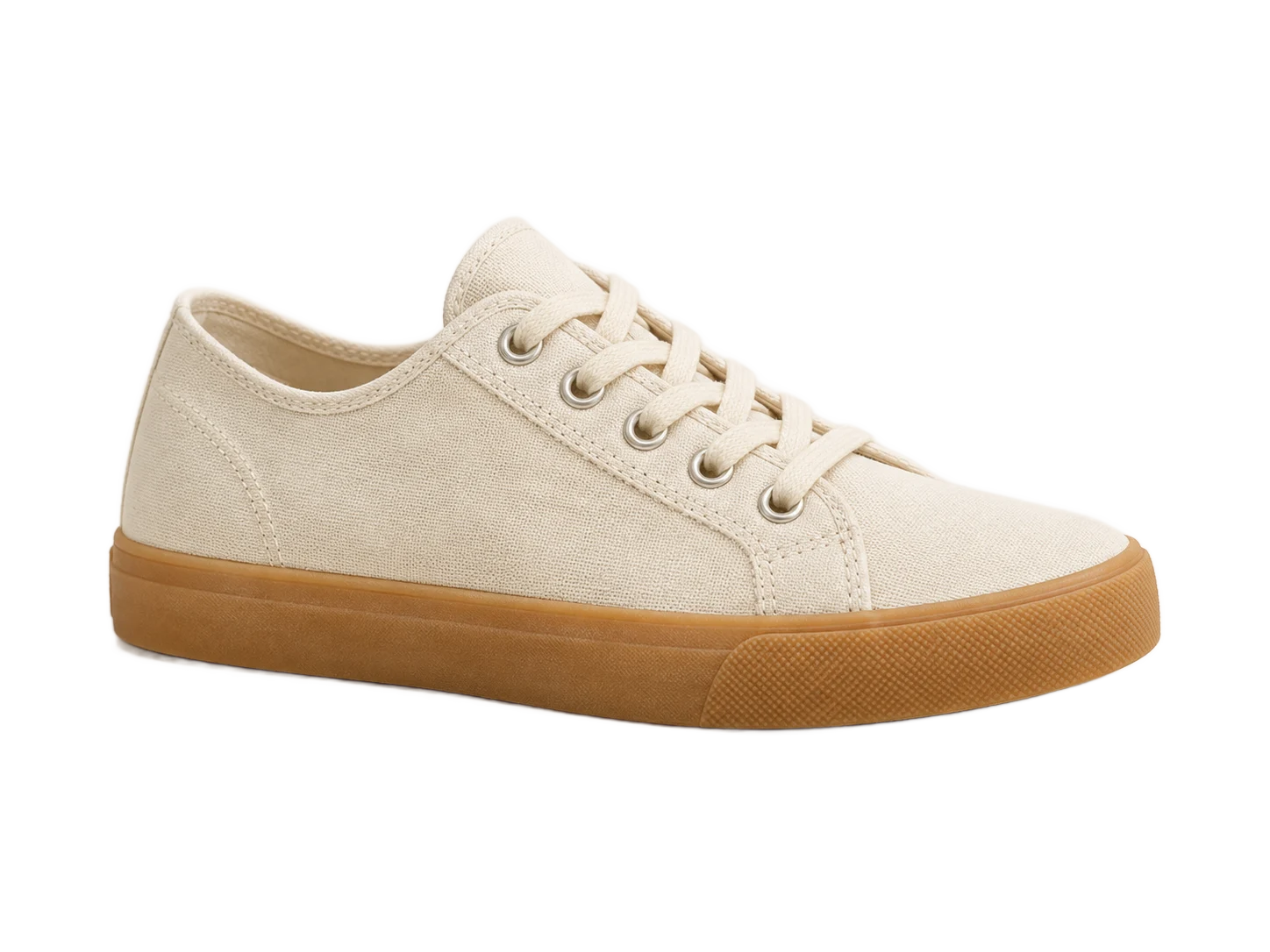
Clear the pale studio backdrop so the shoe sits on your storefront’s color. Zoom in to check that the light laces, stitching, and sole stay visible.
Put a portrait on your own color
Remove the wall behind the portrait and keep the face and shirt. Check the curls against a dark background for any light fringe.


Place a cutout on a slide
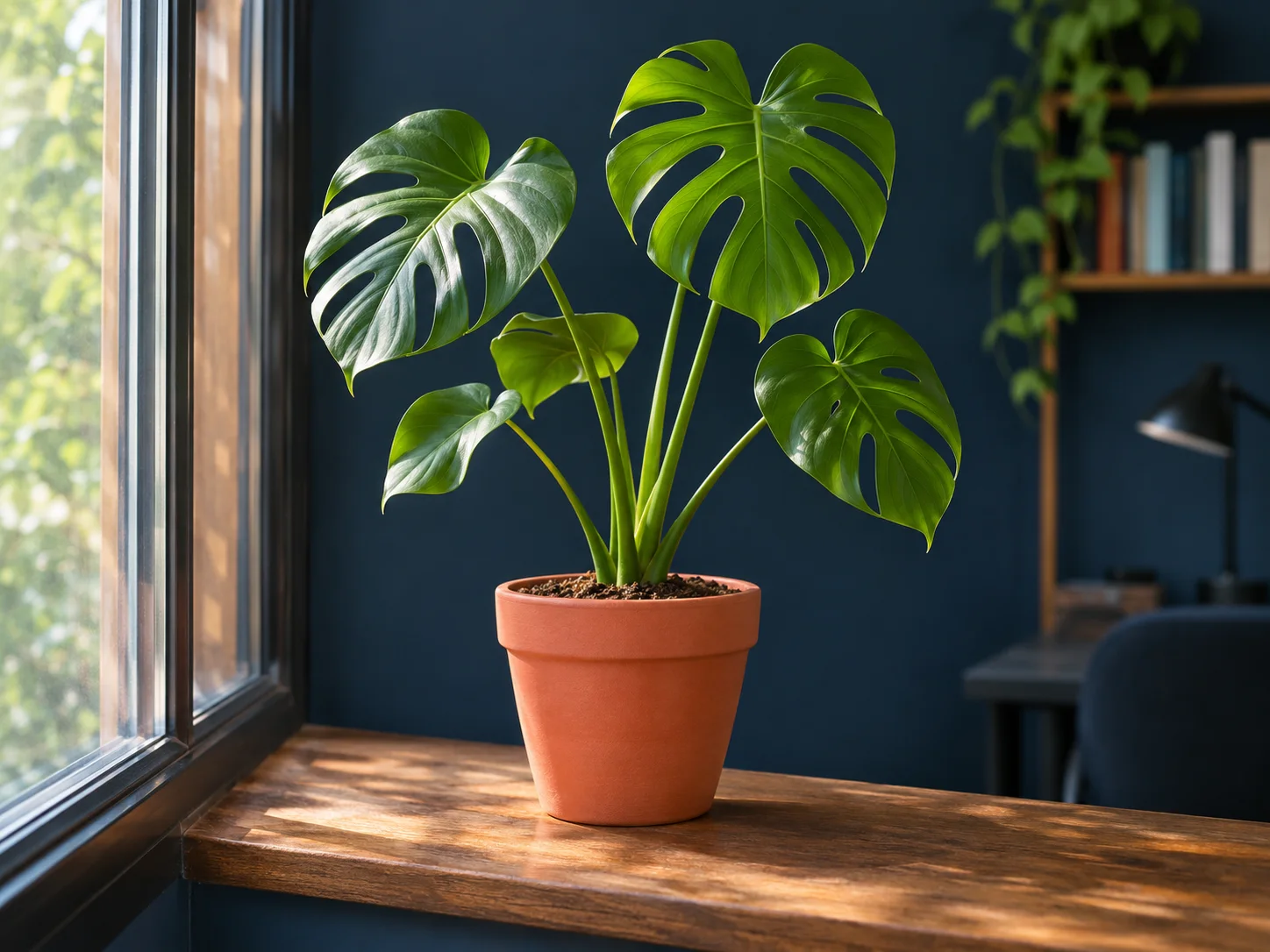
Remove the window ledge and room behind the plant. Check that your slide color shows through the gaps between the leaves and stems.

How to make an image transparent
Choose a photo
Upload the image you want to use. The editor opens and starts removing the background.
Review the cutout
When processing finishes, check the outline, small gaps, and fine details.
Download as PNG
Open Download and choose PNG to preserve the transparent areas.
Transparent PNG questions
Can I start with a JPG?
Why does my PNG look white?
Will the checkerboard appear in my file?
What if the cutout has a rough edge or a halo?
Make your own image transparent
Upload an image
Choose one JPG, PNG, or WebP image.