
Add a grid to an image for drawing practiceTurn a photo into a drawing reference with a visible grid. Choose rows, columns and line color, then compare proportions one cell at a time.
Split an image into separate pieces
Cut a photo into rows and columns, then edit each piece on the canvas. Download individual tiles for layouts, presentations or image sequences.
Choose a photo
Upload an image to open the splitting tool.
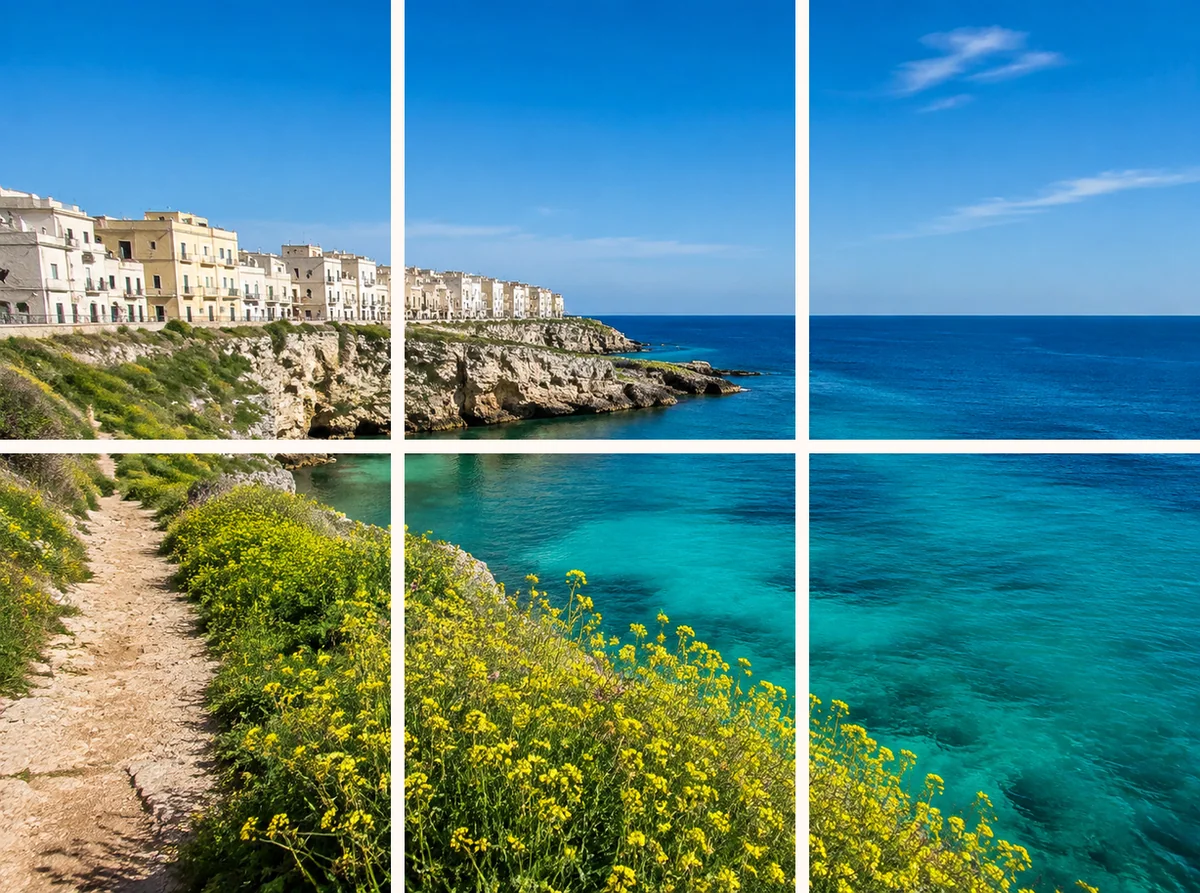
One photo, individually editable pieces
Choose a grid and preview the cuts. Applying the split creates separate image layers in their original positions, ready to move or download.
- Rows and columns
- Choose 1–6 of each, producing 2–36 pieces.
- Preview before applying
- See the cut boundaries across the complete image.
- Individual downloads
- Select a piece on the canvas and use its download action.
How to use this tool
- 1
Upload the image
Open a photo, or select an image layer on an existing canvas.
- 2
Choose the cuts
Set 1–6 rows and columns, with at least two pieces, and inspect the preview.
- 3
Apply and use the pieces
Create the layers, move them as needed or download a selected piece.
Keep working on the canvas
Each tile is an image layer, so you can arrange pieces independently. Grid cutting separates rectangles; it does not detect objects.

Plan the cuts around your subject
Grid cuts can pass through faces or text. There is no automatic subject isolation or ZIP export; download pieces individually.
Questions and answers
Does splitting use AI credits?
No. Image cutting runs in the browser without AI generation. Existing download access and formats still apply.
Can I undo a split on my canvas?
Yes. Undo restores the source layer. Your original uploaded image remains unchanged.
More ways to perfect your photo
Quick edits. Professional results.
Need different overall dimensions before splitting? Adjust image width and height with Keep proportions enabled for a normal resize.
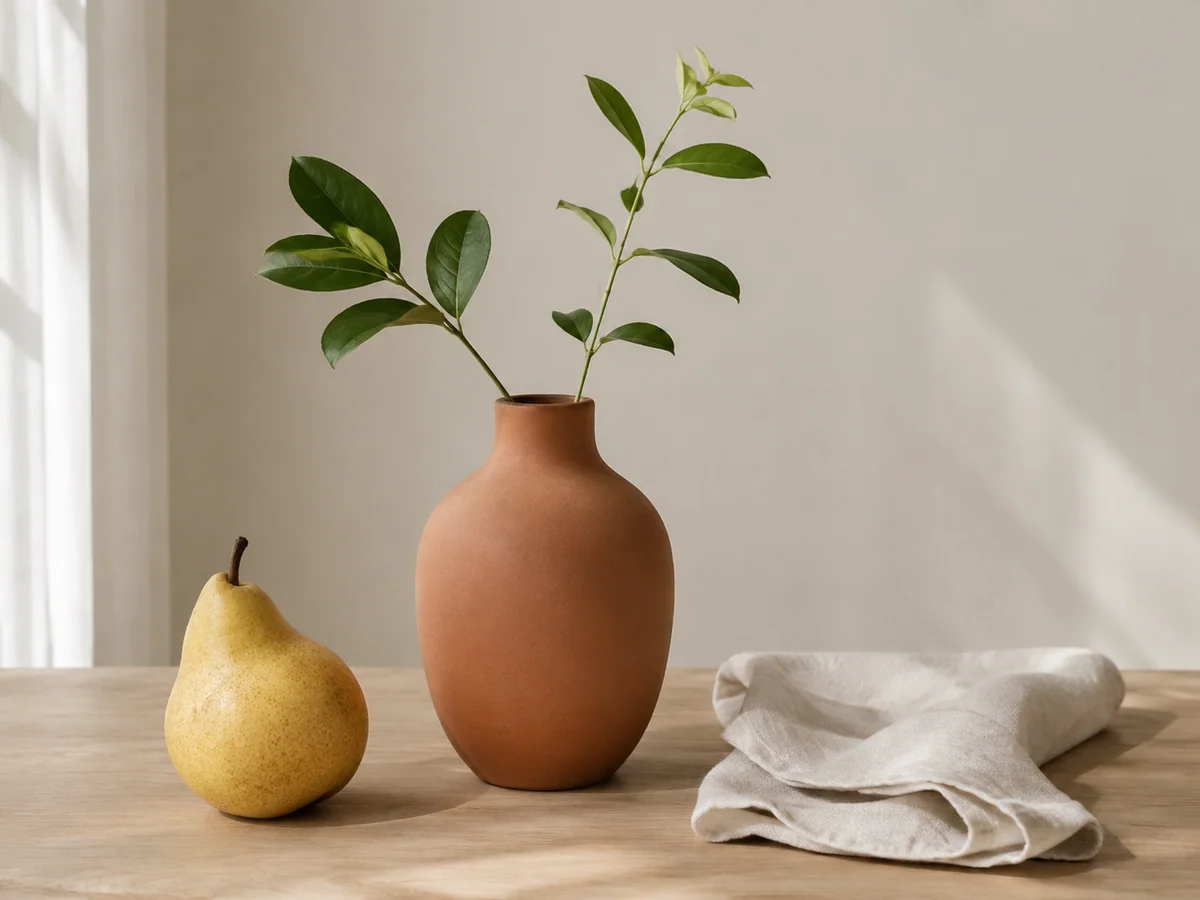
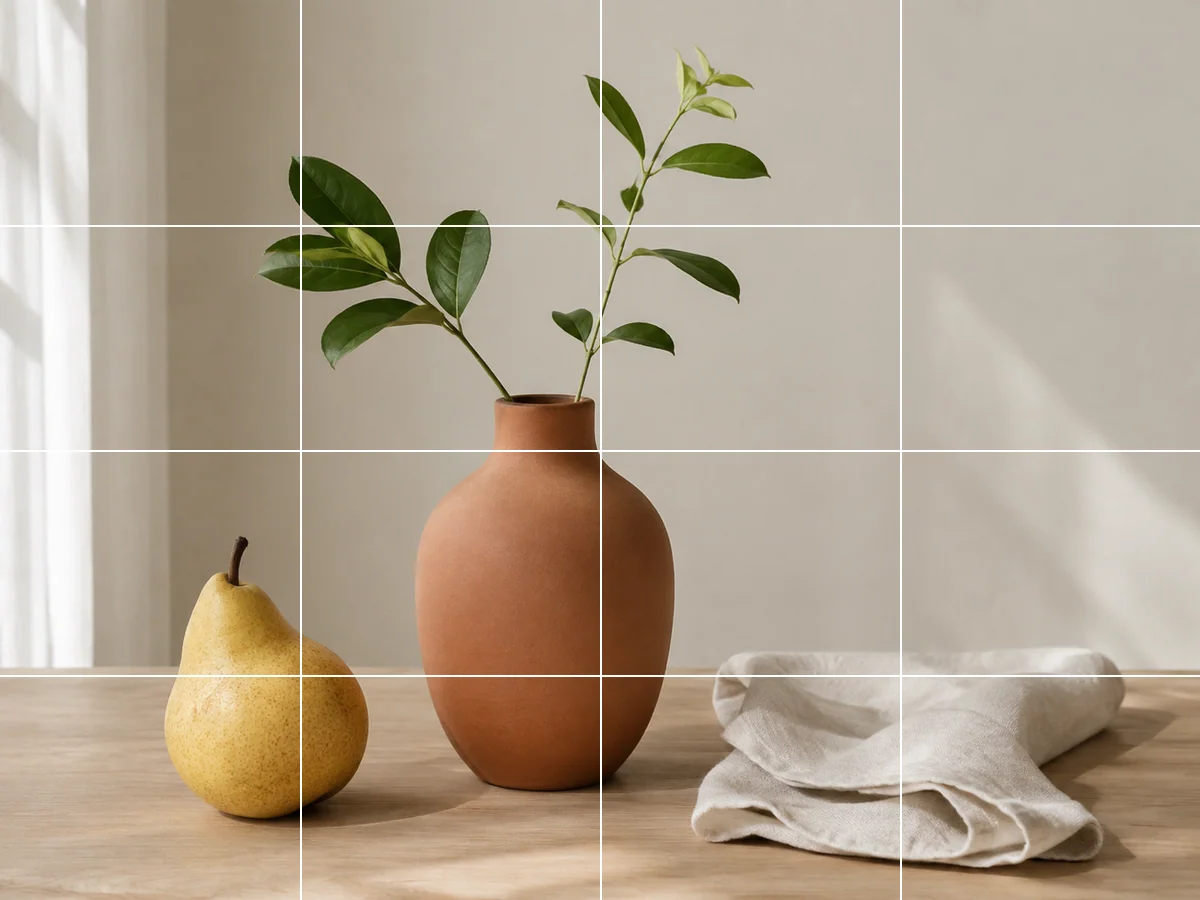


Choose where your photo becomes separate pieces
Choose a photo
Upload an image to open the splitting tool.