
One portrait, seven precise tools
Edit an ID photo in one workflow.
Upload a formal portrait, choose the exact change you need, then review the result before continuing. Change a solid background, crop to a chosen size, remove visible accessories, or brush over one local distraction without rebuilding the whole photo.
Choose your first edit
Upload your portrait
Choose a tool first; your photo opens in that exact editing state.
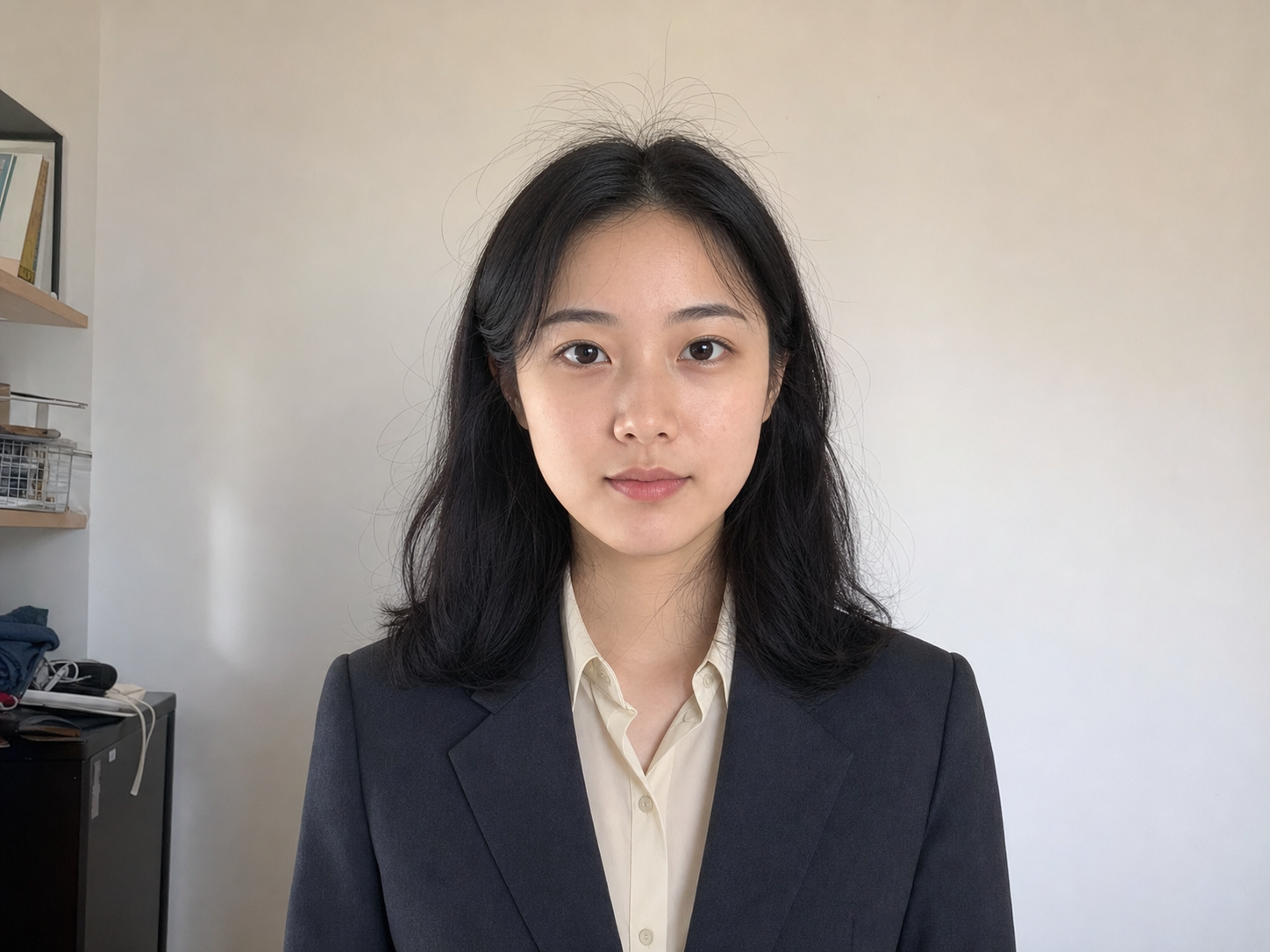
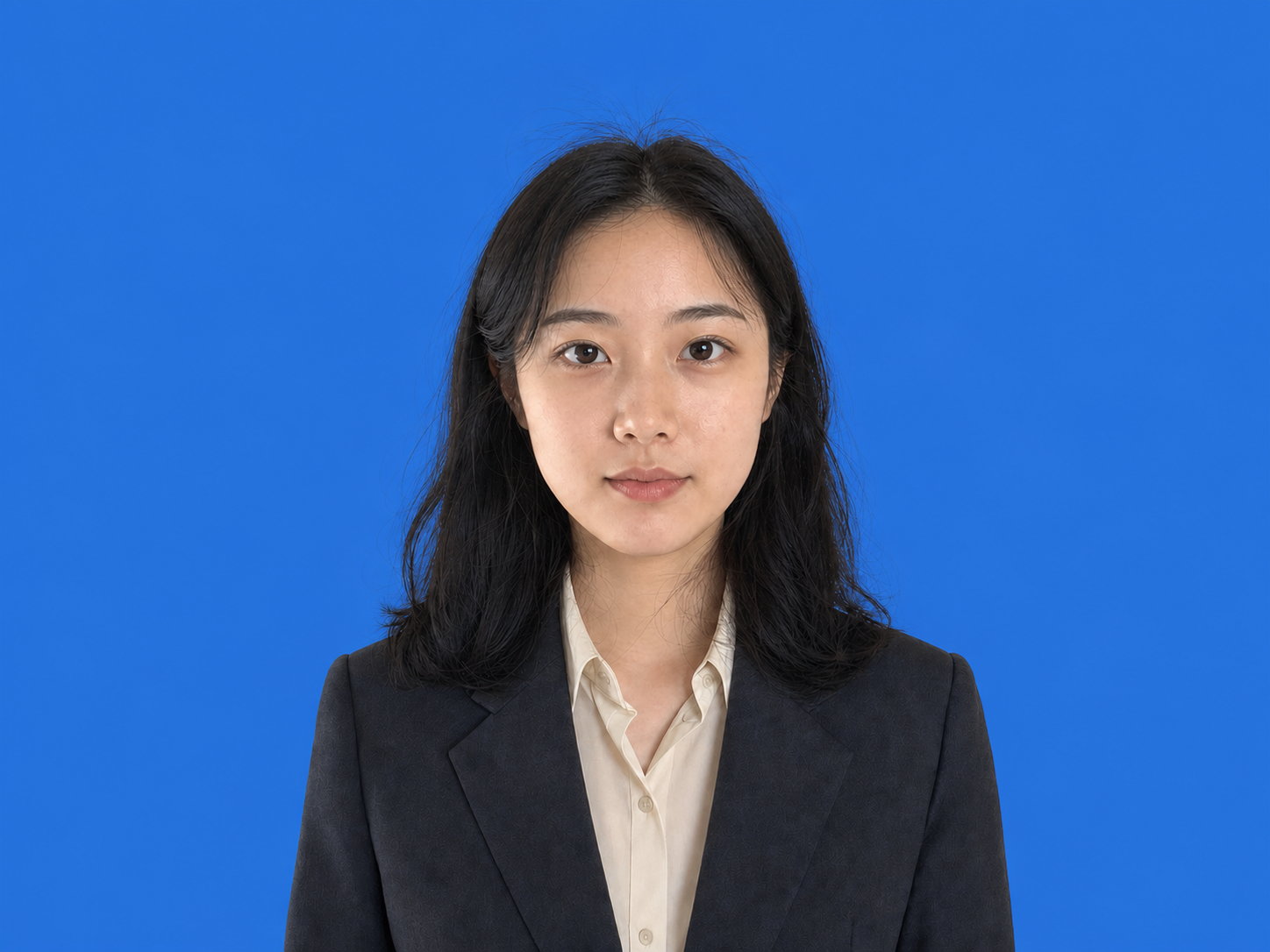
Change background color
Seven focused edits
Change only what the photo needs.
Each tool starts from a specific user decision. It does not run all seven edits at once, and every result can return to the same ID photo workflow.
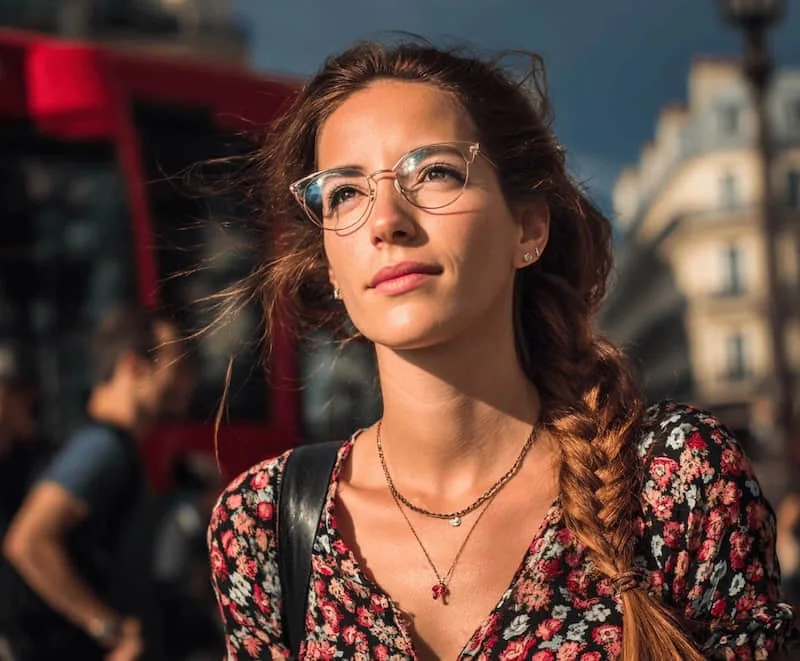
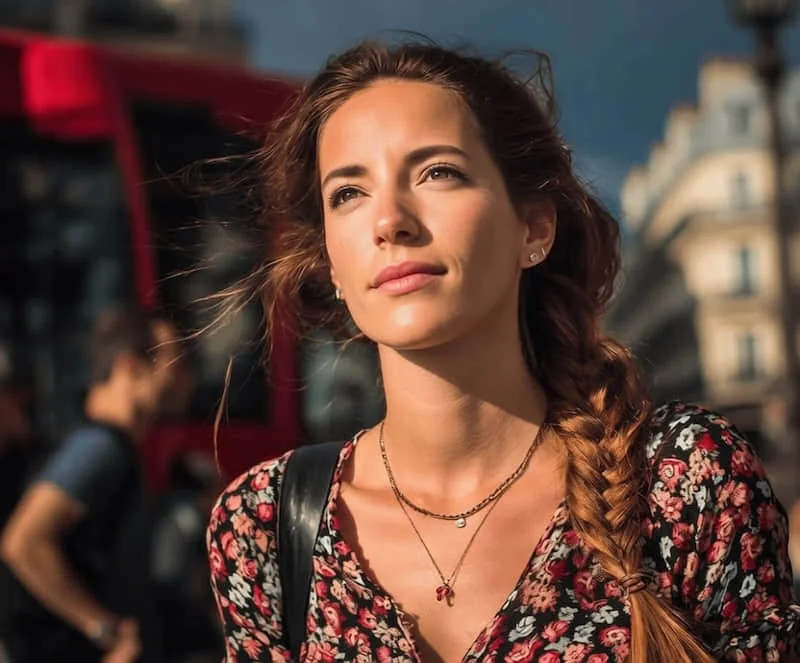
Remove glasses
Clear frames and lenses from the face for a cleaner formal portrait.
- Changes
- Glasses, sunglass frames, and lens reflections.
- Preserves
- Identity, eyes, expression, hairstyle, and face shape.
Upload for this tool
Remove glasses
Change background color
Place the person on an exact white, red, blue, green, gray, or custom background.
- Changes
- Only the area behind the person.
- Preserves
- Face, hair edges, clothing, pose, and original foreground lighting.
Upload for this tool
Change background color
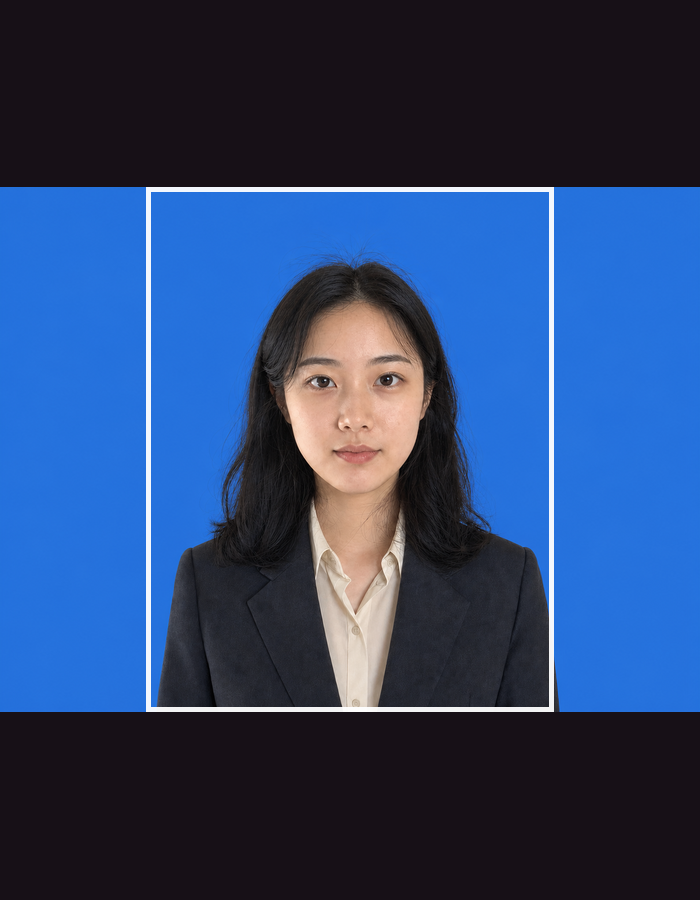
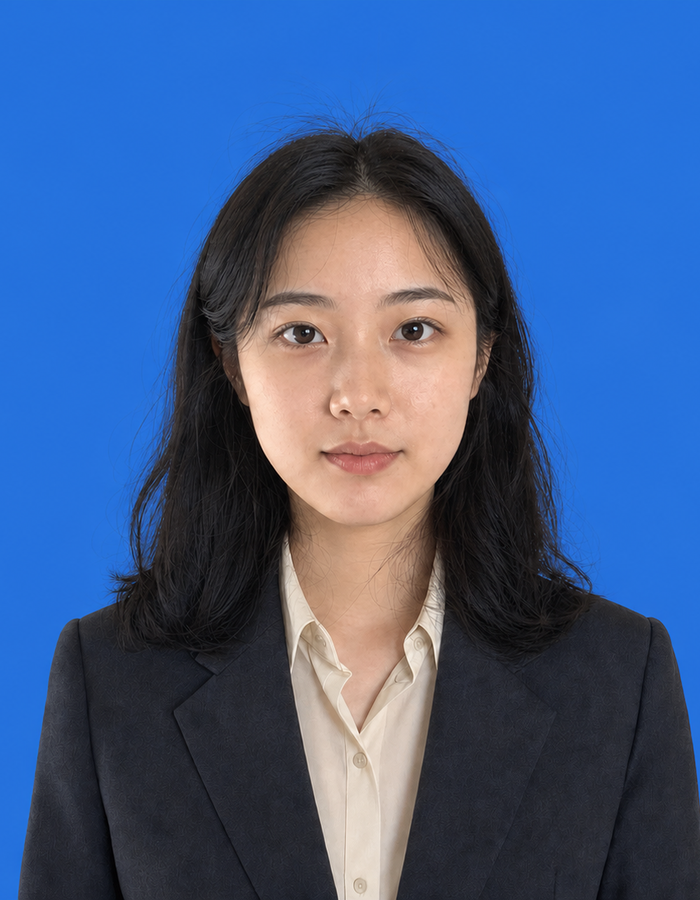
Crop to ID photo size
Choose a common ID size or enter custom dimensions while keeping the subject centered.
- Changes
- Canvas dimensions and framing.
- Preserves
- The person, head clearance, face position, and visible shoulders.
Upload for this tool
Crop to ID photo size
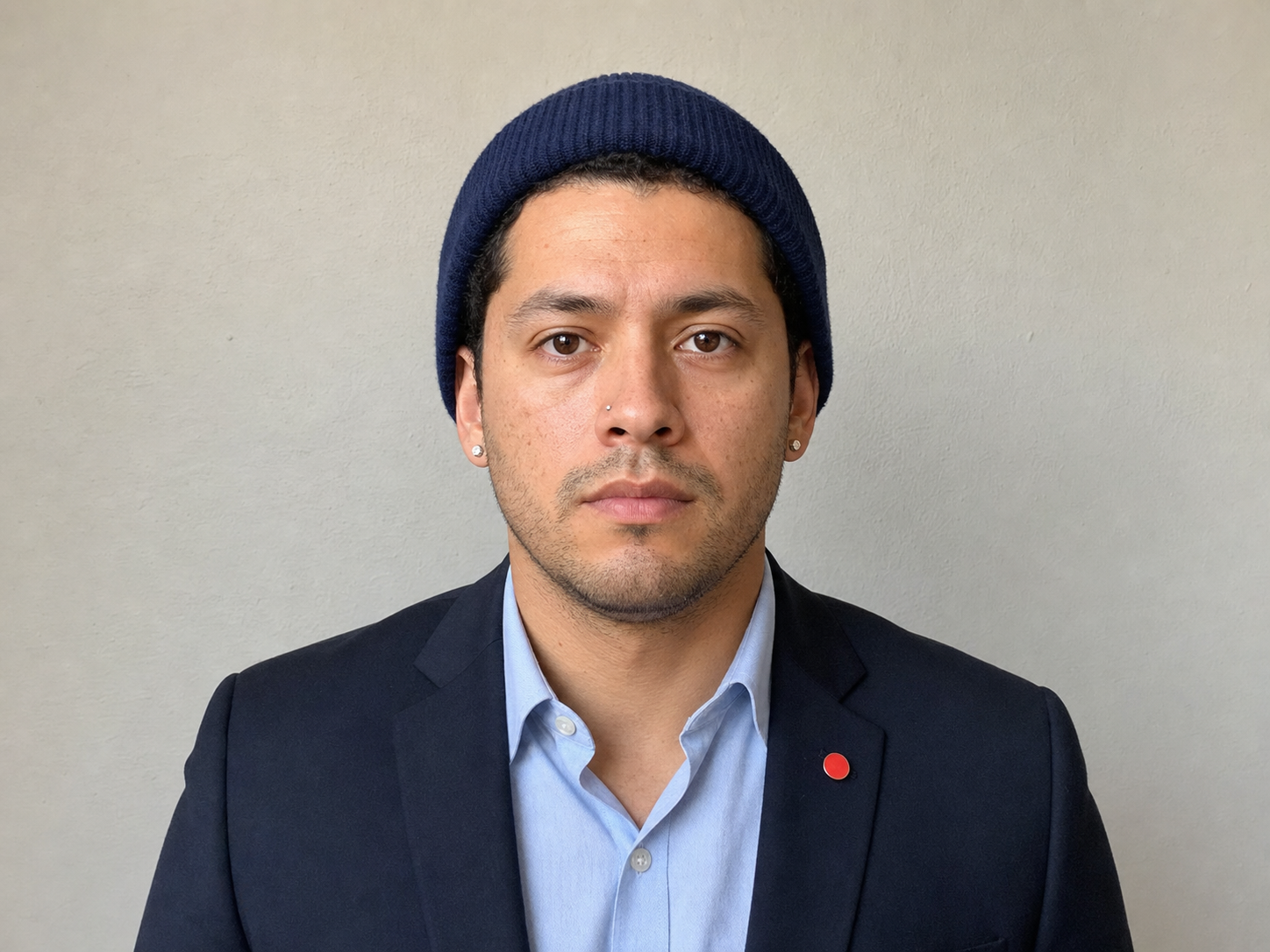
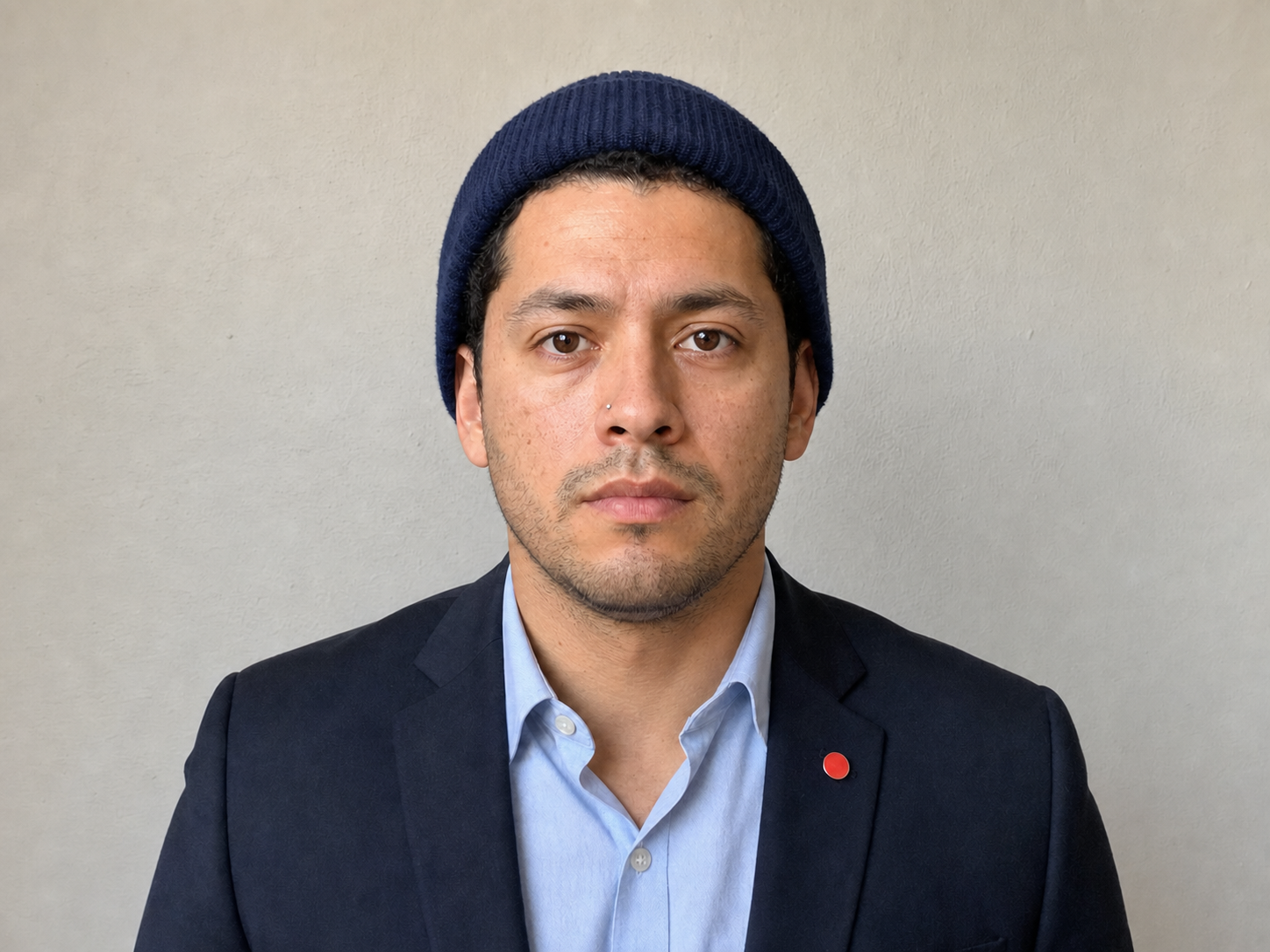
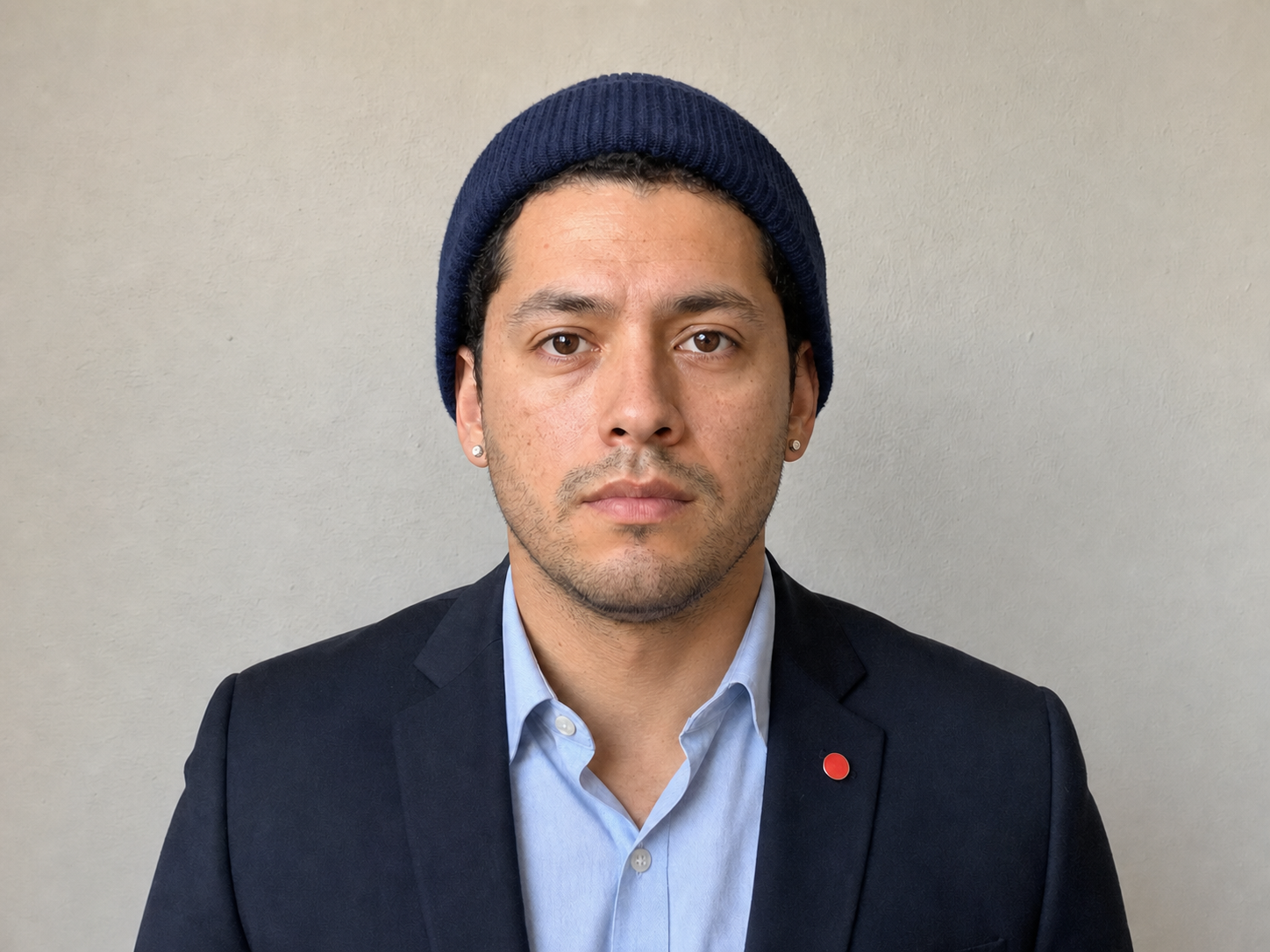
Remove earrings
Clean visible earrings from a formal portrait.
- Changes
- Only the selected ear jewelry.
- Preserves
- Ear shape, hair, skin texture, lighting, and other accessories.
Upload for this tool
Remove earrings
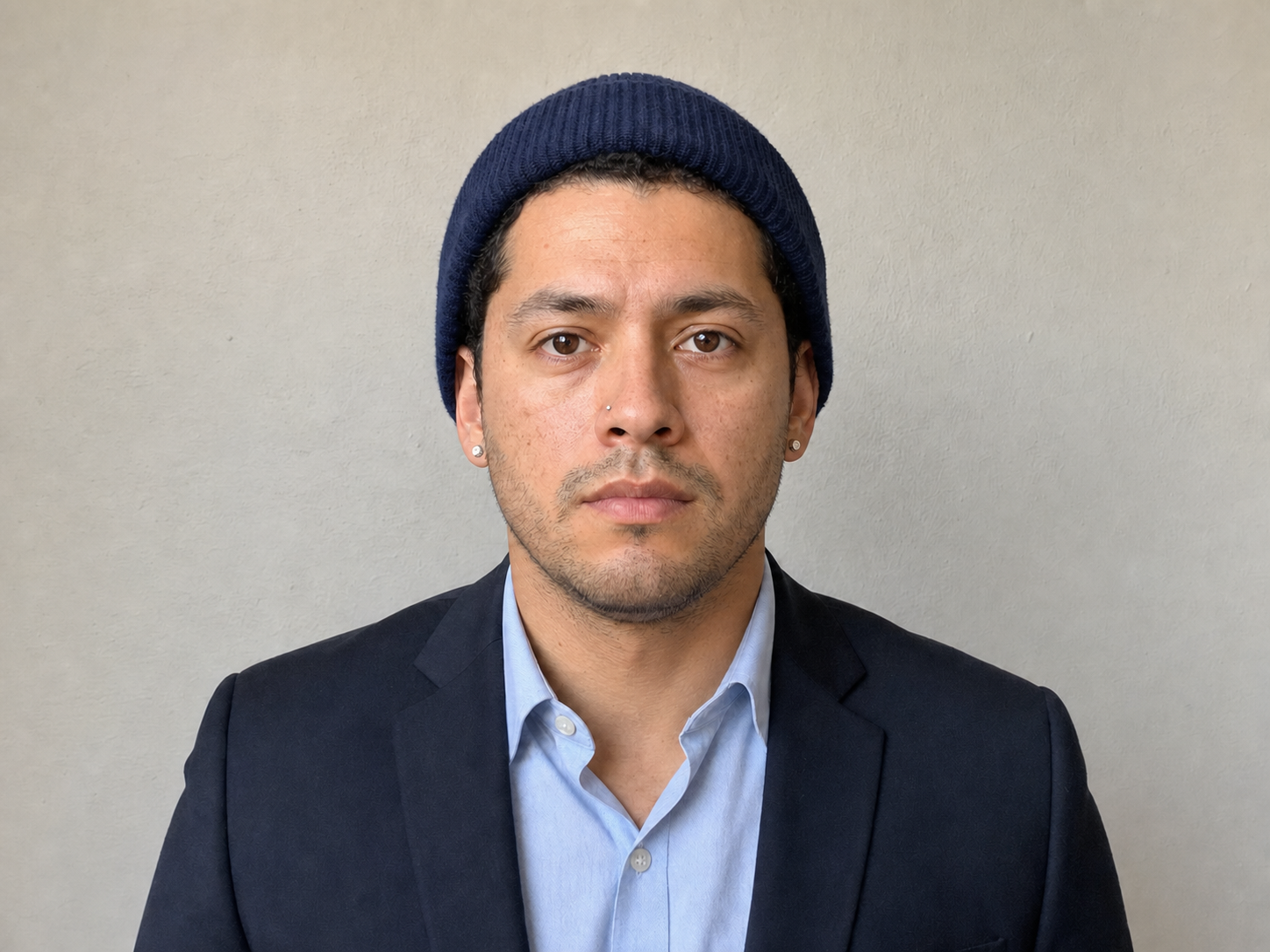
Remove nose piercing
Remove a nose stud without reshaping or smoothing the nose.
- Changes
- Only the selected nose jewelry.
- Preserves
- Nose structure, pores, skin tone, expression, and all other accessories.
Upload for this tool
Remove nose piercing
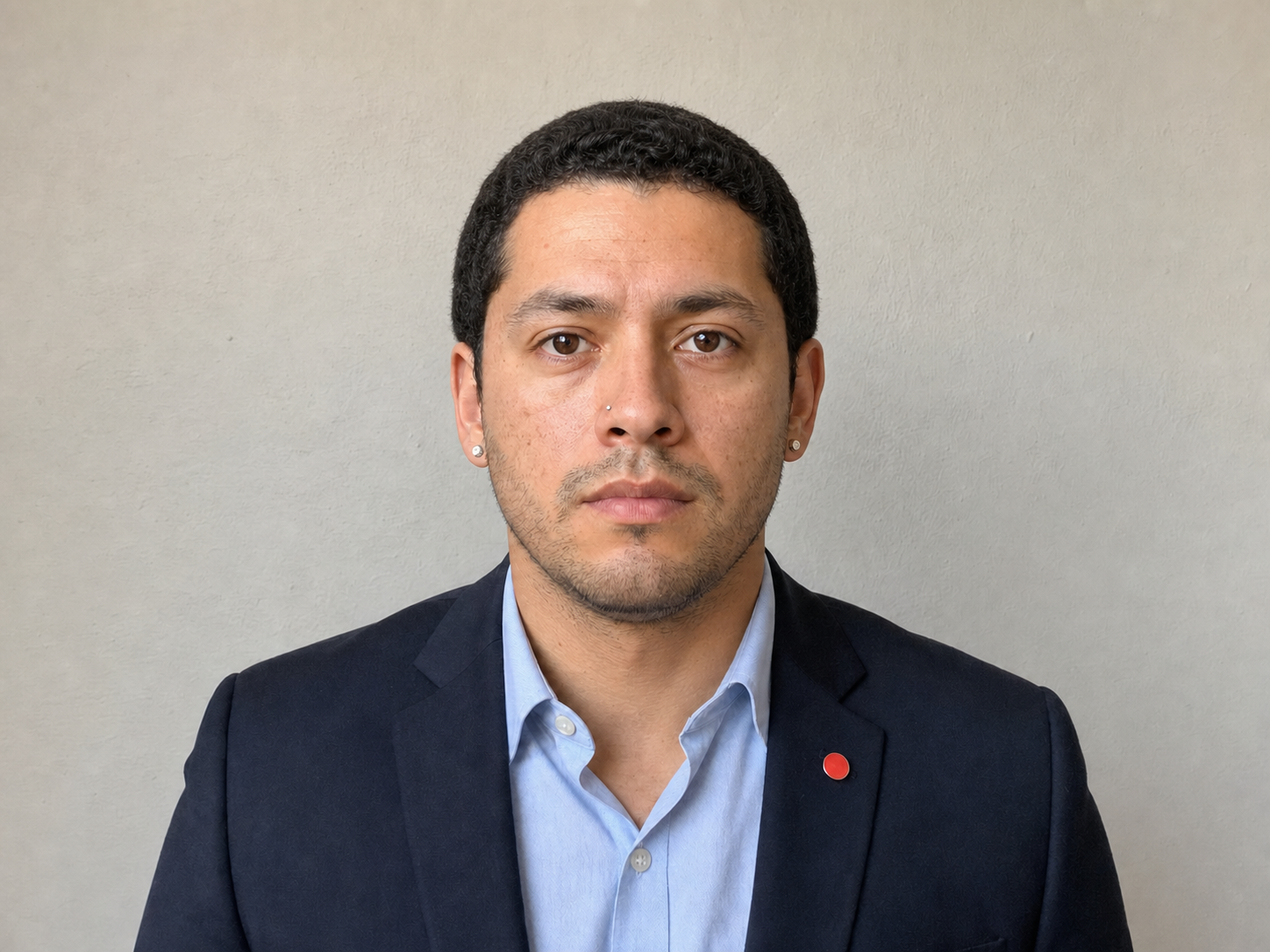
Remove hat
Take away a hat and rebuild a natural head and hair outline.
- Changes
- The hat and the area it covers.
- Preserves
- Identity, face, pose, clothing, background, and other accessories.
Upload for this tool
Remove hat
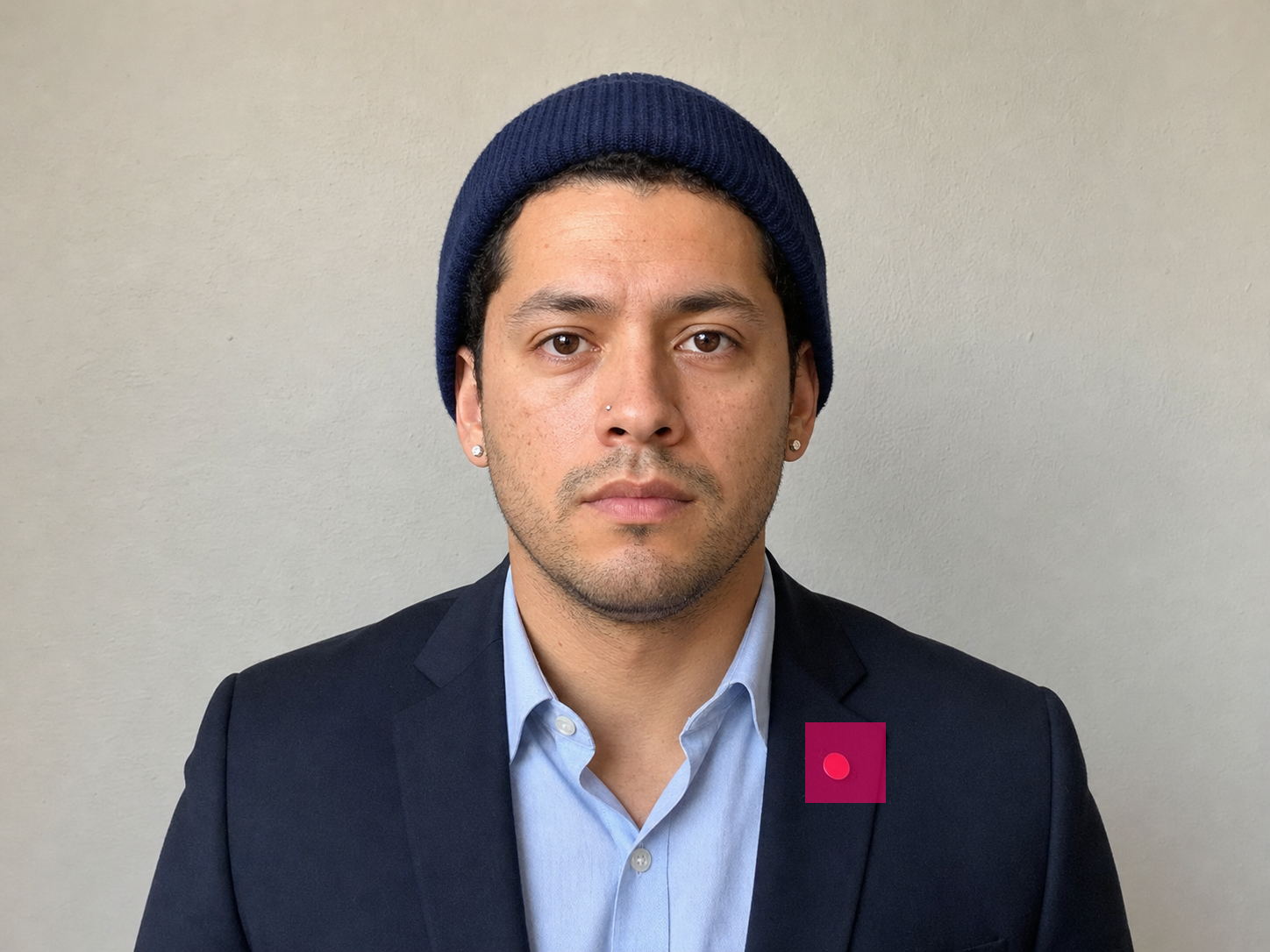
Eraser
Paint over one local object and remove precisely that selected area.
- Changes
- Only the area covered by the brush mask.
- Preserves
- Everything outside the mask, including identity, composition, and lighting.
Upload for this tool
Eraser
The actual editor flow
One decision at a time.
The workflow stays predictable whether you start on mobile or desktop.
- 01
Choose and upload
Pick the task first, then upload the portrait you want to edit.
- 02
Set the control
Choose a color or size, or paint the exact area you want removed.
- 03
Review and continue
Compare the result, continue with another ID photo tool, or download.
Pick the right control
Four editing patterns, one continuous workflow.
The tool changes with the task, but the photo and progress stay together.
| Task | User input | Processing | Output control | Continue editing |
|---|---|---|---|---|
| Accessory cleanup | Photo + target tool | Image edit | Before / after approval | Yes |
| Background color | Photo + color | Person segmentation + exact composite | Five presets or custom HEX | Yes |
| ID photo crop | Photo + size / DPI | Face-aware deterministic crop | Template or custom size | Yes |
| Eraser | Photo + painted mask | Bria Eraser | Brush-covered area | Yes |
Start with the change you need
Prepare the portrait without losing your place.
Choose one tool now. After reviewing the result, continue with the next ID photo edit in the same workflow.
Choose a tool and upload
Your selected task and page source travel with the photo.