
Turn your screenshot into a PDF
Upload a screenshot and open the editor with PDF already selected. Check the image, then save a single-page PDF.
Choose a photo
One screenshot · PNG, JPG or WebP
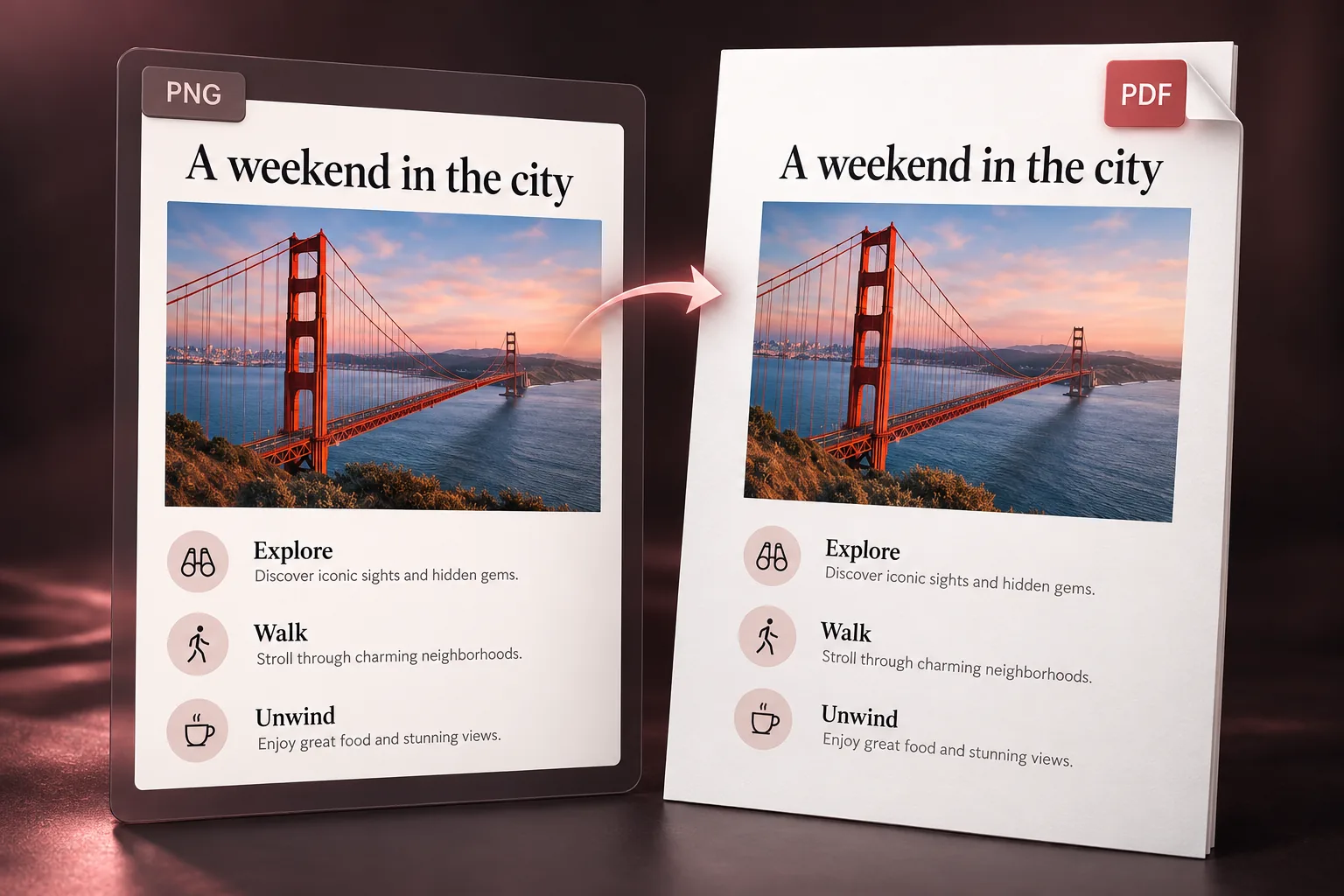
How to turn a screenshot into a PDF
- 1
Upload your screenshot
Choose one PNG, JPG or WebP from your phone or computer.
- 2
Check the download options
The editor opens Download options with PDF and Low resolution selected. Close the dialog if you want to inspect the screenshot first.
- 3
Download your PDF
Select Download PDF, then open the saved file to check small text and page orientation.
A PDF file, with your screenshot inside
Conversion places the image on one page at the same aspect ratio. It does not redraw text, add OCR or capture content outside the screenshot. Standard export limits the longest edge to 1,600 pixels.
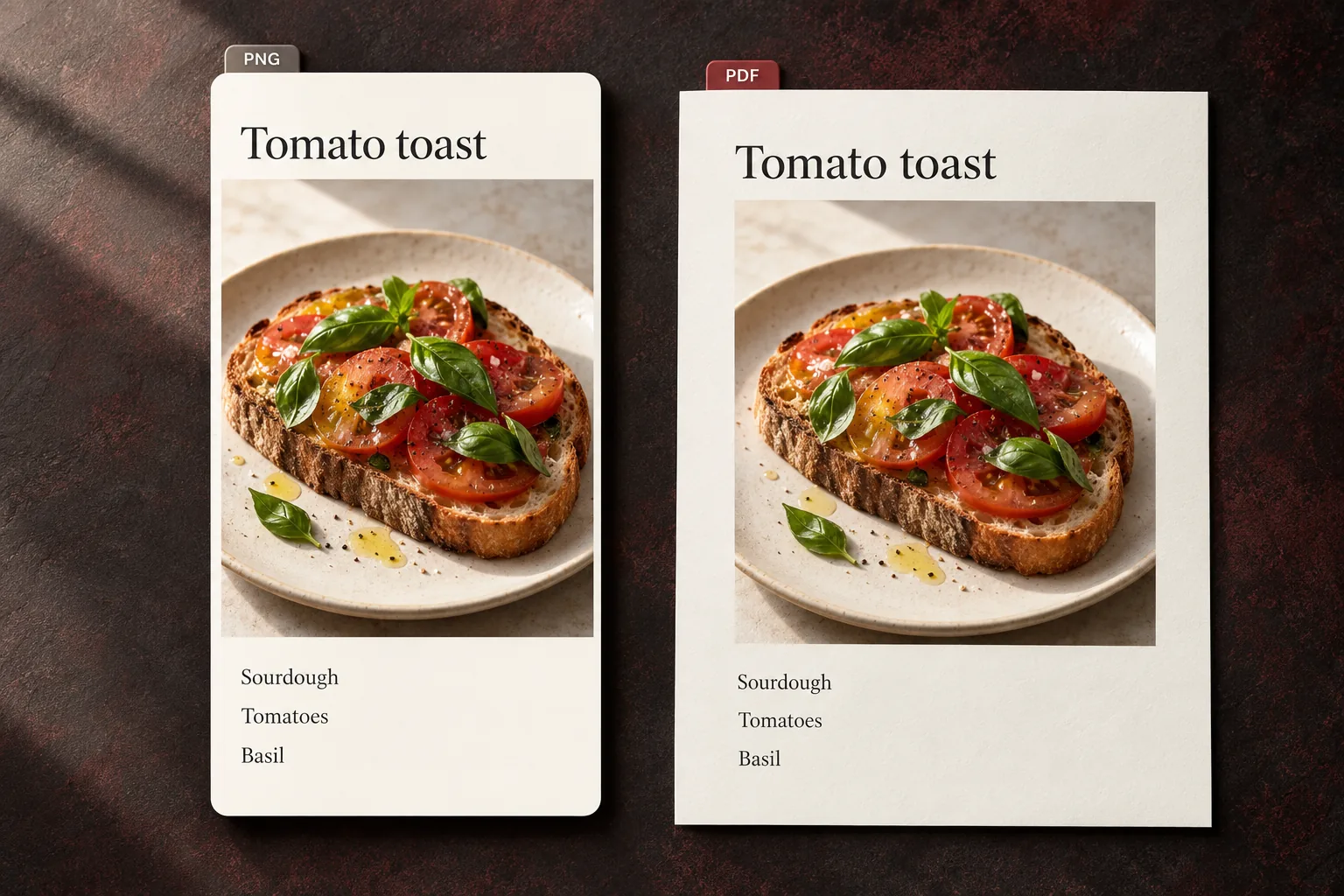
Questions and answers
Does this make the text searchable?
No. The PDF contains an image. Text is not selectable or searchable, and links pictured in the screenshot are not clickable.
Can I combine several screenshots?
This entry converts one screenshot at a time. Use Photo to Document to arrange several images and save a multi-page PDF.
Can I edit the screenshot first?
Yes. Close Download options to use the editor, then reopen Download and choose PDF. Editing and AI generation are separate actions from conversion.
More ways to work with screenshots
Change screenshot text or make a focused edit before exporting.
Order multiple screenshots and choose a page size in Photo to Document.
Ready to save your screenshot as a PDF?
Choose a photo
One screenshot · PNG, JPG or WebP