




Brighten a dark photoLift underexposed shadows while keeping the original scene natural.
Darken an image with a brightness slider
Lower photo brightness online and preview the change as you adjust it. Keep the same scene and choose how dark the result should be.
Choose a photo
Upload a photo. The Adjust panel opens automatically.
OriginalResult
You control the light
Move Brightness below zero in Adjust. This changes the current image directly, without generating a new scene or using AI credits.
How to use this tool
- 1
Upload the bright image
Open a landscape, portrait or product photo in the editor.
- 2
Lower Brightness
Move the slider left and compare the preview with the original.
- 3
Apply and download
Keep detail in the shadows, apply the adjustment and save.
A calmer portrait
- Requested change
- Reduce the brightness of the entire portrait.
- Keep unchanged
- Keep facial features, skin texture and framing.
OriginalResult
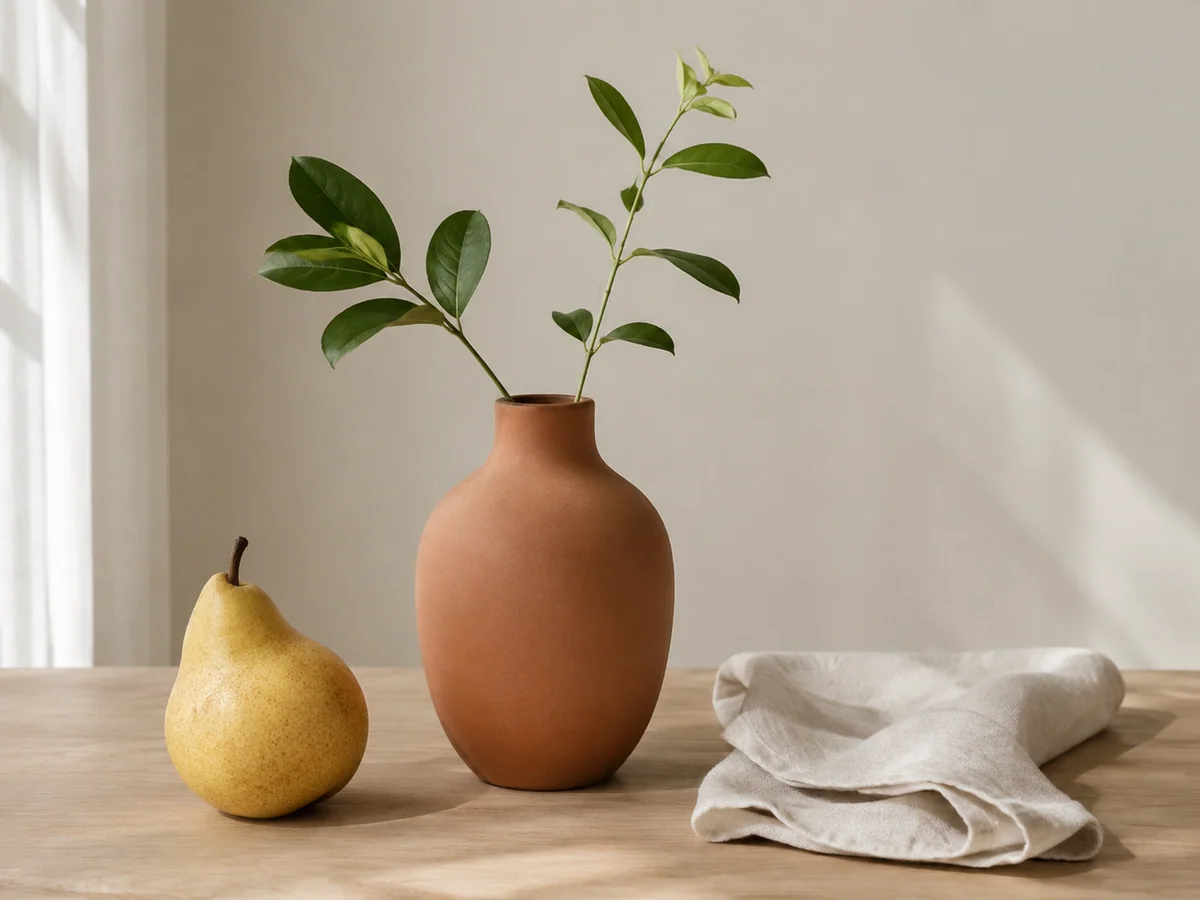
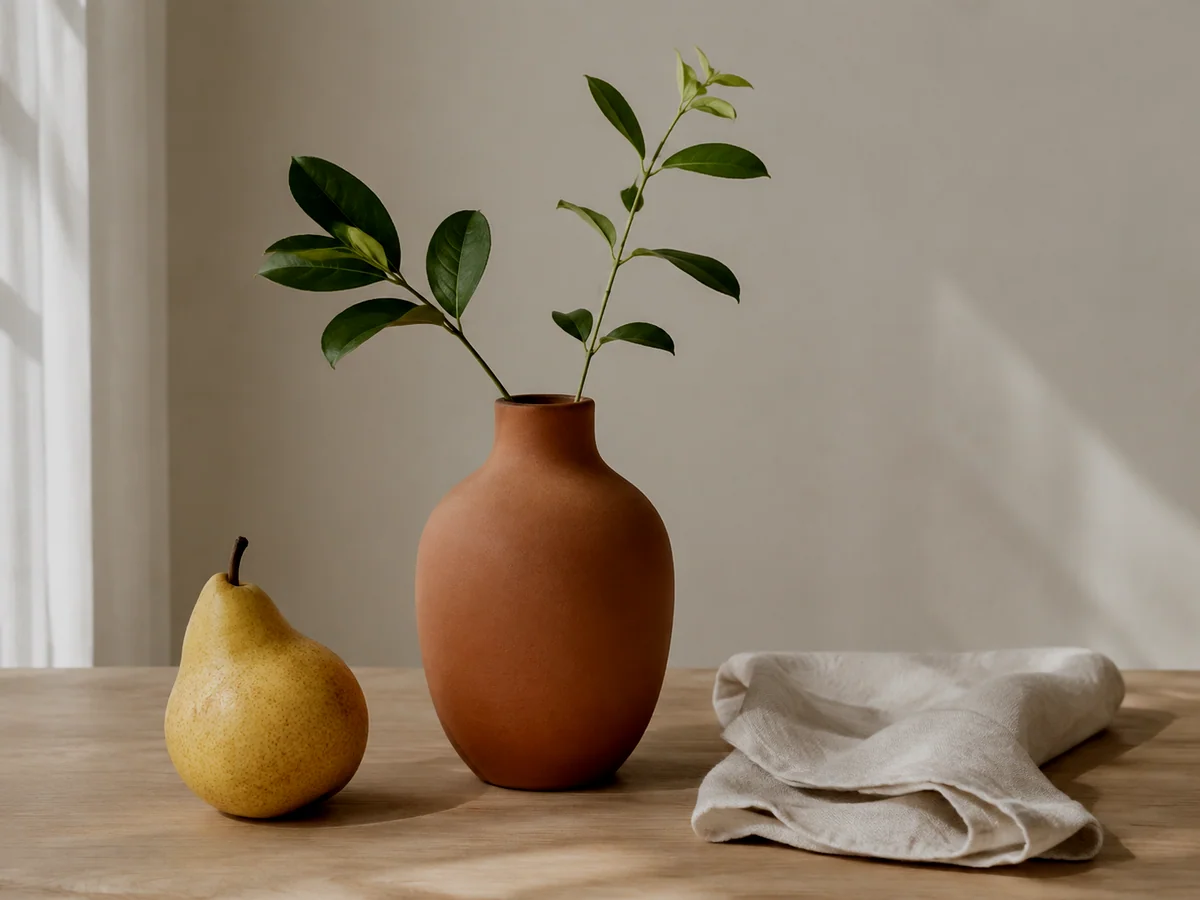
A darker product setting
- Requested change
- Lower brightness across a tabletop product photograph.
- Keep unchanged
- Keep the product shape, label and position.
OriginalResult
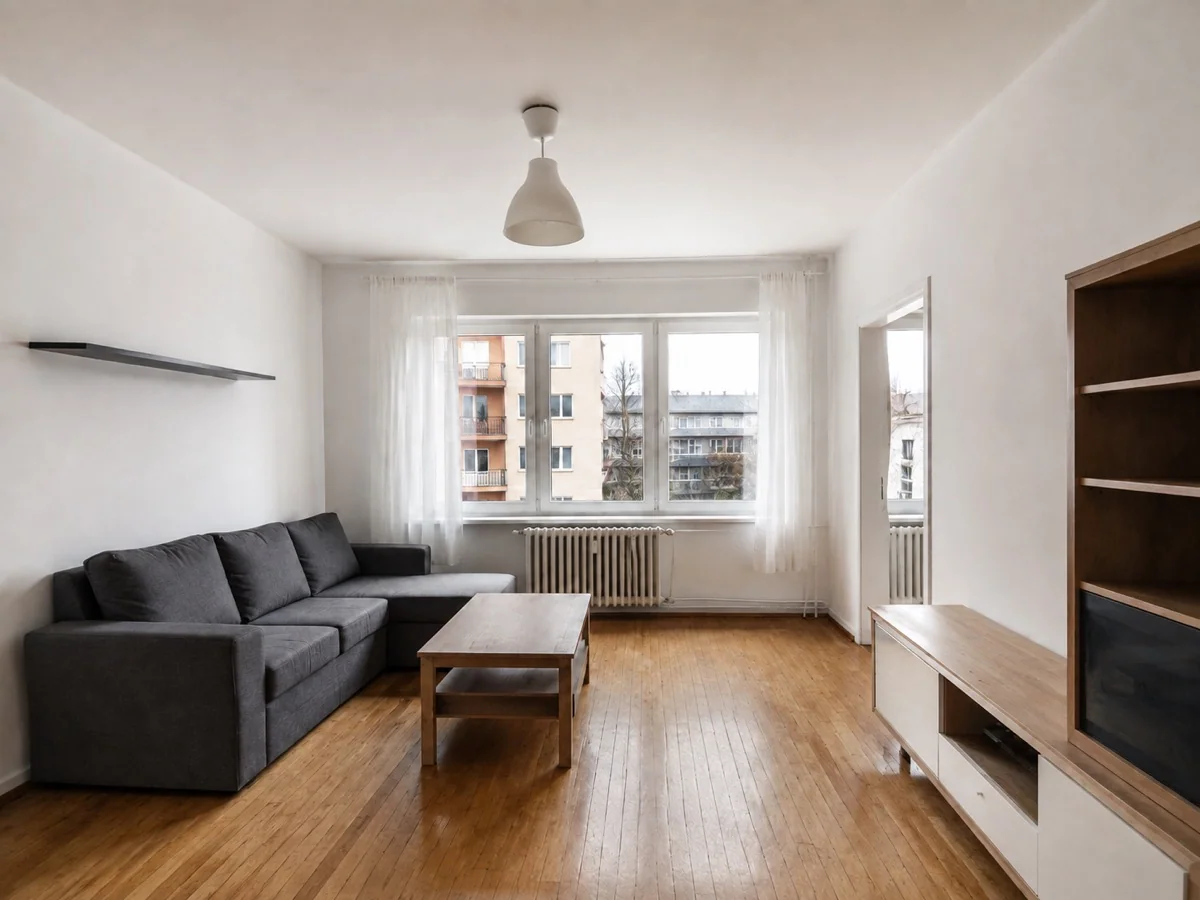
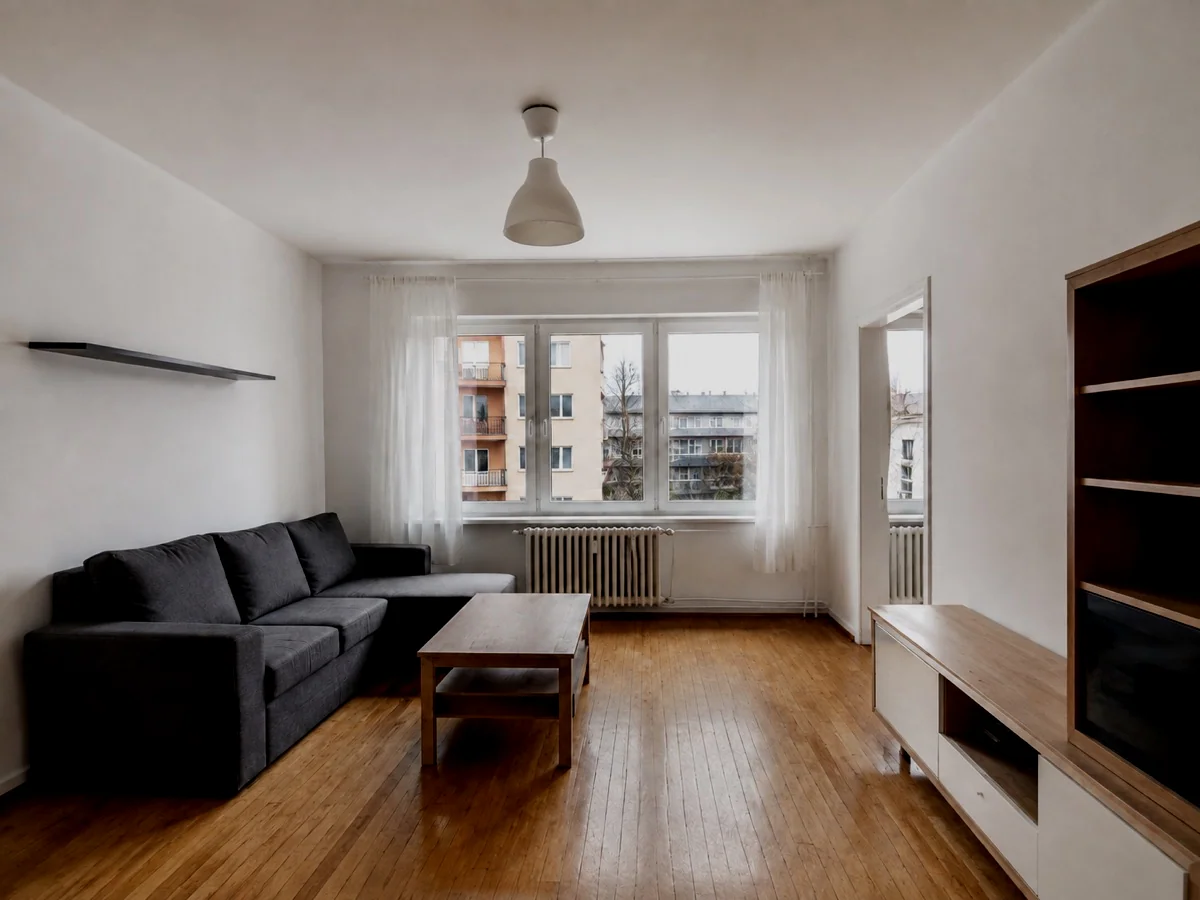
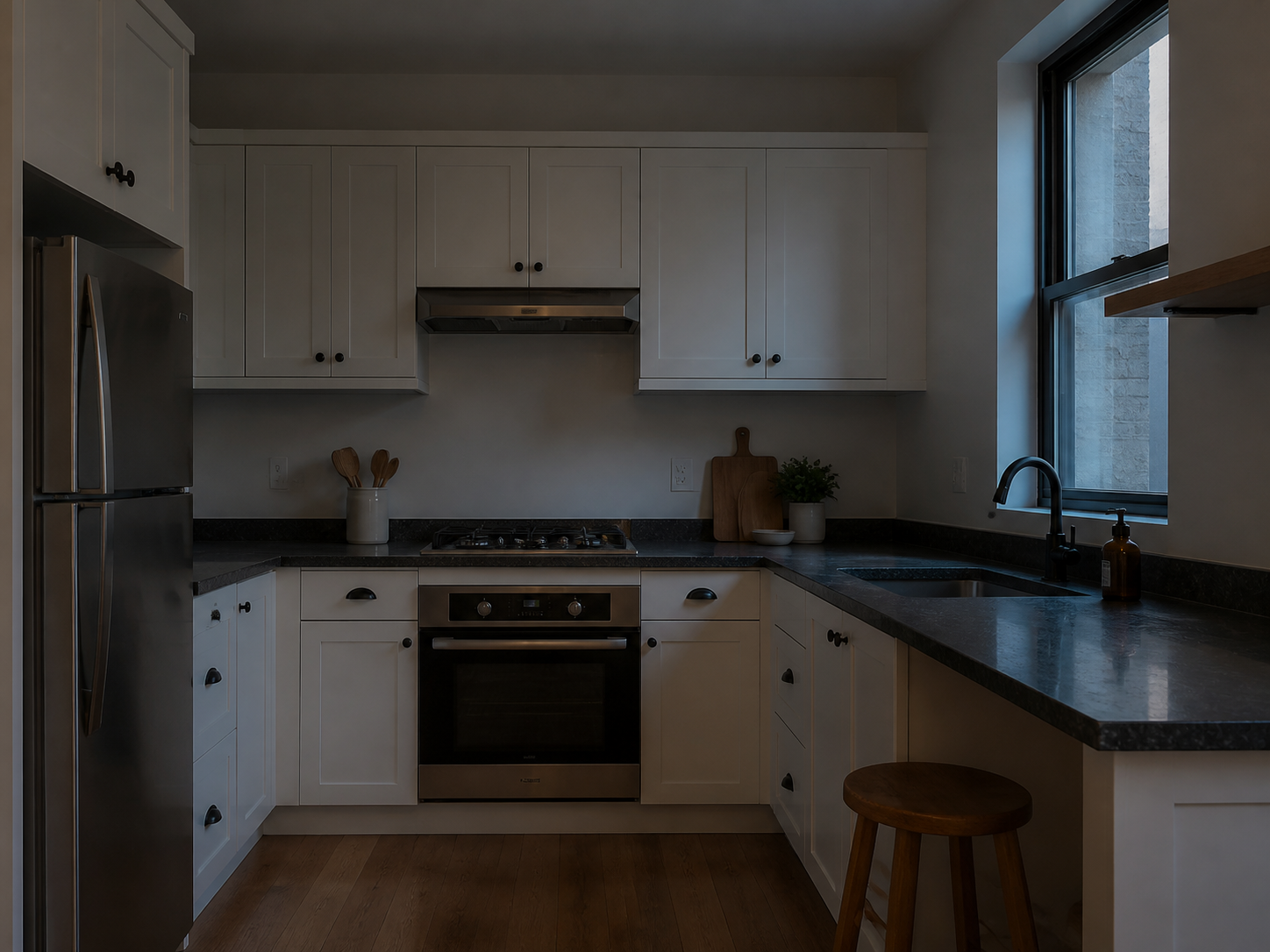
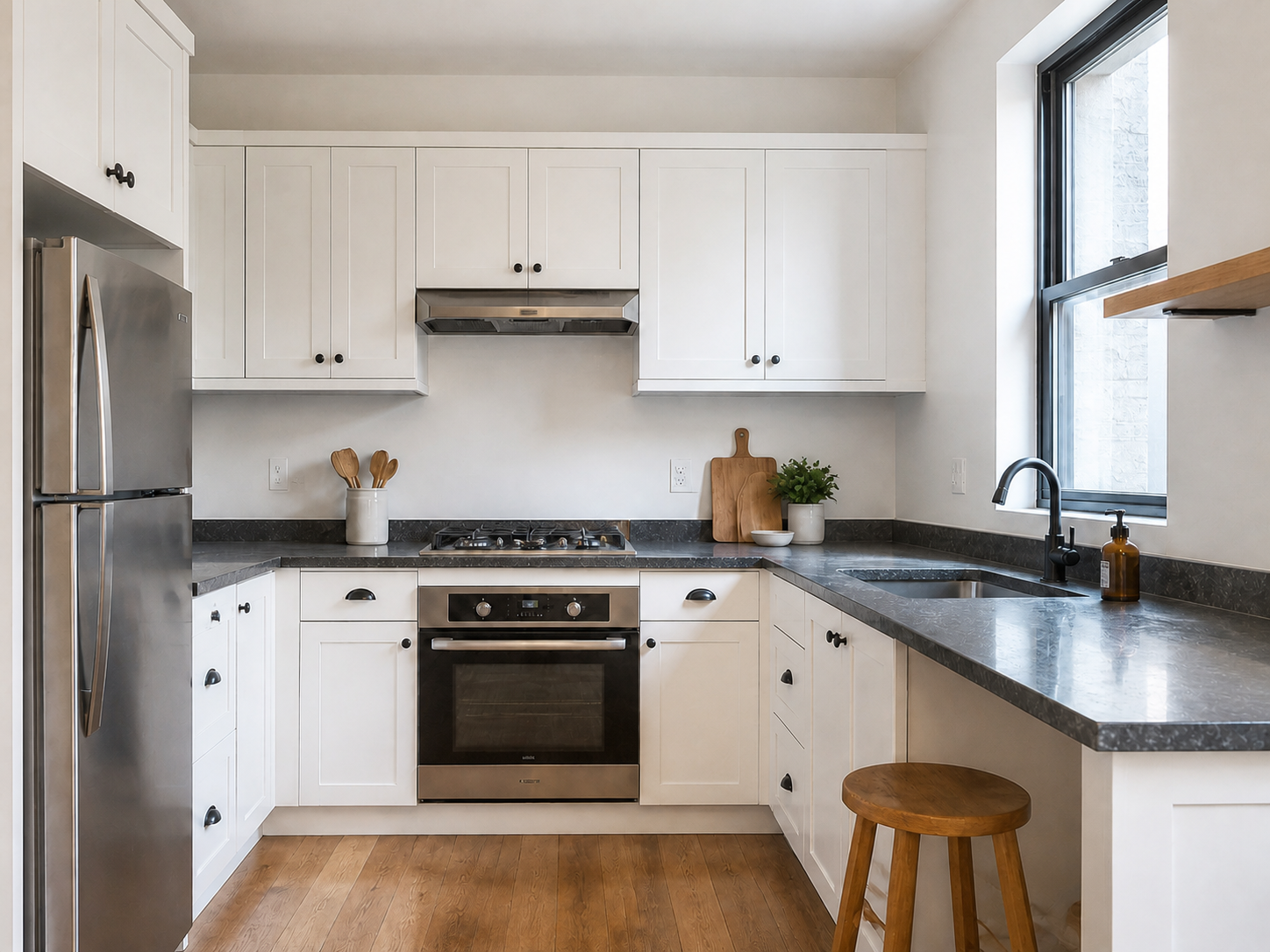
A less bright interior
- Requested change
- Reduce the brightness of a room photograph.
- Keep unchanged
- Keep the architecture, furniture and crop.
OriginalResult
Darker does not restore clipped highlights
A white, overexposed area may contain no recoverable detail. Avoid lowering brightness until faces or important objects disappear.
Questions and answers
Does darkening use AI credits?
No. The Adjust panel processes brightness without an AI generation. Download options follow your existing account access.
Can I darken only the background?
This entry adjusts the selected image as a whole. It does not automatically isolate a background or person.
More ways to perfect your photo
Quick edits. Professional results.
If bright and dark areas still feel too far apart, adjust photo contrast to soften their difference.



Choose the amount of darkness yourself
Choose a photo
Upload a photo. The Adjust panel opens automatically.