
Best Photo Editing Software in 2026: 8 Editors Compared
Test one cleanup photo before choosing a full editor
Upload a photo with clutter, cables, props, or another distraction and check whether focused cleanup solves the job.
View tool details
The best photo editing software depends on the job. Adobe Photoshop is the most flexible option here for detailed pixel editing and compositing. Lightroom is better for organizing and developing large photo libraries. Capture One Pro suits tethered studio work, while DxO PhotoLab focuses on RAW correction and noise reduction. Affinity and GIMP cover free desktop editing in different ways. Canva is built around design-led social content. ClearCrowds is a focused choice when you mainly need to remove people, objects, clutter, or another distraction.
This guide is scoped to US readers and products with current US-accessible feature and plan information. ClearCrowds publishes the guide and is one of the tools compared. The comparison uses desk research from official product and pricing pages checked on August 24, 2026. It is not a hands-on speed, image-quality, usability, or export benchmark.
Key takeaways
- Start with your real editing job: RAW development, layered retouching, studio capture, design, or focused cleanup.
- Photoshop has the broadest pixel-editing toolset in this comparison, but it is more software than many one-task edits need.
- Lightroom, Capture One Pro, and DxO PhotoLab solve different parts of a photographer's RAW workflow.
- Affinity is free for individual users under its current terms. GIMP remains the open-source choice.
- Canva makes sense when the photo is part of a social post, presentation, or other layout.
- ClearCrowds is useful for one-click cleanup, not RAW cataloging, tethering, typography, or detailed layer work.
Table of contents
- What photo editing software means
- How this comparison works
- Best photo editing software at a glance
- The eight editors compared
- How to choose with one real photo
- Where ClearCrowds fits
- Limitations and ethical use
- FAQ
What photo editing software means
Photo editing software changes an existing image. It can develop a RAW file, adjust light and color, retouch pixels, remove distractions, combine images, add text, or place a photo inside a larger design.
That definition covers several products that are not direct substitutes. A RAW processor can apply consistent corrections across a wedding shoot but may be awkward for a layered composite. A design app can turn a portrait into an Instagram post but may lack the repair controls needed around hair or patterned fabric. A cleanup tool can remove a trash can quickly without offering a catalog, type system, or print workflow.
The useful question is not simply, "Which editor has the most features?" It is, "Which editor handles the work I repeat without forcing me through an unrelated workflow?"
If your search is specifically about generative or prompt-based tools, see our separate guide to the best AI photo editors. Beginners can also use the narrower photo editing software for beginners guide.
How this comparison works
We compared the same six questions for every product:
- Primary job: What recurring photo task is the product built around?
- Editing depth: Does it support detailed selections, layers, masks, or manual repair?
- Photo workflow: Does it organize libraries, process RAW files, or support tethered capture?
- Automation: Which documented AI or assisted tools reduce repetitive work?
- Access model: Is it free, subscription-based, perpetual-license, or a mix?
- Reason to skip it: What common job is better handled elsewhere?
The eight products represent distinct jobs: deep pixel editing, library-based RAW work, tethered capture, RAW correction, free all-in-one desktop work, open-source editing, design-led content, and focused cleanup. We required current official feature and access information for each option. This is an illustrative set, not an exhaustive market ranking. ClearCrowds is included because its narrower cleanup job is relevant and because it publishes the guide.
The six questions were fixed before comparison and applied equally. We do not calculate a total score or force an overall winner. Your primary job is the first filter; the other five questions expose tradeoffs within that job.
All feature and access notes come from official pages available on August 24, 2026. Prices and plan terms can change, so the table describes the model rather than quoting a checkout price. Manufacturer pages prove that a feature is offered; they do not prove that one product produces better images than another.
Best photo editing software at a glance
| Software | Best for | Documented strength | Main reason to skip | Access model checked August 24, 2026 |
|---|---|---|---|---|
| Adobe Photoshop | Detailed pixel editing and compositing | Layers, selections, retouching, text, and generative editing | Too broad for a simple batch or one-click cleanup job | Subscription |
| Adobe Lightroom | Organizing and developing photo libraries | Desktop, mobile, and web workflow with local adjustments and assisted removal | Not a full layered compositing environment | Subscription |
| Capture One Pro | Tethered studio and color workflows | RAW processing, color tools, catalogs, sessions, and tethering | More specialized than casual photo cleanup needs | Subscription or perpetual license |
| DxO PhotoLab | RAW correction and noise reduction | Camera and lens modules, DeepPRIME processing, masks, and local adjustments | Not built for design layouts or deep compositing | Perpetual license |
| Affinity | Free all-in-one desktop creative work | Pixel, vector, and layout tools in one app | Not built around RAW libraries or tethered capture | Free for individuals under current terms |
| GIMP | Open-source desktop editing | Layers, channels, retouching, compositing, scripting, and plugins | No integrated photo catalog or tethered capture workflow | Free and open source |
| Canva | Social graphics and template-led design | Layouts, templates, Magic Edit, and Magic Eraser | Less suited to demanding RAW and pixel-level repair workflows | Free and paid plans |
| ClearCrowds | Focused removal of people, objects, and clutter | One-click cleanup with an optional prompt path | Not a RAW catalog, tethering tool, or full layer-based editor | Free cleanup path, memberships, and one-time points |
No row is an overall winner. The best choice changes with the source photo, the final destination, and how often you repeat the same edit.
The eight editors compared
Adobe Photoshop: best for detailed pixel editing and compositing
Choose Photoshop when one image needs careful selections, layered retouching, type, compositing, or a mix of manual and generative edits. Adobe documents tools for image adjustment, photo effects, object addition and removal, retouching, and text. Its Generative Fill overview also describes adding, removing, or replacing content with prompts inside a selection.
That breadth is the reason to choose it and the reason to skip it. A photographer, designer, or retoucher can keep complex work editable. Someone who only needs to remove a background tourist may not need its layered workflow or subscription. See Photoshop features and Adobe photography plans.
Adobe Lightroom: best for organizing and developing many photos
Lightroom fits work that starts with a camera roll or memory card rather than one isolated image. Adobe's Lightroom product page covers desktop, mobile, and web editing, light and color adjustments, local edits, AI-assisted culling, Generative Remove, and dust removal.
Choose it for culling, consistent color, repeatable corrections, and a library-centered workflow. Skip it as your only editor when the job depends on complex layers, detailed compositing, or typography. Photoshop and Lightroom often serve different stages rather than competing for the same stage.
Capture One Pro: best for tethered studio work
Capture One Pro is aimed at photographers who care about RAW processing, color control, camera support, and capture workflow. Its official Capture One Pro page lists tethering, catalogs, sessions, color tools, and assisted masking.
Choose it when a camera is connected during a studio shoot or when session-based file management and color work are central. Skip it for casual phone edits, quick social layouts, or a narrow object-removal job. Capture One's pricing page lists subscription and perpetual-license paths; verify the current terms before buying.
DxO PhotoLab: best for RAW correction and noise reduction
DxO PhotoLab centers its case on image quality at the RAW-processing stage. The official PhotoLab features page documents camera and lens modules, DeepPRIME noise reduction and detail recovery, AI masks, U Point local adjustments, and RAW processing.
Choose it when correcting optical issues, recovering noisy files, and making local RAW adjustments matter more than layouts or composites. Skip it when the final job is a layered campaign graphic, a text-heavy social asset, or a complex scene assembly. DxO sells PhotoLab as a perpetual license on its official shop.
Affinity: best free all-in-one desktop creative app
Affinity now combines pixel editing, vector work, and page layout in one app. Its official site states that the app is free for individual users. It also says Canva premium users can access Canva AI features within Affinity.
Choose Affinity when you want broad desktop creative tools without a recurring individual license fee under the current terms. Skip it if your work depends on a RAW catalog, tethered capture, or a specific Lightroom, Capture One, or Photoshop ecosystem. Because its current access model is unusual and can change, confirm the terms on the official page before committing a team workflow.
GIMP: best open-source photo editor
GIMP is free, open-source, and available across major desktop platforms. Its official documentation covers layers, channels, retouching, compositing, scripting, and plugins.
Choose GIMP when open-source access, extensibility, and manual desktop editing matter. Skip it when you need an integrated photo catalog, tethered capture, or a template-led design system. Start at GIMP.org.
Canva: best for social graphics and template-led design
Canva makes sense when the photo is one part of a post, presentation, thumbnail, flyer, or other layout. Its documented tools include templates, resizing, Magic Edit, and Magic Eraser.
Choose Canva when layout speed, reusable brand assets, and collaboration matter more than deep RAW control. Skip it for demanding repair around fine edges, camera-library management, tethered capture, or a fully manual pixel workflow. Canva offers free and paid plans; feature access varies, so check the current pricing page.
ClearCrowds: best for focused photo cleanup
ClearCrowds handles a narrower job: removing people, objects, text, clutter, wires, shadows, and other distractions from a photo. The product starts with a one-click cleanup path and provides a prompt option when the job needs a more specific instruction. You can test the core cleanup path before choosing a broader editor. See ClearCrowds pricing for current access and limits.
Choose it when the desired result is "keep this photo, remove that distraction." Skip it when you need RAW development, library management, tethering, detailed layers, typography, print layout, or an offline production pipeline. For focused examples, see how to remove an object from a photo and how to remove people from a photo.
How to choose with one real photo
Feature lists hide the failures that matter. Use one photo from your actual workload and run this short evaluation before paying or moving a team.
- Name the job in one sentence. Try "develop 400 wedding RAW files," "retouch one campaign portrait," or "remove the cable behind this product."
- Use a difficult crop. Include hair, patterned fabric, a shadow edge, low-light noise, or another detail the edit must preserve.
- Time the complete workflow. Include import, selection, correction, review, export, and any trip to another app.
- Inspect at full size. Look for halos, repeated texture, broken grain, color shifts, bent lines, or shadows that no longer make sense.
- Check the final destination. A web thumbnail, large print, product listing, and client RAW archive have different requirements.
- Confirm the current plan. Check platform support, team access, AI allowances, export limits, and renewal terms on the official page.
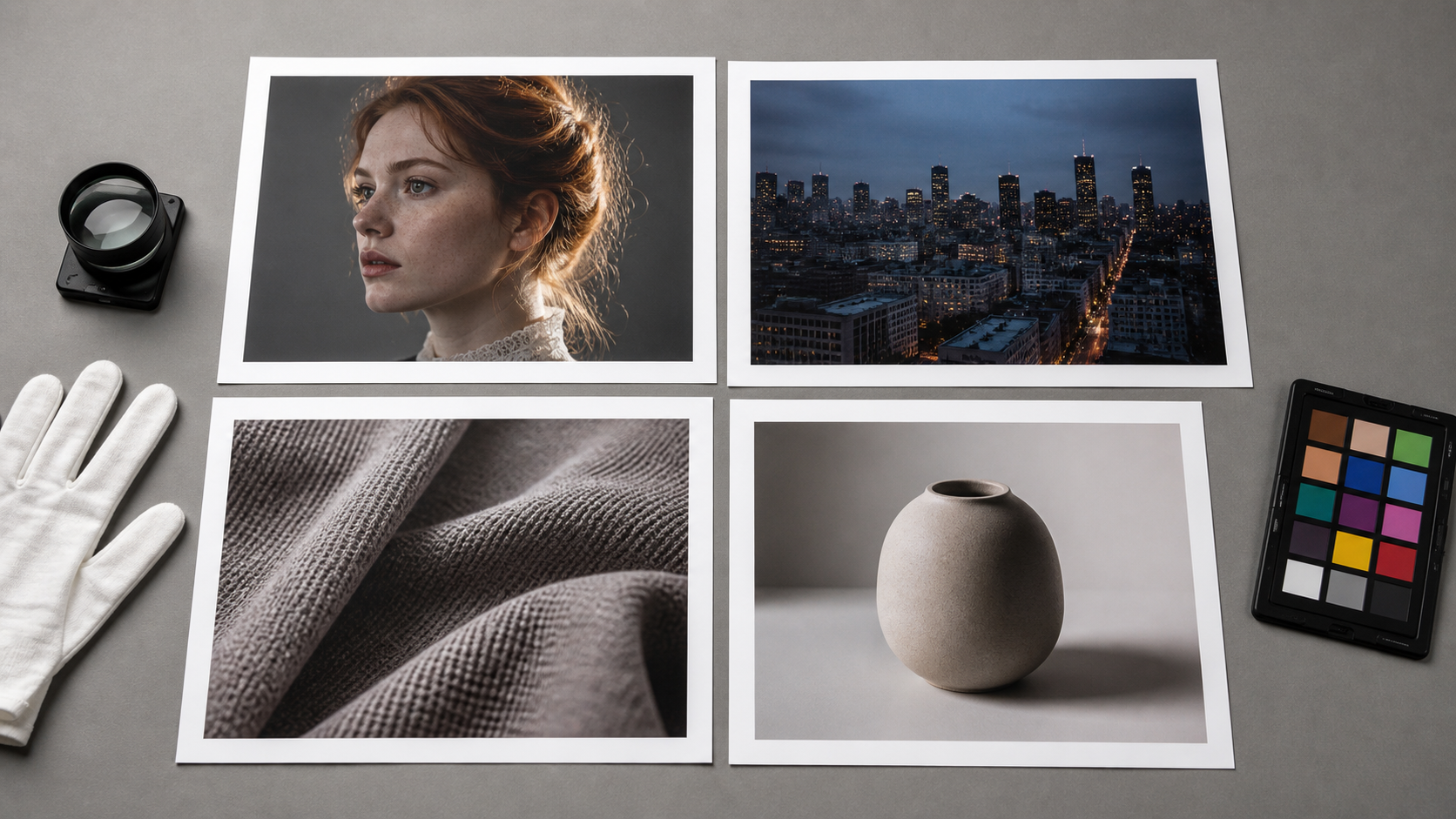
Use the same photo and the same pass conditions for every candidate. A clean hair edge cannot excuse a broken product shadow in one tool if you would reject the same flaw in another.
A practical pass or fail checklist
| Check | Pass | Fail |
|---|---|---|
| Edges | Hair, glasses, product outlines, and architecture stay intact | Halos, clipped strands, melted corners, or bent lines appear |
| Texture | Fabric, wood, skin, walls, and grain continue naturally | Repeated patches, smears, plastic skin, or mismatched noise appear |
| Light and shadow | The edit keeps the scene's direction and intensity of light | Removed objects leave bright holes or impossible shadows |
| Color | Skin tones and neutrals stay stable through the workflow | Local corrections create color casts or banding |
| Reversibility | You can revisit the decision without starting over | The workflow forces a destructive edit too early |
| Export | The output meets the size, format, metadata, and delivery need | The useful export is locked, resized, or missing required data |

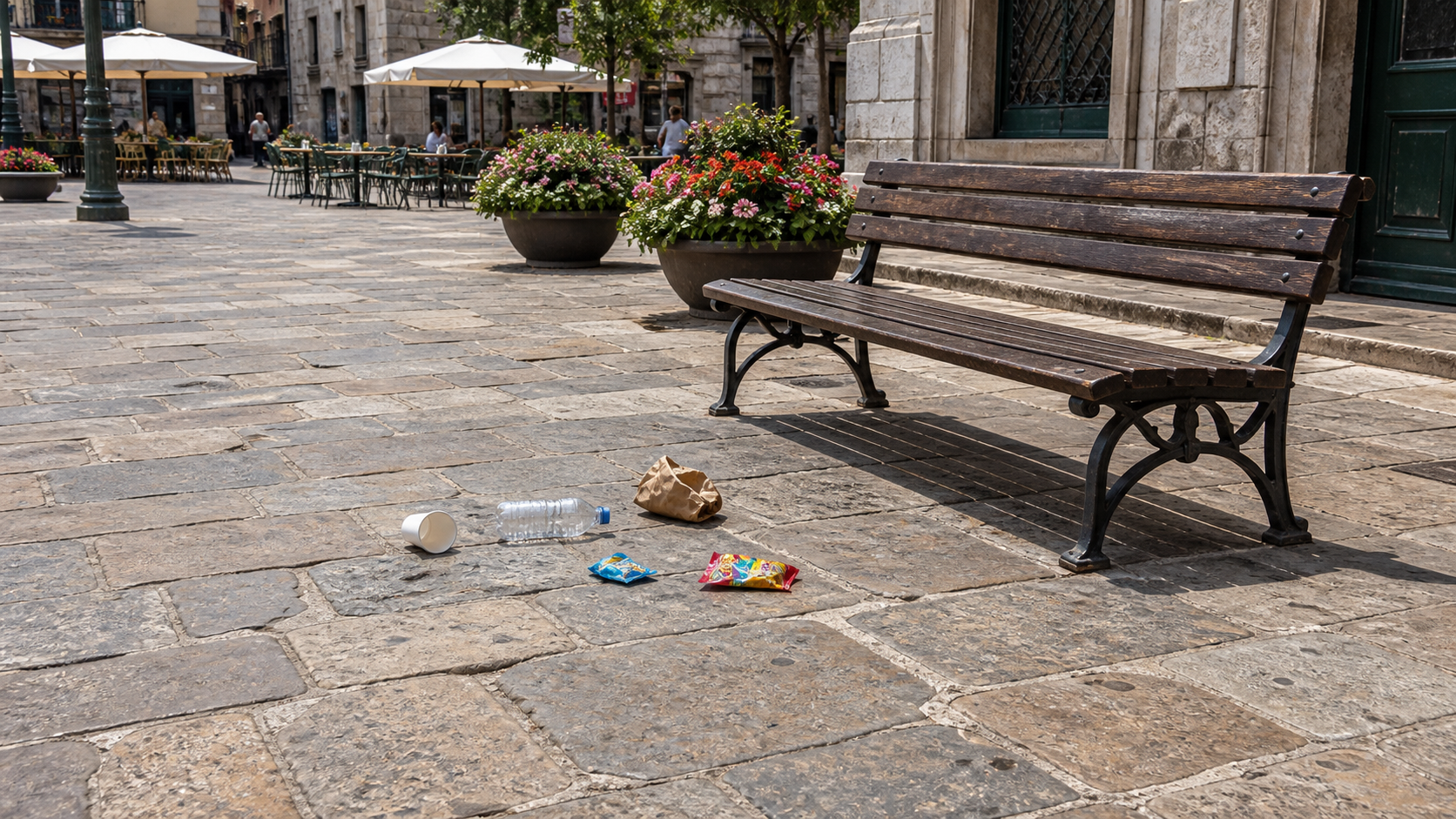
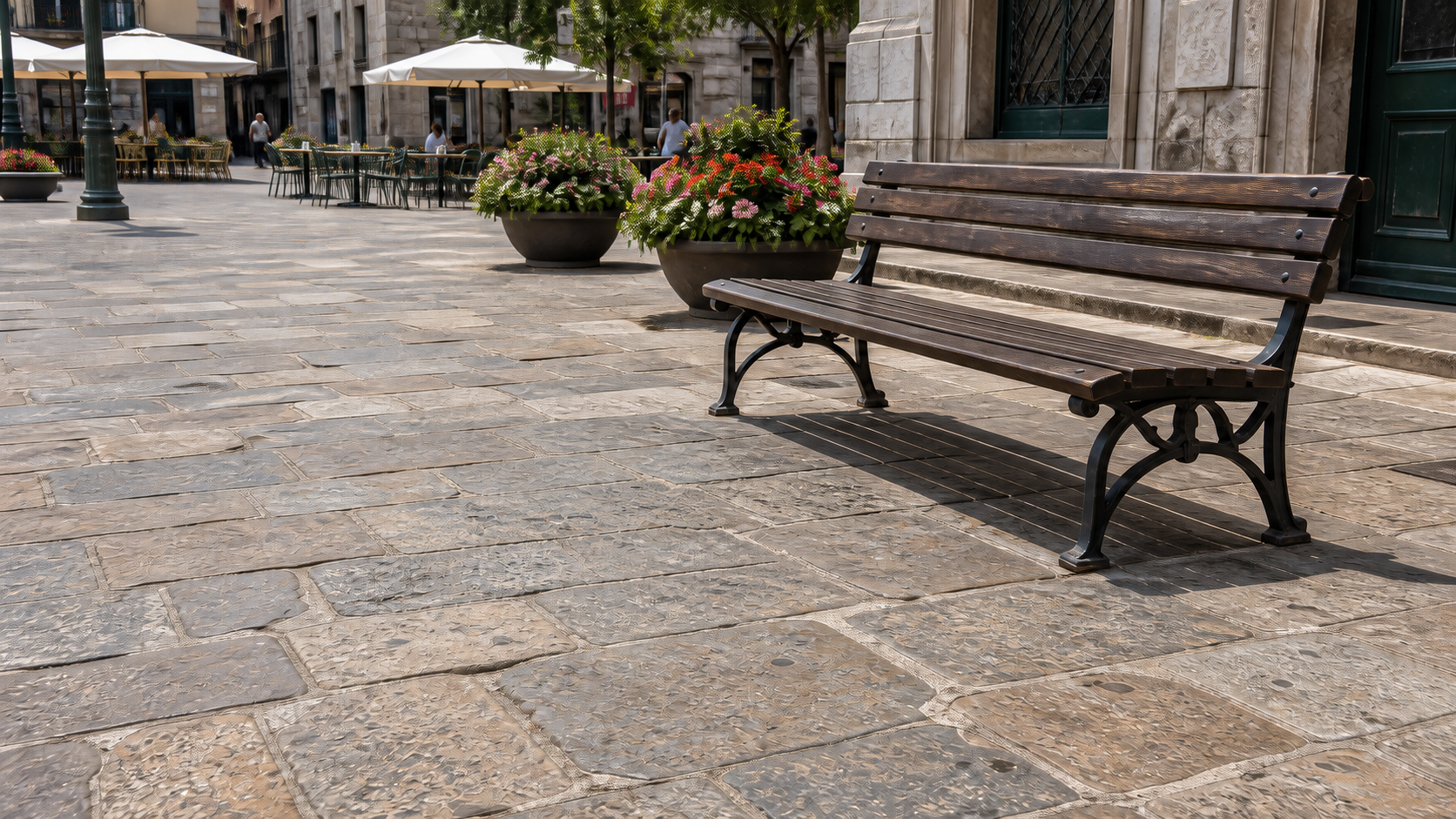
The two prints above are an illustration, not a result from any named product. A useful cleanup test asks whether the right print keeps the same product edges, wood grain, object positions, and lighting while removing only the cable.
Where ClearCrowds fits
ClearCrowds should not replace a full photographic workflow. It belongs near the front of the decision tree when one clear distraction is keeping an otherwise useful photo from being shared, listed, or delivered.
It is a credible fit for:
- removing a tourist or photobomber from a travel image;
- clearing temporary clutter from an owned real estate photo without hiding a material property condition;
- removing a cable, prop, reflection, or stray object from a product image;
- cleaning a small batch when the same type of distraction appears repeatedly.
Do not choose ClearCrowds as the main editor if you need:
- RAW culling, ratings, keywords, or catalog management;
- tethered studio capture and live client review;
- detailed layer masks, compositing, typography, or print layout;
- fully offline editing or exact manual control over every pixel;
- a tool that proves an edit is truthful without your review.
The product is useful only when the narrower job matches. That is why it sits alongside the broader editors in this guide rather than above them.
Limitations and ethical use
This is desk research, not a controlled image-quality test. Product pages can document features and access models, but they cannot establish which editor reconstructs hair, skin, fabric, foliage, or architecture most convincingly on your images. Run the evaluation above with your own file.
Edit photos you own or have permission to use. Cleanup should not remove watermarks, creator credit, evidence, or details that materially change what a buyer, renter, customer, or viewer believes. For property and product images, remove temporary distractions only when the result still represents the thing being offered.
AI edits can also alter nearby details that were not selected. Review the full image, not only the cleaned area, before publishing or delivering it.
FAQ
What is the best photo editing software overall?
There is no single best editor for every job. Photoshop is the broadest choice in this comparison for detailed pixel editing and compositing. Lightroom is a better fit for organizing and developing large photo libraries. Capture One Pro, DxO PhotoLab, Canva, GIMP, Affinity, and ClearCrowds each win a narrower job.
What is the best free photo editing software?
Affinity is a strong free choice for individuals who want pixel, vector, and layout tools in one desktop app under its current terms. GIMP is the better fit when open-source software, plugins, and cross-platform access matter most. Canva and ClearCrowds also offer free entry paths for narrower design or cleanup work. Check current plan terms before building a long-term workflow around any offer.
Should I use Photoshop or Lightroom?
Use Lightroom when your work starts with many camera files and needs culling, organization, color correction, and repeatable adjustments. Use Photoshop when one image needs layers, selections, compositing, detailed retouching, or text. Many photographers use Lightroom for the library and initial development, then Photoshop for images that need deeper work.
What photo editing software is easiest for beginners?
Match the software scope to the first job you need to finish. Canva is built around template-led social and design work. ClearCrowds is built around removing a person, object, or distraction. Affinity and Lightroom cover broader workflows. These are scope differences, not findings from a usability test. The beginner photo editor guide goes deeper on that decision.
Do I need AI photo editing software?
No. AI can shorten repetitive selection, masking, removal, and search tasks, but it does not replace judgment. Traditional tools remain useful when you need exact manual control, an offline workflow, or a fully reversible edit.
Which photo editor is best for removing unwanted objects or people?
A focused cleanup editor such as ClearCrowds is a practical first test for removing people, objects, wires, clutter, or other distractions. Photoshop is a better choice when the cleanup also needs detailed selections, layers, manual repair, or broader compositing.
Summary
Choose Photoshop for deep pixel work, Lightroom for photo libraries, Capture One Pro for tethered studio workflows, and DxO PhotoLab for RAW correction. Affinity is the current free all-in-one desktop option for individuals, while GIMP is the open-source choice. Canva fits design-led social work. ClearCrowds fits focused cleanup and should be skipped when you need a complete photography or design system.
One difficult photo will tell you more than a long feature list. Define the job, use the same pass conditions, inspect the export at full size, and confirm current plan terms before you commit.