Direct answer
What is Add Curtains / Blinds?
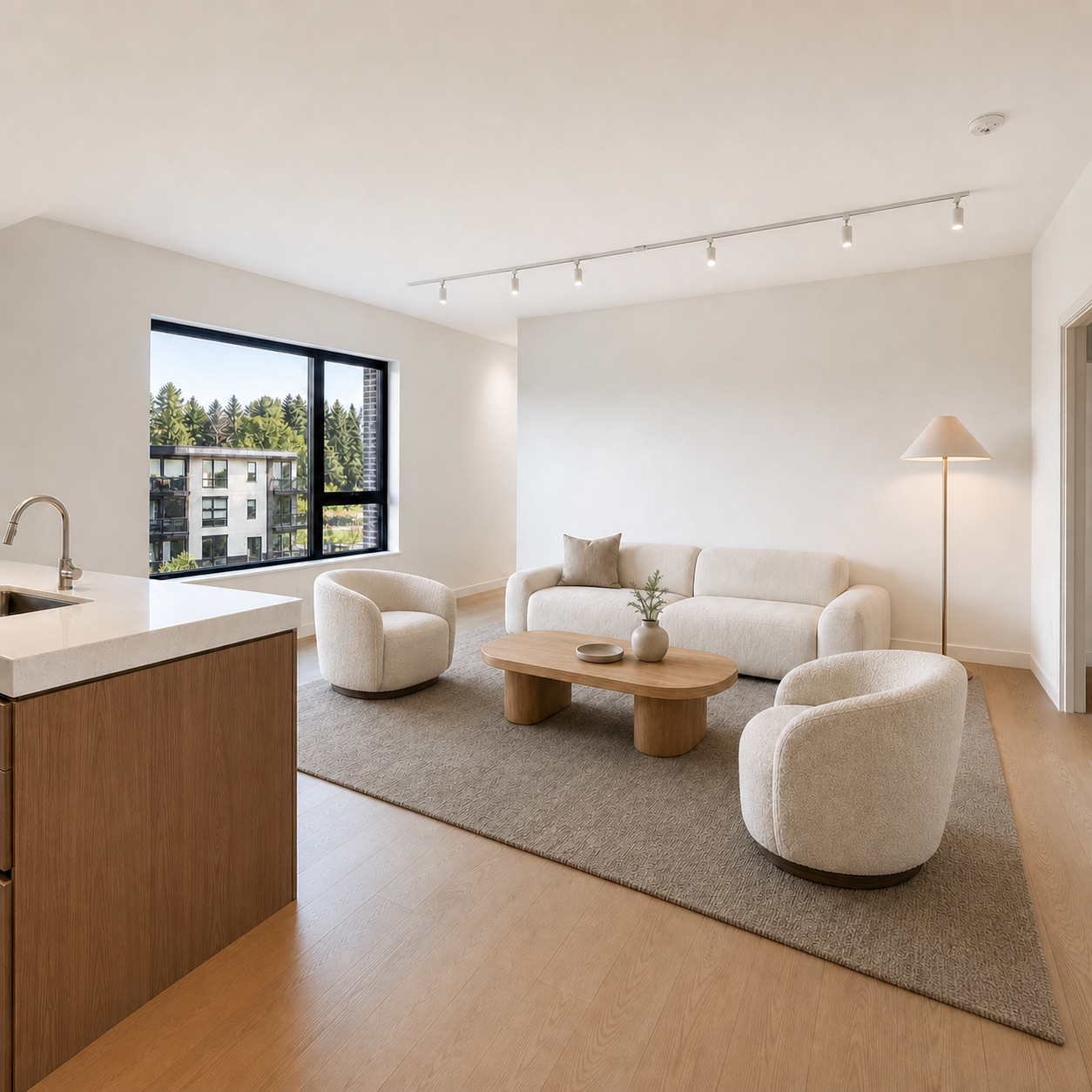
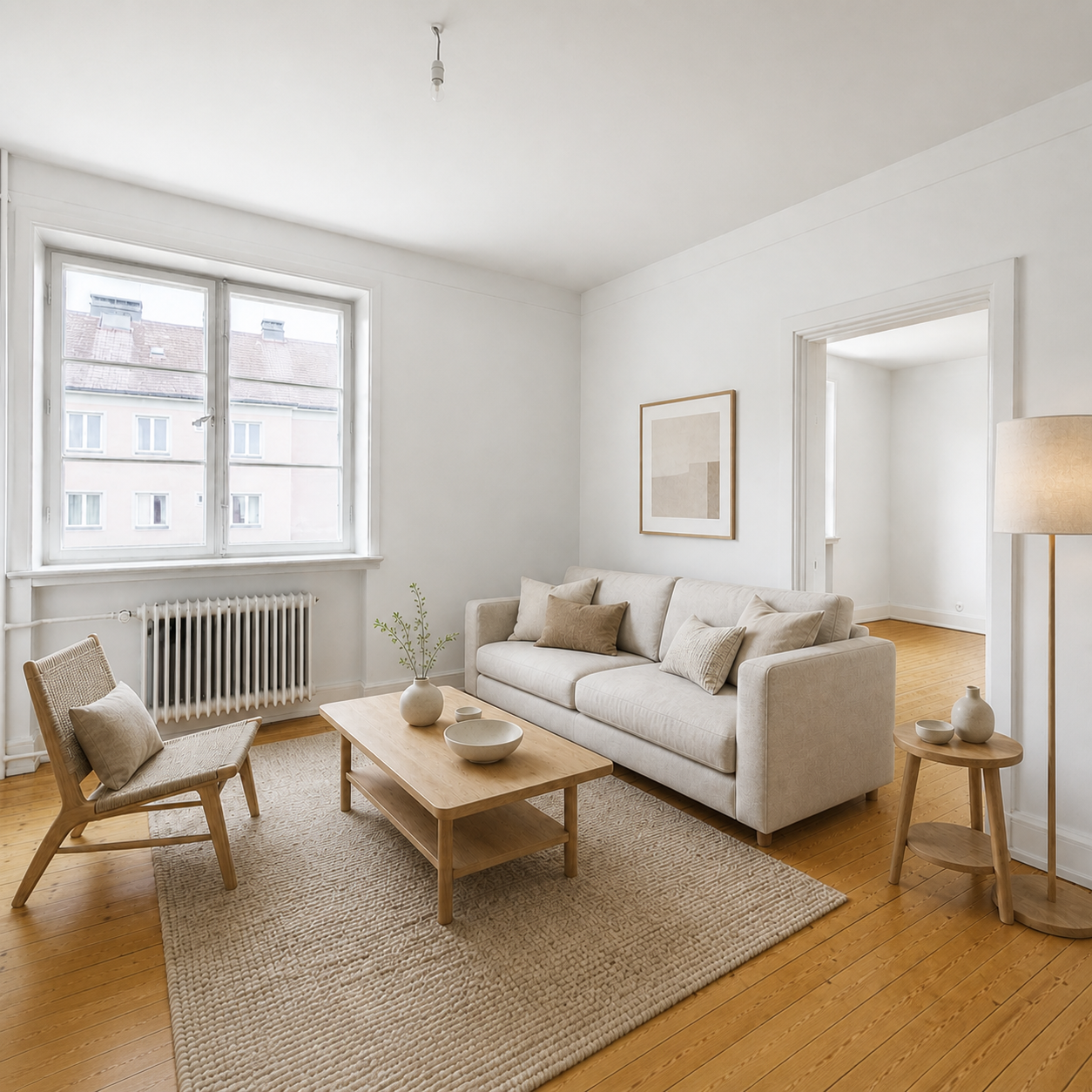
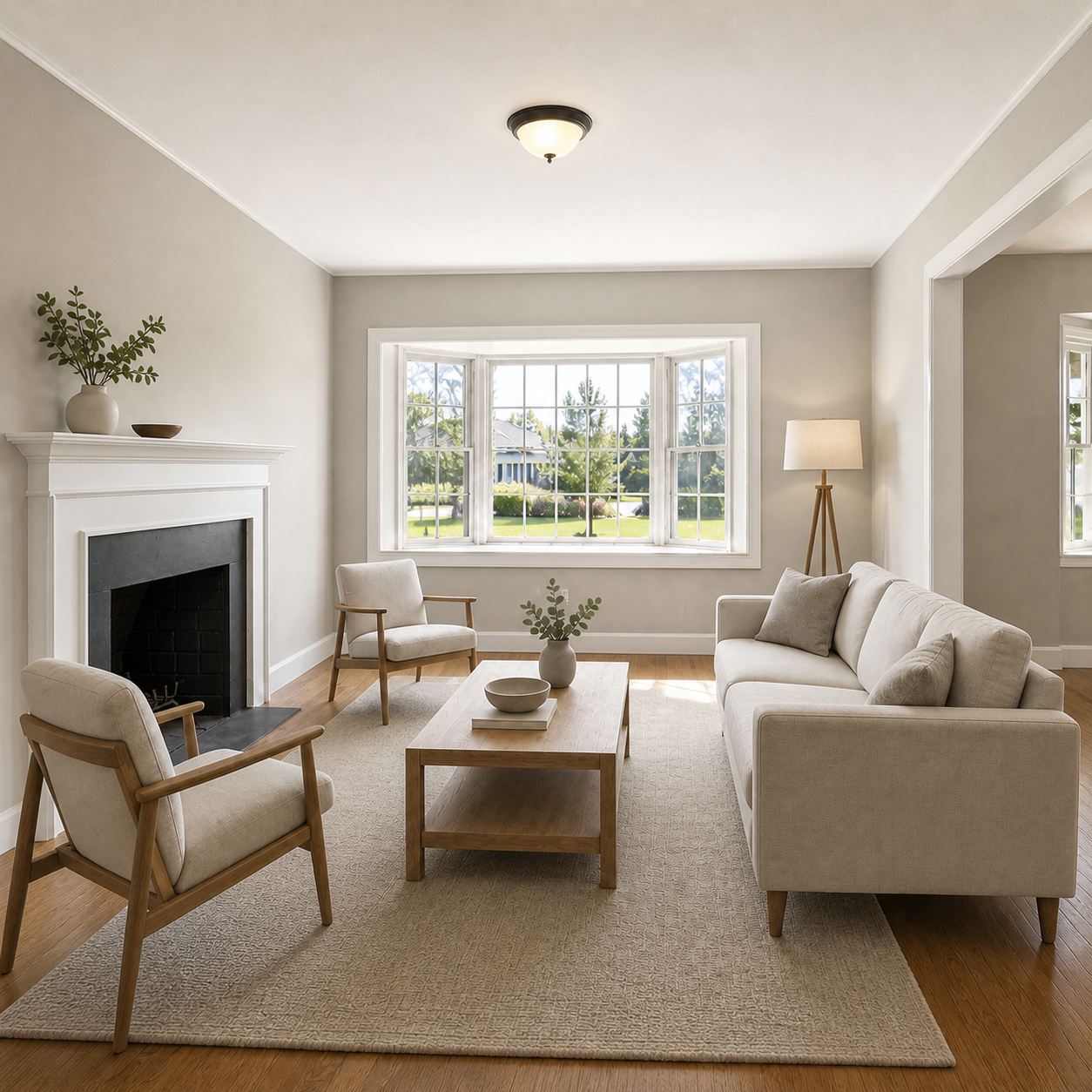
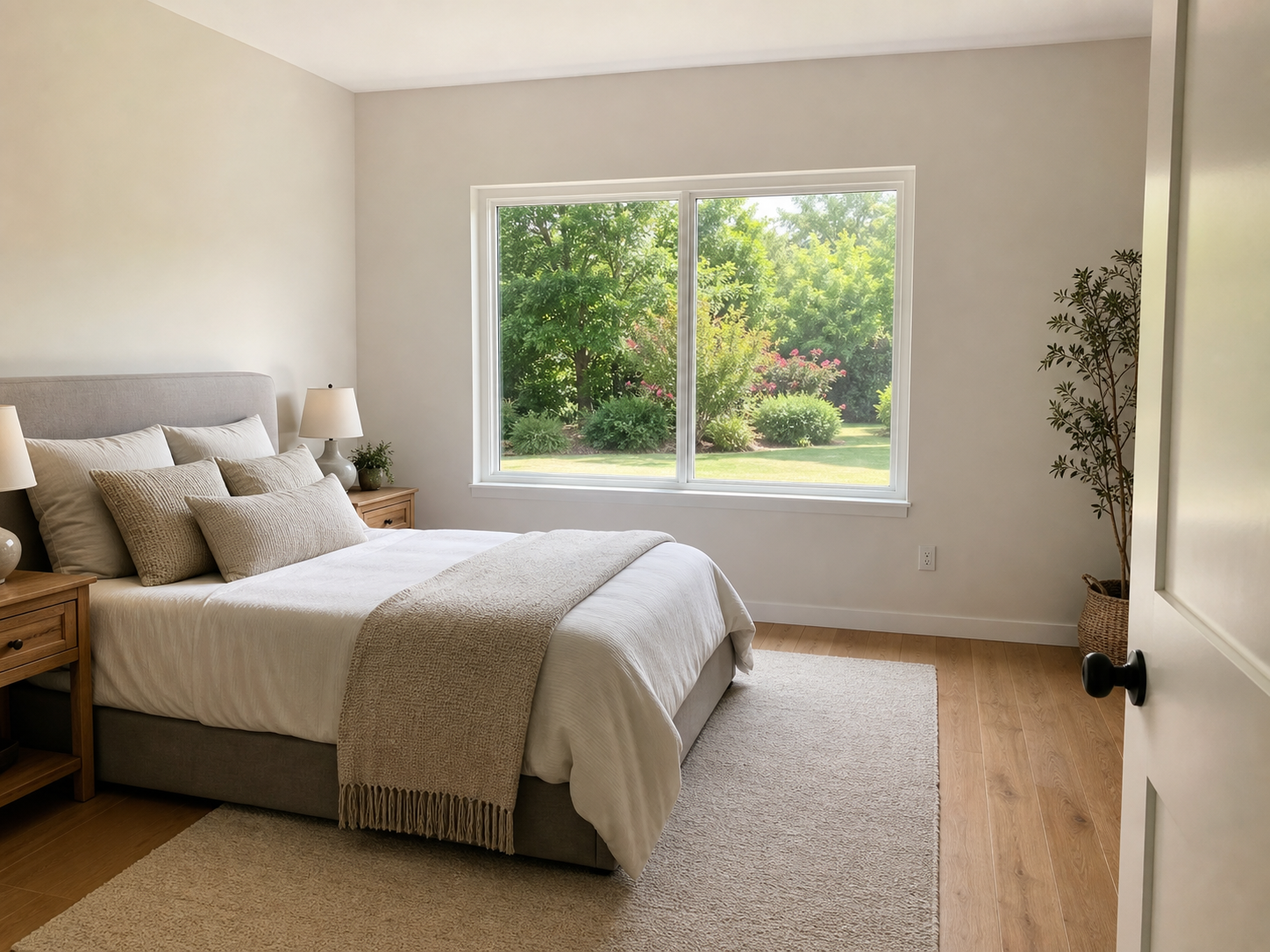
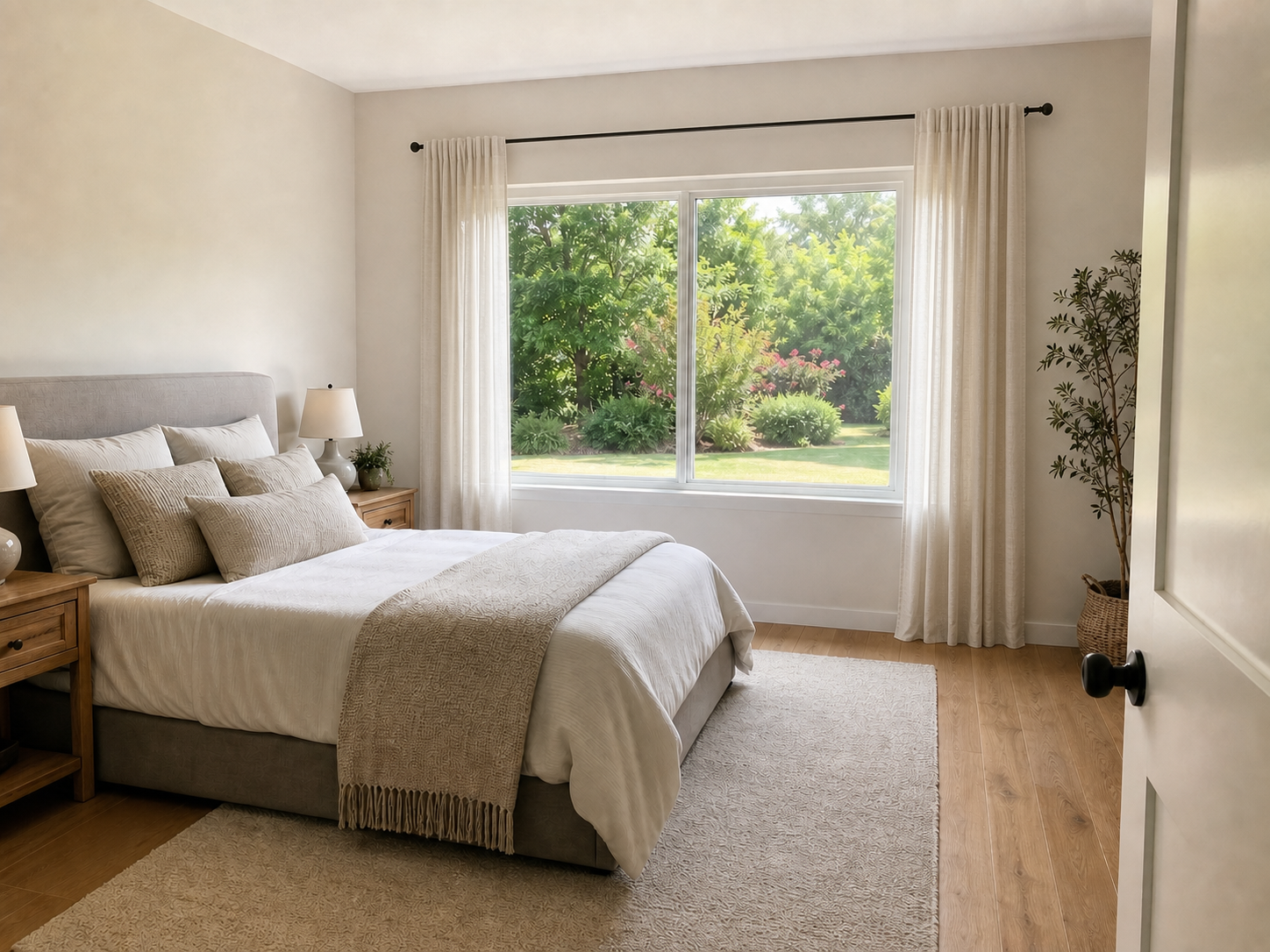
Add Curtains / Blinds turns an uploaded photo into a polished ClearCrowds edit using the selected Decorate preset.
Decorate
Use Add Curtains / Blinds when you want a quick decorate edit without setting up the workflow by hand.
This preset is already selected.
Add Curtains / Blinds
Direct answer
Add Curtains / Blinds turns an uploaded photo into a polished ClearCrowds edit using the selected Decorate preset.
Workflow
Use a well-lit interior or exterior photo with straight lines, visible surfaces, and enough context around the requested property edit.
Add Curtains / Blinds applies the selected listing-photo edit while keeping fixed architecture, room geometry, perspective, and unrelated fixtures in place.
Compare walls, floors, windows, doors, built-ins, outside views, and room proportions with the source before publishing the listing.
Use cases
Try it
ClearCrowds passes the preset into the editor so the workflow is ready when your photo opens.
This preset is already selected.
Frequently asked questions
Add Curtains / Blinds is a ClearCrowds preset in the Decorate category.
Yes. Upload a photo and ClearCrowds opens the editor with this preset selected.