
How to Unblur Text in Images (and Finally Read What You Need To!)

Have you ever captured what you thought was a crucial piece of information – a restaurant menu, a whiteboard full of notes, or even an important document – only to find the text is just a fuzzy, unreadable mess? That sinking feeling of frustration is all too common when clarity is just out of reach.
In our incredibly visual world, where billions of photos are taken and shared daily, encountering a blurry image can derail your plans or simply cause a headache. It's especially annoying when that blur applies to text you desperately need to read.
Why Does Text Get Blurry in Photos Anyway?
So, what's the deal? Why does perfectly good text suddenly decide to play hide-and-seek behind a wall of blur? Often, it comes down to a few common culprits. Camera shake is a big one – even a tiny tremor can blur text, especially in low light. Poor focus, where your camera locks onto the background instead of the text, is another frequent offender.
Low lighting conditions force cameras to work harder, increasing the chance of blur, and digital compression (when images are saved in smaller file sizes) can also reduce clarity. Even scanning old documents can introduce artifacts that make text fuzzy.
Can You Really "Unblur" Text? (And What Does That Even Mean?)
For a long time, a blurry image felt like a lost cause. Once it was blurry, it was blurry forever, right? Thankfully, that's not the case anymore. The good news is that advancements in AI-powered image processing and sharpening algorithms have made it possible to restore detail to blurry text. These technologies don't invent information out of thin air but rather enhance existing data, making previously unreadable text legible again. It's less about magic and more about smart algorithms.
How Do I Fix Blurry Text in an Image Online (Without Being a Tech Wiz)?
The thought of "fixing" a photo might bring up images of complex software and professional editing skills. But for everyday users, getting rid of blurry text can be surprisingly simple. Many user-friendly online tools are designed to do the heavy lifting for you.
This is where ClearCrowds really shines. While it's famous for removing unwanted objects and crowds, its powerful image enhancement capabilities directly address blurry text. ClearCrowds offers a "Boost clarity and turn low-quality images into HD" feature that can rescue your fuzzy text with just a tap. You don't need any Photoshop skills; the AI does the work, transforming those frustrating blurs into clear, readable text. It's a one-tap solution even for complex cases.
What if I'm on My Phone? (Using an App to Read Blurry Text)
We live on our phones, so it's natural to want a mobile solution for blurry text. Many apps are available for image enhancement on the go. The great thing about ClearCrowds is its cross-platform convenience. Whether you're on your computer or using your smartphone, the same powerful tools are at your fingertips. It makes fixing blurry text seamless, no matter where you are or what device you're using.
Beyond Just Reading: The Hidden Power of Clear Text Images
Unblurring text isn't just about satisfying a momentary frustration; it has a ton of practical applications:
- Students and Professionals: Imagine rescuing crucial notes from a whiteboard photo, clarifying a diagram, or making a screenshot of an online lecture perfectly legible.
- E-commerce: For online sellers, clear product labels and descriptions in photos can significantly impact conversion rates. If a customer can't read the ingredients or features, they might just click away.
- Travelers: Being able to clearly read signs, foreign menus, or historical markers in your vacation photos can save you time and enrich your experience.
- Personal Memories: Old family photos with handwritten notes, faded recipes, or historical documents can be brought back to life, preserving precious information that might otherwise be lost.
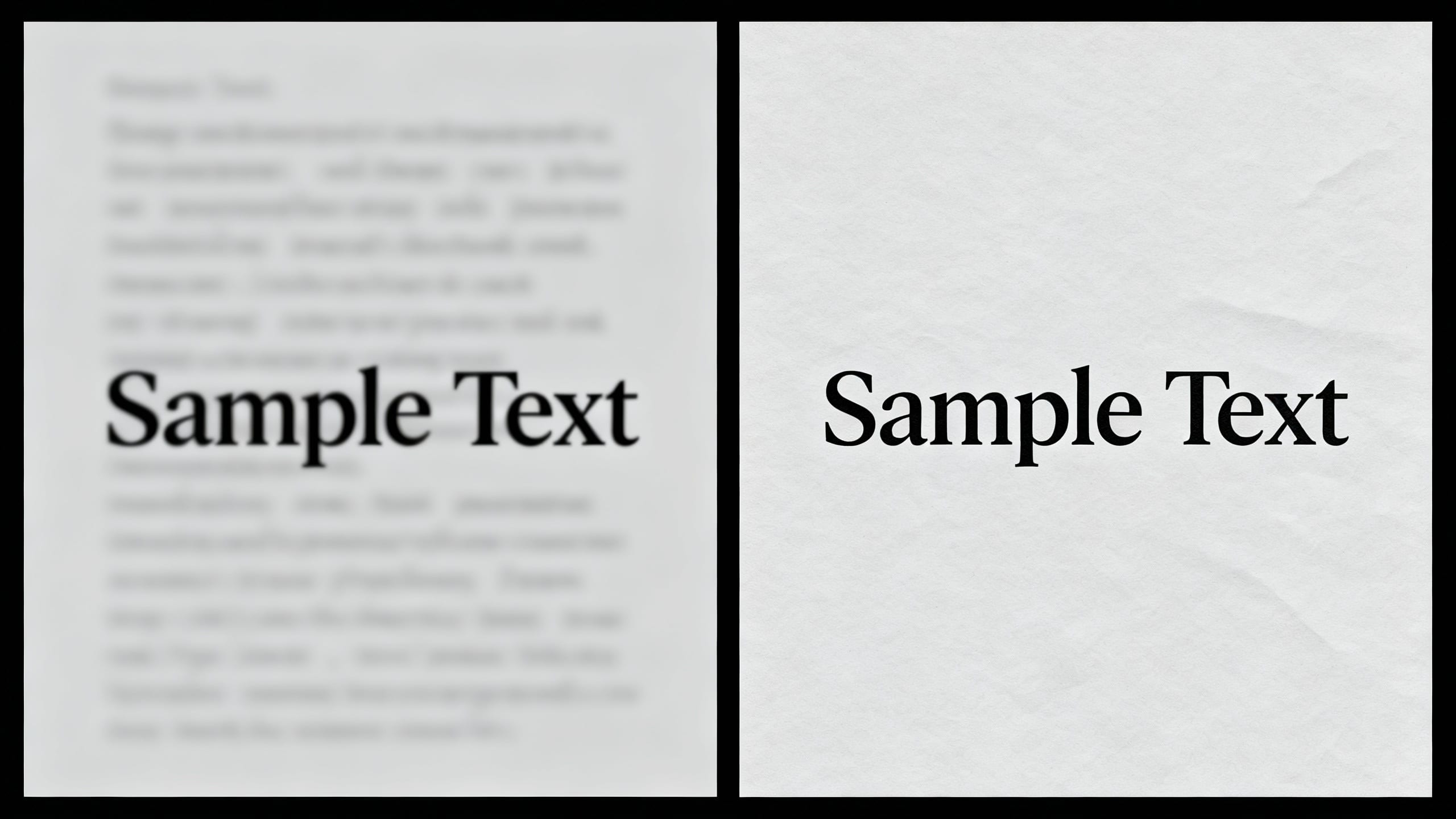
Your Cheat Sheet for Crystal-Clear Text Every Time
While tools like ClearCrowds are fantastic for fixing blurry text after the fact, a little prevention goes a long way. Here are some quick tips for avoiding blur in the first place:
- Good Lighting is Your Friend: Always try to photograph text in well-lit conditions.
- Steady Hands (or a Tripod): Minimize camera shake by holding your device steady or using a stable surface.
- Focus, Focus, Focus: Make sure your camera's focus is locked onto the text itself, not the background.
- Higher Resolution Settings: If possible, use higher resolution settings on your camera or phone to capture more detail.
And remember, when all else fails – when that crucial piece of text still ends up blurry despite your best efforts – a tool like ClearCrowds is ready to step in and bring back the clarity you need.