


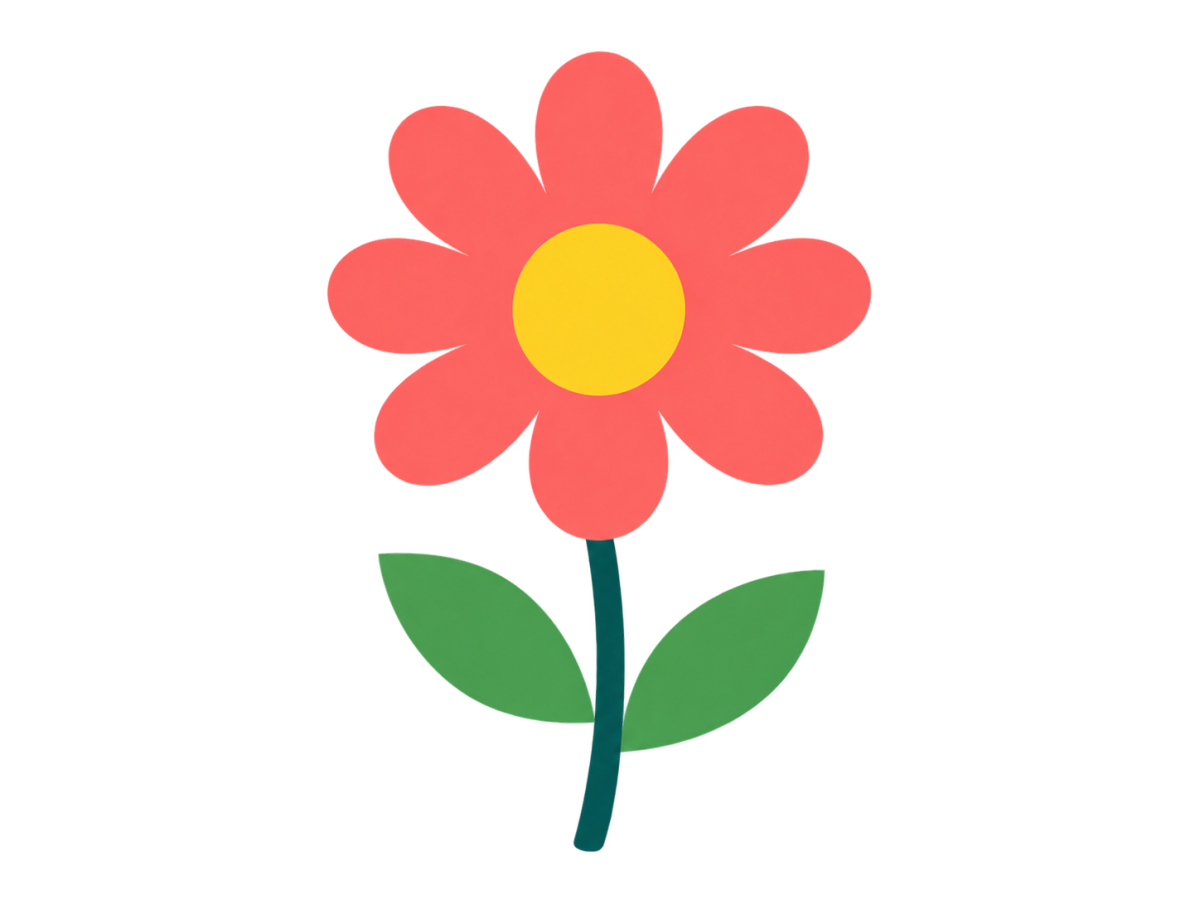


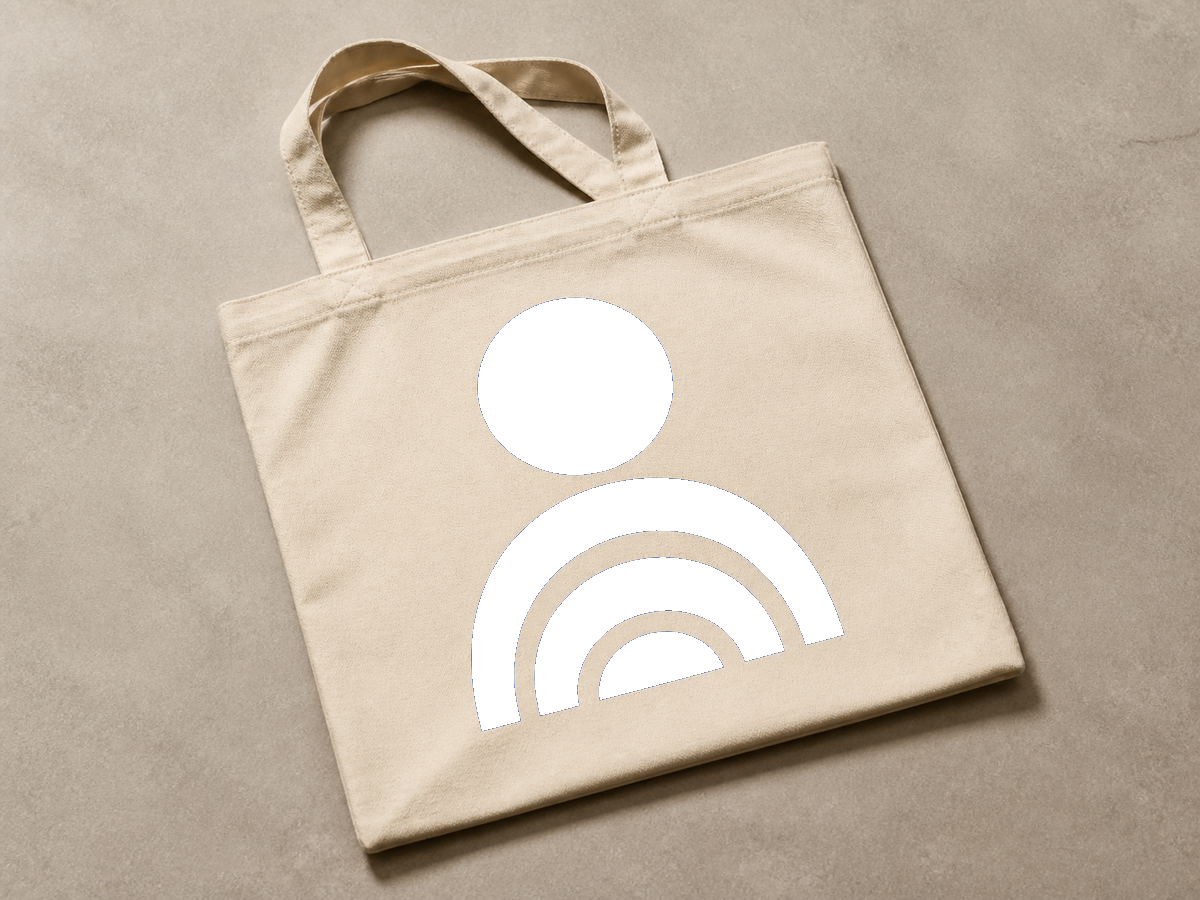


Change one PNG colorReplace a sampled color while preserving transparent edges and shading.
Remove a color from an image
Pick one color and turn matching pixels transparent. Clean a flat background or isolate colored artwork without repainting the rest of your image.
Choose a photo
Start with the image you want to change.
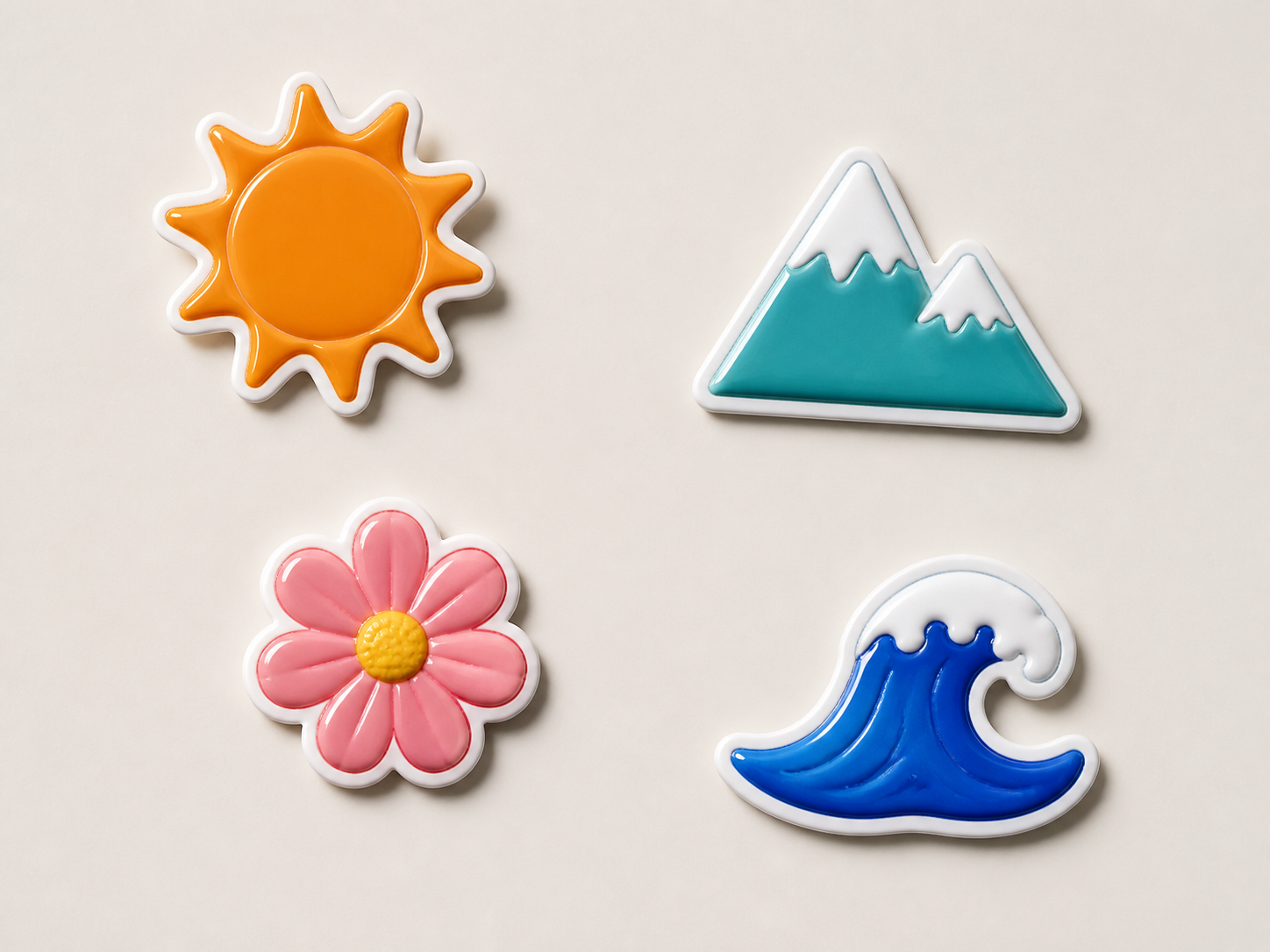
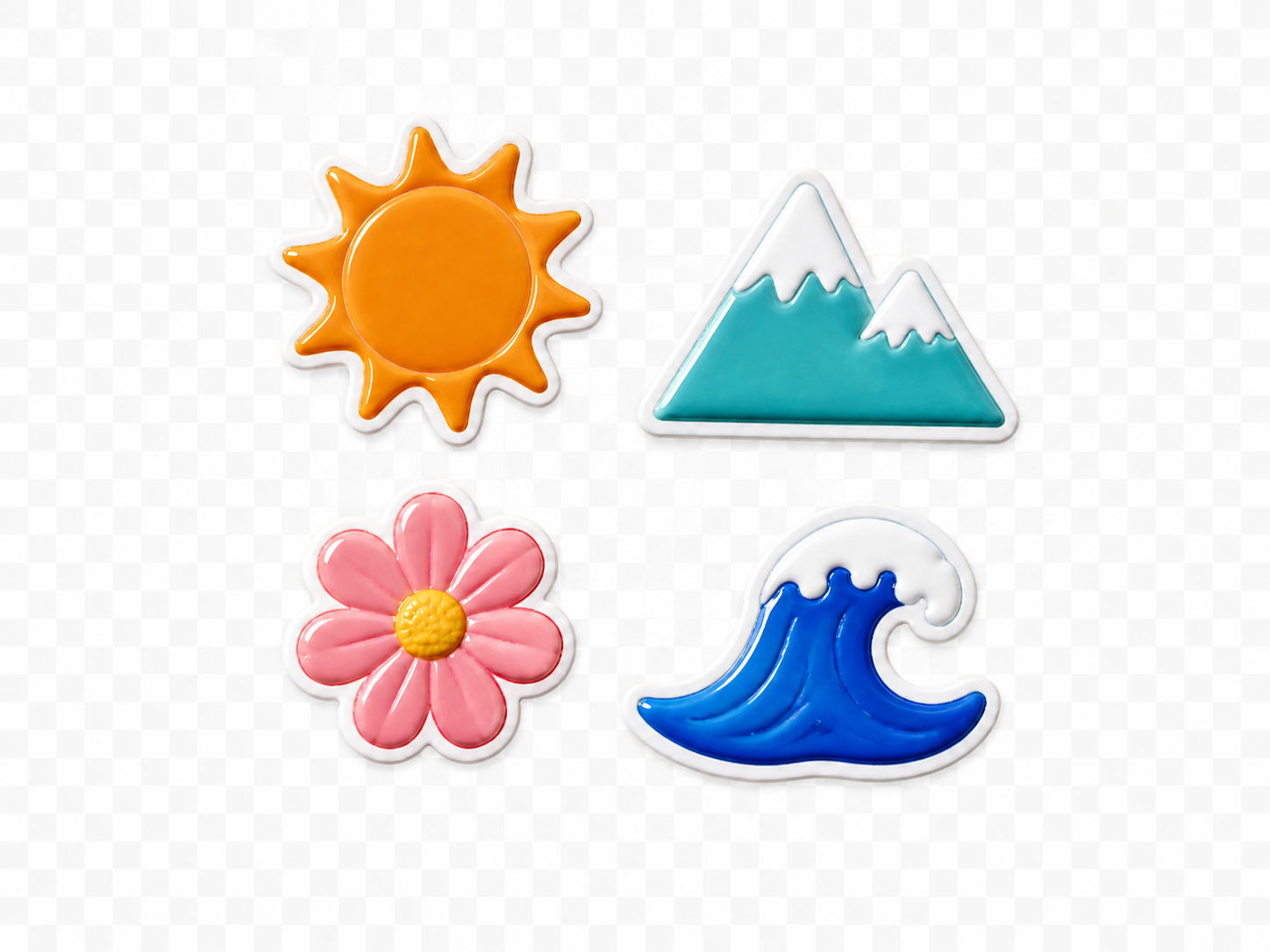
OriginalResult
Preview the exact change
Pick the unwanted color on your image. Start with low tolerance, then soften the edge only if needed.
Clear a white background
- Requested change
- Pick the unwanted color on your image. Start with low tolerance, then soften the edge only if needed.
- Keep unchanged
- Other colors, image dimensions and existing transparency remain unchanged.
OriginalResult
Remove a solid accent color
- Requested change
- Pick the unwanted color on your image. Start with low tolerance, then soften the edge only if needed.
- Keep unchanged
- Other colors, image dimensions and existing transparency remain unchanged.
OriginalResult
Prepare an illustration for layering
- Requested change
- Pick the unwanted color on your image. Start with low tolerance, then soften the edge only if needed.
- Keep unchanged
- Other colors, image dimensions and existing transparency remain unchanged.
OriginalResult
How to use this tool
- 1
Choose a photo
Start with the image you want to change.
- 2
Review the result
Compare the preview with the original before confirming.
- 3
Keep editing
Confirm the result, continue editing or use the existing download controls.
Choose the right method
Matching colors anywhere in the image can disappear, including inside the subject. For a complex background, use background removal instead.
Questions and answers
What stays unchanged?
Other colors, image dimensions and existing transparency remain unchanged.
When should I choose another method?
Matching colors anywhere in the image can disappear, including inside the subject. For a complex background, use background removal instead.
More ways to perfect your photo
Quick edits. Professional results.


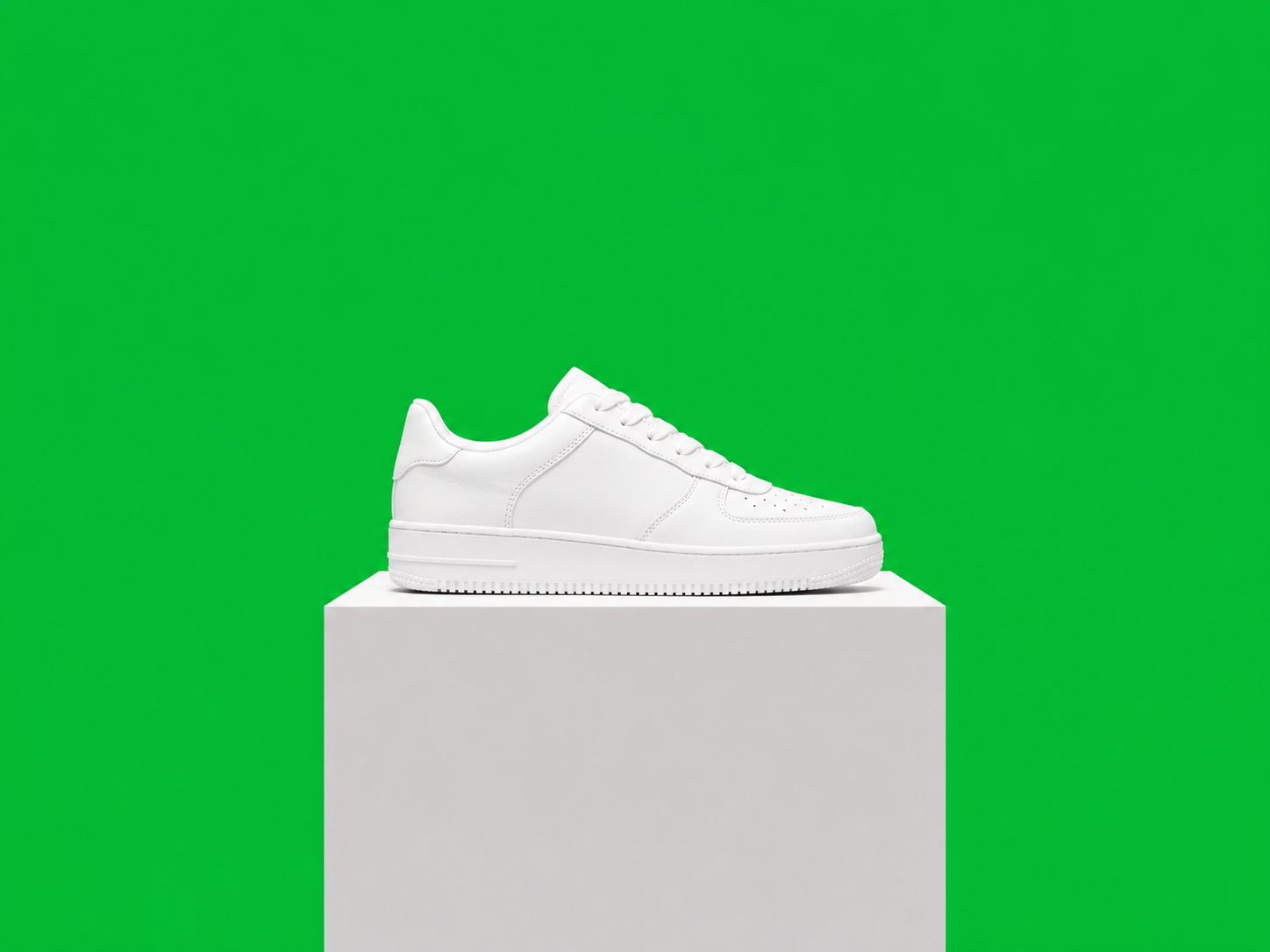
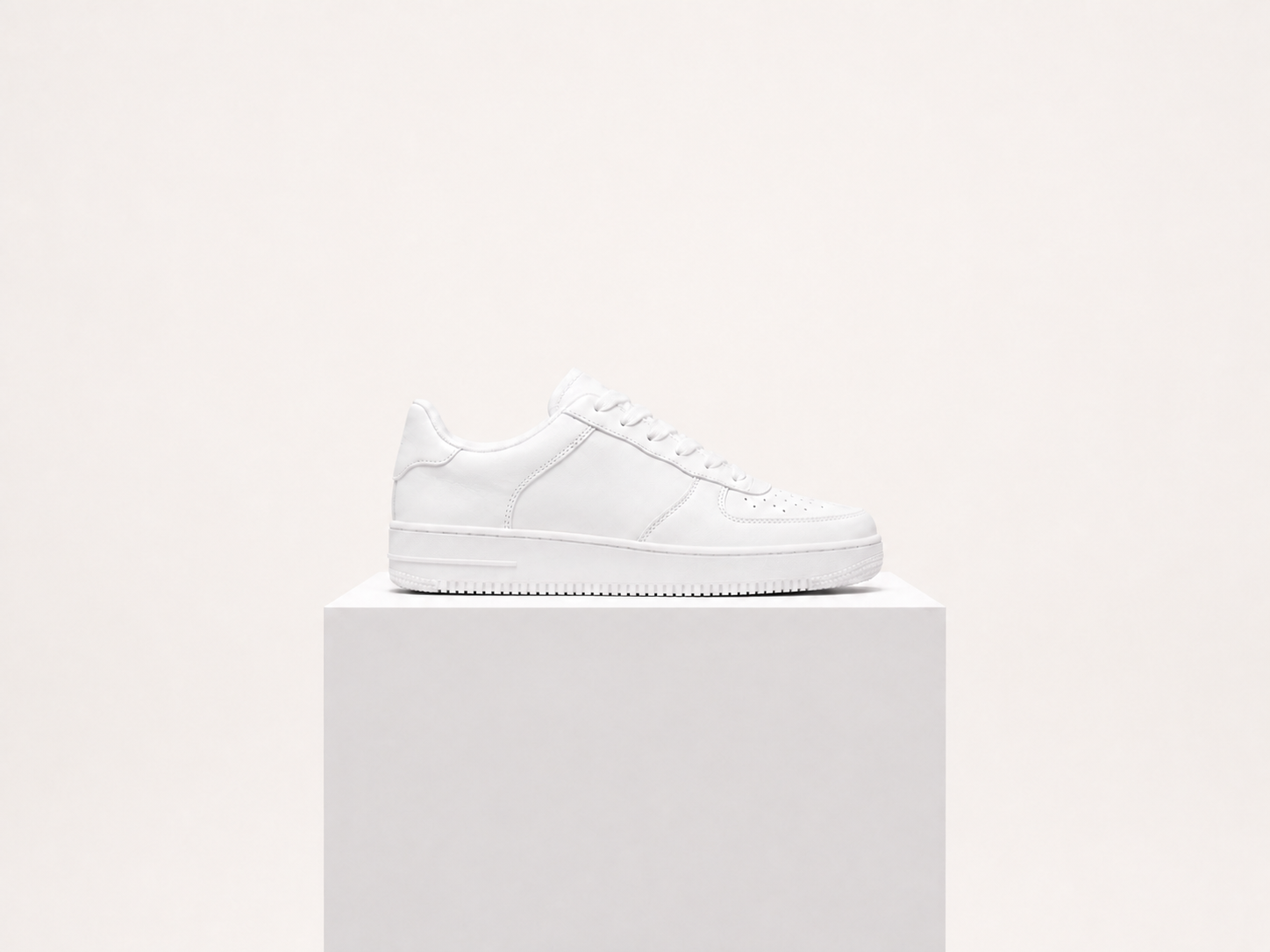
Remove a color from an image
Choose a photo
Start with the image you want to change.