License plates
Brush over the plate while keeping the vehicle and surroundings clear.
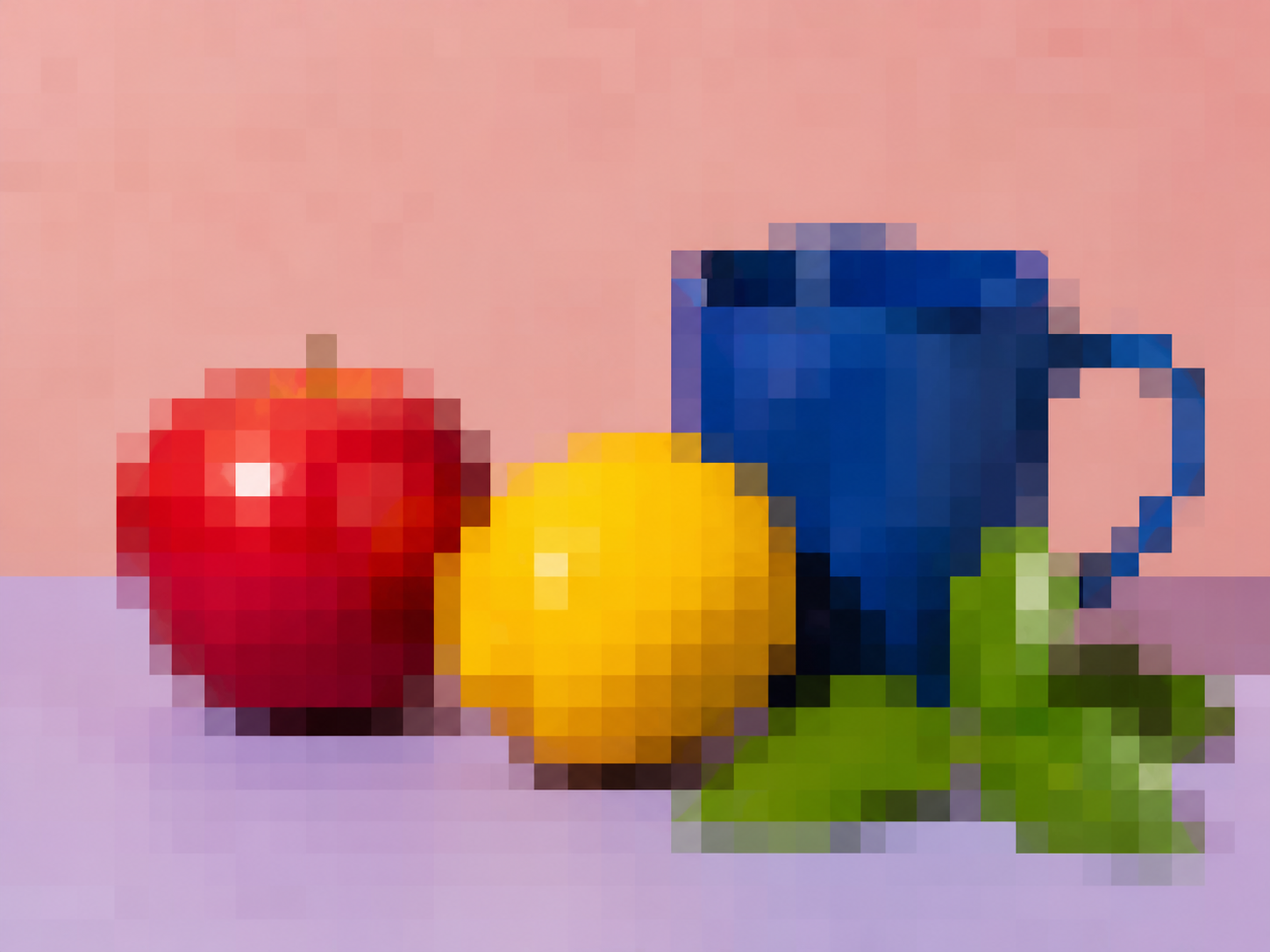
Apply visible mosaic blocks to the full image or paint freely over private details with a brush. Adjust block size and review the result before export.
JPG, PNG, or WebP. Full-image pixelation is ready by default.
Pixelated
The painted area is reduced to a coarse grid and enlarged with smoothing disabled. Everything outside the brush mask remains unchanged.
Always review the final export at its intended display size before treating pixelation as privacy protection.
Choose the photo or screenshot that needs a visible mosaic treatment.
Use the whole image or brush over every detail to hide, then adjust block size from 4 to 128 pixels.
Confirm the intended detail is sufficiently obscured, apply the edit, and download the PNG.
Pixelation is manual and visible. Blur Faces remains the better tool when faces should be found automatically.
Brush over the plate while keeping the vehicle and surroundings clear.
Cover one account number, address, message, or interface detail before sharing.
Turn the full image into an intentionally blocky graphic or low-resolution treatment.
Reduce the readability of one sign, label, or small area without blurring the entire frame.
A mosaic changes visible pixels but no fixed block size can guarantee that every kind of underlying information is unrecoverable.
Answers about regions, block size, transparency, and privacy review.
Quick edits. Professional results.
Upload an image and start with full-image pixelation or brush over only the details you want to hide.
JPG, PNG, or WebP. Full-image pixelation is ready by default.