
How Do I Fix the Wrong Date on an Event Poster Photo Without Rebuilding It?


Fix an event date carefully
Upload the poster photo, remove the old digits, and rebuild the background before adding the corrected date.
View tool details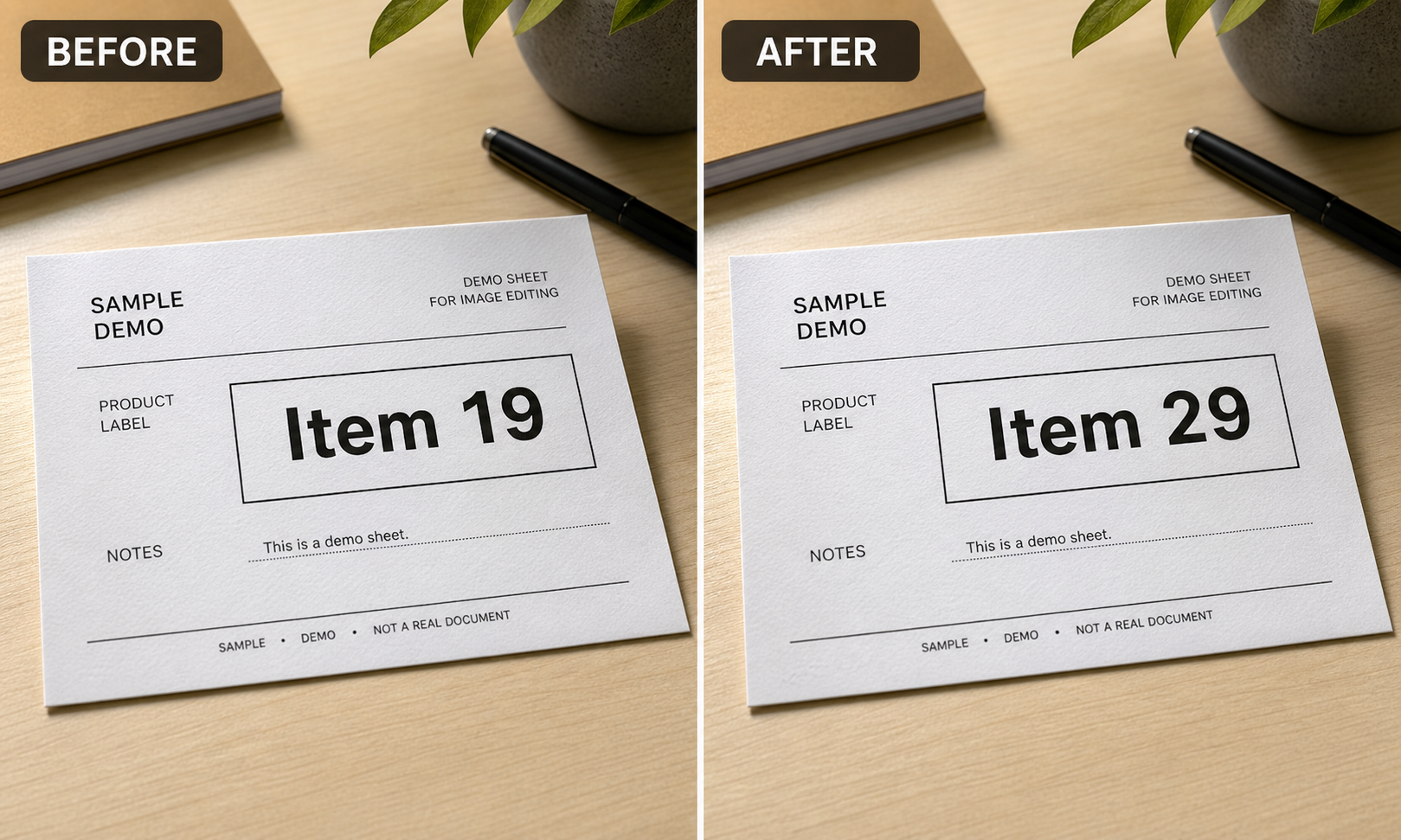
Direct answer
You can fix the wrong date on an event poster photo without rebuilding the whole design when the edit is an honest correction to your own flyer, announcement, menu board, or promotional image. The safe workflow is to remove the old date first, rebuild the background or paper texture, then add the corrected date only after the area looks clean.
Do not just type a new date on top of the old one. That usually leaves doubled digits, uneven spacing, a different font weight, or a rectangle that makes the poster look edited. The job is not only changing a number. The job is making the finished poster still look like the same real poster.
For the broader workflow, read Edit Number in Photo Online. If the only problem is the date, start with Replace Number and keep the edit narrow.
Fix an event date carefully
- Date correction
- Poster texture preser…
- Small edit
Upload the poster photo, remove the old digits, and rebuild the background before adding the corrected date.
A common event-poster problem
The mistake usually shows up late.
You already printed a poster, photographed a flyer, or exported an announcement image for Instagram, Google Business Profile, a local community page, or an event listing. Then someone notices the date is wrong. Maybe the event moved from Friday to Saturday. Maybe the month is right but the day is not. Maybe a recurring workshop copied last week's date into this week's graphic.
Rebuilding the design can take more time than the correction. You may not have the original design file. The person who made the flyer may be unavailable. The printed version may already be on a wall, table, counter, or window. That is exactly when a careful number edit can help.
The key word is careful. A date correction should make the poster accurate. It should not hide important terms, fake an event, change a ticket record, or make an old screenshot look current.
When a date edit is reasonable
A date edit is usually reasonable when all of these are true:
- You created the poster, flyer, or announcement, or you have permission to edit it.
- The new date matches the real event, offer, hours, or schedule.
- The edit changes only the visible mistake.
- The poster is promotional material, not an official record.
- The final image will point people to the correct time, place, and details.
This is the same standard you would use offline. If you would be comfortable replacing a printed sign with a corrected version, a digital correction is usually fine. If the edit would make someone believe a ticket, receipt, document, school notice, or official statement says something it did not say, do not do it.
When you should not edit the date
Do not use AI date editing to change facts in records or evidence.
Avoid editing dates on:
- Tickets, receipts, invoices, contracts, tax records, medical records, school records, or legal documents.
- Screenshots of bookings, refunds, payments, messages, reviews, or transaction history.
- IDs, permits, official notices, compliance labels, warranty cards, or insurance materials.
- News images, evidence photos, or anything used to prove when something happened.
For those cases, keep the original intact. If the goal is privacy, blur or remove sensitive information instead of replacing the value. If the goal is a real correction, update the source system or publish a new official version.
The safest workflow
Use this sequence for a poster, flyer, or social event image:
- Save the original image before editing.
- Crop and straighten the poster first.
- Select only the wrong date digits and a little surrounding texture.
- Remove the old digits.
- Check whether the background, paper, gradient, or artwork still looks natural.
- Add the corrected date in a separate step.
- Match the original font weight, size, spacing, color, angle, and shadow.
- Compare the final image against the real event page or schedule.
The most common mistake is selecting too much. If you select the entire poster title, date line, and surrounding graphics, the editor may change useful design details. Work on the smallest area that solves the problem.
What needs to match
The corrected date should look like it belongs in the original design.
Check these details:
- Font weight: a bold poster font should not be replaced with a thin system font.
- Digit height: match nearby letters or numbers, not your memory of the design.
- Spacing: dates often look wrong because the new digits are too tight or too wide.
- Color: sample from the existing text if possible.
- Angle: a poster photographed at an angle needs the new date to follow the same perspective.
- Texture: paper, wall grain, poster shine, or printed ink should not disappear.
- Shadow: keep subtle design shadows, but do not create a heavy fake drop shadow.
If the date sits on a plain background, the edit is easy. If it crosses a gradient, photo, sponsor logo, QR code, or decorative pattern, the safer move may be to rebuild the original design file or reshoot the corrected poster.
Prompt examples
Use a narrow instruction:
Remove only the old event date from this poster photo. Keep the paper texture, background color, nearby text, logo, and layout unchanged.
Then add the corrected date after the background looks clean:
Add the corrected date in the same style, size, color, spacing, and angle as the original poster text.
If the poster is photographed on a wall:
Clean the wrong date while preserving the poster edges, wall texture, lighting, and printed look. Do not change the event title or location.
Avoid broad prompts such as:
Make this flyer better.
That can invite the editor to redesign the poster, rewrite text, change colors, or smooth details that should stay stable.
Review checklist before you share it
Before publishing the corrected event poster, check:
- Does the corrected date match the actual event page, registration page, or schedule?
- Are the old digits fully gone?
- Does the edited area match the surrounding background?
- Did the event title, location, price, QR code, sponsor logo, or terms change accidentally?
- Is the new date aligned with the original text baseline?
- Does the image still look like a real poster or flyer photo?
- Would you be comfortable showing the before and after to the event organizer?
If any answer is uncertain, make a smaller selection, rebuild from the original design file, or post a fresh corrected image with a note.
How this fits with ClearCrowds
ClearCrowds is useful when the hard part is cleaning the old date without damaging the poster. Start with Replace Number when the final image needs a corrected date. Use Remove Text when the old date should simply disappear from a draft, mockup, or practice image.
If the wrong number is a product price, use the stricter seller workflow in Change a Wrong Price in a Product Photo. If the number is a date stamp on an old personal photo, the date-stamp cleanup guide is the better fit.
Sources
- Google Business Profile posts help
- Eventbrite event listing best practices
- Google Maps user-generated content policy
Frequently asked questions
Can AI fix the date on an event poster photo?
Yes, when you own the poster or have permission to edit it and the new date matches the real event details. Remove the old digits first, then add the corrected date with matching style.
Should I type the new date over the old one?
Usually no. Typing over the old date can leave shadows, outlines, and mismatched spacing. Clean the old date area first, then place the corrected date after the background looks natural.
When should I rebuild the poster instead?
Rebuild the poster when the date crosses complex artwork, sponsor logos, QR codes, ticket terms, legal copy, or anything that must stay exact.
Is it okay to edit a date on a flyer?
It is okay for honest corrections to your own event material. Do not change dates on tickets, receipts, official notices, contracts, screenshots, school records, or evidence.
Summary
Fixing a wrong event date in a poster photo is safest when you treat it as a correction, not a shortcut. Remove the old digits first, keep the poster texture and layout stable, add the corrected date carefully, and make sure the final image matches the real event details.