
How to Remove Handwritten Answers From a Completed Worksheet Scan
Direct answer
Yes, AI can remove handwritten answers from a completed worksheet scan when the writing sits on plain paper, wide ruled lines, blank margins, or simple boxes. It works best when you want a cleaner copy for tutoring, practice, reprinting, archiving, or turning an old worksheet back into a reusable study sheet.
It is harder when handwriting crosses printed text, answer bubbles, graphs, diagrams, stamps, teacher comments, or thin table lines. In those cases, the edit may blur the original worksheet, break the printed layout, or leave visible smudges.
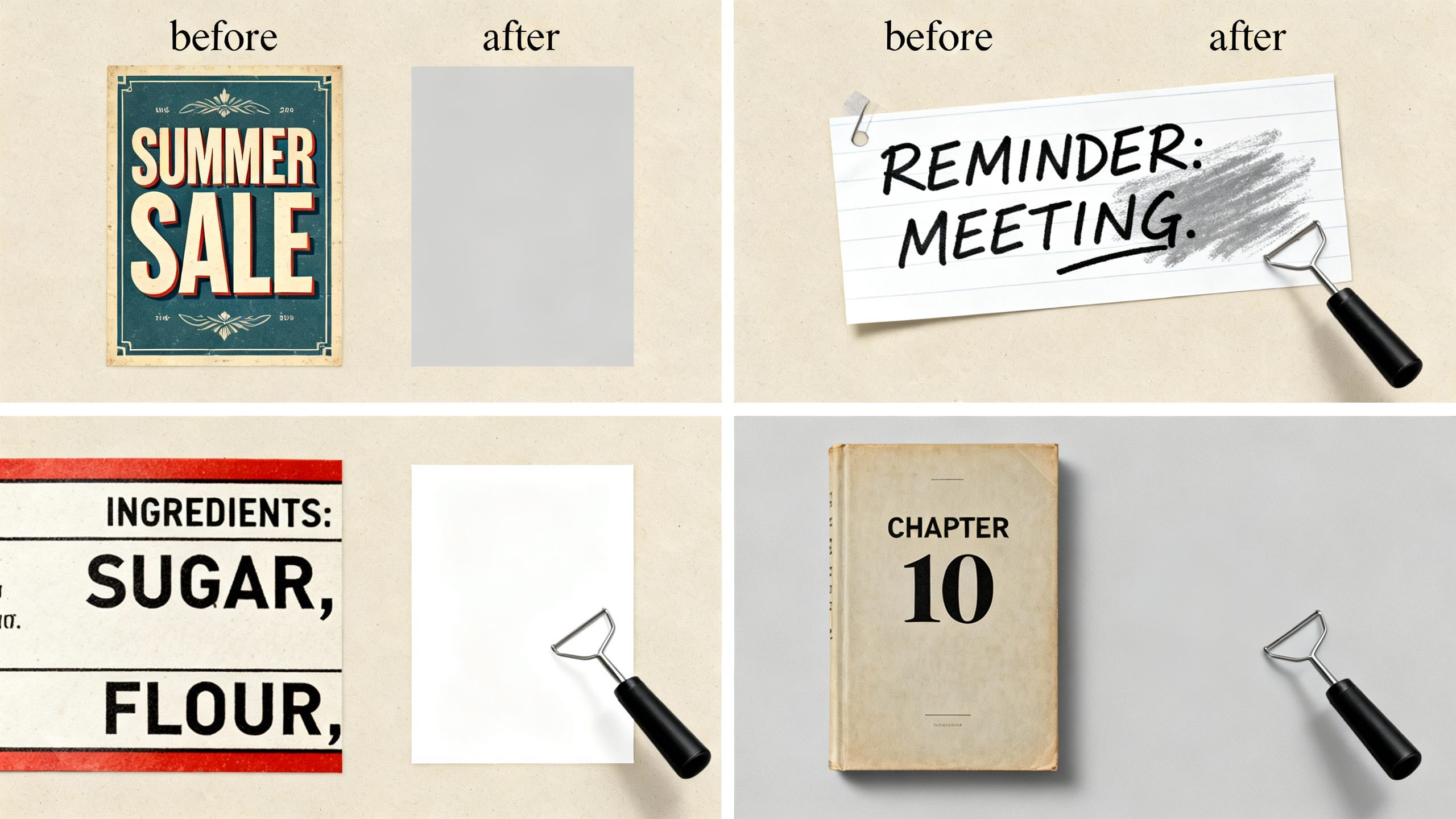
Use the Remove Text preset when you want handwritten pencil or pen marks cleaned from a worksheet image. Use Privacy Blur when the goal is only to hide a student's name, score, ID, or private note while keeping the paper visibly unchanged.
Try this task in ClearCrowds
Clean handwriting from a worksheet scan
Upload a worksheet photo and start with a preset built for pencil marks, pen answers, date stamps, labels, and small text distractions.
- Paper texture rebuild
- Tight handwriting selection
- JPG and PNG workflow

The common user scene is simple: you have a worksheet, practice sheet, old quiz, or printed exercise page that was already filled in. You want a clean-looking version to reuse for another practice round, make a study copy, remove old pencil notes before sharing, or archive the original page without messy markings.
AI text removal is strongest when the marks are visually separate from the printed content. A pencil answer in an empty blank, a written number in a large box, or a note in a margin gives the model enough nearby paper texture to rebuild the area.
Good candidates:
- Pencil answers in blank answer spaces.
- Pen marks in wide margins.
- Light handwriting over plain paper.
- Date stamps or temporary notes at the top of a worksheet.
- Small check marks, circles, or annotations that do not cover printed text.
Harder candidates:
- Handwriting directly on top of printed questions.
- Notes crossing graphs, diagrams, tables, maps, or music staff lines.
- Multiple-choice bubbles, answer keys, grades, signatures, or teacher comments.
- Low-resolution photos with shadows, folds, glare, or heavy compression.
- Official forms, transcripts, ID documents, receipts, certificates, or records.
A safe way to clean a filled worksheet
Use a narrow, honest workflow:
- Start with the clearest scan or photo you have.
- Straighten the page before editing if it is tilted.
- Decide whether the mark should be erased, blurred, cropped, or left alone.
- Select only the handwriting, not the whole answer box or printed line.
- Generate one small cleanup pass.
- Zoom in and check whether printed lines, boxes, and question text still look intact.
- Run a second pass only on obvious smudges.
- Save a copy and keep the original file unchanged.
The biggest mistake is selecting too much. If you mark the whole answer area, the editor may rebuild printed lines or boxes incorrectly. A tight selection gives the AI a smaller, more realistic repair job.
AI vs Photoshop for worksheet scans
Photoshop is better when the writing overlaps detailed printed content and you need exact control over lines, grids, and typography. Clone Stamp, Healing Brush, and Content-Aware Fill can work well, but they take patience.
AI is faster when the handwriting is on simple paper. For a parent reusing a practice sheet, a tutor cleaning a scanned worksheet, or a student making a private study copy, a focused text remover is usually the first pass worth trying.
| Worksheet situation | Better first choice | Why |
|---|---|---|
| Pencil answers in blank spaces | AI text remover | Paper texture is easy to rebuild |
| Notes in a margin | AI text remover | The selected area is separate from the printed layout |
| Writing over printed questions | Manual edit or recreate the page | The AI may damage letters and spacing |
| Graphs, tables, or diagrams | Photoshop or recreate | Thin lines are easy to break |
| Name, score, or student ID | Blur, crop, or redact | Privacy matters more than making the page look untouched |
What should not be erased?
Do not use worksheet cleanup to misrepresent schoolwork, grades, signatures, teacher comments, official forms, or records. If the page is evidence of completed work, an assessment, or an official document, do not make it look like something else.
For private sharing, privacy is usually the right goal. Blur or crop student names, IDs, grades, addresses, or teacher notes instead of trying to make the page look untouched.
Related ClearCrowds workflows:
- Remove Text when handwriting, labels, or notes should be cleaned from an owned image.
- Privacy Blur when private details should be hidden but the paper should remain visibly authentic.
- Edit Number in Photo when the issue is a date, score, label, or number that needs careful review.
- Remove Object From Photo when the mark is on a sticker, label, or physical object in the photo.
Prompt for removing handwriting from paper
If your editor accepts a prompt, keep it specific:
Remove only the selected handwritten pencil or pen marks. Rebuild the plain paper texture and keep all printed worksheet text, boxes, lines, diagrams, and page edges unchanged.
For lined or boxed worksheets, add:
Preserve the printed lines and answer boxes. Do not invent new text or change the worksheet layout.
For private student materials, add:
Hide private names, IDs, scores, or notes only when selected. Do not alter grades, official comments, signatures, or records.
How to review the result
Look at the cleaned area at full size before sharing or printing. Worksheet cleanup failures usually show up as wavy printed lines, soft gray patches, broken answer boxes, repeated paper texture, or letters that look partly erased.
Use this checklist:
- Are the printed questions still readable?
- Do ruled lines and boxes continue naturally?
- Is the paper texture consistent around the cleaned area?
- Did the edit accidentally change a number, symbol, diagram, or label?
- Would a printed copy still look useful for practice?
- Is there any ethical or privacy reason to blur instead of erase?
Frequently Asked Questions
Can AI remove pencil marks from a worksheet?
Yes, especially when the pencil marks are light and sit on blank paper. Heavy graphite, smudges, or writing over printed text may need a second pass or a manual edit.
Can AI remove pen answers from a test paper?
Sometimes. Pen is darker and usually harder than pencil, but it can still work when the answer sits in a blank area. Do not use it to misrepresent grades, official records, or completed assessments.
Will AI keep the printed worksheet lines?
It can when the handwriting is separate from the lines. If handwriting crosses boxes, grids, or diagrams, inspect carefully because the AI may bend or blur those printed details.
Is it better to scan the worksheet first?
Yes. A flat scan is usually easier to clean than a phone photo with shadows, folds, perspective, or glare. If you only have a phone photo, crop and straighten it before editing.
Should I erase names or grades?
For names, IDs, grades, or comments, blur or crop is usually safer and more honest. Erasing those details can make the document look altered.
Summary
AI can remove handwritten answers from a worksheet scan when the marks are narrow and the page has enough clean paper around them. Use it for reusable practice sheets, tutoring copies, study archives, and owned-photo cleanup. Use blur, crop, or a fresh blank template when the text is private, official, or important to the meaning of the page.