
How to Remove a Phone Shadow From a Product Photo Without Flattening It
Direct answer
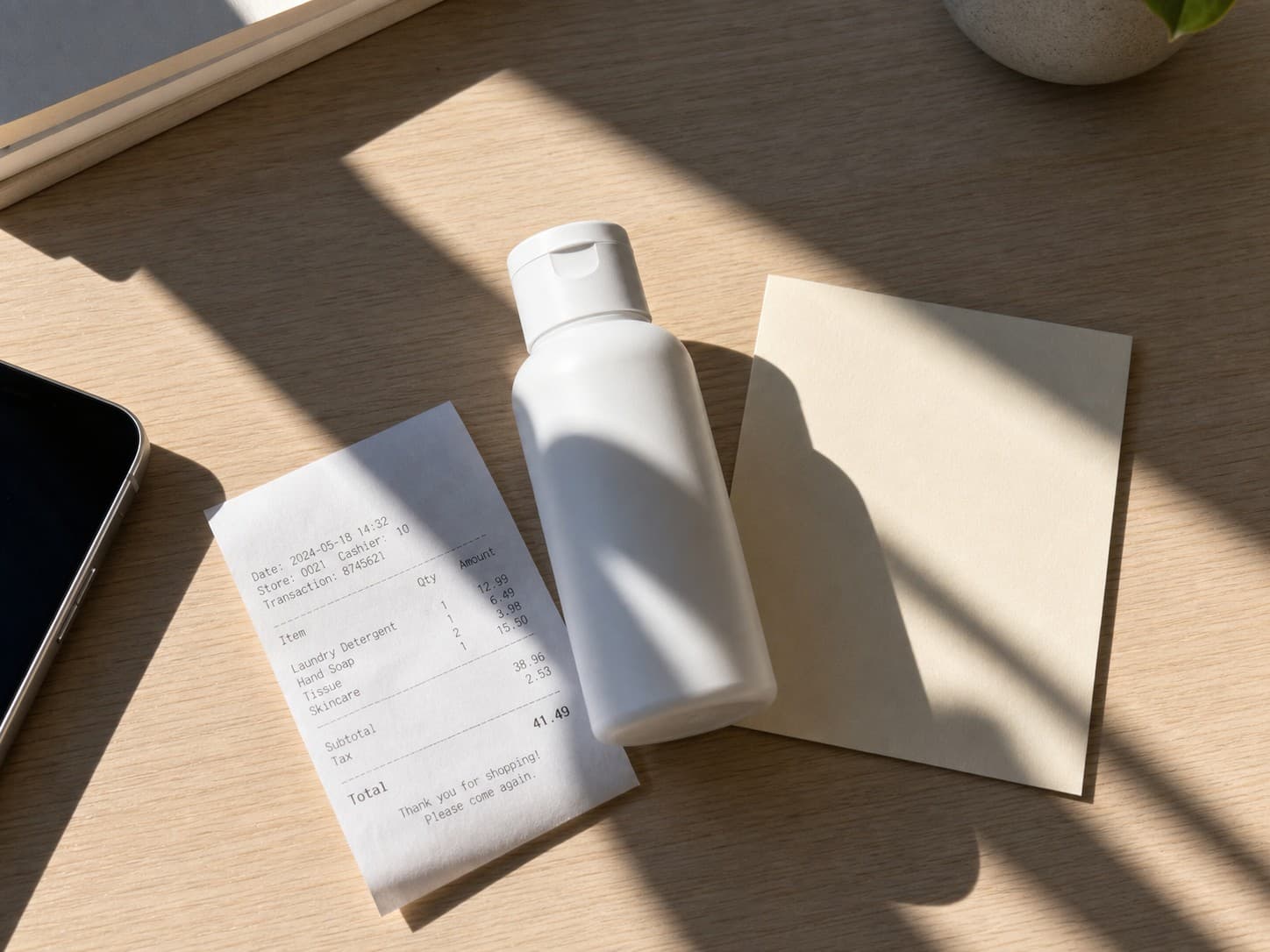
You can remove a phone shadow from a product photo when the shadow is distracting but the product detail underneath is still visible. The safest workflow is to select only the shadowed area, ask the editor to lighten or remove the cast shadow, and keep real texture, color, edges, and contact shadows intact.
Do not erase every shadow in the image. Product photos need some natural shading so the object still looks grounded on the table, box, paper, or shelf. The goal is not a flat white cutout. The goal is a believable product photo that no longer has the dark phone or hand shape across it.
If you need the broader tool page, use Remove Shadow From Photo. If your exact problem is a phone shadow over a label, menu item, flat lay, or marketplace product image, start with Remove Shadow.
Try this task in ClearCrowds
Clean a phone shadow carefully
Upload the product photo, select the shadow area, and keep real surface texture and contact shadows intact.
- Small selections
- Texture preserved
- Product-safe workflow
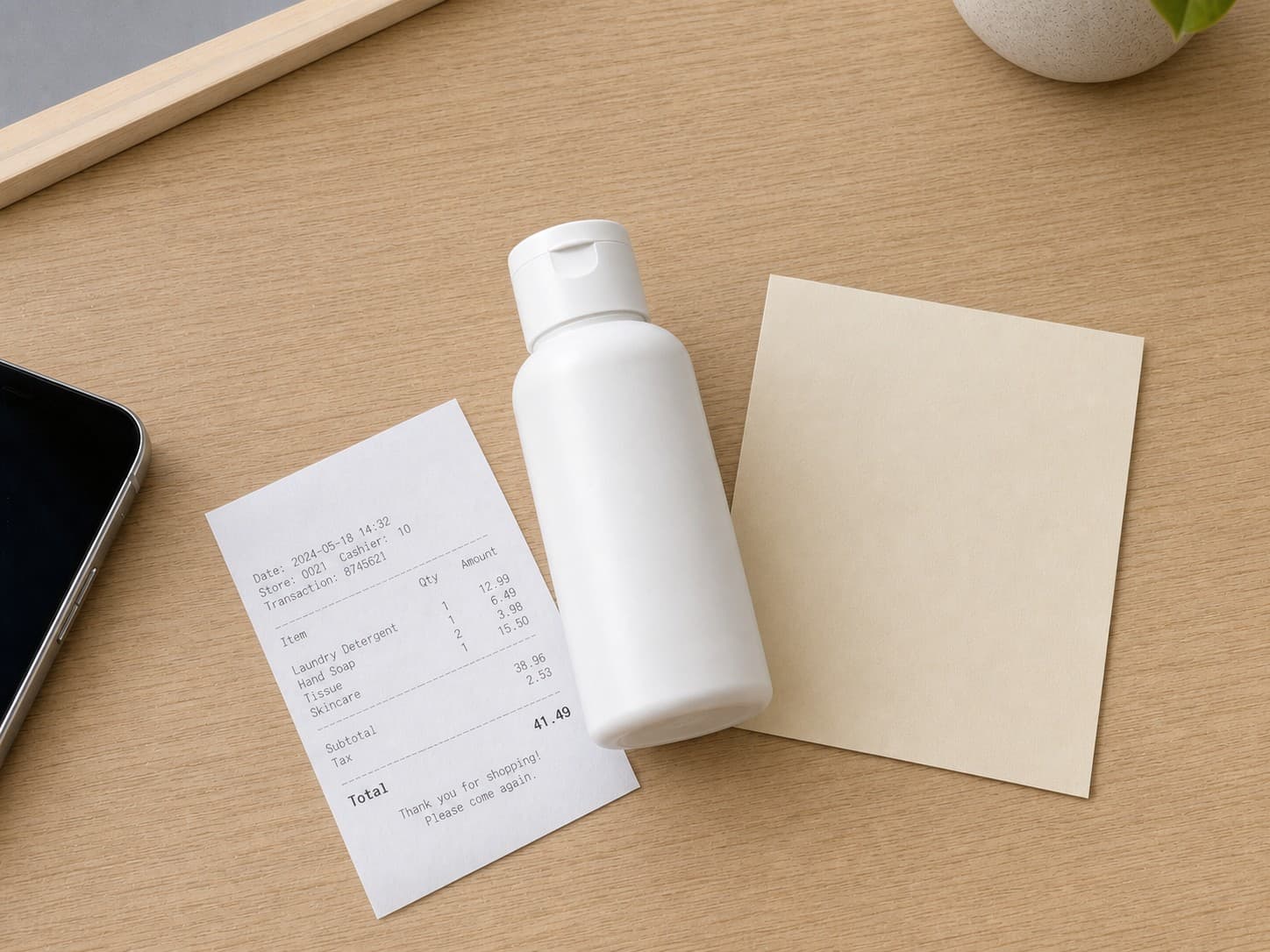
This happens constantly with small product photos. You put a skincare bottle, snack package, handmade item, menu card, receipt, jewelry piece, or marketplace listing item near a window. The lighting looks good, but the phone is directly between the light source and the subject. The camera captures a dark rectangle, hand shape, or soft vertical band across the photo.
That shadow usually hurts the image more than people expect:
- The product color looks darker than it really is.
- Paper, fabric, plastic, or metal texture looks uneven.
- Labels become harder to read.
- The photo looks like a quick phone snapshot instead of a listing-ready image.
- Buyers may wonder whether the dark area is a stain, defect, or lighting mistake.
The fix needs to be careful. If you simply brighten the whole photo, the background may wash out. If you remove all shadow, the product can look pasted on. If you smooth too much, the label or surface texture disappears.
What should stay unchanged
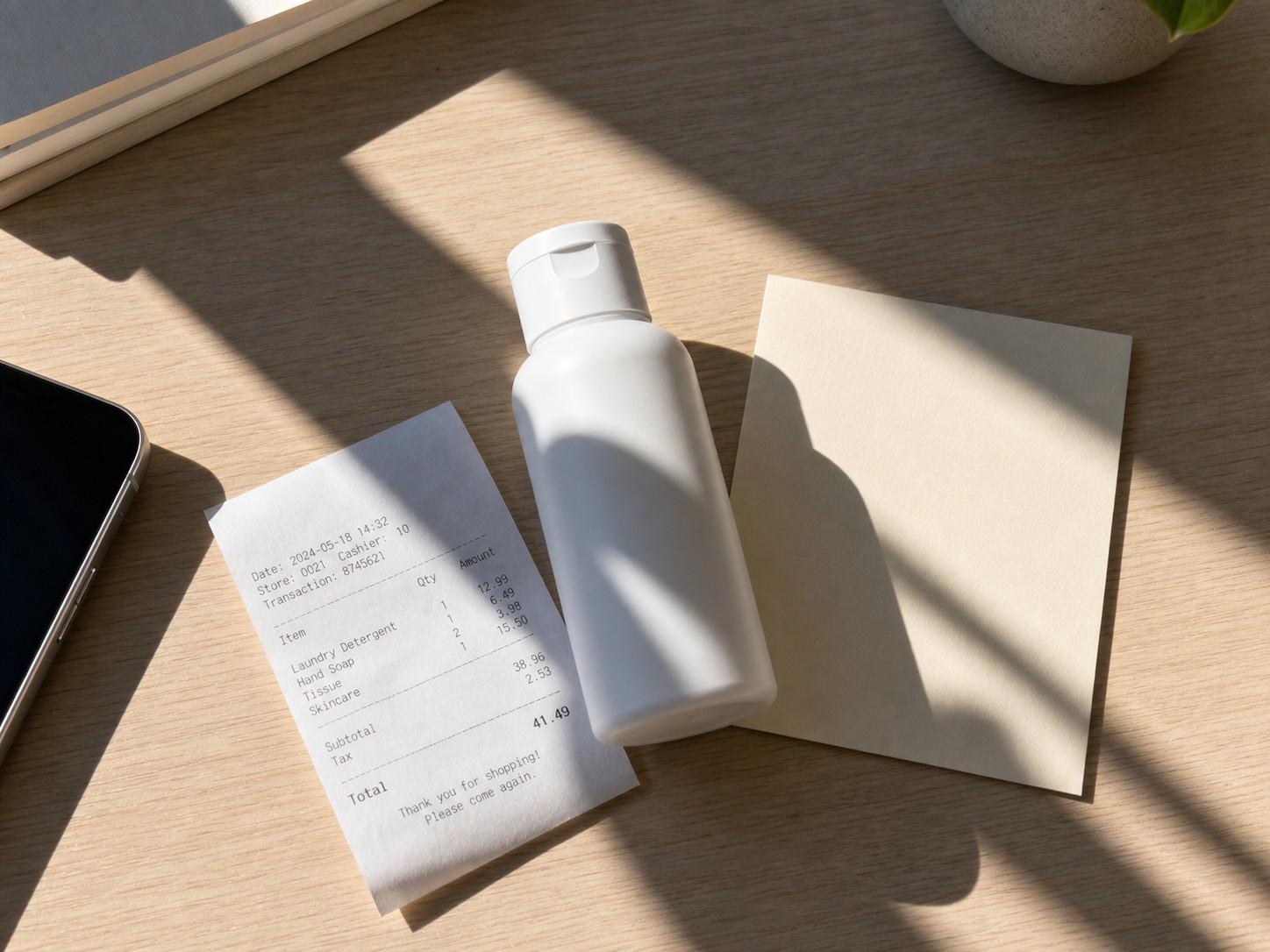
A good phone-shadow cleanup changes less than you think.
| Photo detail | What to do | Why it matters |
|---|---|---|
| Product color | Keep it consistent with the unshadowed area | Buyers rely on color accuracy |
| Label text | Preserve text, borders, spacing, and print texture | Rebuilt labels can look fake |
| Surface texture | Keep paper grain, fabric weave, tabletop marks, or packaging gloss | Texture makes the edit believable |
| Object edge | Keep the original outline sharp | Warped edges reveal the edit |
| Contact shadow | Keep the natural shadow under the object | It keeps the product grounded |
| Background light | Match the nearby lighting direction | The scene still needs a real light source |
Think of the edit as removing the phone's accidental shadow, not relighting the whole scene.
When phone shadow removal works best
AI shadow cleanup works best when:
- The shadow is visible but not completely black.
- The product detail under the shadow can still be seen.
- The affected area is mostly plain paper, fabric, tabletop, packaging, or background.
- The shadow crosses a small part of the image, not the entire product.
- The photo is sharp enough for the editor to understand edges and texture.
- The correction is honest and does not hide a product defect.
For example, a phone shadow on a white table beside a candle is usually fixable. A soft hand shadow over a food package may also be fixable. A dark camera shadow covering half of a small printed label is riskier because the editor has to rebuild text, not just lighting.
When you should reshoot instead
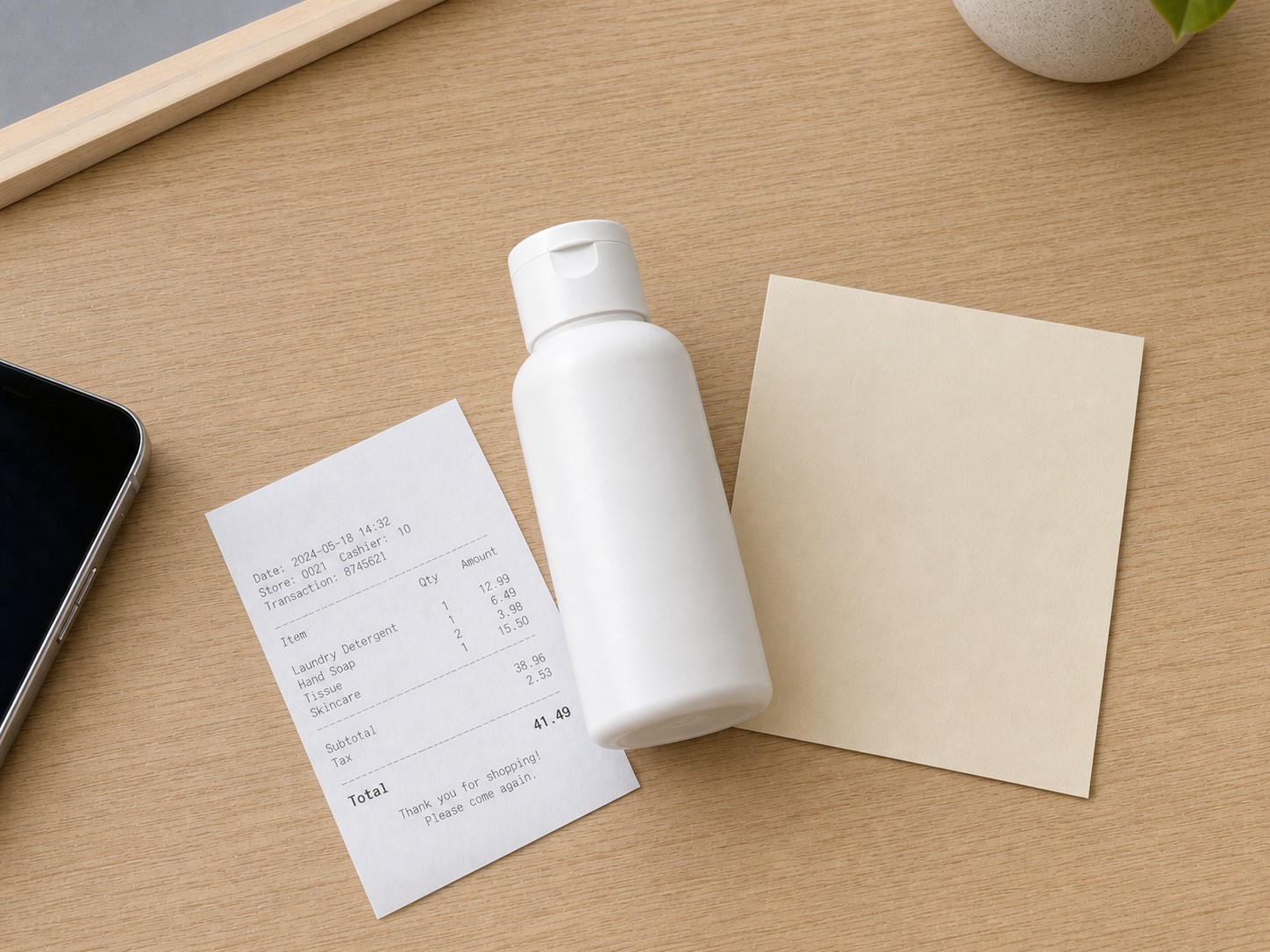
Reshoot when the shadow hides information that a buyer, client, or reviewer needs to trust.
Do not rely on cleanup if:
- The shadow covers important label text, ingredients, size, serial number, safety warning, or price.
- The dark area hides a scratch, dent, stain, tear, missing part, or used condition.
- The product is high value, regulated, medical, financial, legal, or compliance-sensitive.
- The photo needs exact color matching for fabric, cosmetics, art prints, collectibles, or jewelry.
- The edit would make the product look cleaner, newer, larger, or more complete than it is.
For ecommerce and marketplace photos, the edited image must still represent the real item. If the shadow is hiding a fact, reshooting is cleaner than reconstruction.
A safer workflow for removing the shadow
Use this sequence:
- Start with the sharpest original image.
- Crop and straighten the product photo before shadow cleanup.
- Select only the phone shadow, hand shadow, or dark cast area.
- Keep the selection slightly inside the product edge if the edge is already clean.
- Ask the editor to remove the cast shadow while preserving material texture and color.
- Review the result at normal size and zoomed in.
- Compare the cleaned area against nearby unshadowed texture.
- Keep natural contact shadows under the product.
- Export only after the product still looks like the same real item.
Avoid selecting the whole product unless the whole product is affected. Smaller selections give the editor clearer boundaries and reduce accidental changes to packaging, text, shape, or background.
Prompt examples
Use a focused prompt:
Remove the phone shadow from this product photo. Keep the product shape, label text, surface texture, color, lighting direction, and natural contact shadow unchanged.
If the shadow is on a table or paper background:
Lighten the dark phone shadow on the tabletop and blend it with the surrounding surface. Preserve paper grain, object edges, and realistic product shadow.
If the shadow crosses packaging:
Clean only the cast shadow across the package. Do not change the printed label, logo, product color, or packaging shape.
Avoid vague prompts:
Make this product photo look professional.
That kind of instruction may invite the editor to change colors, smooth texture, brighten the full background, sharpen the label, or alter the product itself. For a product listing, that is usually too broad.
AI cleanup vs manual editing
Manual editors can remove shadows with curves, masks, healing tools, clone tools, and selective color correction. That gives more control, but it takes time and skill. AI cleanup is faster when the shadow is simple and the product detail is still visible.
| Method | Best for | Risk |
|---|---|---|
| Brightening the whole image | Quick draft | Background and highlights may wash out |
| Local brush adjustment | Soft shadows on plain surfaces | Needs manual masking |
| Clone or healing tool | Simple tabletop or paper texture | Can repeat obvious patterns |
| AI shadow cleanup | Phone shadows on product, paper, flat lay, or background | Needs review for texture and label stability |
| Reshoot | Critical product detail or exact color | Slower, but most accurate |
For most seller photos, AI cleanup is useful as a first pass. The final decision should still be visual: does the product look real, or does the cleaned area look too smooth?
Checklist before you publish the image
Before posting a cleaned product photo, check these details:
- Is the product still the same color?
- Are label text, logos, numbers, and borders unchanged?
- Is the material texture still visible?
- Does the cleaned area match nearby lighting?
- Did the edit preserve the real shadow under the product?
- Did the editor invent a cleaner surface than the original item actually had?
- Would a buyer understand the same product condition from this image?
- Would you be comfortable showing the original and edited version side by side?
If the answer is uncertain, use a smaller selection, try a second pass, or reshoot with the phone angled away from the light source.


How to avoid phone shadows next time
Editing can rescue a good product photo, but prevention is faster.
Try this when shooting:
- Move the product closer to the light source and hold the phone outside the light path.
- Stand slightly to the side instead of directly between the window and the product.
- Use a white card, paper sheet, or reflector to soften dark areas.
- Raise the phone higher and zoom slightly instead of leaning over the object.
- Turn the product so important labels do not sit under your hand shadow.
- Take one extra photo from a different angle before packing the item away.
Even if you plan to edit, capture one clean backup frame. It gives you a safer reference for color, texture, and label detail.
How this fits with ClearCrowds
ClearCrowds works best when the editing target is specific. For this job, use Remove Shadow and keep the selection tight around the phone shadow. If the issue is bright glare instead of a dark shadow, read Remove Glare From Photo Online. If the issue is a wrong printed price, use Change a Wrong Price in a Product Photo.
For broader product cleanup, see AI ecommerce photo editing. If the unwanted item is a sticker, cable, prop, or background object rather than lighting, the object removal guide is the better starting point. For a broader editor overview, read Best AI Photo Editor.
Frequently asked questions
Can AI remove a phone shadow from a product photo?
Yes, when the shadow is not too dark and the product detail underneath is still visible. Select only the shadowed area and preserve color, texture, label text, and natural contact shadows.
Will removing a shadow make the product look fake?
It can if the edit removes every shadow or smooths the material too much. Keep real shading under the object and compare the cleaned area with nearby texture.
Is it okay to remove a shadow from an ecommerce photo?
Yes, if the cleanup only fixes lighting and does not hide product condition, damage, labels, warnings, size, or color. If the shadow hides buyer-relevant information, reshoot.
What if the phone shadow covers text on the label?
Use caution. If the text is still readable, cleanup may work. If the shadow hides text, the editor may guess. For important labels, compliance information, or high-value products, reshoot instead.
Should I remove the contact shadow under the product?
Usually no. A contact shadow helps the product look grounded. Remove the accidental phone or hand shadow, but keep natural shading that belongs to the scene.
Summary
Removing a phone shadow from a product photo is a small edit with high impact. Keep the selection tight, preserve real texture and color, leave natural contact shadows in place, and reshoot when the shadow hides anything a buyer needs to know.