What is Number Editor?
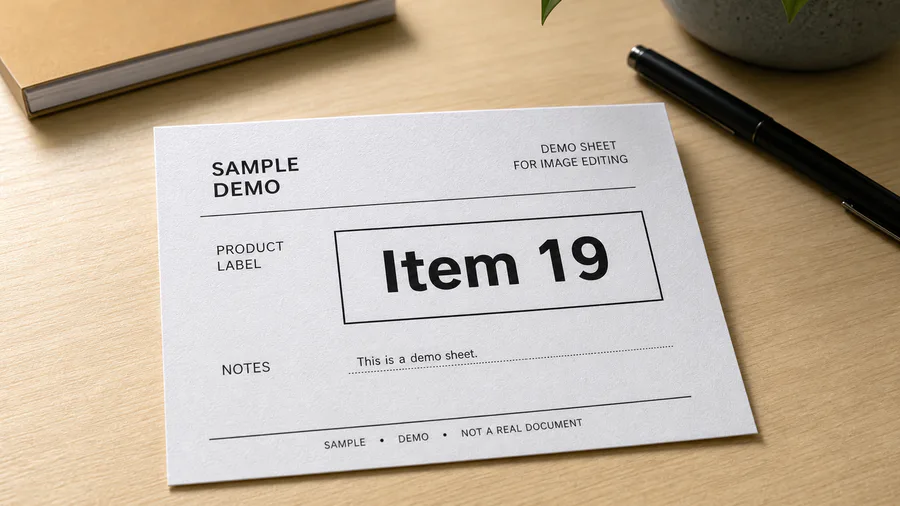
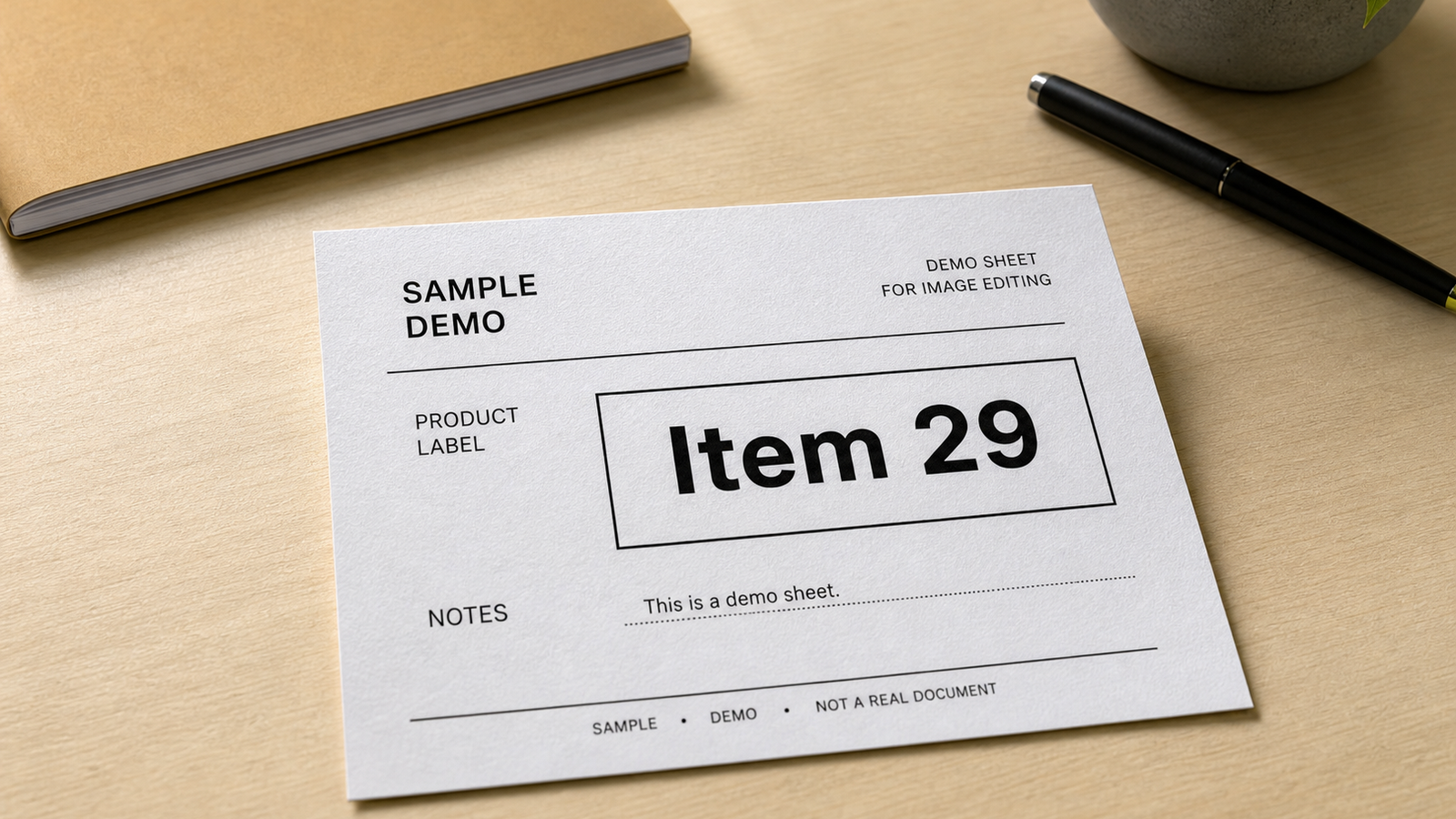
Number Editor is an AI photo editing preset that replaces a visible number in an image with a new number while preserving the original surface, font style, perspective, shadows, and lighting. Use it for non-sensitive photos such as product price tags, sale signs, room labels, date markers, street numbers, menu boards, and simple listing images.
The goal is not to blur or cover the old number. Number Editor asks the AI to rebuild the numeric area so the replacement looks like it was part of the original photo.
When should you use Number Editor?
Use Number Editor when the photo is otherwise ready, but one visible number is outdated, incorrect, or should be changed before publishing.
| Situation | Example edit |
|---|---|
| Ecommerce or resale photos | Change an outdated price tag from $39 to $29 |
| Local business images | Update a room number, table number, or menu board number |
| Event and listing photos | Replace an old date, year, code, or address marker |
| Product and packaging shots | Correct a visible SKU, label number, or small numeric mark |
How to edit a number in a photo
- Upload a clear image where the number is visible.
- Enter the old number if you want to target a specific value.
- Enter the new number that should appear in the image.
- Add context such as "price tag", "date on sign", "street number", or "product label".
- Generate the edit and review the surface, shadows, alignment, and surrounding detail.
The context field matters because the same number can look very different on paper, glass, fabric, metal, packaging, or a wall sign.
What photos work best?
Number Editor works best when the number is readable, the surface around it is not heavily blurred, and the replacement is short enough to fit the same visual space. For example, replacing "19" with "29" or "2025" with "2026" is usually easier than replacing a two-digit number with a long sentence.
For best results, use photos where the number is readable, has enough surrounding texture to rebuild naturally, and can be matched to a clear visual context such as a sign, label, product code, date marker, menu board, price tag, or app screenshot.
Number Editor vs text remover
Use Number Editor when you want a new number to appear in the photo. Use a text remover preset when your goal is only to erase the old number and rebuild the background with no replacement text.
FAQ
Can I edit a number in a photo online?
Yes. Upload the photo, enter the new number, and use Number Editor to generate an edited version with the replacement number blended into the image.
Can it replace prices, dates, or street numbers?
Yes. Number Editor is designed for visible numeric text such as prices, dates, street numbers, room numbers, labels, signs, and short product codes.
What if the old number appears more than once?
Add context such as "the price tag in the lower left" or "the number on the blue sign" so the preset knows which number should change.
Can I remove a number instead of replacing it?
Yes, but use the text remover workflow when you want the number gone completely. Number Editor is better when you need a specific replacement number.
Why does the replacement sometimes need a second try?
Numbers depend on font shape, surface texture, camera angle, and lighting. If the first result is not aligned, give more precise context or choose a replacement with a similar length.