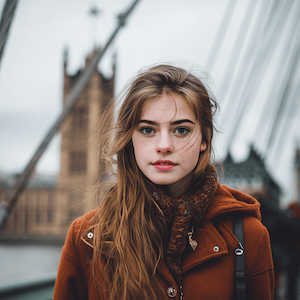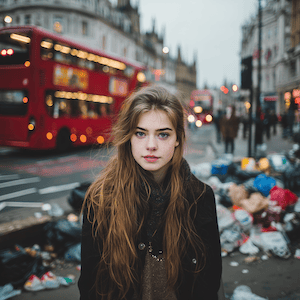
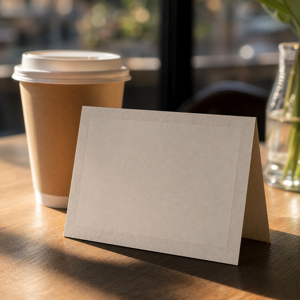
What is Remove Text?
Remove Text is an AI photo cleanup preset for removing readable words, captions, dates, timestamps, numbers, labels, and small text strokes from a picture while preserving the original image layout.
It is useful when a photo is almost ready to publish, but visible text distracts from the subject. Common examples include poster drafts, product photos, screenshots, signs, menus, labels, social images, and casual photos where a caption or small word should be erased.
When should you use Remove Text?
Use Remove Text when you want the words gone and the surrounding background rebuilt naturally. The preset is different from blurring or covering text with a sticker: it asks the AI to remove the glyph strokes and fill the area with nearby surface detail such as paper, wall texture, screen background, fabric, glass reflection, packaging, or product material.
This preset supports searches such as photo text remover, remove text from image, erase text from picture, remove words from a picture, and remove text from image online.
How to remove words from a picture
- Upload a clear photo where the words are visible.
- Choose Remove Text.
- Review the area where the words were removed.
- Generate again with a more specific instruction if the photo contains several text areas.
- Download the cleaned image when the background and layout still look natural.
For best results, use photos where the text is not covering a face, legal record, official document, or critical product information.
What should not be removed?
Do not use this preset to create misleading documents, blank official forms, edited identity records, legal documents, financial records, medical records, or evidence-like images. It is also not intended for removing copyright watermarks or ownership marks from work you do not own.
Use it for images you own or have permission to edit, and keep the non-text parts of the original scene intact.
FAQ
How do I remove words from a picture?
Upload the picture, choose Remove Text, and let ClearCrowds erase the visible word strokes while rebuilding the nearby background. Review the result to make sure the page, object, screen, or photo layout still looks natural.
Can I remove text from an image without Photoshop?
Yes. Remove Text is designed for users who do not want to manually clone, mask, or paint over each letter in Photoshop. It gives the AI a focused text-removal instruction while preserving the rest of the photo.
Will the background stay natural after removing text?
That is the goal. The preset asks ClearCrowds to fill the removed text area with the surrounding local surface, but very busy textures, text covering faces, or text hiding important details may need another try.
Can I remove dates or timestamps from photos?
Yes, if the date or timestamp is part of an image you own and it is safe to edit. The preset can remove small corner timestamps, captions, and number strokes while preserving the photo around them.
Is this for removing watermarks?
No. Do not use Remove Text to remove copyright watermarks, creator marks, or ownership marks from images you do not own or do not have permission to edit.