
Remove a Phone Shadow From a Document Photo Cleanly
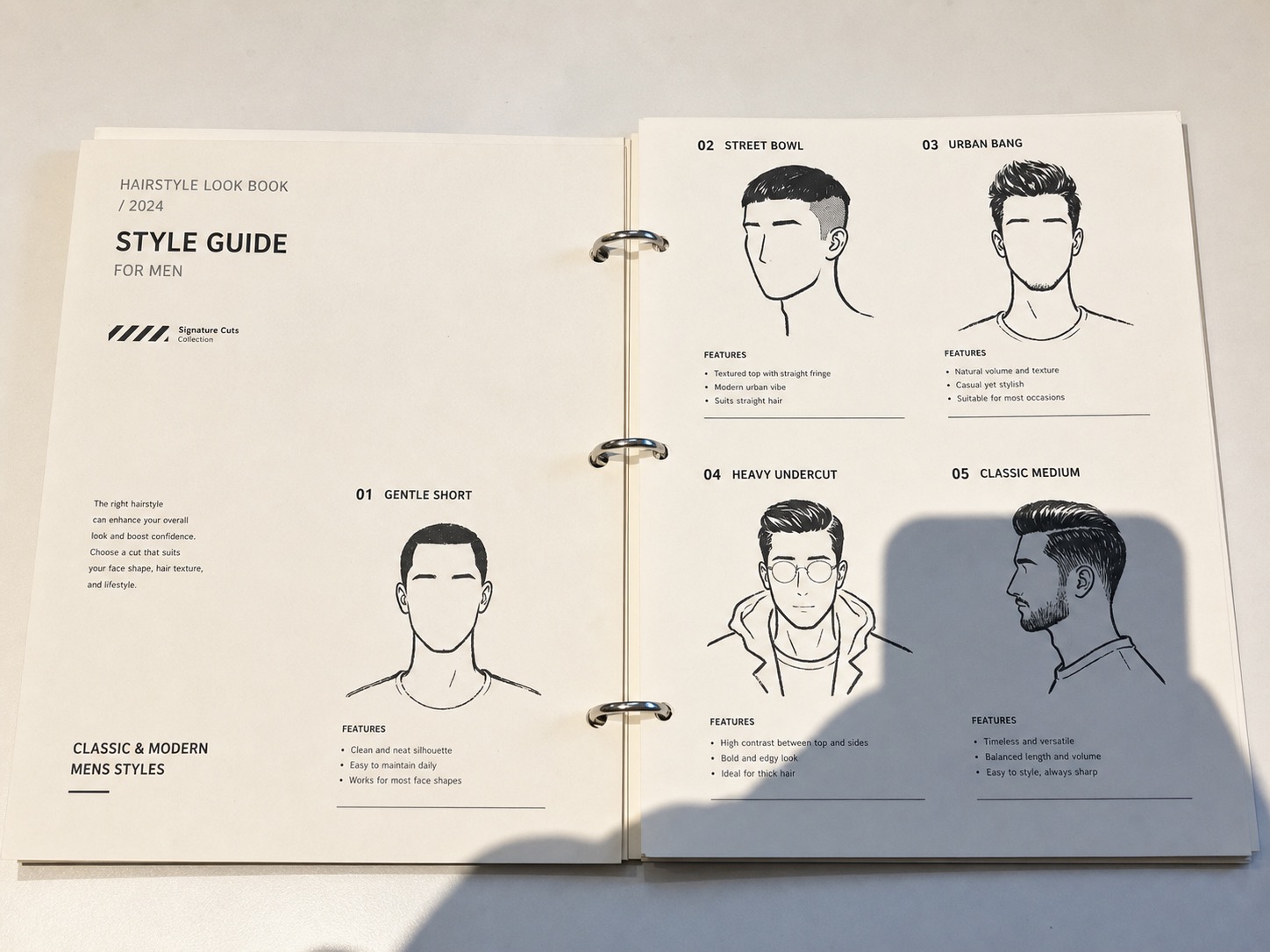
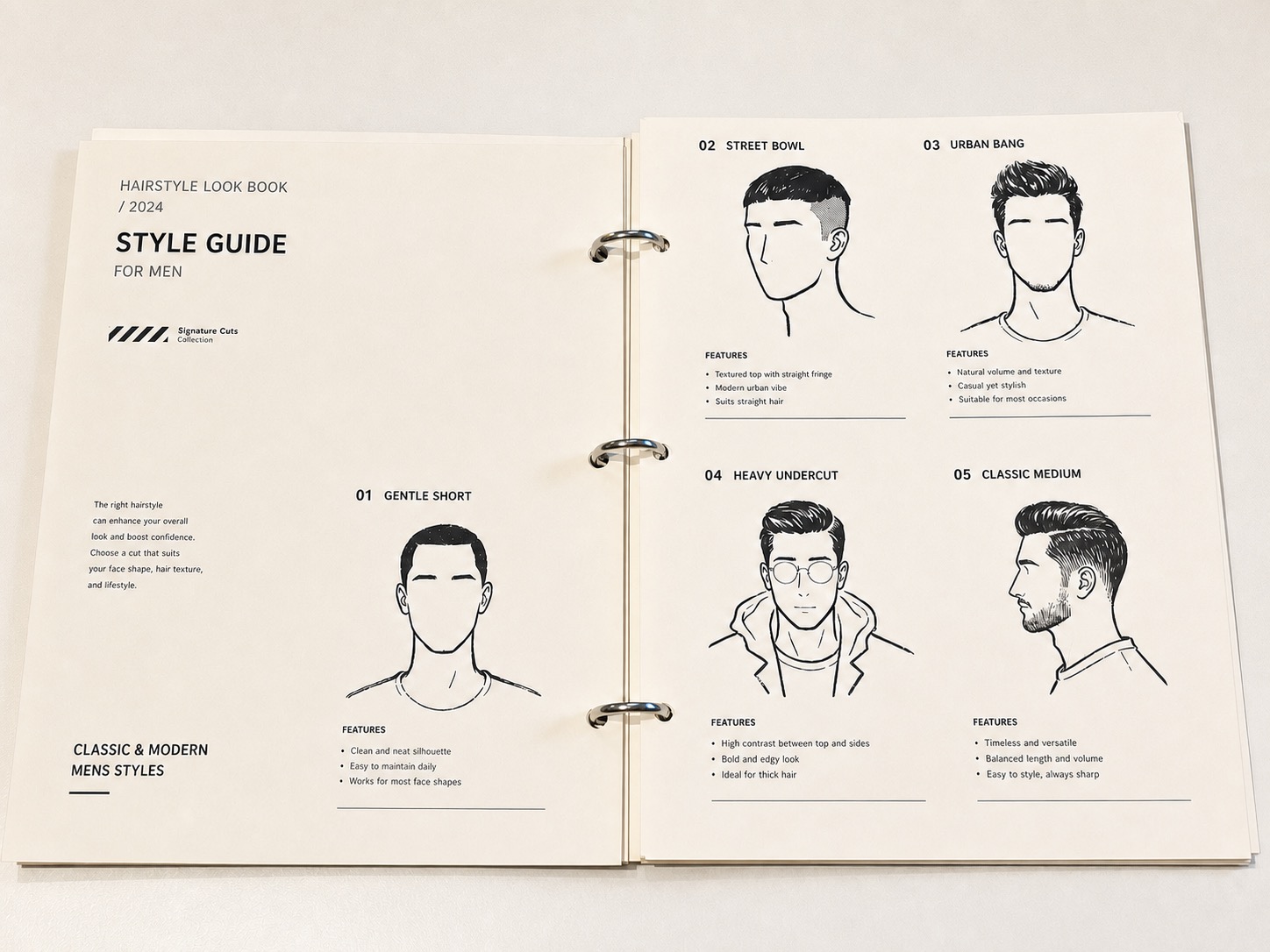
Remove a phone shadow from one document photo
Upload the document photo and start with the Remove Shadow tool selected. Review text edges and paper texture before exporting.
View tool details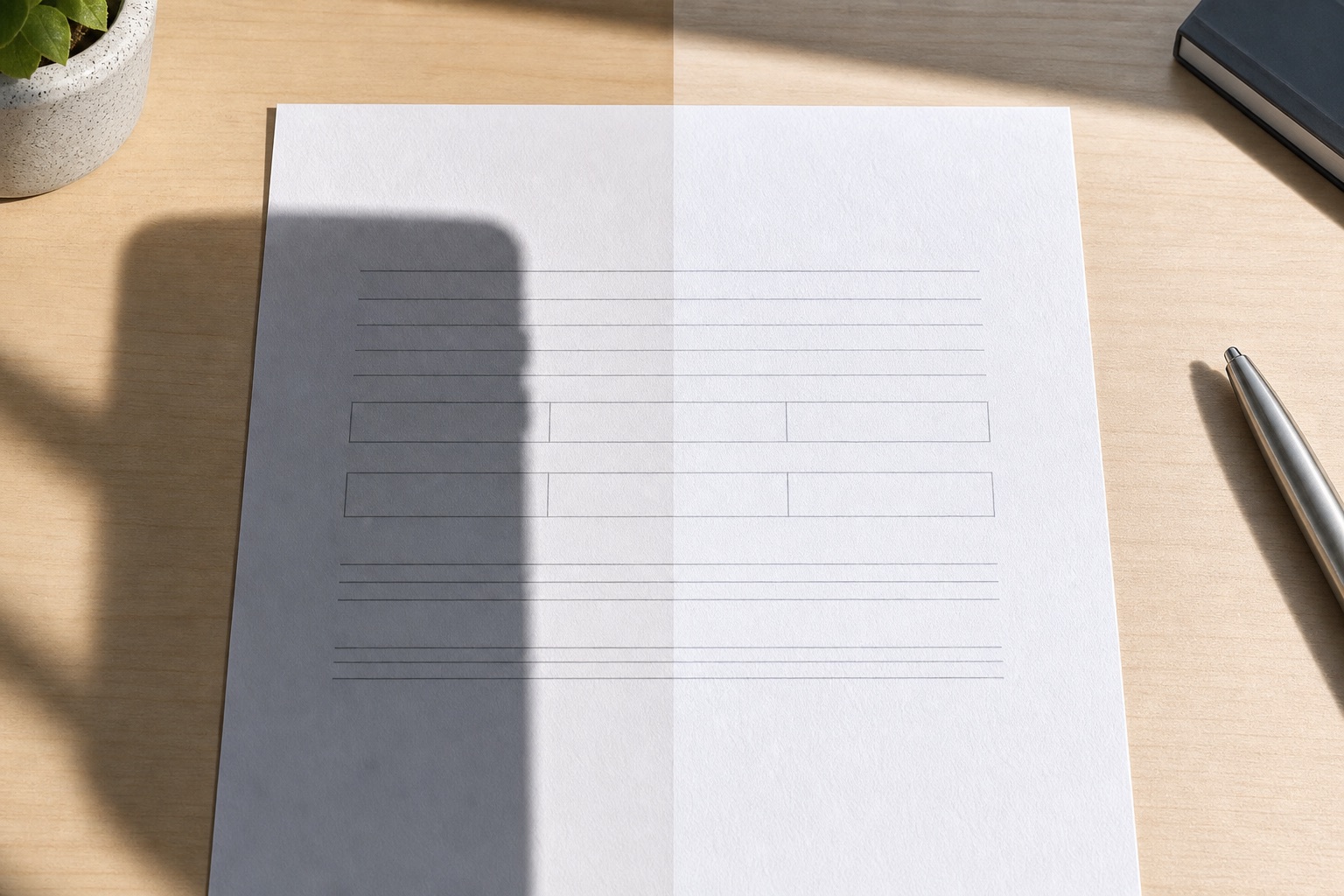
Direct answer
You can remove a phone shadow from a document photo when the text, paper texture, stamps, signatures, and form lines are still visible under the dark area. The safest workflow is simple: upload the image, target only the shadowed area, use a shadow-removal pass, then compare the cleaned document against the original at full size.
Do not try to "fix" a document where the shadow completely hides important information. AI can rebuild a plausible clean patch, but it cannot recover exact hidden pixels from a black shadow. If the document is official, legal, medical, financial, or identity-related, keep the original file and avoid edits that change meaning.
Use Remove Shadows from Photo for lighting cleanup that keeps the original framing. If the page also needs cropping or perspective correction, use Photo to Scan and follow the guide to turning a photo into a scanned document. Check all document details against the original before saving.
Remove a phone shadow from one document photo
- Tight shadow cleanup
- Text edge review
- Paper texture preserv…
Upload the document photo and start with the Remove Shadow tool selected. Review text edges and paper texture before exporting.
Key takeaways
- Phone shadows are easiest to remove when the paper detail is still visible.
- Select the shadow, not the whole document.
- Preserve text edges, signatures, stamps, table lines, paper grain, and folds.
- If a shadow hides information, retake the photo instead of inventing a clean version.
- Keep the original document image, especially for anything official or sensitive.
Table of contents
- Why phone shadows happen in document photos
- What to preserve before you edit
- How to get rid of shadow in a picture without washing out text
- When to retake the photo instead
- AI shadow remover vs scanner app vs Photoshop
- Prompt examples
- Review checklist
- Frequently asked questions
Why phone shadows happen in document photos
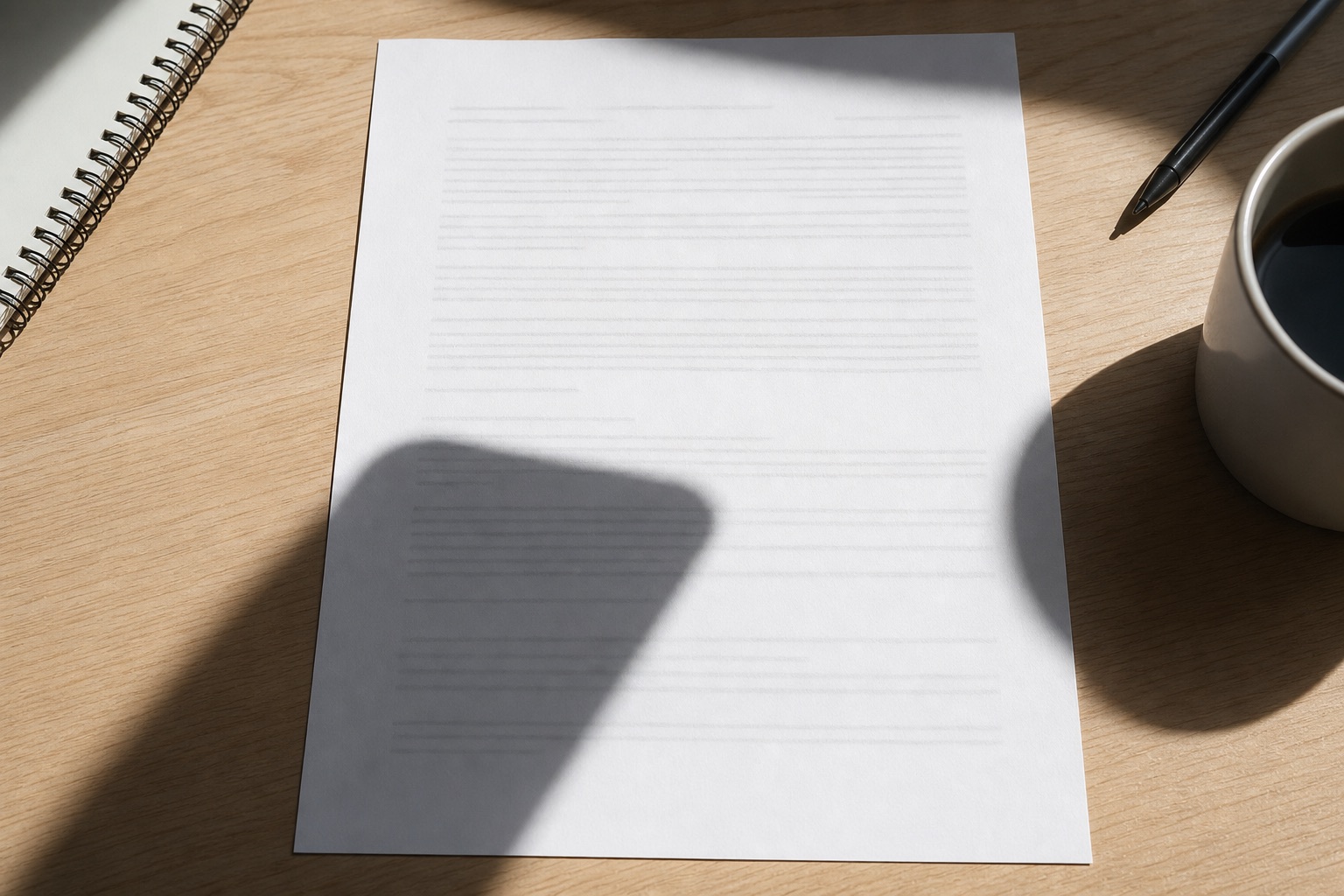
A phone shadow is a cast shadow from the phone, hand, camera, or body that falls across a document while the photo is being taken.
It usually happens for boring reasons: the light is above or behind the phone, the paper is flat on a desk, and the camera is close enough to block part of the light. The result can look like a gray rectangle, a rounded hand shape, a dark band over a signature line, or a big patch across the lower half of the page.
The annoying part is that document photos need clarity more than beauty. A small shadow on a travel photo may be acceptable. A shadow across a receipt total, school worksheet answer line, signature, stamp, product label, or ID field can make the image hard to use.
Google's own document-scanning guidance for Drive starts from the same practical baseline: point the device camera at the document and capture a scan from the mobile app. If the scan is still shadowed, the better fix may be a cleaner capture angle before any edit. See Google's guide to scanning documents with Google Drive for the capture workflow.
What to preserve before you edit
Document cleanup fails when the editor treats the whole page as replaceable. A document is full of small details that make it trustworthy.
Keep these intact:
- Text edges and line spacing.
- Paper grain, folds, wrinkles, and scanner texture.
- Stamps, signatures, initials, dates, and checkmarks.
- Form boxes, table lines, ruled lines, and margins.
- Shadows that show the paper is lying on a table.
- Any official label, legal wording, or visible context.
| Document detail | Why it matters | Editing risk |
|---|---|---|
| Text edges | The page must stay readable | Blurry letters or invented words |
| Signatures and stamps | They may carry identity or approval | Distorted marks can change meaning |
| Form lines and tables | They make the document look structured | Warped boxes make the edit obvious |
| Paper grain and folds | They make the patch believable | Smooth rectangles look fake |
| Margins and corners | They reveal camera perspective | Crooked rebuilt edges stand out |
If you only need a cleaner personal copy, a small shadow cleanup can be useful. If the document will be submitted, audited, verified, or used as evidence, the safer path is to retake the photo with better light and keep the unedited original.
How to get rid of shadow in a picture without washing out text
Start narrow. A global brightness or contrast edit can lift the shadow, but it often washes out faint pencil, gray stamps, pale ink, or paper texture. A targeted shadow-removal pass is better when the rest of the page already looks fine.
Use this workflow:
- Save the original file first.
- Crop and straighten only if the document needs it.
- Upload the image to the Remove Shadow preset.
- Target the shadowed area, not the entire page.
- Run one cleanup pass.
- Zoom in and compare text, form lines, stamps, and paper grain.
- If one edge still looks dark, run a smaller second pass instead of selecting the whole page.
- Export only when the cleaned page still matches the original document.
This is also why Adobe's Photoshop shadow-removal tutorial emphasizes small selections and reviewing generated variations rather than trying to fix everything at once. The same principle applies here: smaller shadow targets give the model less room to damage useful detail. Adobe's example is for portraits, but the selection lesson transfers well to paper photos: remove shadows with Generative Fill.
When to retake the photo instead
Retake the photo when the shadow hides information instead of merely darkening it.
Retake if:
- The shadow covers a signature, stamp, amount, ID number, grade, date, or address.
- The paper is wrinkled and the shadow crosses multiple folds.
- Text becomes unreadable even after zooming in.
- The document is a receipt, contract, insurance file, school record, medical form, tax form, or ID.
- The edit would make the document look cleaner than the real page.
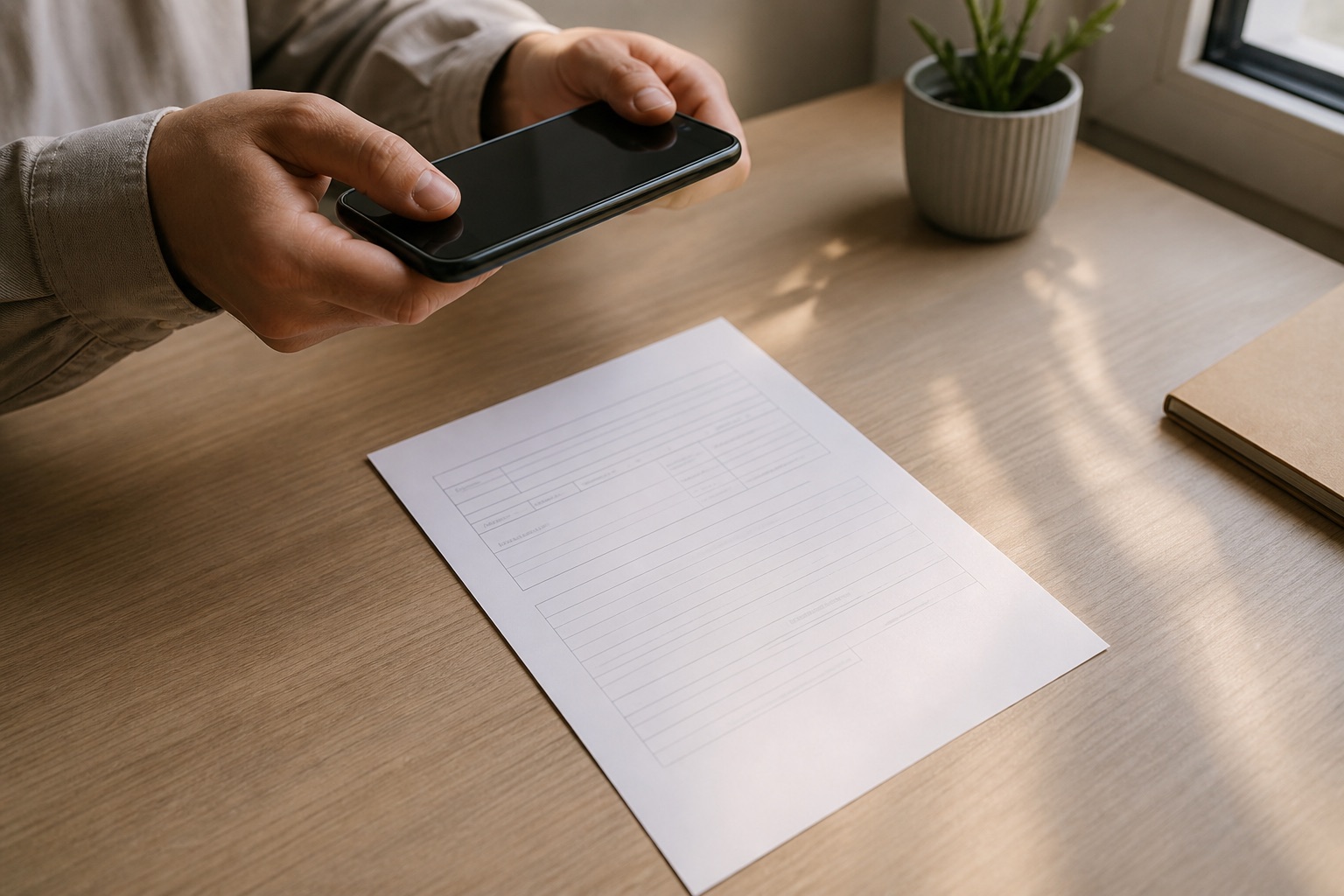
A better capture usually takes less time than repairing a bad edit. Move the document closer to a window, put the light source in front of the phone instead of behind it, raise the phone slightly, or angle the paper so the phone shadow falls outside the important area.
AI shadow remover vs scanner app vs Photoshop
The right tool depends on what went wrong.
| Situation | Better option | Why |
|---|---|---|
| Light phone shadow, text still readable | AI shadow remover | Fast cleanup without rebuilding the whole page |
| Whole page is dim but evenly lit | Scanner app or exposure adjustment | The problem is capture quality, not one shadow |
| Shadow crosses complex stamps or signatures | Photoshop/manual editor | Manual control is safer around critical marks |
| Shadow hides important content | Retake the photo | AI cannot recover exact hidden pixels |
| You need a quick personal copy | ClearCrowds Remove Shadow | Good fit when the edit is small and reviewable |
Do not use a normal object remover for this job unless the shadow behaves like a distinct object on a simple background. Shadow cleanup is more delicate because the page underneath still matters.
Three common document cases
Not every "document photo with a shadow" should be handled the same way. Here is how I would decide in normal use.
A worksheet photo for reuse
This is usually the safest case. Maybe you photographed a practice sheet, a blank worksheet, or a form template, and the bottom corner has a phone shadow. If the shadow sits over blank lines or empty answer boxes, a cleanup pass is reasonable.
Keep the edit boring. Do not ask the editor to make the page sharper, whiter, or more professional. That often changes line weight and paper tone. The better prompt is narrow: remove the cast shadow and leave the worksheet alone. Afterward, check whether the ruled lines still align and whether the empty boxes still look like the same print.
If the worksheet already has student answers, grades, comments, or signatures, slow down. A shadow cleanup can accidentally soften those marks. The safer route is to retake the page under better light.
A receipt, invoice, or product insert
Receipts and invoices are harder because the small numbers matter. A phone shadow over the store name or blank margin is one thing. A shadow over tax, total, date, order number, or barcode is another.
For personal recordkeeping, you can clean a light shadow if every number is still readable in the original. For reimbursement, tax, accounting, warranty, return, or customer support, retake the photo. It is not worth creating a cleaner-looking file that someone later questions.
Product inserts and packaging labels sit in the middle. If the goal is ecommerce presentation, remove a distracting shadow only when the label information stays unchanged. If the photo is meant to prove compliance, ingredients, serial numbers, or safety details, do not rely on a generated cleanup.
A signed form or stamped page
This is the case where people should be most conservative. A signature, stamp, seal, or handwritten approval mark is not just decoration. Even a small blur can change how trustworthy the page looks.
If the shadow is near the signature but not touching it, you can try a small cleanup on the empty paper area. If the shadow crosses the signature, stamp, seal, date, or initials, retake the photo. The extra minute is better than a page that looks edited around the most important mark.
For a scan you cannot retake, make a display copy if you need one, but keep the original shadowed file. Name them clearly so you do not accidentally submit the cleaned copy where the original is expected.
Prompt examples
Use a literal prompt if you continue editing after the preset:
Remove only the phone shadow from the selected area. Preserve all text, paper texture, stamps, signatures, form lines, margins, folds, lighting direction, and document edges.
For a receipt or label:
Clean the cast shadow across the paper. Keep printed numbers, table lines, logo-free layout, paper grain, and all visible fields unchanged.
Avoid broad prompts like:
Make this document look perfect.
That can invite the editor to smooth paper, sharpen text, change contrast, or rebuild fields that should stay untouched.
Review checklist
Before saving or sharing the cleaned document photo, check:
- Are all words, numbers, and lines as readable as before?
- Did any letters become invented, doubled, or blurred?
- Are stamps, signatures, and marks unchanged?
- Does the paper grain still match the rest of the page?
- Are table borders and ruled lines straight?
- Did the edit create a smooth rectangle where the shadow used to be?
- Would the document still be accepted if someone compared it with the original?
- Do you still have the untouched original?
For related cleanup tasks, read How to Remove a Date Stamp From an Old Photo and Remove Handwritten Answers From a Completed Worksheet Scan. If the shadow problem appears across a set of product or document images, use the batch photo editor after you know the right cleanup instruction.
How this fits with ClearCrowds
ClearCrowds is a good fit when you can point to the problem in one sentence: "remove this phone shadow, but keep the paper and text alone." Start with Remove Shadow for cast shadows. Use Remove Text for actual printed or handwritten marks. Use Number Editor only when the honest task is to correct a visible number on a non-sensitive image.
One practical rule helps: the cleaned file should still feel like the same document photo. A little less darkness is fine. Cleaner paper is fine. Rewritten fields, smoother signatures, or suspiciously perfect boxes are not.
Frequently asked questions
Can I remove a phone shadow from a document photo?
Yes, if the shadow is light enough that you can still read what is under it. Treat it as a cleanup pass, not a document repair. If the dark area hides a signature, number, address, or stamp, take a new photo.
Will AI blur the text when it removes the shadow?
It can. The usual cause is a selection that is too wide, or a low-resolution source image. Keep the target small and check the boring details: letter edges, table lines, dates, and the paper grain around the old shadow.
Is it okay to remove a shadow from an official document?
For a personal reading copy, a light cleanup may be fine. For anything official, keep the original and be conservative. If the document will be submitted, verified, audited, or used as evidence, retake the photo instead of relying on an edited version.
What is better: removing the shadow or scanning again?
Scanning again is better when you have the paper in front of you. Shadow removal is useful when the photo is otherwise good and the shadow is localized. A bad capture with missing detail is still a bad source file.
Can I use the same workflow for receipts and labels?
Yes, with extra review. Receipts and labels have small numbers, thin lines, and sometimes barcodes. If the edit changes a price, date, serial number, barcode, or required label, throw that result away and retake the image.
Summary
The cleanest fix is still prevention: move the phone, soften the light, and take the photo again. When that is not practical, remove the phone shadow as a small targeted edit. Keep the original, protect the text, and stop if the edit starts making decisions for the document.