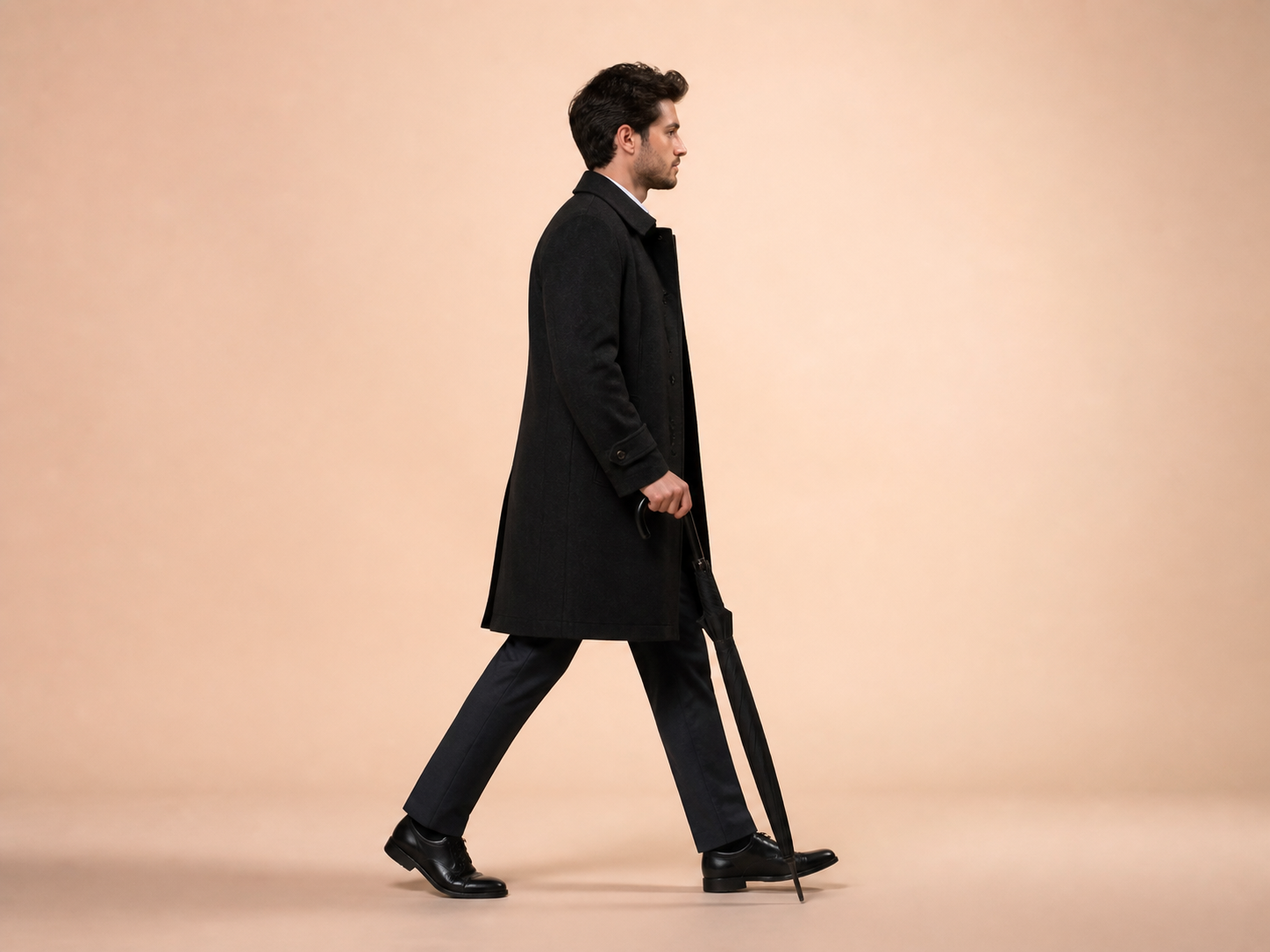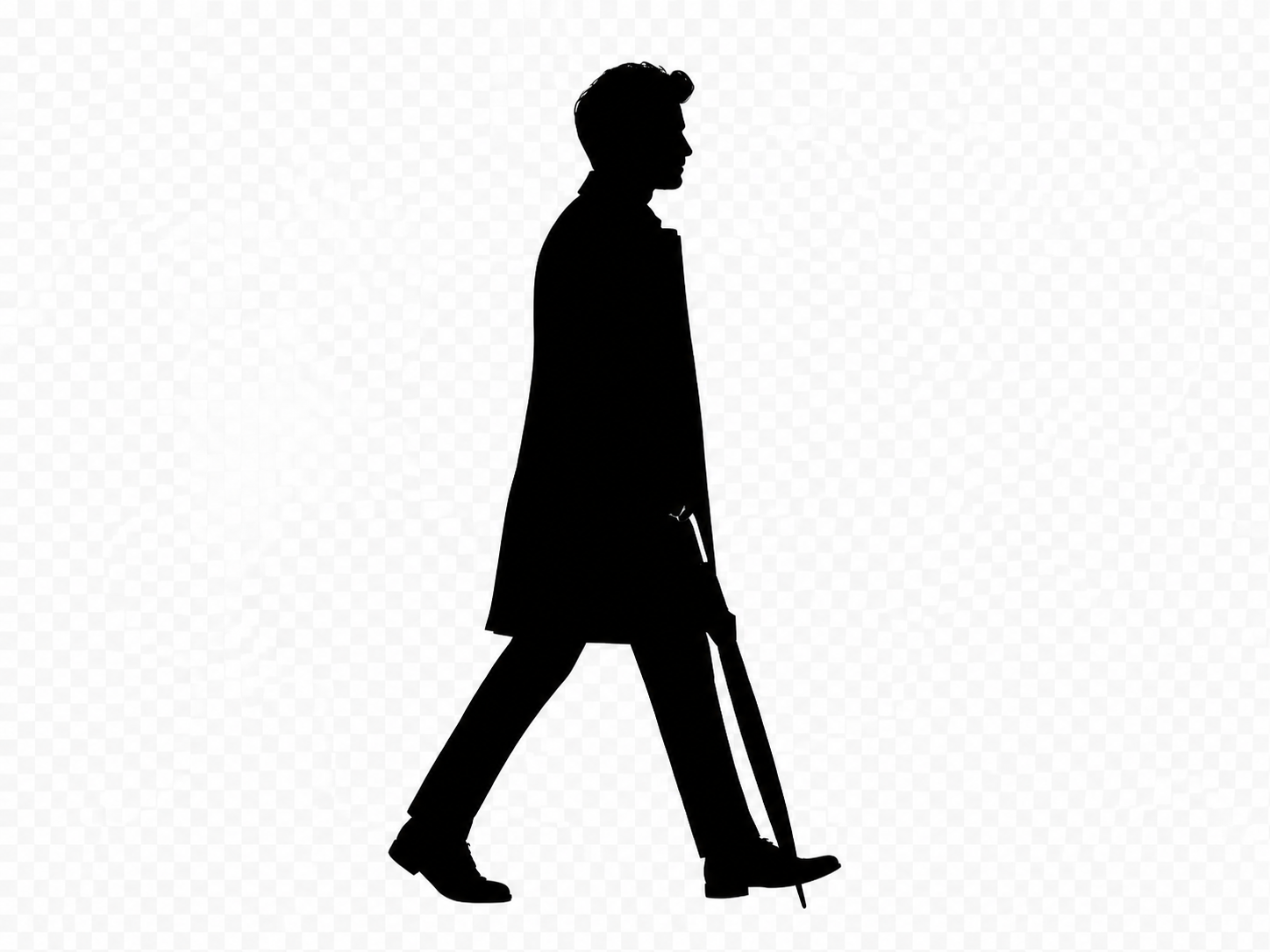
去除照片背景,同时保留主体边缘

上传房间、商品或人像照片,直接打开已选中的背景移除工具,得到适合继续设计的主体抠图。

  • Keep the subject
  • Handle ordinary backgrounds
  • Preserve useful detail

上传照片去除背景

支持 JPG、PNG 或 WebP,将自动打开背景移除。

选择照片
保留原图已选工具保留主体边缘
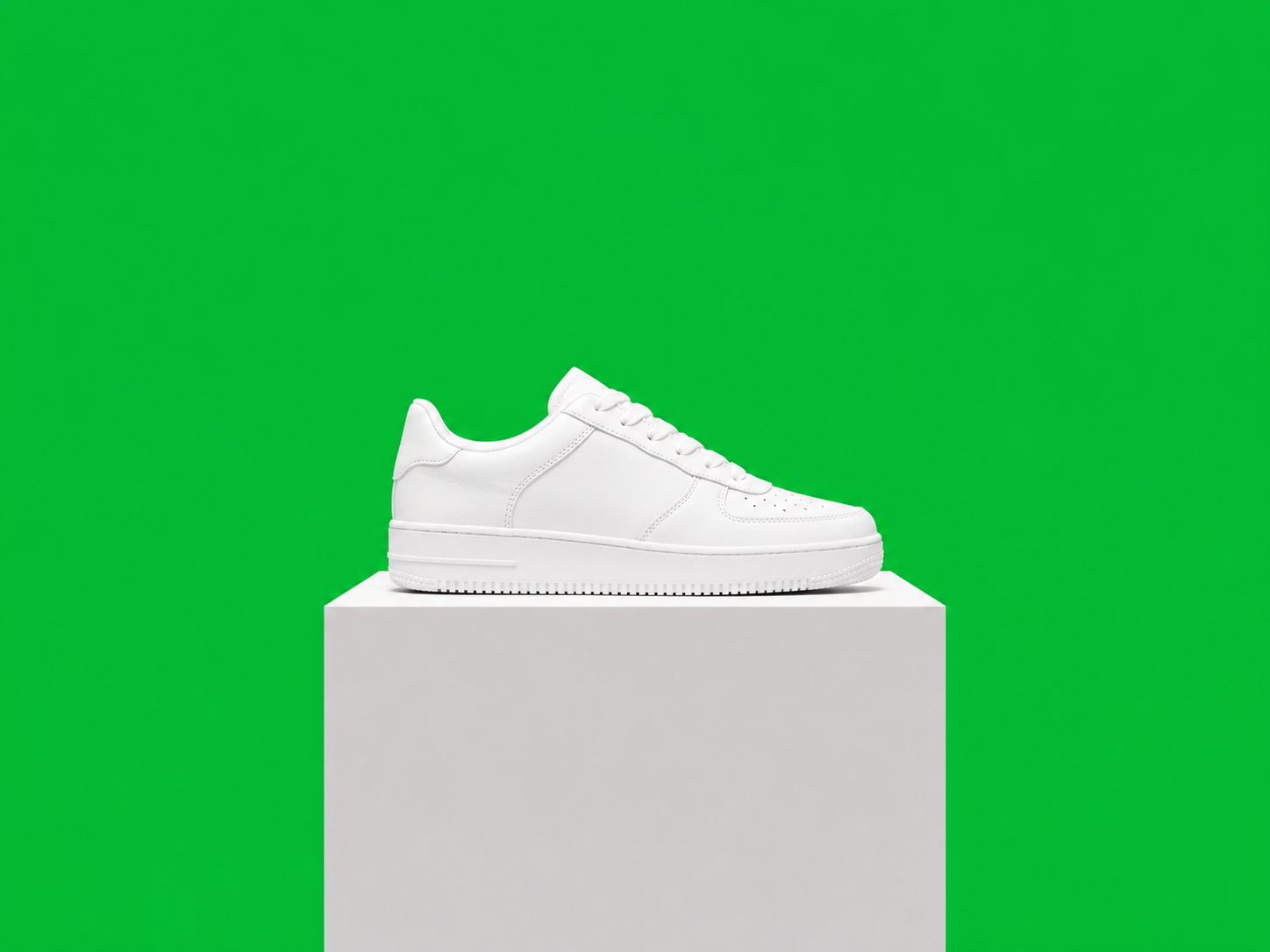
White sneaker on a pedestal against a vivid chroma-green screen before background removal
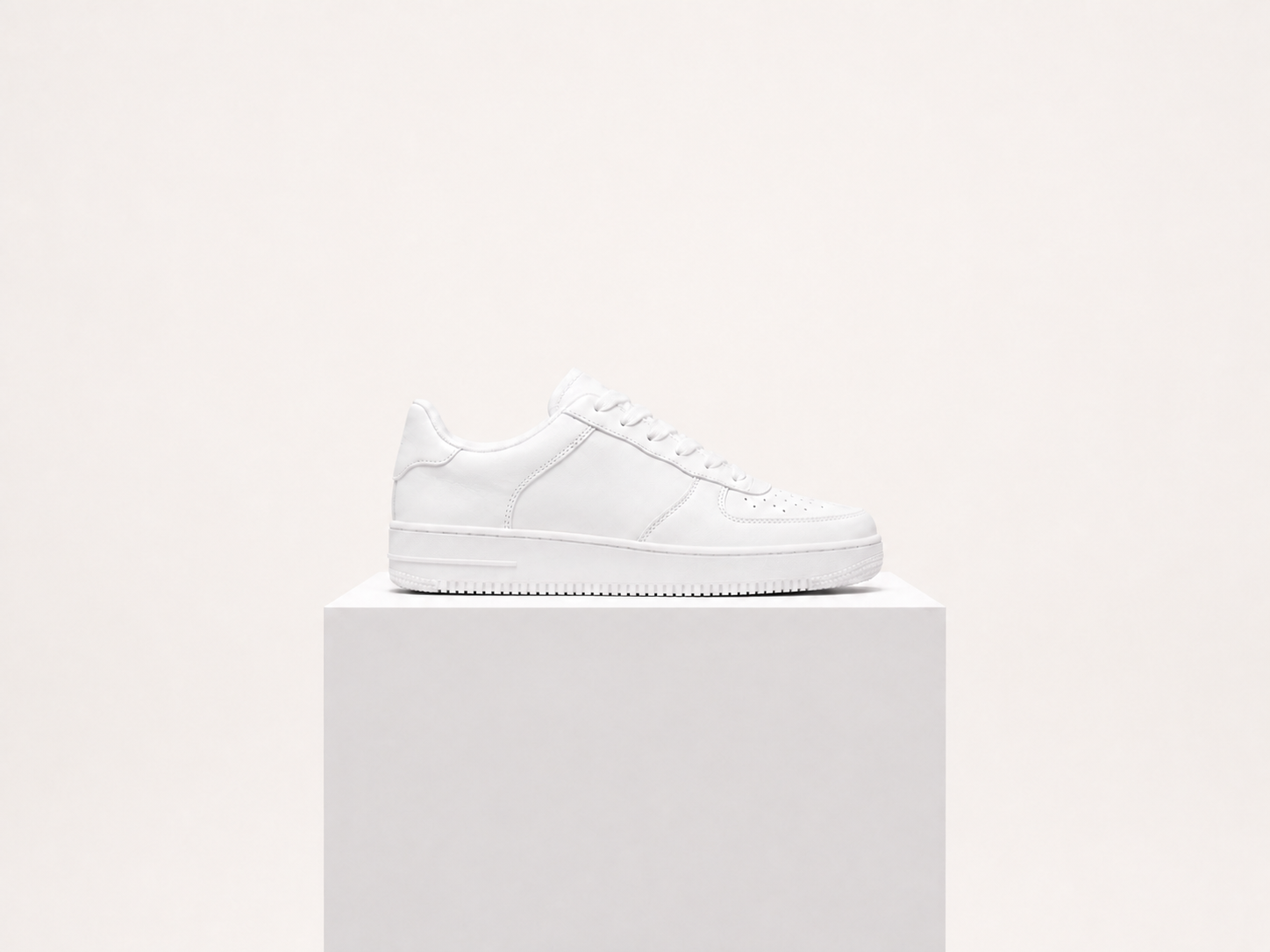
The same white sneaker on a clean studio background after green-screen removal
BeforeAfter

A clean cutout, with the original subject intact

Background removal targets the surrounding scene, not the subject. Review hair, furniture edges, product details, and transparent areas before exporting.

Keep the subject
The edit is focused on separating the main subject from its background rather than redesigning the photo.
Handle ordinary backgrounds
A green screen is not required; clear walls, rooms, tables, and simple outdoor backgrounds can work too.
Preserve useful detail
Edges, colors, textures, and proportions should stay natural when the subject is clearly visible.
Review fine edges
Hair, glass, thin cables, and similar details can need a closer check before publishing.

Remove a background in three steps

Use one clear photo with a visible subject and enough contrast around its edges.

  1. 1

    Upload the source photo

    Choose a product, person, room, or object photo with the full subject in frame.

  2. 2

    Run background removal

    ClearCrowds separates the subject from the surrounding scene and prepares the cutout in the editor.

  3. 3

    Check the edges

    Inspect hair, corners, shadows, and transparent areas before downloading or continuing in the editor.

Useful for more than green-screen footage

The focused page serves common photo jobs where the subject needs to move onto a new layout or background.

Product photos

Separate an item from a table or room before placing it in a catalog or campaign design.

Portrait cutouts

Prepare a person for a profile card, poster, invitation, or new background.

Property assets

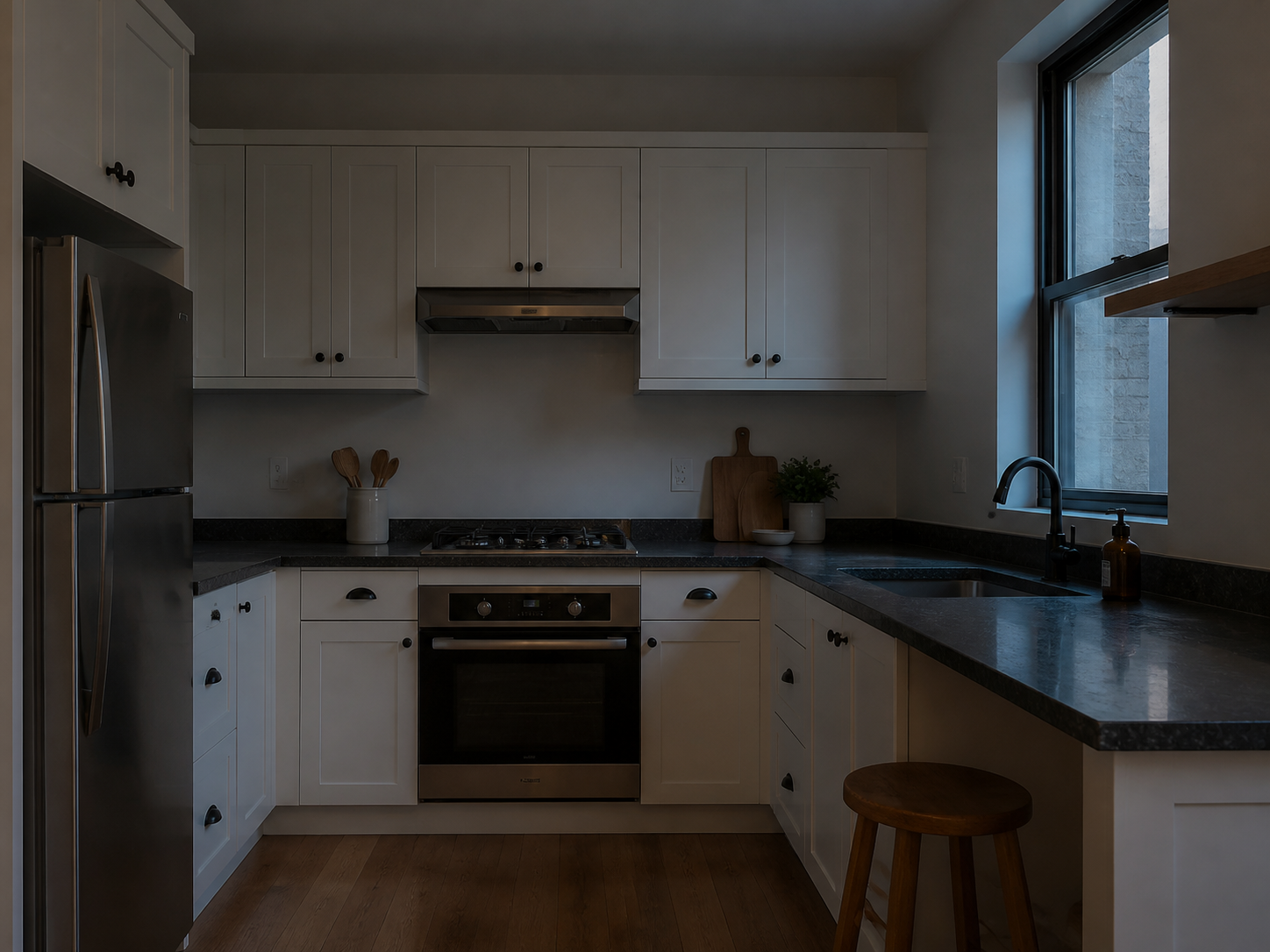
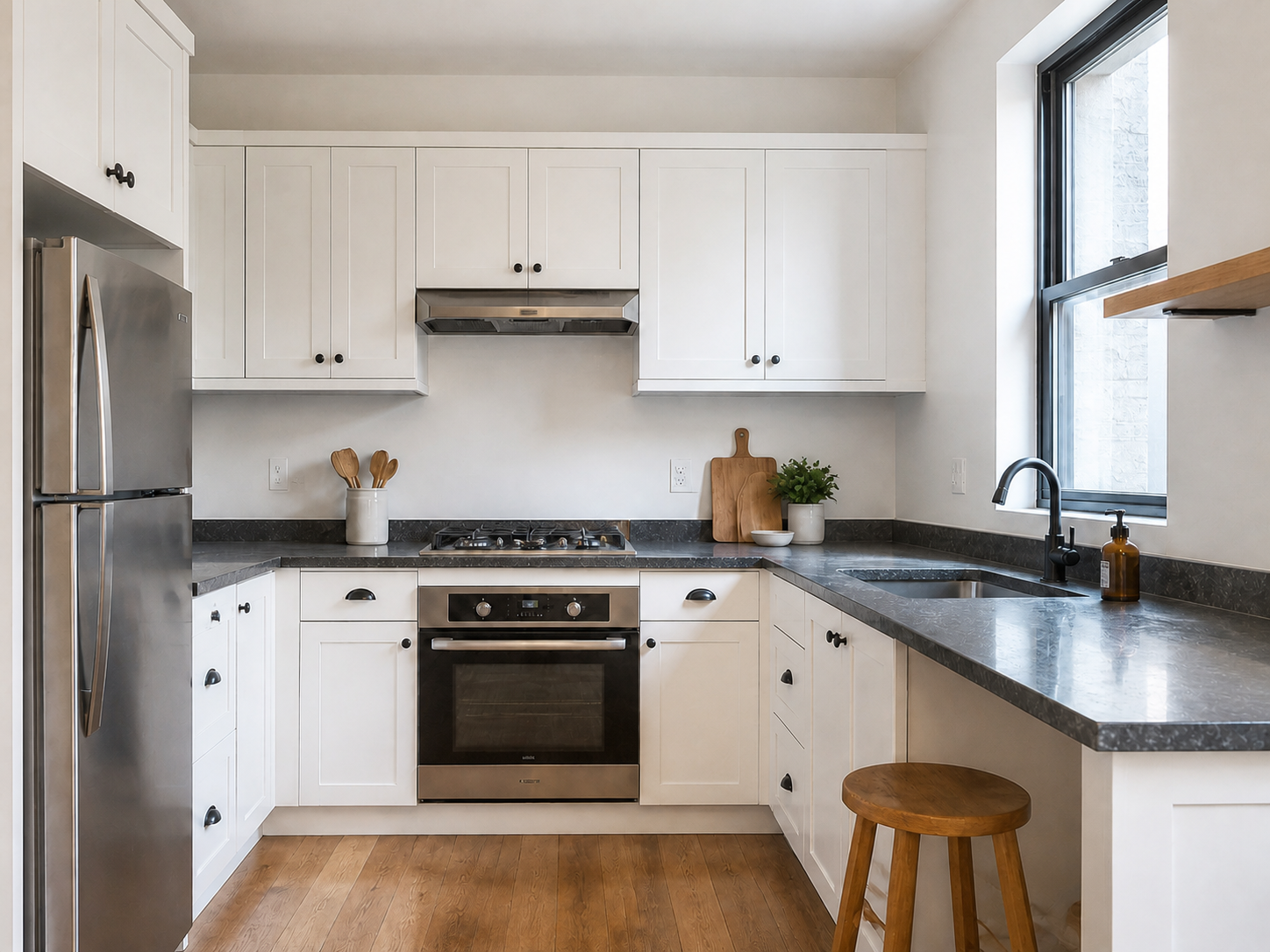
Create clean visual elements from furniture or room photos for listing and staging work.

Social graphics

Make a subject easier to place in a thumbnail, announcement, or short-form creative.

Background removal is not a full scene editor

The tool separates a visible subject; it does not automatically compose a new scene or repair every difficult edge.

  • Use a photo where the subject is visible and not heavily blended into the background.
  • Hair, transparent objects, smoke, shadows, and low-contrast edges may need a careful review.
  • Do not use a cutout as proof that an object was photographed in a different place or context.

Green screen remover FAQ

Practical answers about source photos, ordinary backgrounds, and edge quality.

No. The workflow is useful for ordinary room, product, portrait, and outdoor photos too. A clear contrast between subject and background usually helps.

分离主体,继续编辑

上传照片,直接进入已选中背景移除的编辑流程。

上传照片去除背景

支持 JPG、PNG 或 WebP,将自动打开背景移除。

选择照片
保留原图已选工具保留主体边缘