
How Do I Erase Part of a Canva Photo Without Covering It With a Shape?

Remove Garbage
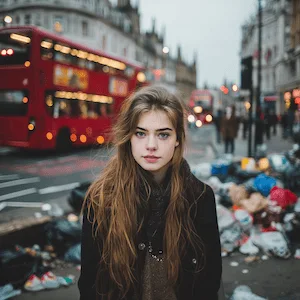
Use Remove Garbage when trash, litter, bins, wrappers, or messy debris distracts from a travel, listing, product, street, or room photo.
View tool details
Direct answer
If the unwanted part sits on the edge of a photo, crop it. If the design only needs a different visible area, use a frame or shape mask. If the object is inside the photo, Canva's Magic Eraser can remove simple distractions, and Canva's text tools can help with readable words in some images.
The harder case is a real photo where the part you erase crosses hair, furniture, product edges, grass, tile, paper texture, or a busy background. In that situation, do not cover the area with a rectangle or random shape. Export the photo, clean the object or text with a focused AI cleanup pass, then bring the repaired image back into Canva.
Start with Remove Garbage when the problem is a small object, sticker, cable, sign, or visual distraction. Use Remove Text when the thing you need gone is a caption, label, date stamp, or handwritten mark.
Clean the photo before it goes back into Canva
- No shape cover-ups
- Background repair
- Canva-friendly
Upload the image, remove one distracting object or mark, then re-import the repaired photo into your Canva design.
Key takeaways
- Canva can crop, mask, erase, retouch, remove backgrounds, and edit some photo elements, so start there when the edit is simple.
- Shape cover-ups only work when the cover blends with the design; they usually look bad on real photos.
- Magic Eraser is useful for small objects on simple backgrounds, but busy textures still need close review.
- Exporting a cleaned photo back into Canva is often faster than fighting layers, patches, and masks.
- Do not erase legal notices, watermarks you do not own, prices, IDs, safety signs, or anything that changes the meaning of the image.
Table of contents
- What people usually mean by "erase part of an element"
- Which method should you use?
- When Canva is enough
- When a shape cover-up looks fake
- Workflow for cleaning a photo and bringing it back to Canva
- Review checklist before you publish
- Frequently asked questions
What people usually mean by "erase part of an element"
In Canva, the word "element" can mean several different things: a photo, a graphic, a sticker, a shape, a text box, or a grouped design object. That is why the right answer depends on what you are trying to erase.
Partial erasing means hiding, cropping, removing, or rebuilding only one visible part of an image or design object while keeping the rest of the design usable.
The practical cases are usually simple:
- A stray object is inside a product photo.
- A person, sign, cable, or trash bin appears in a social post image.
- A label, price, date, or caption is outdated.
- A photo needs to fit a Canva layout, but one edge is messy.
- A sticker or graphic covers part of a picture you still want to use.
Those are not all the same task. A crop changes the frame. A mask changes the visible shape. Magic Eraser tries to rebuild pixels. A shape cover-up hides the issue but does not repair the photo.

Which method should you use?
Use the smallest tool that solves the problem. That sounds obvious, but it saves a lot of ugly edits.
| Situation | Best first move | Why |
|---|---|---|
| The unwanted part is near the edge | Crop the photo in Canva | Fast and clean if you do not lose important content |
| You only need a different visible shape | Use Canva frames or a shape mask | Frames are built for layout, not background repair |
| The object is small on a plain background | Try Magic Eraser | Good fit for simple photo cleanup |
| The problem is text on a photo | Use a text-removal workflow | Text edges need a tighter repair than generic object cleanup |
| The object crosses texture, hair, product edges, or furniture | Export and use focused AI cleanup | The background needs to be rebuilt, not covered |
| The image contains private or sensitive details | Blur, crop, or avoid publishing | Repairing the background may remove context you should keep |
Canva's photo frame page is useful when the goal is layout. Canva's AI photo editor page is useful when the goal is in-app photo editing. The mistake is using layout tools for a photo-repair job.
When Canva is enough
Canva is enough when the edit is mostly about composition.
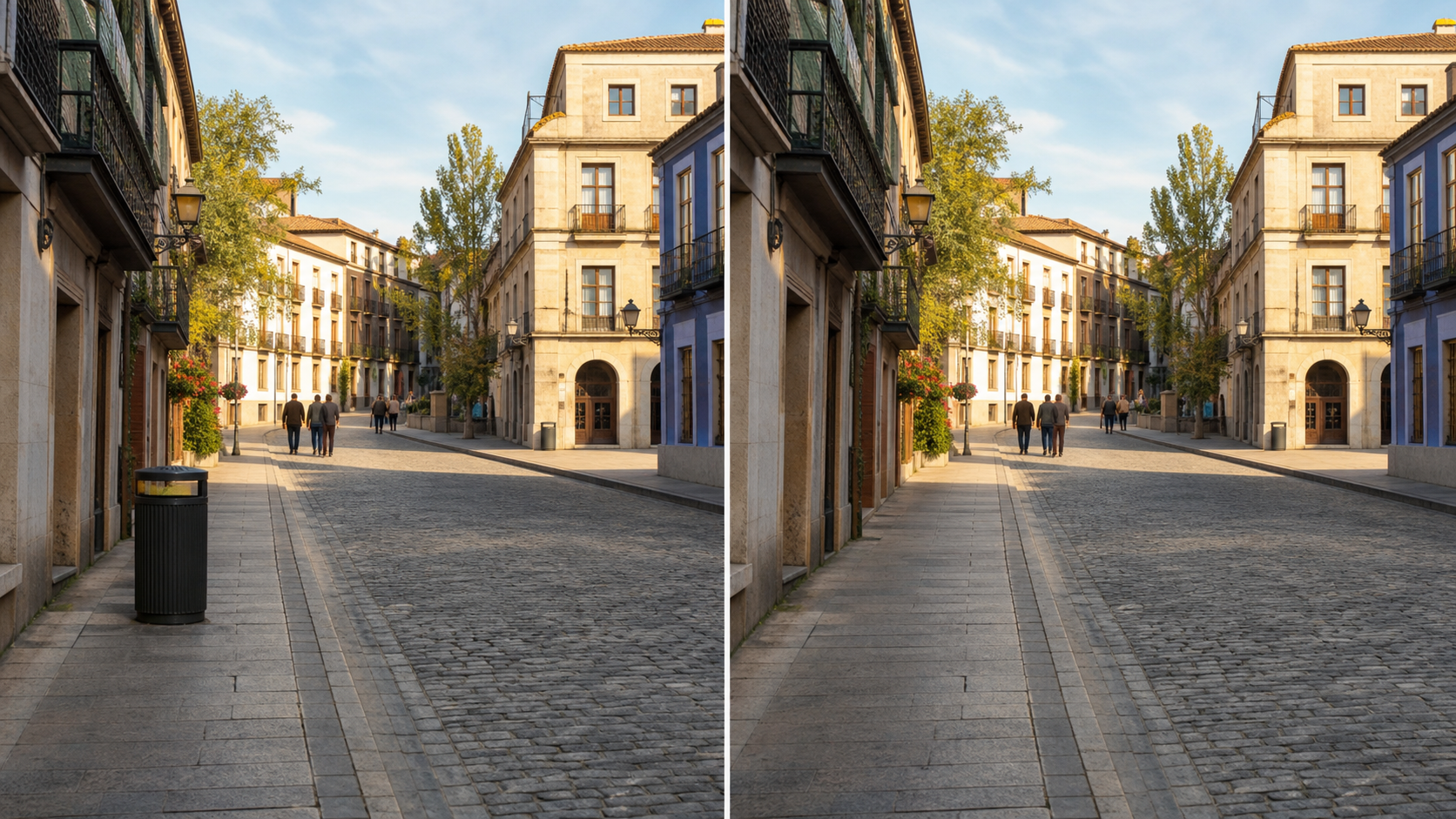
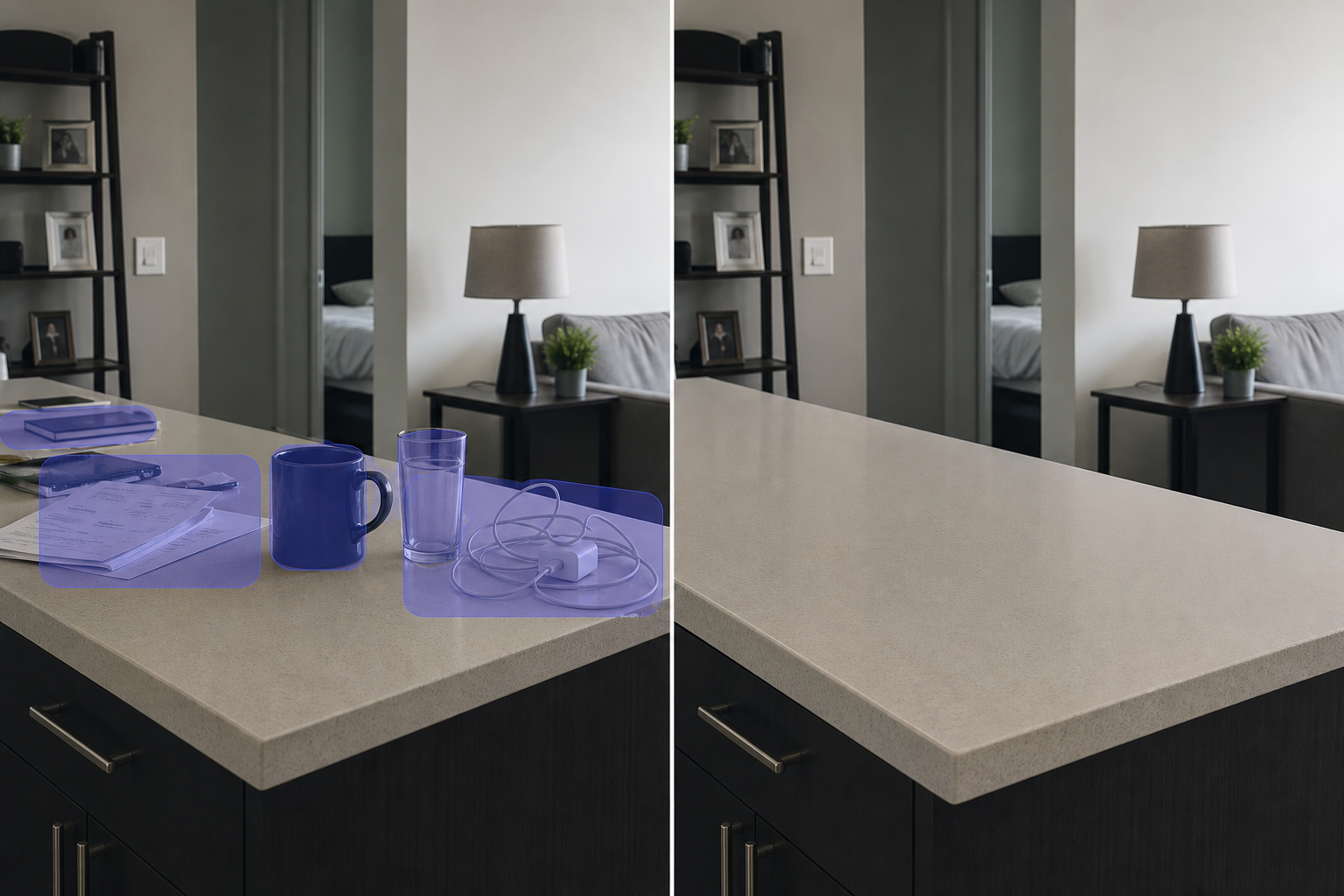
Use crop when the unwanted part is outside the important subject. For example, if a charger appears at the far edge of a product photo, cropping a little tighter may be cleaner than asking AI to rebuild the table.
Use frames when the design needs a circle, rounded card, phone mockup, thumbnail, or cutout-style image. Canva frames are a good layout tool because they control what part of the photo is visible.
Use Magic Eraser when the object is small and the background around it is simple. A speck on a plain wall, a tiny bag on pavement, or a small mark on a clean table is a reasonable test.
The annoying part is that these methods can look good in the editor and still fail after export. Before you publish, zoom in and check the exact size your audience will see.
When a shape cover-up looks fake
Shape cover-ups are tempting because they are quick. Add a rectangle, match the background color, put it over the problem, and move on.
That only works on flat design backgrounds. On real photos, it usually gives you one of these problems:
- The patch has a different color than the nearby pixels.
- Shadows stop suddenly.
- Texture disappears.
- Edges look boxed in.
- The patch covers part of the subject.
- The design looks edited even if the viewer cannot explain why.
If the image is a flyer background, maybe the patch is fine. If the image is a product photo, listing photo, travel photo, profile image, classroom worksheet, or client mockup, repair the photo instead of hiding the damage.
Workflow for cleaning a photo and bringing it back to Canva
Use this when Canva's in-app tools are not giving you a natural result.
- In Canva, duplicate the design page so you can compare versions.
- Select the photo and export that image or download the page at high quality.
- Decide whether the problem is object cleanup, text cleanup, privacy cleanup, or background removal.
- Use Remove Garbage for a visible object, cable, sign, prop, sticker, or clutter.
- Use Remove Text for labels, captions, date stamps, handwriting, or small printed words.
- Keep the selection tight. Do not paint over half the image.
- Export the repaired image.
- Upload it back into Canva and replace the original photo.
- Re-check the design at the final size before publishing.
For a broader object cleanup guide, read Remove Object From Photo Online. For worksheet, label, and handwriting cases, the text-specific guide is better: Can AI Remove Handwritten Answers From a Worksheet Without Erasing the Printed Lines?.
Text, stickers, and people are different jobs
Do not use one generic prompt for every problem.
| Problem in the Canva photo | Better route | Watch out for |
|---|---|---|
| A product label or old price | Remove Text or Replace Number | Keep the edit honest if the image is for selling |
| A small visual object | Remove Garbage | Check texture and shadows |
| A sticker or emoji overlay | Sticker and emoji cleanup | Do not try to reconstruct a hidden face as fact |
| A person in the background | Remove People | Avoid removing people from sensitive or documentary images |
| A crowded tourist scene | Remove Crowds | Keep the place believable |
| Private info | Privacy Blur | Blur can be safer than rebuilding pixels |
Here is where people mess this up: they ask AI to "make it clean." That is too broad. Say what should disappear and what must stay unchanged.
Useful prompt:
Remove only the selected cable and small clutter. Keep the product, table texture, shadows, lighting, edges, and background unchanged.
Bad prompt:
Make this Canva image look perfect.
The second prompt invites the tool to change things you did not ask to change.
Review checklist before you publish
Before you put the repaired photo back into a Canva post, ad, thumbnail, slide, or listing, check this:
- Did the background texture continue naturally?
- Did shadows and highlights still make sense?
- Are straight lines still straight?
- Did any product edge, face, hand, paper line, logo, or text get warped?
- Does the image still mean the same thing as the original?
- Would a viewer feel misled if they saw the before image?
If the answer is uncertain, keep the original design page and try a smaller edit. For commercial work, client images, marketplace photos, school documents, IDs, tickets, or screenshots with private information, be conservative.
Frequently asked questions
Can you erase only part of a photo in Canva?
Yes, depending on what you mean by erase. Canva can crop photos, place them in frames, remove backgrounds, and use AI tools like Magic Eraser for simple distractions. If the deleted area needs realistic background repair, export the photo and use a focused cleanup workflow before re-importing it.
Why not just cover the unwanted part with a shape?
A shape cover-up works on flat design backgrounds, but it usually looks obvious on real photos. Real images have texture, lighting, grain, shadows, reflections, and imperfect color. If the photo matters, repair the pixels instead of hiding them under a patch.
Is Magic Eraser enough for Canva photo cleanup?
It can be enough for small objects on simple backgrounds. It is less reliable when the object crosses hair, product edges, text, furniture, tile, grass, water, or shadows. In those cases, make a tight selection and review the result, or use a dedicated cleanup pass outside Canva.
How do I remove text from an image I am using in Canva?
If it is text in a Canva text box, edit or delete the text directly. If the text is baked into a photo, use a text-removal workflow. Keep the selection tight around the letters and avoid removing legal notices, watermarks you do not own, private records, or information that changes the image's meaning.
What should I do if the repaired background looks blurry?
Undo and try a smaller selection. Blurry repair usually means the edit covered too much area or asked the tool to rebuild details it could not infer. If the object covers important texture or subject edges, a reshoot or manual edit may be cleaner.
Summary
The cleanest Canva workflow is not always inside Canva. Use Canva for layout, crop, frames, and simple in-app cleanup. When a real photo needs the background rebuilt, clean the photo first, then bring it back into the design. That keeps the final Canva project from looking like a patchwork of shapes and cover-ups.