
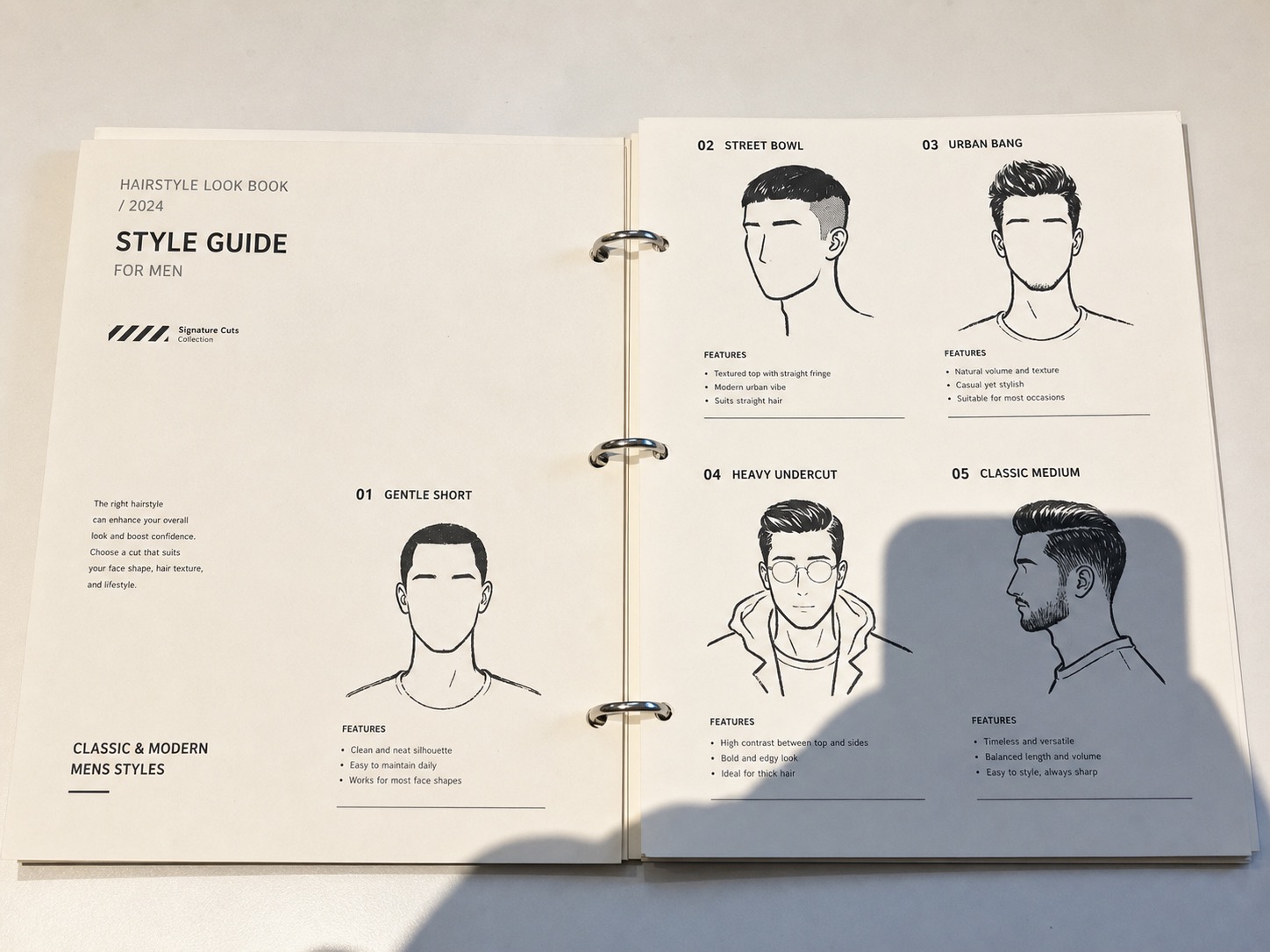
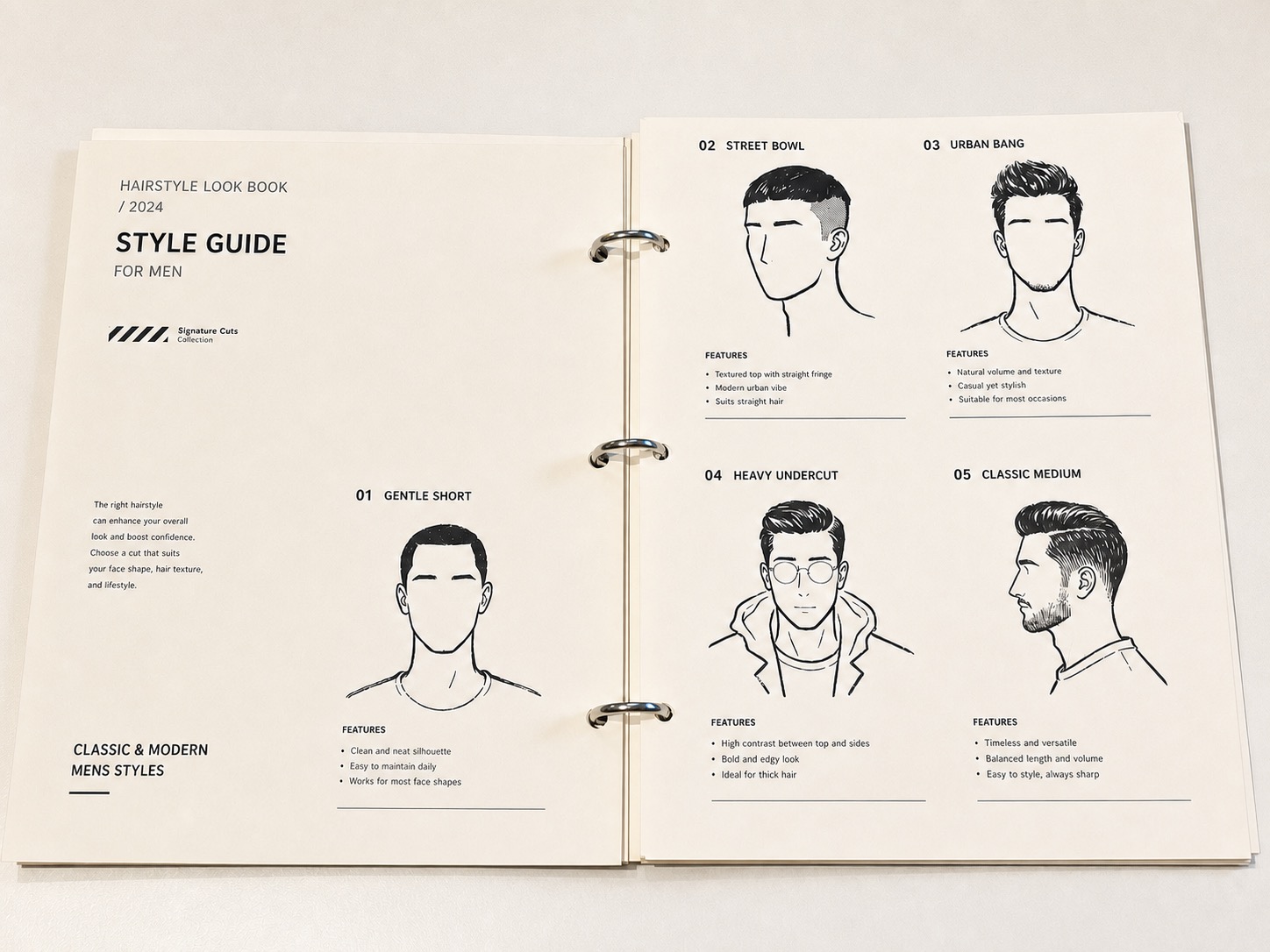
What is Remove Shadow?
Remove Shadow is an AI photo cleanup preset for softening or removing unwanted cast shadows, phone shadows, window shadows, and uneven dark patches while keeping the original photo natural.
It is designed for everyday image cleanup: product shots taken near a window, document or label photos with a phone shadow, flat lay photos with plant shadows, room photos with harsh sunlight, and portraits where a distracting shadow crosses the background or clothing. The goal is to clean the shadow without flattening the whole image or removing realistic contact shadows that make objects feel grounded.
When should you use Remove Shadow?
Use it when the photo is good except for harsh or distracting shadow patterns. The preset focuses on the shadow-affected area and asks the AI to preserve the subject, edges, materials, texture, color, and original camera perspective.
This preset supports high-intent searches such as remove shadow from photo, remove shadows image, shadow remover, remove shadow from picture, and remove shadow from photo online.
Tips for better results
Upload the sharpest original photo you have. Shadow cleanup works best when the underlying surface or subject is still visible under the dark area.
For product and document photos, keep the full object visible so the AI can preserve edges, labels, paper grain, and tabletop texture.
If a deep shadow completely hides important detail, the result may need a second pass or a better source image from a slightly different angle.
FAQ
How do I remove shadows from pictures?
Upload the picture, choose Remove Shadow, and review the shadow-affected area after generation. The preset is best for cast shadows, phone shadows, window shadows, and uneven dark patches where the subject is still visible.
Can this remove a phone shadow from a photo?
Yes. It is useful for phone or camera shadows that appear when shooting products, documents, flat lays, receipts, labels, or tabletop photos.
Can I remove a shadow without flattening the image?
That is the goal. Remove Shadow asks the AI to reduce unwanted cast shadows while keeping natural contact shadows, surface texture, object edges, and lighting direction so the image does not look pasted or flat.
How is this different from brightening the whole photo?
Brightening the whole photo can wash out highlights and change every color. Remove Shadow focuses on the shadow area and asks ClearCrowds to preserve the rest of the photo as much as possible.
Is this only for product photos?
No. It can also help with room photos, portraits, paper photos, food photos, and everyday images where harsh light creates a distracting shadow.